Introduction
Welcome to your next lesson! In the last few sessions, we've focused on creating the visual components of your brand, culminating in adapting your social media template for different platform dimensions. You now have a set of flexible, professional-grade visual assets ready to be deployed.
But a digital business is more than just good-looking assets; it requires a system to manage ideas, track progress, and organize the work itself. As you've expressed a preference for systematic, rule-based frameworks, this lesson marks a shift from visual design to system design. We'll start building the operational "homebase" for your digital product venture.
Today, your learning outcome is to build a functional Notion database with custom properties (text, select, date, and relation). You'll learn what a Notion database is, how it differs from a simple spreadsheet, and how to structure it to manage your future content and product ideas effectively.
1. From Pages to Databases: The Core Concept
At its simplest, a Notion database is a collection of pages that share the same set of properties. Think of it not as a static table, but as a dynamic container for structured information. This structure is what allows you to view, sort, and filter your data in powerful ways, making it far more flexible than a standard spreadsheet.
To get a clear understanding of these fundamentals, let's start with a foundational video.
Notion Databases - Full Course for Beginners
This video from Thomas Frank Explains provides an excellent introduction to Notion databases. It clearly defines what they are and how they fundamentally differ from spreadsheets.
Watch from 01:58 to 05:39. Pay close attention to the distinction between a database record (which is a full Notion page) and a spreadsheet cell. This is the key to understanding Notion's power.
The core takeaway is that each row in a Notion database is its own page, capable of holding any content you want, while properties act as structured metadata for that page.
Now, let's create your first database. You can create a database "inline" on an existing page or as its own dedicated "full page". For building a central part of your business system, a full-page database is usually the best approach.
Notion Databases - Full Course for Beginners
Continuing with the same video, let's see the practical steps for creating a new database in Notion.
Watch from 05:39 to 08:13. This section covers the different ways to create a database using the slash command.
Your Turn: Create Your Content Hub
It's time to apply this. In the "homebase" project management tool you chose earlier in the course, create a new full-page database.
- Create a new page and select the
Tableoption from the database choices. - Title this database "Content & Product Ideas". This will serve as your central hub for brainstorming and planning.
2. Structuring Your Data with Custom Properties
An empty database isn't very useful. Its power comes from the custom properties you add to structure your data. Every new database starts with a Name property (a Text/Title type) and a Tags property. We'll customize these and add more.
The video below demonstrates how to add some basic, yet essential, property types.
Notion Databases - Full Course for Beginners
Let's return to Thomas Frank's tutorial to see how to add and configure new properties to make the database more functional.
Watch from 12:47 to 14:50. This segment shows how to add Checkbox, Date, and Select properties. Although the example is a task manager, the process is identical for our purpose.
Notion offers a wide variety of property types, each serving a specific purpose. This official guide from Notion is an excellent reference to have on hand.
Database properties – Notion Help Center
This Notion Help Center page is the definitive guide to all available database properties. It's a great resource to bookmark for future reference.
Skim through the table under the 'Types of database properties' section. You don't need to memorize them all, but get a feel for the options available, especially Text, Number, Select, Status, Date, and Relation.
Your Turn: Build Out Your Database
Now, let's add some structure to your "Content & Product Ideas" database.
Assignment (10-15 minutes):
- Delete the default 'Tags' property. You can do this by clicking its header, then
Edit property, andDelete property. - Add the following new properties to your database:
Status(Type:Status): This is a special type ofSelectproperty. By default, it will give you "To-do," "In progress," and "Done." You can customize these later (e.g., "Idea," "Drafting," "Ready for Assets," "Published").Publish Date(Type:Date): This will be for scheduling when a piece of content goes live.Format(Type:Multi-select): This allows you to tag an idea with multiple formats. Create a few options likeWallpaper,Icon Set,Notion Template, andSocial Post.Priority(Type:Select): Create three options:High,Medium,Low. This will help you decide what to work on next.
Your database should now have columns for Name, Status, Publish Date, Format, and Priority, looking something like this:

3. Connecting Information with Relations
This is where Notion's true power as a system-building tool emerges. A Relation property allows you to link a page in one database to a page in another (or even the same) database. This creates a network of interconnected information, which is essential for building a "second brain" or a business operating system.
For your goal, you'll want to connect your content ideas to the specific products they are meant to support.
First, create a second database:
- Create another new full-page database.
- Title this one "Products".
- Add a few example entries in the
Namecolumn, like "Minimalist Wallpaper Pack Vol. 1" or "Productivity Icon Set."
Now, let's see how to link these two databases together.
Notion Databases - Full Course for Beginners
This final clip from Thomas Frank's course demonstrates exactly how to create a multi-database relation, which is what we need to connect 'Content & Product Ideas' with 'Products'.
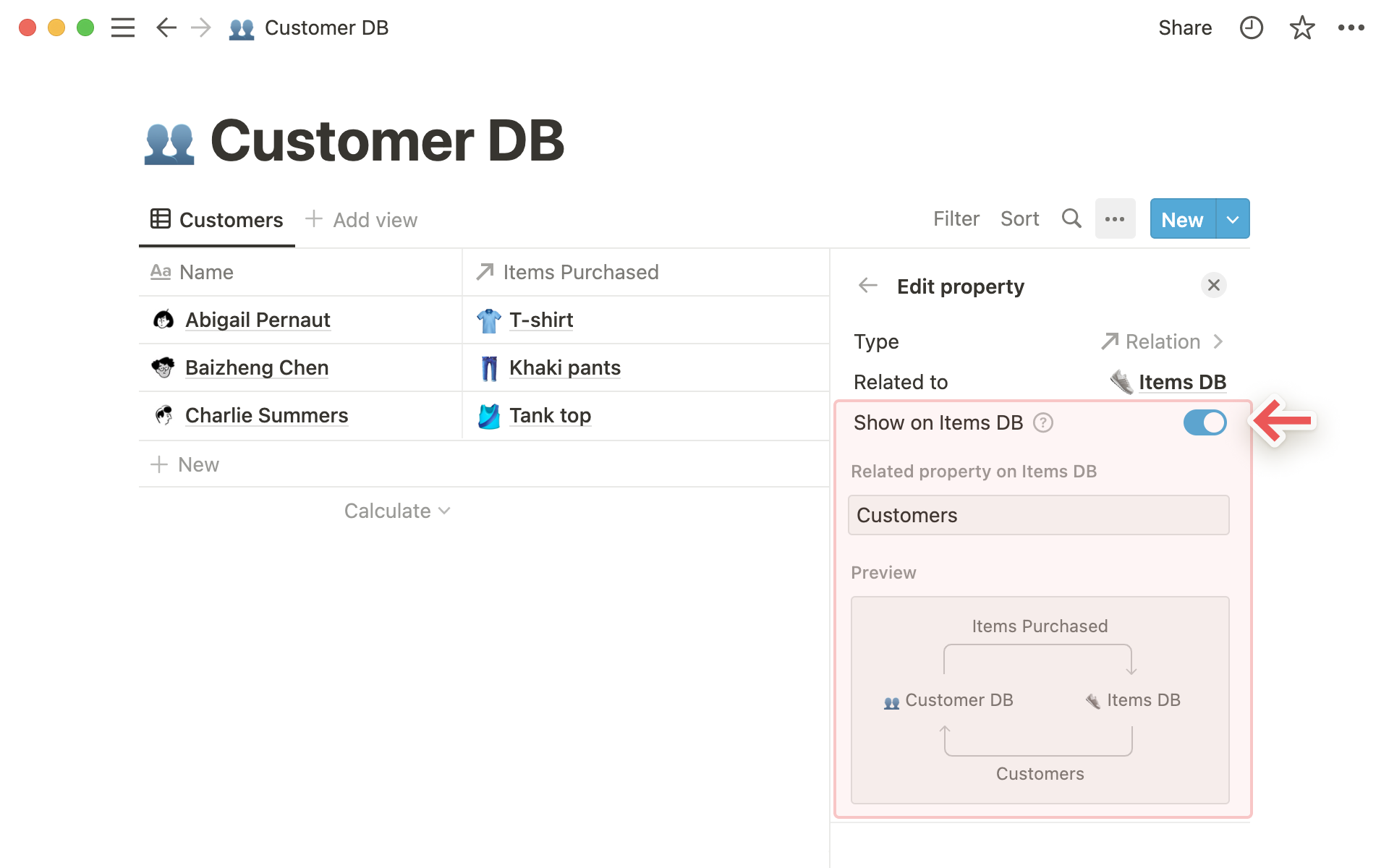
Watch from 24:04 to 28:41. The example uses 'Tasks' and 'Projects', but the principle is identical. Focus on how he selects the other database and enables the 'Show on...' toggle to create a two-way link.
Creating a two-way link is critical. It means that when you're looking at a product in your "Products" database, you'll be able to see all the content ideas related to it.
Your Turn: Link Your Databases
Assignment (10 minutes):
- Go back to your "Content & Product Ideas" database.
- Add a new property. Name it "Related Product".
- For the type, choose
Relation. - In the configuration menu, select your "Products" database.
- Make sure the "Show on Products" toggle is turned on. Notion will automatically name the corresponding property, but you can rename it to "Related Content" if you wish.
- Click
Add relation.
Now, when you click in the "Related Product" cell for one of your content ideas, you'll be able to search for and link to an entry from your "Products" database.
Conclusion
Congratulations, you have successfully built the foundational structure for your business's content and product management system. You've moved beyond simple pages and lists into the realm of structured, relational data—a skill that is central to organizing any complex project.
Key Takeaways:
- Databases are collections of pages: Each entry in a Notion database is a full page, ready to be filled with detailed content.
- Properties provide structure: Custom properties like
Text,Select,Date, andStatusallow you to add structured metadata to your pages, which is essential for organization. - Relations create a network: The
Relationproperty is the glue that connects different databases, allowing you to build a cohesive system where information is linked logically (e.g., content ideas are linked to the products they promote).
Preview of the Next Lesson
Your databases now have the right structure, but they're still just displayed as a simple table. The next step is to make this information more visual and actionable. In our next lesson, you will learn how to configure custom views (Board, Calendar, Gallery) for a single database to display information in different ways. This will allow you to create a Kanban board to track your content pipeline, a calendar to see your publishing schedule, and more—all from the single database you built today.