In our previous lesson, we successfully used the PRAW library to tap into Reddit's API and collect textual data in a structured manner. This was an excellent start, as APIs provide clean, well-organized data. However, much of the web isn't so neatly packaged. For your project, you'll need to acquire images and documents from various public websites that don't offer a convenient API.
This lesson tackles that exact challenge. We will shift from the structured world of APIs to the unstructured environment of web pages. You will learn to write a Python script that can browse a web page, identify links to files like images or PDFs, and download them to your local machine. We'll be using two cornerstone libraries for this task: requests to handle the web communication and BeautifulSoup to parse and understand the structure of the web pages themselves.
By the end of this lesson, you'll have a versatile script capable of harvesting the visual data—the meal photos—that is central to your project's goals.
The Web Scraping Workflow: From HTML to Files
Unlike an API that returns data in a predictable format like JSON, a web server sends your browser HTML, CSS, and JavaScript. Our script needs to mimic a browser to some extent. The process involves two main steps:
- Fetch the Page: Use the
requestslibrary to send an HTTP GET request to a URL. The server will respond with the raw HTML content of the page as a long string of text. - Parse and Extract: This raw HTML is just text to Python. We need to parse it into a navigable structure. This is where
BeautifulSoupcomes in. It converts the HTML string into a "soup" object that lets us search for specific tags and attributes, much like you would navigate the DOM in JavaScript.
Given your background in web development, you can think of BeautifulSoup as providing server-side tools analogous to document.querySelector() and document.querySelectorAll(), allowing you to programmatically find elements based on their tags, classes, or other attributes.
Step 1: Inspecting the Target
Before writing any code, the first step is always manual inspection. You need to understand the HTML structure of the page you want to scrape to find where the desired information lives. Your browser's developer tools are indispensable for this.
Let's say we want to scrape job postings from a web page. We would right-click an element of interest and select "Inspect." The developer tools would open, highlighting the corresponding HTML.
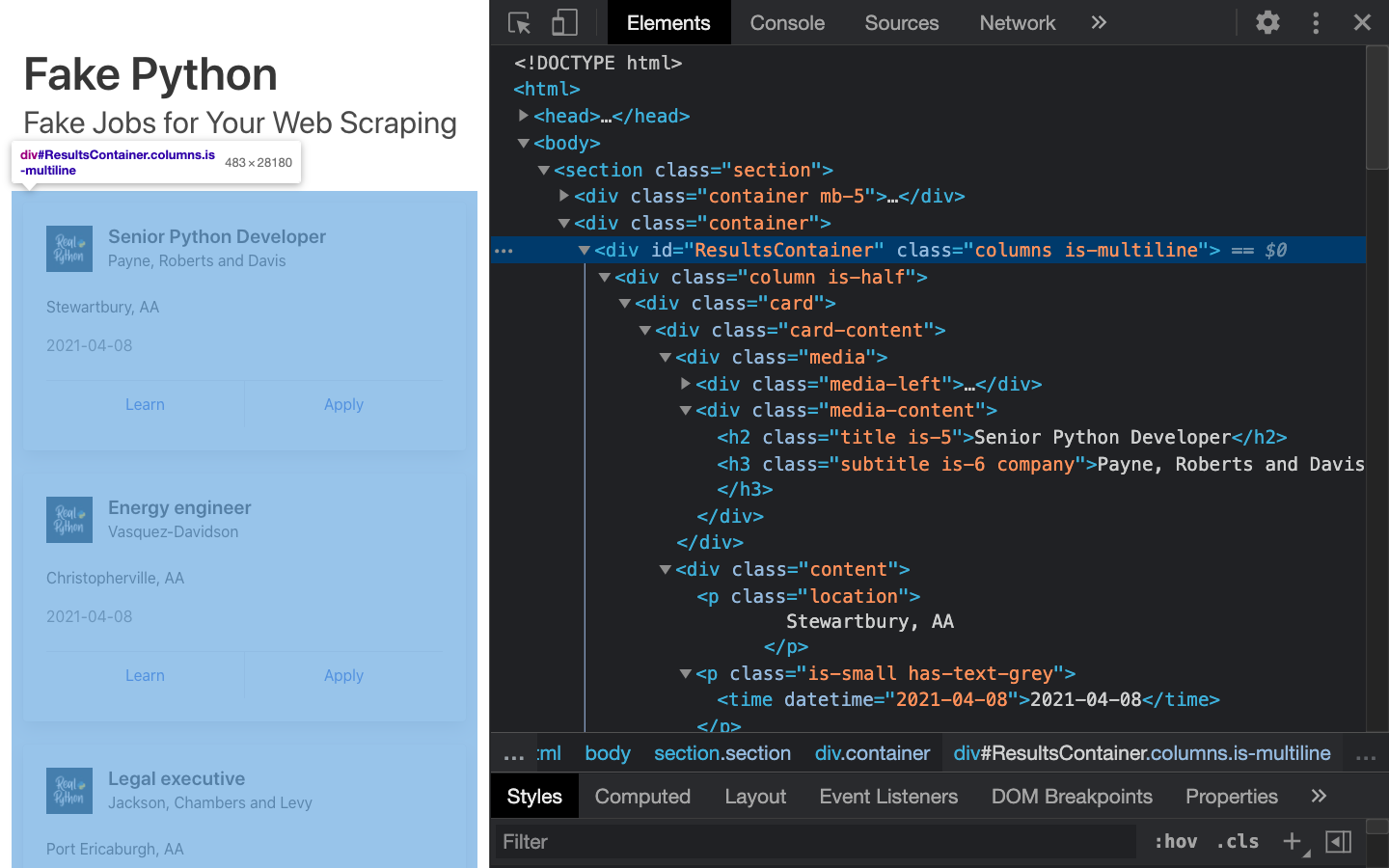
An example of using browser developer tools. The left panel shows a rendered web page with fake job listings. The right panel shows the corresponding HTML source, with the div containing the first job post highlighted. This allows us to identify the tags (e.g., <h2>, <p>) and classes that hold the data we want to extract.
For your project, you'll be looking for <img> tags to find meal photos or <a> (anchor) tags that link to PDF documents containing complaints or reports. The key is to identify a consistent pattern: Are all image URLs stored in the src attribute of an <img> tag? Do links to PDFs have a specific class or always end with .pdf? This initial reconnaissance is crucial for writing an effective scraper.
Step 2: Finding and Downloading Images
Now let's translate this inspection into a Python script. We'll fetch a web page, parse it with BeautifulSoup to find all image tags, and then download those images.
The following video from John Watson Rooney provides a clear, practical demonstration of this entire process. It will walk you through setting up the script, finding image tags, extracting their source URLs, and saving them.
How to Scrape and Download ALL images from a webpage with Python
This video provides a complete walkthrough of scraping images from a webpage using requests and BeautifulSoup. It covers all the essential steps from fetching the page to saving the files.
Setup and Inspection (0:00 - 1:59): Watch the introduction to the libraries and how to inspect the target website to find <img> tags. Fetching and Parsing (1:59 - 3:10): See how requests.get() is used to fetch the HTML and how BeautifulSoup parses the response text. Finding Image Links (3:10 - 4:50): This is a key section. Pay attention to how soup.find_all('img') is used to get a list of all image tags and how a loop extracts the src attribute from each tag. Downloading and Saving (5:58 - 8:59): This part covers writing the code to download the image content and save it to a file. Note the discussion on handling invalid characters in filenames. Organizing into Folders (8:59 - 12:24): Finally, see how the os module is used to create a dedicated folder for your downloaded images, a crucial step for keeping your project organized.
Best Practices for Robust Downloading
The video provides a great starting point. To build a truly robust script suitable for a real project, we should incorporate a few best practices, especially concerning large files and error handling.
Streaming for Memory Efficiency
When you download a file, especially a high-resolution image or a large PDF, loading the entire file into memory at once with response.content can be inefficient and risky. A better approach is to stream the download. By setting stream=True in your requests.get() call, the library downloads the response body in chunks.
The following article from ScrapingBee explains this concept well.
How to download an image with Python? - ScrapingBee
This guide provides excellent code examples and best practices for downloading images, focusing on robust and efficient methods.
First, read the section on streaming with Requests. This reinforces the difference between response.content and using iter_content() with stream=True. Next, study the section Extract image URLs, then download. This shows the complete workflow: fetching HTML, parsing with BeautifulSoup, and then looping to download. Pay close attention to how urljoin is used to handle relative URLs (e.g., /images/pic.jpg). This is a common point of failure for beginners. Finally, review the section on naming files correctly. The provided safe_filename function is an excellent utility for creating valid and unique filenames from URLs, a crucial step for organizing your dataset.
The Universal Download Pattern (for Images and PDFs)
The streaming pattern is versatile and works for any binary file, not just images. The same logic applies directly to downloading PDFs or other documents.
This next resource from CodeGive provides a comprehensive function for downloading PDFs that includes streaming, progress indication, and thorough error handling. This pattern is a great template for any file downloading task in your project.
How do I download a PDF file using Python's requests library?
This article offers a deep dive into creating a robust file download function with requests and BeautifulSoup.
Start by reading the section Streaming Large PDFs. It presents a download_pdf_stream function that is a perfect template for your downloader. Note the use of stream=True, iter_content(), and opening the file in write-binary mode ('wb'). Next, read Extracting and Downloading from HTML. This section shows how to tie everything together: it uses BeautifulSoup to find links (<a> tags ending in .pdf) and then passes those links to the download function you just reviewed. Finally, review the Best Practices. Pay special attention to the points on adding a User-Agent header, as many websites block scripts with the default requests user agent.
Putting It All Together: Your Universal File Scraper
By combining the concepts from these resources, we can build a complete, reusable script. This script will take a URL, find all links to a specific file type (e.g., .jpg, .png, .pdf), and download them into a specified folder.
Here is a template you can adapt for your project. It focuses on images but can be easily modified for PDFs by changing the tag and attribute search.
import os
import requests
from bs4 import BeautifulSoup
from urllib.parse import urljoin, urlparse

def scrape_and_download_files(page_url, output_dir="downloads", file_extensions=None):
    """
    Scrapes a webpage for links to files with given extensions and downloads them.

    Args:
        page_url (str): The URL of the webpage to scrape.
        output_dir (str): The directory to save the downloaded files.
        file_extensions (list): A list of file extensions to look for (e.g., ['.jpg', '.png']).
    """
    if file_extensions is None:
        file_extensions = ['.jpg', '.jpeg', '.png', '.gif']

    # --- 1. Setup ---
    # Set a User-Agent to mimic a browser
    headers = {
        'User-Agent': 'Mozilla/5.0 (Windows NT 10.0; Win64; x64) AppleWebKit/537.36 (KHTML, like Gecko) Chrome/91.0.4472.124 Safari/537.36'
    }

    # Create the output directory if it doesn't exist
    os.makedirs(output_dir, exist_ok=True)

    # --- 2. Fetch and Parse HTML ---
    try:
        response = requests.get(page_url, headers=headers)
        response.raise_for_status()  # Raise an exception for bad status codes
        soup = BeautifulSoup(response.text, 'html.parser')
    except requests.exceptions.RequestException as e:
        print(f"Error fetching page {page_url}: {e}")
        return

    # --- 3. Find and Download Files ---
    # Find all image tags and anchor tags
    links = soup.find_all(['img', 'a'])

    for link in links:
        # Get the URL from 'src' (for images) or 'href' (for anchors)
        file_url = link.get('src') or link.get('href')

        if not file_url:
            continue

        # Check if the URL points to a file with a desired extension
        if any(file_url.lower().endswith(ext) for ext in file_extensions):
            # Make the URL absolute
            absolute_url = urljoin(page_url, file_url)

            # --- 4. Download the file with streaming ---
            try:
                with requests.get(absolute_url, stream=True, headers=headers, timeout=15) as r:
                    r.raise_for_status()

                    # Create a safe filename
                    filename = os.path.basename(urlparse(absolute_url).path)
                    if not filename:
                        filename = f"downloaded_file_{len(os.listdir(output_dir))}"

                    filepath = os.path.join(output_dir, filename)

                    print(f"Downloading {absolute_url} to {filepath}...")

                    with open(filepath, 'wb') as f:
                        for chunk in r.iter_content(chunk_size=8192):
                            f.write(chunk)

            except requests.exceptions.RequestException as e:
                print(f"Error downloading {absolute_url}: {e}")

# --- Example Usage ---
# Replace with a real URL from a public portal relevant to your project
target_website = "https://example.com/gallery" # A fictional gallery page
image_directory = "midday_meal_images"
scrape_and_download_files(target_website, image_directory, file_extensions=['.jpg', '.png'])
Conclusion
In this lesson, you've moved beyond structured APIs to tackle the more common and challenging task of scraping data from standard web pages. You now have the tools and the methodology to build the image dataset that is fundamental to your Midday Meal Quality Monitoring project.
Here are the key takeaways:
- The scraping workflow involves using
requeststo fetch HTML andBeautifulSoupto parse it. - Browser developer tools are essential for inspecting a page's structure to identify the target tags and attributes.
- Streaming downloads (
stream=Trueanditer_content) is the best practice for downloading files of any size, as it's highly memory-efficient. - Robust scripts must handle relative URLs (using
urljoin), create safe filenames, and include error handling for network issues. - Organizing your data by saving files into dedicated directories is crucial for a manageable project.
With the ability to scrape both text (from our last lesson) and files, your data acquisition toolkit is now significantly more powerful. In our next lesson, we will take the images you've collected and begin preparing them for your models. We'll dive into essential image preprocessing techniques like loading, resizing, and color space conversion using libraries like OpenCV and Pillow.