¡Hola! Welcome back to your DJ journey.
In our last lesson, you got hands-on for the first time, learning how to load tracks and use the fundamental Play, Pause, and Cue buttons. We ended with a crucial question: if the Play button sends music to the speakers for everyone to hear, how can you possibly prepare your next track in secret?
Today, we answer that question. This lesson is all about the DJ's most essential tool: headphones. You'll learn how to use them to preview a track independently of the main output. This skill, known as pre-cueing, is the magic that allows DJs to seem one step ahead of the music, perfectly preparing their next move without the audience ever knowing.
Part 1: Your Secret Listening Channel
The ability to listen to one track in your headphones while another plays on the speakers is what makes DJing possible. It's not a trick; it's a feature of your hardware. Your DJControl Inpulse 200 has a built-in sound card that can send two different audio signals from your computer at the same time:
- The Master Output: This is what goes to your main speakers for the audience to hear.
- The Cue (Headphone) Output: This is a separate, private channel that goes only to your headphones.
Your job as the DJ is to control what goes to which channel.
Physical Connection
First things first, let's get your headphones connected.
Complete install (day 1, 1/3) - DJ Academy – DJControl Inpulse 200
This short video shows you exactly where and how to plug your headphones into the DJControl Inpulse 200. It also mentions the small gold adapter that comes with many headphones.
Watch from 07:04 to 07:44. Notice how the smaller 1/8-inch jack plugs directly into the front of your controller. Keep that gold adapter safe; you might need it for other DJ gear in the future!
With your headphones plugged in, you're ready to take control of your secret audio channel.
Part 2: Controlling the Cue on Your Controller
On your Inpulse 200, you have specific buttons to tell the controller which deck's audio to send to your headphones.

Locate the buttons with the headphone symbol in the central mixer section of your controller, one for each deck. These are your Deck Monitoring or Cue Select buttons.
- Press the headphone button for Deck 1 to send its audio to your headphones. The button will light up.
- Press the headphone button for Deck 2 to send its audio to your headphones.
- Press a lit button again to turn it off.
You also have a dedicated volume knob for your headphones, located on the front or top of the controller. This allows you to set a comfortable listening level without affecting the main speaker volume.
Let's see this in action.
Pre-cue & manual beat matching (day 4, 2/3) - DJ Academy – DJControl Inpulse 200
The DJ in this Hercules Academy video explains the core concept of pre-cueing and demonstrates how to use the headphone CUE buttons on the controller.
Watch two short segments: 00:07 - 00:43: This explains why headphones are essential for pre-cueing and staying "one step ahead." 02:32 - 03:00: Pay close attention here. The instructor shows you exactly how to select which deck you want to listen to using the CUE buttons with the headphone symbols.
The official manual for your controller confirms this function.
Hercules DJControl Inpulse 200 – Mapping and Manual
The controller's mapping guide provides a very clear, technical description of these buttons.
In the table of controls, find the rows for '5 – Deck Monitoring' and '10 – Headphones Volume'. This confirms that the headphone button sends the track's audio to the headphone channel before the volume fader (pre-fader), which is why you can hear it even if the volume is down.
Part 3: The CUE/MIX Knob in DJUCED
Now that you're sending audio to your headphones, you have one more layer of control within the DJUCED software: the CUE/MIX knob.
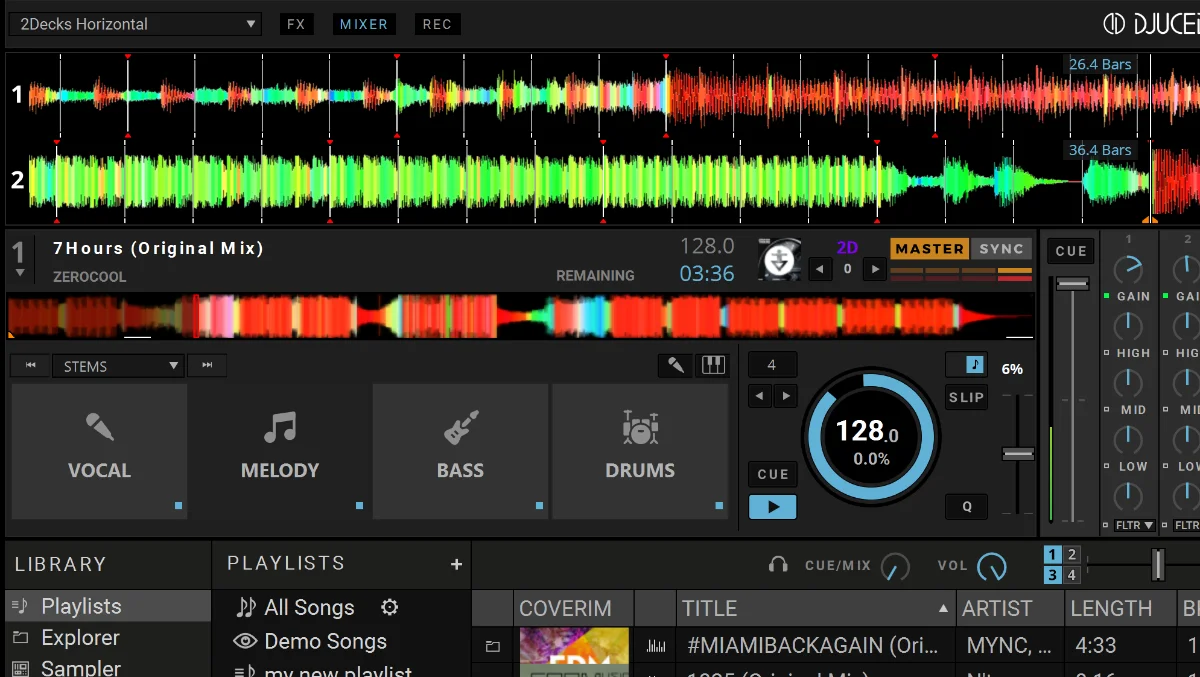
This knob determines what you hear in your headphones. It lets you blend between the Cue channel and the Master channel.
- Turned fully to CUE (left): You will only hear the audio from the deck you selected with your headphone CUE button. This is perfect for setting up a new track.
- Turned fully to MIX/MASTER (right): You will hear the exact same thing that is playing out of the main speakers. This is useful for checking how the overall mix sounds.
- Positioned in the middle: You hear a blend of both the CUE and MASTER channels. This is the key to beatmatching by ear, a skill we'll explore later.
The DJUCED manual clearly explains the function of the headphone controls in the software.
Find and read section 8.8. HEADPHONE CONTROLS. It describes the 'Mixing' knob (our CUE/MIX knob) and the 'Level' knob. This will solidify your understanding of how to blend between the preview and master signals.
Test your understanding!
A track is playing on Deck 1 for the audience. You want to find the first beat of a new track on Deck 2 before you mix it in. Which physical button must be pressed on your controller, and where should the CUE/MIX knob be in DJUCED to only hear Deck 2 in your headphones?
Show answer
You must press the headphone CUE button for Deck 2 on your controller so it lights up. The CUE/MIX knob in the DJUCED software should be turned all the way to the CUE position (fully left).
Practice Routine: Putting It All Together
Time to build some muscle memory. Open DJUCED and have your controller ready.
- Load a track on Deck 1. Press Play. Turn up the volume fader for Deck 1 and the Master Volume. You should hear this track playing through your speakers.
- Load a different track on Deck 2. Keep the volume fader for Deck 2 all the way down.
- Put on your headphones.
- On your controller, press the headphone CUE button for Deck 2. It should light up.
- In the DJUCED software, make sure the CUE/MIX knob is turned all the way to CUE.
- Turn up the Headphones Volume knob on your controller to a comfortable level.
- Now, press Play on Deck 2.
What do you hear? You should hear Deck 1 playing from your speakers and Deck 2 playing only in your headphones. The audience (and anyone else in the room) cannot hear Deck 2. You have successfully created your secret listening channel!
Now, experiment:
- While both tracks are playing, slowly turn the CUE/MIX knob in DJUCED from left (CUE) to right (MASTER). You'll hear the headphone audio shift from just Deck 2, to a blend of Deck 1 and 2, to just Deck 1.
- Stop the tracks. Press the CUE button for Deck 1 and try the same exercise.
Conclusion
Incredible work. You've just mastered one of the most fundamental and empowering skills in all of DJing. What was once a confusing box of buttons is now an instrument that you can command to send music to different places.
Key Takeaways:
- Headphones are for pre-cueing, allowing you to listen to a track before the audience hears it.
- Your controller has physical headphone CUE buttons to select which deck to monitor and a dedicated headphone volume knob.
- The CUE/MIX knob in DJUCED is your tool for blending between your private cue signal and the public master signal inside your headphones.
Now that you can load, play, and secretly preview your tracks, you have all the basic mechanical skills in place. But what should you be listening for in your headphones? The next step is to learn the language of the music itself.
In our next lesson, we will dive into the building blocks of dance music: BPM (Beats Per Minute), bars, and phrases. Understanding this structure is the first step toward making two separate songs sound like one.