Hello! Welcome back to building our web application.
In our last lesson, we learned how to use <div> and <span> to group elements. You saw that these tags are generic containers that are essential for styling but don't say anything about the content inside them. They are "non-semantic."
Today, we're taking the next step to build a more professional and robust webpage. We'll focus on applying semantic HTML tags (e.g., <main>, <section>, <header>) for better structure and accessibility. These tags act like <div>s but with a superpower: they describe the meaning and purpose of the content they hold. This makes our code easier to read for us, easier for search engines like Google to understand, and, most importantly, more accessible to users who rely on assistive technologies like screen readers.
From <div> Soup to Meaningful Structure
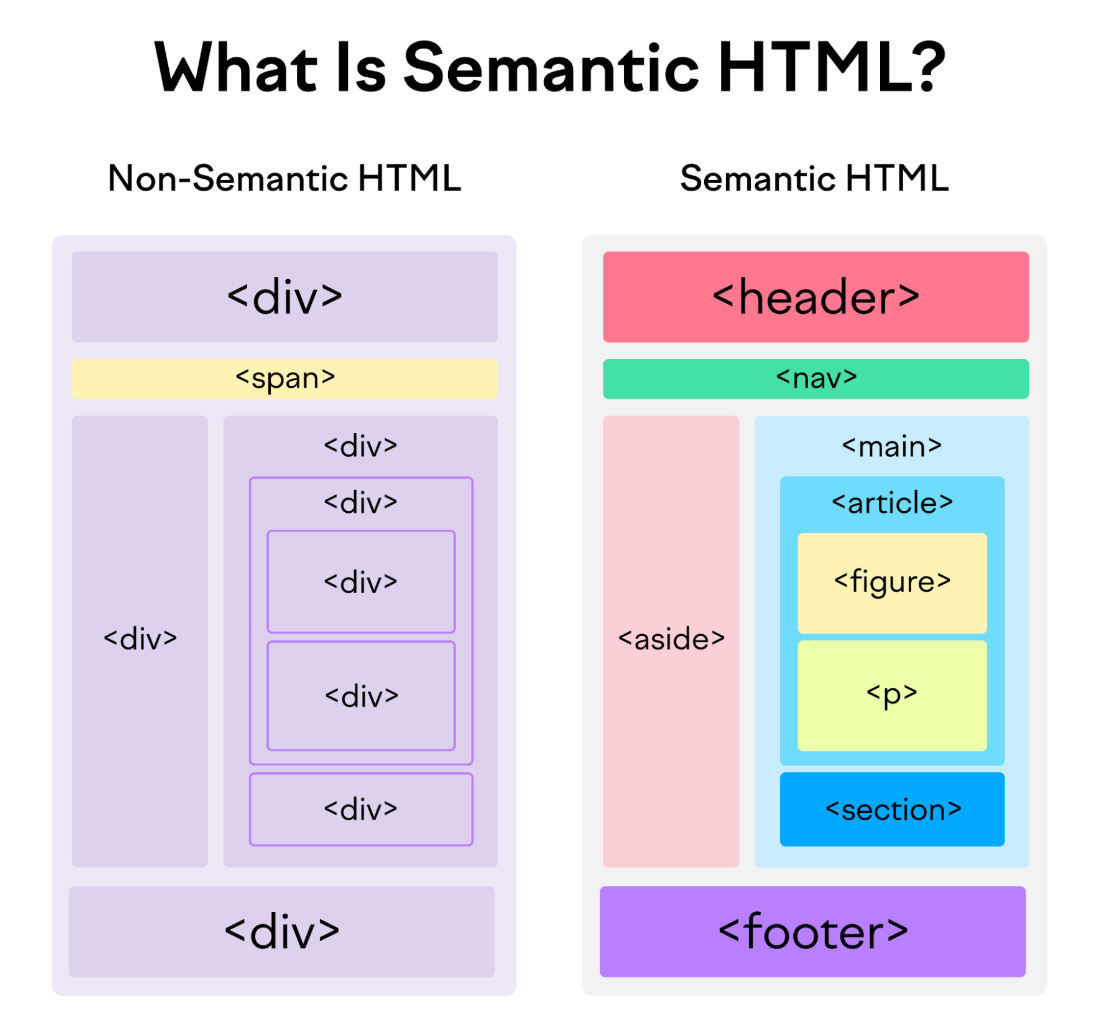
In the past, developers often built entire page layouts using only <div> tags, sometimes called "div-itis" or "div soup." While it worked visually, it created code that was hard to understand and provided no structural clues to browsers or screen readers.
Semantic HTML solves this by providing specific tags for common webpage sections.
Why Does This Matter?
Using semantic tags has three major benefits. To get a quick overview of why this is so important for modern web development, let's watch the beginning of this helpful video.
Why & When to Use Semantic HTML Elements over Divs
The video 'Why & When to Use Semantic HTML Elements over Divs' by ByteGrad clearly explains the main benefits of using semantic tags.
Watch the first 46 seconds of the video. The presenter outlines the three key reasons for using semantic HTML: improved code readability, better SEO, and enhanced accessibility.
To summarize, using the right tag for the job makes your site:
- More Accessible: It provides "landmarks" for screen readers, allowing users with visual impairments to navigate your page efficiently.
- Better for SEO: It helps search engines understand the structure and importance of your content, which can improve your site's ranking.
- Easier to Maintain: It makes your code self-documenting. A
<header>tag is instantly recognizable, whereas a<div class="header">requires an extra step of interpretation.
The Core Layout Tags: <header>, <main>, and <footer>
Most websites share a common structure: a header at the top, the main content in the middle, and a footer at the bottom. Semantic HTML gives us tags specifically for this.
<header>: Represents introductory content for the page. This is where you'll typically find the site logo, main heading, and primary navigation.<main>: Contains the dominant, unique content of the page. There should only be one<main>element per page.<footer>: Represents the closing section of a page. It usually contains copyright information, contact details, and secondary links.
This video from Kevin Powell provides a fantastic demonstration of how these tags are used to build a basic page structure.
HTML & CSS for Absolute Beginners: Semantic HTML
In 'HTML & CSS for Absolute Beginners: Semantic HTML', Kevin Powell explains the concept of semantic tags and demonstrates how to use the main layout elements.
Please watch the following sections: Landmark Regions (01:03 - 03:20): Focus on his explanation of how these tags act as landmarks for assistive technologies. His analogy about navigating an office building is very helpful. Typical Structure (03:20 - 04:26): Pay attention to the diagram showing how <header>, <main>, and <footer> fit together. Implementation (04:26 - 07:05): Watch how he adds these tags to an existing HTML document, wrapping the content to give it semantic structure. Notice that the visual appearance of the page doesn't change.
Grouping Content with <section> and <article>
Inside the <main> element, you'll often need to group related content. For this, we have <section> and <article>. The difference can be subtle at first.
<section>: Groups related content together. Think of it as a chapter in a book. The content in a section makes sense in the context of the page.<article>: Represents a complete, self-contained piece of content that could, in theory, be distributed on its own and still make sense. A blog post, a news story, or a forum post are perfect examples.
Let's look at some real-world examples to make this distinction clear.
Why & When to Use Semantic HTML Elements over Divs
The ByteGrad video we watched earlier also has excellent examples that clarify the difference between section, article, and when a simple div is still appropriate.
Watch from 02:15 to 11:29. This covers: The use of <section> to group related content. The specific use case for <article> (self-contained content). Real-world examples from the Stripe and MDN websites that show these tags in action. An important clarification on when you should still use a <div> (for purely stylistic grouping).
Test your understanding!
Imagine you are structuring a blog homepage that displays a list of recent posts. For each of the following parts, which semantic tag would be most appropriate?
- The area at the top with the website's logo and "Home," "About," and "Contact" links.
- The main area of the page that holds all the blog post previews.
- Each individual blog post preview (which includes a title, a short excerpt, and a "Read More" link).
- The area at the bottom with the copyright notice.
Show answer
<header>: This is the perfect place for the site's main heading, logo, and primary navigation.<main>: This tag should wrap the primary content of the page, which in this case is the list of blog posts.<article>: Each blog post preview is a self-contained piece of content. You could syndicate it in an RSS feed, and it would still make sense on its own, making<article>the ideal choice.<footer>: The copyright notice and other secondary information belong in the footer.
Applying Semantic Structure to Our Project
Now, let's refactor our index.html file to use these new semantic tags. In the last lesson, we wrapped our application's content in a <div class="app-container">. We can now replace that with the more meaningful <main> tag.
Open your index.html file and replace the entire content of the <body> with the following code:
<body>
<header>
<h1><span>AI</span> Writing Assistant</h1>
</header>
<main>
<p>Enter the text you want to analyze or improve in the box below.</p>
<form>
<label for="user-text">Your Text:</label><br><br>
<textarea id="user-text" name="user-text" rows="10" cols="60" placeholder="Paste your text here..."></textarea><br><br>
<input type="submit" value="Analyze Text">
</form>
</main>
<footer>
<p>© 2024 AI Writing Assistant</p>
</footer>
</body>
What did we change?
- We wrapped the
<h1>in a<header>tag, clearly identifying it as the main heading section of our page. - We replaced the
<div class="app-container">with a<main>tag. This is semantically more correct, as the form and its instructions are the primary content of our application. - We added a
<footer>at the bottom with a copyright notice. The©is an "HTML entity" that displays the © symbol.
Save the file and open it in your browser. Just like in the video, you will see no visual change. This is because these tags, by default, behave like <div>s (block-level elements). Their power lies in the meaning they provide, not in their default appearance.
The Impact on Accessibility
To make the benefit of accessibility more concrete, let's explore how a screen reader would interpret our new structure.
Building Accessible and Well-Structured Websites with Semantic HTML
This article, 'Building Accessible and Well-Structured Websites with Semantic HTML', provides excellent examples of how a screen reader announces content based on semantic tags.
Read the sections '1. Header', '2. Promotional Banner' (think of this as similar to our <main> section), '5. Footer', and the 'Final Semantic HTML' section which includes detailed screen reader interpretations. Focus on the 'Screen Reader Interpretation' blocks to see how a user would experience the structure you just built.
By reading those examples, you can see how our new structure creates a clear "table of contents" for screen reader users, allowing them to jump directly to the header, main content, or footer, making navigation fast and intuitive.
Conclusion
Fantastic work! You've transformed your simple HTML page into a well-structured document that is more readable, maintainable, and accessible. This is a foundational skill for any web developer.
Key Takeaways:
- Semantic HTML uses tags like
<header>,<main>,<footer>, and<section>to describe the meaning of content. - This provides critical structure for search engines (SEO) and assistive technologies like screen readers (accessibility).
<header>is for introductory content,<main>is for the unique, primary content, and<footer>is for closing information.<section>groups related content, while<article>is for self-contained, distributable content.- By default, semantic tags don't change the visual look of your page, but they create a meaningful structure that you can style with CSS.
In our next and final lesson of this module, we will learn how to link external CSS and JavaScript files to an HTML document. This is the crucial step that will allow us to start adding visual style and interactivity to our application in the upcoming modules.