Hello! Welcome to the final lesson in our module on building the structure of your webpage.
In our last lesson, we gave our HTML document a meaningful structure using semantic tags like <header>, <main>, and <footer>. This made our code more readable and accessible, but it didn't change how our page looks. Today, we'll add the crucial connections that will allow us to bring our application to life with styling and interactivity.
This lesson covers how to link external CSS and JavaScript files to an HTML document. This is a fundamental concept in web development called "Separation of Concerns." We keep our content (HTML), presentation (CSS), and behavior (JavaScript) in separate files. This makes our project organized, easier to manage, and scalable—all essential qualities for building a real-world application like your AI writing assistant.
Why Separate Files?
Before we start linking, it's important to understand why we do this. Keeping everything in one giant HTML file gets messy very quickly. By separating our code, we gain several advantages.
To get a quick overview of these benefits, let's start with a short reading.
Linking a style sheet in CSS: Learn to Connect CSS to HTML
This article from Mimo, 'Linking a style sheet in CSS', clearly explains why separating our code into different files is a standard practice in modern web development.
Read the section titled 'When to Use CSS Linking'. Focus on the three main benefits discussed: Styling Multiple Pages, Organizing Code for Large Projects, and Enabling Caching for faster load times.
As you just read, this approach keeps our code clean and makes it much easier to update the look of our entire application by changing just one CSS file.
Step 1: Create the Project File Structure
First, we need to create the files we're going to link. It's a best practice to organize these files into dedicated folders.
In your project folder (the one containing your index.html file), please create the following:
- A new folder named
css.- Inside the
cssfolder, create a new, empty file namedstyle.css.
- Inside the
- A new folder named
js.- Inside the
jsfolder, create a new, empty file namedscript.js.
- Inside the
Your project directory should now look like this:
DevProject/
├── index.html
├── css/
│   └── style.css
└── js/
    └── script.js
This simple organization makes your project much tidier and is the standard structure for web projects.
Step 2: Linking Your CSS File
To apply styles to our HTML, we need to tell the browser where to find our style.css file. We do this using the <link> tag inside the <head> section of our HTML document.
This video provides an excellent, beginner-friendly walkthrough of the process.
HTML & CSS for Absolute Beginners: Creating and linking to a CSS file
In 'HTML & CSS for Absolute Beginners', Kevin Powell gives a very clear guide on how to link a CSS file, including a vital tip for making sure it's working.
Watch from 00:45 to 03:57. Pay close attention to: The syntax of the <link> tag and its attributes (rel and href). The use of a relative path (css/style.css) in the href attribute. The simple test he uses (changing the body background color) to confirm the link is successful. This is a very important habit to build.
Now, let's apply this to your index.html file. Add the following <link> tag inside your <head> section, right after the <title> tag:
<head>
  <meta charset="UTF-8">
  <title>AI Writing Assistant</title>
  <link rel="stylesheet" href="css/style.css">
</head>
Verify the Connection
As the video emphasized, it's crucial to check that the link works.
- Open your
style.cssfile. - Add the following code and save the file:
body { background-color: #f0f8ff; /* A light blue color called AliceBlue */ } - Now, open your
index.htmlin a web browser. The background should be a very light blue. If it is, congratulations, your CSS file is correctly linked! If not, double-check the folder names and thehrefpath in your<link>tag for typos.
Step 3: Linking Your JavaScript File
Next, we'll connect our script.js file. This is where we will eventually write code to handle button clicks and communicate with our AI backend. The process is similar to linking CSS, but we use a <script> tag.
The modern best practice is to place the <script> tag just before the closing </body> tag. This allows the browser to load and display all the visible HTML content first, so the user sees your page quickly, even if the JavaScript file is large or slow to load.
This short video demonstrates how to link the JavaScript file.
How to link CSS & JavaScript to HTML | Web Development Made Simple
The process for JavaScript is similar but uses a different tag and a different location. This clip from 'How to link CSS & JavaScript to HTML' quickly shows you how.
Watch from 02:30 to 03:51. Notice that the <script> tag has a src attribute (for 'source') and is placed within the <body>. Also, see how an alert() is used to test the connection.
Let's apply this to your index.html. Add the following <script> tag at the very bottom of your <body> section, right after the <footer> and before </body>:
<footer>
<p>© 2024 AI Writing Assistant</p>
</footer>
<script src="js/script.js"></script>
</body>
Verify the Connection
Just like with CSS, let's confirm our JavaScript file is connected.
- Open your
js/script.jsfile. - Add the following code and save it:
alert('Hello! JavaScript is connected.'); - Refresh your
index.htmlin the browser. You should see a pop-up alert box with the message. If you do, your JavaScript file is linked correctly! You can now remove thealert()line from yourscript.jsfile.
Your Project So Far
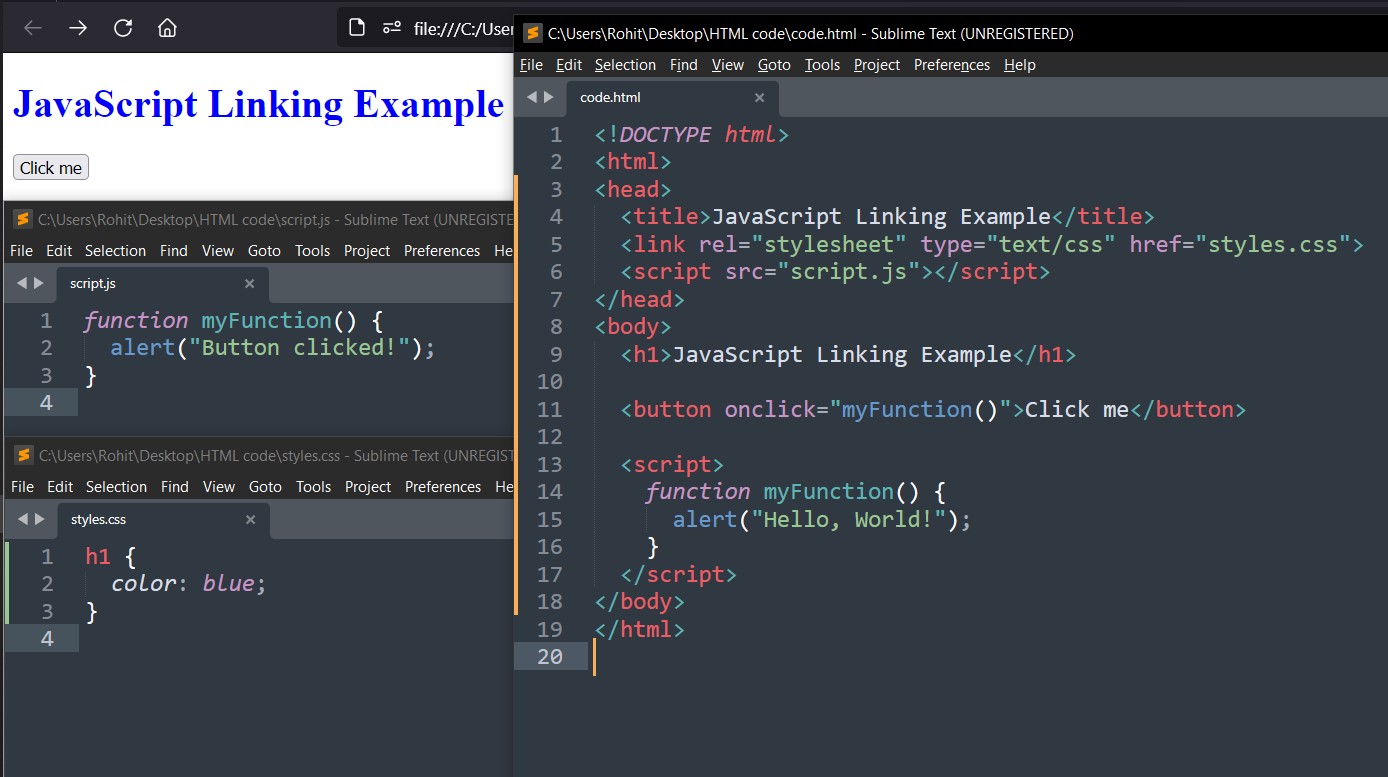
Excellent! You now have a complete, foundational structure for your web application. Your HTML file provides the semantic content, and it's now connected to separate files for styling and functionality.
This image gives a great visual summary of how the three files (.html, .css, and .js) are connected.
Test your understanding!
Imagine you decide to reorganize your project for a cleaner structure. You create a new folder called assets and move both your css and js folders inside it.
Your new structure looks like this:
DevProject/
├── index.html
└── assets/
    ├── css/
    │   └── style.css
    └── js/
        └── script.js
How would you need to change the href and src attributes in your index.html file to fix the broken links?
Show answer
You would need to update the paths to reflect the new location. The href for the CSS and the src for the JavaScript would now need to include the assets/ directory at the beginning of the path:
- CSS Link:
<link rel="stylesheet" href="assets/css/style.css"> - JavaScript Script:
<script src="assets/js/script.js"></script>
This demonstrates how relative paths work: you are telling the browser where to find the file relative to the location of the index.html file.
Conclusion
In this lesson, you've mastered the final and crucial step of setting up a professional web project structure. This marks the end of our "HTML Fundamentals" module. You've gone from a blank page to a semantically structured, fully connected HTML document ready for styling and interactivity.
Key Takeaways:
- Separation of Concerns is a core principle: HTML is for content, CSS for style, and JavaScript for behavior.
- We use the
<link>tag in the<head>to connect an external CSS stylesheet. The key attributes arerel="stylesheet"andhref="path/to/file.css". - We use the
<script>tag, usually at the end of the<body>, to connect an external JavaScript file. The key attribute issrc="path/to/file.js". - Organizing files into
cssandjsfolders is a standard practice for keeping your project tidy.
You are now perfectly set up for the next stage of our journey. In the next module, "Styling Web Pages with CSS," we will start using the style.css file you just created to bring your application's design to life, starting with how to apply styles to different HTML elements.