Introduction
Welcome back! In our last lesson, we built a robust, non-blocking keyboard input system using callbacks and a two-array state tracking method. This replaced our simple getchar() and laid the foundation for real-time interaction in our game.
This lesson builds directly on that foundation. Our learning outcome is to handle mouse movement and button clicks. We will extend our existing input module to track the mouse's cursor position and the state of its buttons. The patterns we'll use—callbacks for events and state arrays for queries—will be very familiar from the previous lesson.
Specifically, we will:
- Implement state tracking for mouse buttons (press, release, hold).
- Add functions to get the current mouse cursor position.
- Discuss the critical difference between screen coordinates and game world coordinates.
- Preview how we'll use this system for 3D camera control in an upcoming lesson.
Let's enhance our input system.
1. Handling Mouse Button Clicks
Handling mouse buttons is almost identical to handling keyboard keys. We'll use a callback to be notified of button presses and releases, and we'll store that information in current and previous state arrays to determine press, release, and hold states.
The official GLFW documentation is the best place to start.
The GLFW Input guide explains how to manage mouse button input. We'll focus on the functions for setting a callback and for polling the button state.
Read the subsection titled 'Mouse button input'. Pay close attention to the glfwSetMouseButtonCallback function and its callback signature. Notice how the action parameter can be GLFW_PRESS or GLFW_RELEASE, just like with the key callback.
As you read, you can see the parallels to our keyboard system. The mouse_button_callback gives us the button that was acted upon and the action that occurred. We can use this to update a state array.
Let's update our input module to incorporate this.
Implementation Steps
-
State Arrays: We'll add two new boolean arrays to
input.cto store the current and previous states of the mouse buttons. GLFW supports up to 8 mouse buttons. -
Callback Function: We'll create a
mouse_button_callbackfunction that updates theg_current_mouse_buttonsarray based on the events GLFW sends us. -
Register the Callback: In
Input_Init, we will register this new callback usingglfwSetMouseButtonCallback. -
Update Loop: In
Input_Update, we'll copy theg_current_mouse_buttonsstate tog_previous_mouse_buttons. -
Query Functions: We'll add
IsMouseButtonDown,IsMouseButtonPressed, andIsMouseButtonReleasedto our public API ininput.h.
The implementation is very straightforward. Below are the changes for input.h and input.c.
input.h (additions)
// input.h

// ... existing keyboard functions ...

// --- Mouse Button State Queries ---

// Returns true if the mouse button is currently held down
bool IsMouseButtonDown(int button);

// Returns true only on the frame the mouse button was first pressed
bool IsMouseButtonPressed(int button);

// Returns true only on the frame the mouse button was released
bool IsMouseButtonReleased(int button);
input.c (additions and modifications)
// input.c


#include "input.h"
#include <GLFW/glfw3.h>
#include <string.h>

// --- State Variables (static) ---


#define MAX_KEYS 350
#define MAX_MOUSE_BUTTONS 8 // GLFW supports up to 8 mouse buttons

static bool g_current_keys[MAX_KEYS];
static bool g_previous_keys[MAX_KEYS];

// New state for mouse buttons
static bool g_current_mouse_buttons[MAX_MOUSE_BUTTONS];
static bool g_previous_mouse_buttons[MAX_MOUSE_BUTTONS];

// --- Callbacks (static) ---

static void key_callback(GLFWwindow* window, int key, int scancode, int action, int mods) {
    // ... no changes here ...
}

// New callback for mouse buttons
static void mouse_button_callback(GLFWwindow* window, int button, int action, int mods) {
    if (button < 0 || button >= MAX_MOUSE_BUTTONS) {
        return;
    }

    if (action == GLFW_PRESS) {
        g_current_mouse_buttons[button] = true;
    } else if (action == GLFW_RELEASE) {
        g_current_mouse_buttons[button] = false;
    }
}

// --- Public API ---

void Input_Init(GLFWwindow* window) {
    memset(g_current_keys, 0, sizeof(g_current_keys));
    memset(g_previous_keys, 0, sizeof(g_previous_keys));

    // Initialize mouse button states
    memset(g_current_mouse_buttons, 0, sizeof(g_current_mouse_buttons));
    memset(g_previous_mouse_buttons, 0, sizeof(g_previous_mouse_buttons));

    glfwSetKeyCallback(window, key_callback);
    // Register the new mouse button callback
    glfwSetMouseButtonCallback(window, mouse_button_callback);
}

void Input_Update() {
    memcpy(g_previous_keys, g_current_keys, sizeof(g_current_keys));
    // Update mouse button previous state
    memcpy(g_previous_mouse_buttons, g_current_mouse_buttons, sizeof(g_current_mouse_buttons));
}

// ... existing keyboard functions IsKeyDown, IsKeyPressed, IsKeyReleased ...

// --- New Mouse Button Query Functions ---

bool IsMouseButtonDown(int button) {
    if (button < 0 || button >= MAX_MOUSE_BUTTONS) return false;
    return g_current_mouse_buttons[button];
}

bool IsMouseButtonPressed(int button) {
    if (button < 0 || button >= MAX_MOUSE_BUTTONS) return false;
    return g_current_mouse_buttons[button] && !g_previous_mouse_buttons[button];
}

bool IsMouseButtonReleased(int button) {
    if (button < 0 || button >= MAX_MOUSE_BUTTONS) return false;
    return !g_current_mouse_buttons[button] && g_previous_mouse_buttons[button];
}
With these changes, our input system now fully supports mouse button state tracking, using the exact same logic as our keyboard system.
2. Handling Mouse Movement
Unlike button presses, which are discrete events, mouse movement is continuous. There are two primary ways to get the cursor's position with GLFW:
- Polling: At any time, you can ask GLFW for the cursor's current position using
glfwGetCursorPos. This is simple and often sufficient. - Callback: You can register a
glfwSetCursorPosCallbackto be notified every time the mouse moves. This is useful if you need to process every single micro-movement, but can be overkill for many applications.
For our engine, a polling-based approach is a great place to start. We can create a function that our game logic can call once per frame to get the latest coordinates.
Let's return to the GLFW Input guide to see the functions for getting the cursor position.
Read the subsection titled 'Cursor position'. Note the two functions glfwGetCursorPos (for polling) and glfwSetCursorPosCallback (for event-driven notifications). We will focus on implementing the polling method first.
The Cherno's video on input provides a good practical demonstration of implementing polling, although it's in C++. The core GLFW calls are identical.
Input Polling | Game Engine series
This video from The Cherno's game engine series discusses polling for input, including mouse position. Watching his implementation will help solidify the concept.
Watch the following segments: 16:23 - 18:43: He implements IsMouseButtonPressed using glfwGetMouseButton, which is the polling equivalent of our callback system. This is a good review. 18:43 - 22:05: Here, he implements polling for the cursor position using glfwGetCursorPos. Notice how he needs the window handle to do this. He also discusses returning both X and Y values, opting for a std::pair in C++. We will use output parameters (pointers) to achieve the same result in C.
Implementation Steps
To implement this, we need a way to access the GLFW window handle from within our input functions. A simple way to do this in C is to store it in a static global variable within input.c.
- Store Window Handle: Add a
static GLFWwindow* g_window = NULL;toinput.cand set it inInput_Init. - State Variables: We will also add static variables to hold the mouse coordinates.
- Query Function: Create a
GetMousePositionfunction ininput.hand implement it ininput.c. - Update Mouse Position: In
Input_Update, we'll callglfwGetCursorPosto refresh our stored coordinates once per frame.
input.h (additions)
// input.h

// ... existing functions ...

// --- Mouse Position State Queries ---

// Gets the mouse cursor position relative to the top-left of the window
void GetMousePosition(double* xpos, double* ypos);
input.c (additions and modifications)
// input.c

// ... includes ...

// ... state arrays ...

// New state for mouse position
static double g_mouse_x = 0.0;
static double g_mouse_y = 0.0;

// New static variable to hold the window pointer
static GLFWwindow* g_window = NULL;

// ... callbacks ...

void Input_Init(GLFWwindow* window) {
    g_window = window; // Store the window handle

    // ... memset calls ...

    glfwSetKeyCallback(window, key_callback);
    glfwSetMouseButtonCallback(window, mouse_button_callback);
}

void Input_Update() {
    // ... memcpy calls for keys and mouse buttons ...

    // Poll for the latest mouse position
    glfwGetCursorPos(g_window, &g_mouse_x, &g_mouse_y);
}

// ... IsMouseButton... functions ...

// --- New Mouse Position Query Function ---

void GetMousePosition(double* xpos, double* ypos) {
    *xpos = g_mouse_x;
    *ypos = g_mouse_y;
}
3. The Coordinate System Mismatch
This is a subtle but extremely important point. The mouse coordinates you get from GLFW are in screen space. This means:
- The origin
(0, 0)is at the top-left corner of the window. - The Y-axis value increases as you move down the screen.
However, the coordinate system used in most 3D mathematics and by OpenGL (after projection) has:
- The origin
(0, 0)typically at the center or bottom-left. - The Y-axis value increasing as you move up.
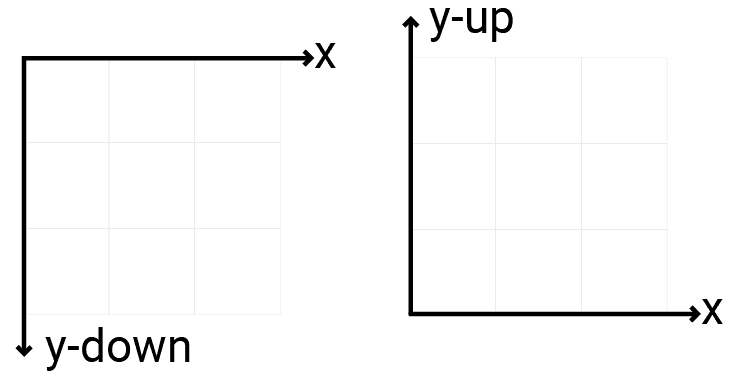
For now, our GetMousePosition function correctly returns the raw screen coordinates. When we implement our 3D camera, we will need to remember to convert the Y-coordinate. For example, to map a screen Y to a typical graphics Y, you would use: graphics_y = window_height - screen_y.
4. Integrating and Testing
Let's add a quick test to our main.c to see our new system in action.
main.c (inside the main loop)
// In main.c's while loop, after StateManager_Update

double mouse_x, mouse_y;
GetMousePosition(&mouse_x, &mouse_y);

// Check if the left mouse button was pressed THIS frame
if (IsMouseButtonPressed(GLFW_MOUSE_BUTTON_LEFT)) {
    printf("Left mouse button pressed at: (%.2f, %.2f)\n", mouse_x, mouse_y);
}

// Check if the right mouse button is HELD DOWN
if (IsMouseButtonDown(GLFW_MOUSE_BUTTON_RIGHT)) {
    printf("Right mouse button is being held down!\n");
}
Run your application, and you should now see messages printed to the console when you click the left mouse button, and a stream of messages while you hold the right button.
Conclusion
You have successfully extended your input system to handle mouse buttons and movement. This is a critical step towards creating interactive 3D scenes.
Key Takeaways:
- Mouse buttons can be handled using the same two-array state tracking system as keyboard keys, powered by the
glfwSetMouseButtonCallback. - Mouse position can be efficiently retrieved once per frame by polling with
glfwGetCursorPos. - A crucial concept in graphics programming is the difference between screen coordinates (y-down) and world/NDC coordinates (y-up). We must account for this when using mouse input to manipulate the 3D world.
Preview of the Next Lesson:
We now have robust functions for querying raw keyboard and mouse state (IsKeyPressed, GetMousePosition, etc.). However, hardcoding GLFW_KEY_W or GLFW_MOUSE_BUTTON_LEFT directly in our game logic is inflexible. In the next lesson, we will create an abstract input mapping system. This will allow us to decouple raw input from game actions, defining abstract concepts like "Jump" or "Fire" that can be mapped to any key or button, making our code cleaner and our controls easily reconfigurable.