Introduction
Welcome back! In the last lesson, you successfully used the Model-View-Projection (MVP) matrix to transform a single triangle from its local space into the 3D world projected onto your screen. You now have the complete transformation pipeline working.
Today, we'll take a significant step forward and tackle this lesson's learning outcome: Render a 3D cube using indexed drawing.
Moving from a flat triangle to a full 3D cube will force us to think more carefully about how we define and send geometric data to the GPU. We'll explore a fundamental optimization technique used in all modern graphics applications to render complex models efficiently. By the end of this lesson, you will have a spinning 3D cube on your screen, a classic milestone in any graphics programming journey.
The Problem with Complex Shapes
A cube is made of 6 square faces. To draw a square in OpenGL, we need two triangles. So, a cube is composed of 12 triangles.
If we were to define the vertices for these 12 triangles directly, we would need:
12 triangles * 3 vertices/triangle = 36 vertices.
However, a cube only has 8 unique corners. By defining 36 vertices, we would be specifying each corner's position multiple times, which is redundant and wastes memory. For a simple cube, this isn't a huge problem, but imagine a complex game character with tens of thousands of triangles. The amount of duplicated vertex data would become enormous.
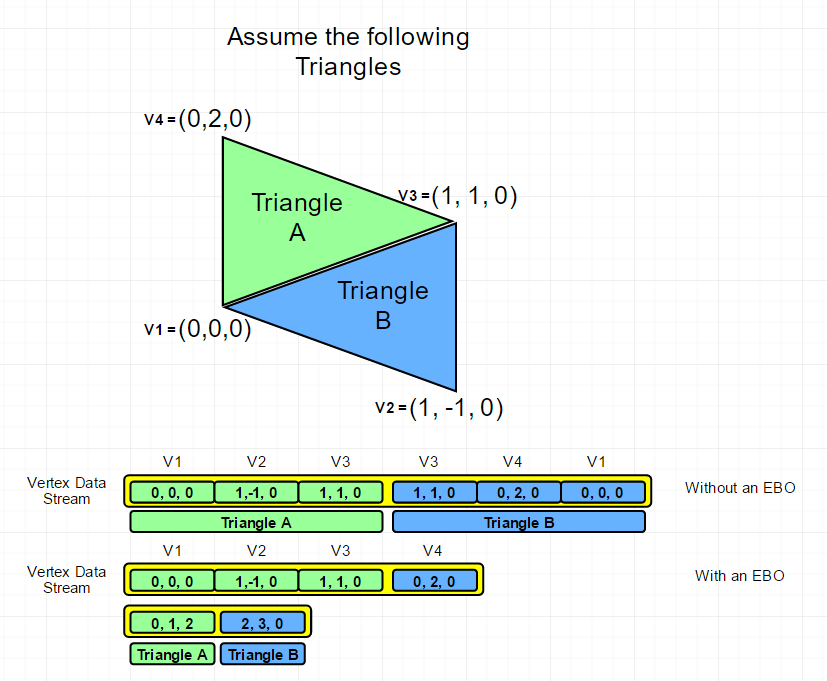
This image visualizes the problem with a simpler shape made of two triangles. Notice how vertex v3 and v0 are duplicated in the data stream.
The Solution: Indexed Drawing
The efficient solution is indexed drawing. The principle is simple:
- Create a list of all the unique vertices in the model (the 8 corners of the cube). This is stored in a Vertex Buffer Object (VBO), just as before.
- Create a separate list of indices. Each number in this list corresponds to a vertex in our VBO. We then define our triangles by listing three indices at a time. This list of indices is stored in an Element Buffer Object (EBO), also called an Index Buffer Object (IBO).
The following video provides an excellent conceptual overview of this technique.
Watch this clip from The Cherno's 'Index Buffers in OpenGL' tutorial. It clearly explains why duplicating vertices is inefficient and introduces the idea of using an index buffer to reuse vertices.
Watch from 03:57 to 09:06. Focus on: The explanation of data duplication when drawing a square (03:57). How creating a list of unique vertices and a separate list of indices solves this problem (07:00).
Defining a Cube's Geometry
Now, let's define the data for our cube using this indexed approach. A cube has 8 vertices and 12 triangles (6 faces x 2 triangles per face).
This diagram shows a standard way to label the vertices and define the index buffer.

Based on this, here are the C arrays for the vertices and indices of a unit cube centered at the origin:
// Define the 8 unique vertices of the cube
float vertices[] = {
    // Position
    -0.5f, -0.5f,  0.5f, // 0: Front-bottom-left
     0.5f, -0.5f,  0.5f, // 1: Front-bottom-right
     0.5f,  0.5f,  0.5f, // 2: Front-top-right
    -0.5f,  0.5f,  0.5f, // 3: Front-top-left
    -0.5f, -0.5f, -0.5f, // 4: Back-bottom-left
     0.5f, -0.5f, -0.5f, // 5: Back-bottom-right
     0.5f,  0.5f, -0.5f, // 6: Back-top-right
    -0.5f,  0.5f, -0.5f  // 7: Back-top-left
};

// Define the 36 indices for the 12 triangles of the cube
unsigned int indices[] = {
    // Front face
    0, 1, 2,
    2, 3, 0,
    // Right face
    1, 5, 6,
    6, 2, 1,
    // Back face
    5, 4, 7,
    7, 6, 5,
    // Left face
    4, 0, 3,
    3, 7, 4,
    // Top face
    3, 2, 6,
    6, 7, 3,
    // Bottom face
    4, 5, 1,
    1, 0, 4
};
Pay close attention to the order of indices for each triangle. This order, known as winding order, will become important in a future lesson on performance optimization.
Implementation with an Element Buffer Object (EBO)
Now we need to tell OpenGL about our new index list. We do this by creating an Element Buffer Object (EBO). The process is almost identical to creating a VBO.
The following reading explains the process and the necessary OpenGL calls.
The 'Element Buffer Objects' section from LearnOpenGL provides a fantastic, concise guide to implementing indexed drawing. It covers creating the EBO, populating it with data, and using the new draw call.
Read the entire 'Element Buffer Objects' section. Focus on: The C code for defining vertices and indices for a rectangle. The functions used to create and bind an EBO: glGenBuffers, glBindBuffer (with GL_ELEMENT_ARRAY_BUFFER), and glBufferData. The new draw call: glDrawElements, and what its parameters mean. The important note that a VAO also stores the EBO binding.
Let's summarize the key steps from the reading:
1. Create the EBO: Just like a VBO, you need to generate a buffer ID.
unsigned int EBO;
glGenBuffers(1, &EBO);
2. Bind and Populate the EBO: You bind the EBO to the GL_ELEMENT_ARRAY_BUFFER target and copy your indices data into it.
glBindBuffer(GL_ELEMENT_ARRAY_BUFFER, EBO);
glBufferData(GL_ELEMENT_ARRAY_BUFFER, sizeof(indices), indices, GL_STATIC_DRAW);
3. The Draw Call: Instead of glDrawArrays, you now use glDrawElements.
glDrawElements(GL_TRIANGLES, 36, GL_UNSIGNED_INT, 0);
GL_TRIANGLES: We're still drawing triangles.36: The number of indices to draw (not vertices!). We have 12 triangles * 3 indices/triangle = 36.GL_UNSIGNED_INT: The data type of ourindicesarray.0: An offset into the EBO. We start at the beginning.
Important Note on VAOs: A Vertex Array Object (VAO) stores your vertex attribute configurations and the last EBO that was bound while the VAO was active. This is very convenient! It means you only need to bind the VAO in your render loop, and the correct VBO and EBO will be used automatically.
Putting It All Together
Here is how you would modify your initialization and rendering code to draw the cube.
// --- In your initialization code (after creating window and loading GLAD) ---

// Define vertex and index data for the cube
float vertices[] = { /* ... 8 vertices ... */ };
unsigned int indices[] = { /* ... 36 indices ... */ };

unsigned int VAO, VBO, EBO;
glGenVertexArrays(1, &VAO);
glGenBuffers(1, &VBO);
glGenBuffers(1, &EBO);

// 1. Bind the VAO
glBindVertexArray(VAO);

// 2. Copy vertex data to VBO
glBindBuffer(GL_ARRAY_BUFFER, VBO);
glBufferData(GL_ARRAY_BUFFER, sizeof(vertices), vertices, GL_STATIC_DRAW);

// 3. Copy index data to EBO
// The EBO binding IS stored in the VAO
glBindBuffer(GL_ELEMENT_ARRAY_BUFFER, EBO);
glBufferData(GL_ELEMENT_ARRAY_BUFFER, sizeof(indices), indices, GL_STATIC_DRAW);

// 4. Set vertex attribute pointers (same as before)
// We only have position data, at location 0
glVertexAttribPointer(0, 3, GL_FLOAT, GL_FALSE, 3 * sizeof(float), (void*)0);
glEnableVertexAttribArray(0);

// 5. Unbind the VAO. This is important! We don't want to accidentally
// modify its state later. The EBO is unbound automatically when the VAO is.
glBindVertexArray(0);


// --- In your main render loop ---

// ... (clear screen) ...

// Let's make the cube spin!
mat4 model_matrix;
mat4_identity(model_matrix);
// Rotate around an axis like (0.5, 1.0, 0.0) based on time
vec3 rotation_axis = {0.5f, 1.0f, 0.0f};
mat4_rotate(model_matrix, model_matrix, rotation_axis, (float)glfwGetTime());

// Calculate view, projection, and final MVP matrix (same as last lesson)
mat4 view_matrix, projection_matrix, mvp_matrix;
// ... (code to setup view and projection matrices) ...
// ... (code to multiply them into mvp_matrix) ...

// Use shader and set uniform
glUseProgram(shader_program);
glUniformMatrix4fv(mvp_location, 1, GL_FALSE, &mvp_matrix[0][0]);

// Draw the cube
glBindVertexArray(VAO); // Bind the VAO that has our cube's VBO/EBO/attrib state
glDrawElements(GL_TRIANGLES, 36, GL_UNSIGNED_INT, 0); // Use indexed drawing!

// ... (swap buffers, poll events) ...
When you run this, you should see a spinning cube! This confirms you've correctly set up the geometry, the indexed drawing pipeline, and are still applying the 3D transformations from the previous lesson.
Conclusion
Great work! You have moved from rendering a simple primitive to a complete 3D object. This required learning one of the most fundamental concepts in modern graphics: indexed drawing.
Key Takeaways:
- Defining vertices for complex shapes naively leads to a lot of redundant data.
- Indexed drawing solves this by storing unique vertices in a VBO and the triangle structure as indices in an Element Buffer Object (EBO).
- The setup involves creating and populating the EBO using
glBindBuffer(GL_ELEMENT_ARRAY_BUFFER, ...)andglBufferData(...). - The draw call is switched to
glDrawElements, which uses the bound EBO to render. - A VAO conveniently stores the configuration of VBOs, EBOs, and attribute pointers for an object.
Preview of the Next Lesson:
As you watch your cube spin, you might notice something strange. Sometimes, faces that should be in the back are drawn on top of faces in the front. This visual artifact is called "Z-fighting" or incorrect depth sorting. By default, OpenGL just draws triangles in the order you give them. In the next lesson, you will learn how to enable depth testing, which solves this problem by making OpenGL keep track of how "deep" into the screen each pixel is, ensuring objects render correctly in 3D space.