Introduction
Welcome to Module 6! In the previous module, you successfully rendered a 3D cube and implemented key features like depth testing and back-face culling. Your cube looks solid and is rendered efficiently. However, it's still just a collection of single-colored faces. To start creating visually rich worlds, we need to apply images—or textures—to the surfaces of our 3D objects.
This lesson is the first step in that process. Before we can tell the GPU to draw an image on a model, we first need to get that image's data from a file into our program's memory. Today's learning outcome is to: Load image data from a file using a library like stb_image.
We'll explore why using a dedicated library is the right approach, how to integrate a popular and simple library called stb_image into your C project, and how to use its functions to read the raw pixel data from common image formats like PNG or JPG.
Why Use an Image-Loading Library?
Image file formats like PNG and JPG are not simple bitmaps; they use complex compression algorithms and data structures to store pixel information efficiently. Writing a parser from scratch for each format you want to support would be a significant project in itself, distracting from our main goal of building a game engine.
Instead, we use third-party libraries that handle this complexity for us. A highly regarded choice for this task is stb_image.
stb_image is a "single-header library," which makes it incredibly easy to add to a project. You don't need to build or link complex library files; you just include a single .h file and add a specific C preprocessor definition to your project.
To start, let's read a brief introduction from the popular LearnOpenGL guide. It explains why writing your own image loader isn't practical and introduces stb_image.
Read the section titled 'Loading and creating textures' down to (but not including) the 'stb_image.h' sub-heading. This will set the stage for why we're about to use a library.
Setting up stb_image in Your Project
Integrating stb_image involves three main steps:
- Get the header file: Download the
stb_image.hfile from the official stb GitHub repository. - Add it to your project: Create a directory in your project for third-party libraries (e.g.,
vendor/orlibs/) and placestb_image.hinside it. You'll then need to tell your compiler where to find it by adding this new directory to your project's "include paths".
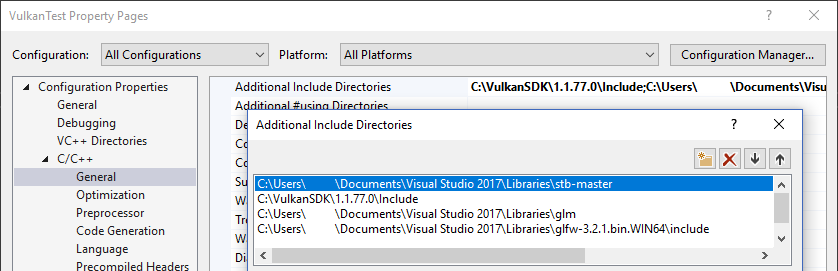
- Provide the implementation: The magic of a single-header library is that the implementation (the actual C code) is inside the header file, guarded by a preprocessor macro. To use it, you must
#define STB_IMAGE_IMPLEMENTATIONin one and only one C source file of your project before you#include "stb_image.h". This tells the compiler to generate the function bodies in that specific file, which the linker can then find.
A clean way to manage this is to create a new C file, say stb_loader.c, with just two lines:
// In a new file, e.g., stb_loader.c


#define STB_IMAGE_IMPLEMENTATION
#include "stb_image.h"
Then, you simply compile and link this stb_loader.c file along with the rest of your project. Any other file that needs to use the image loading functions (like your main.c) can then just #include "stb_image.h" without the define.
This guide from LearnOpenGL provides a great walkthrough of the setup process, focusing on the crucial STB_IMAGE_IMPLEMENTATION macro.
Read the 'stb_image.h' sub-section. It explains how to create the implementation and shows the basic loading function, which we will examine next. The example is C++, but the C functions and setup are identical.
Loading Image Data with stbi_load
Once the library is set up, loading an image is done with a single function call: stbi_load.
This function takes the path to an image file and pointers to several integers. It reads the file, decodes it, and fills in the integers with the image's dimensions. It returns a pointer to a block of newly allocated memory containing the raw pixel data.
Reading and writing images with the stb_image libraries
Let's dive into a C-specific explanation of how to use stbi_load. The following article provides a clear, concise example.
Read the 'stb_image basic usage' section, stopping right before it discusses writing images with stbi_image_write. Pay close attention to the stbi_load function signature and its parameters. Notice how it's a perfect real-world example of using pointers, a concept we covered in Module 1.
Let's break down the function signature and a typical usage example:
int width, height, num_channels;
unsigned char *data = stbi_load("path/to/my/image.png", &width, &height, &num_channels, 0);

if (data == NULL) {
    // Handle error: image failed to load
    printf("Error: Failed to load image.\n");
}
"path/to/my/image.png": The file path to your image.&width,&height,&num_channels: Pointers tointvariables.stbi_loadwill write the image's width, height, and number of color channels (e.g., 3 for RGB, 4 for RGBA) into these variables.0: The last parameter,desired_channels, lets you force a certain number of channels. For example, passing4would convert an RGB image to RGBA. Passing0tellsstb_imageto not change the format and use thenum_channelsfrom the original file.- Return Value: The function returns an
unsigned char *, which points to the beginning of the pixel data in memory. The data is laid out sequentially, typically asR, G, B, A, R, G, B, A, .... If the image cannot be loaded, the function returnsNULL. Always check for this!
Important Considerations
There are two critical details to remember when working with stb_image in C.
1. Memory Management
The stbi_load function allocates memory for the pixel data using malloc behind the scenes. This means you are responsible for freeing this memory once you are done with it. The library provides a specific function for this: stbi_image_free().
// After you are finished with the image data...
stbi_image_free(data);
Forgetting to call this will result in a memory leak every time you load a texture. In our case, "finished with it" will mean after we have uploaded the data to the GPU, which we will cover in the next lesson.
2. Image Orientation
Most image formats (like PNG, JPG) define the coordinate (0, 0) at the top-left corner. However, OpenGL expects texture coordinates to start at the bottom-left. This mismatch will cause your textures to appear upside down.
Fortunately, stb_image provides a simple function to fix this before you load the image.
This is a classic 'gotcha' for beginners. This short video clip clearly demonstrates the problem and presents the one-line solution.
Watch from 08:32 to 09:01. The video explains the coordinate system mismatch and shows the stbi_set_flip_vertically_on_load function.
By calling stbi_set_flip_vertically_on_load(true); once before any calls to stbi_load, the library will automatically flip the image for you during the loading process, ensuring it aligns with OpenGL's coordinate system.
Putting It All Together
Here is a simple C function that encapsulates the entire loading process. You can add this to your project to create a reusable image loader.
#include <stdio.h>
#include "stb_image.h"

// A function to load image data from a file.
// The caller is responsible for freeing the returned data using stbi_image_free().
unsigned char* load_image_data(const char* filepath, int* width, int* height, int* num_channels) {
    // Flip the image vertically on load to match OpenGL's coordinate system
    stbi_set_flip_vertically_on_load(true);

    // Load the image data
    unsigned char *data = stbi_load(filepath, width, height, num_channels, 0);

    if (data == NULL) {
        printf("ERROR: Failed to load image '%s'\n", filepath);
        // You might also want to check stbi_failure_reason() here
    }

    return data;
}

// Example usage in your main code:
/*
int main() {
    int w, h, c;
    unsigned char* image_bytes = load_image_data("assets/textures/my_texture.png", &w, &h, &c);

    if (image_bytes) {
        printf("Loaded image with width: %d, height: %d, channels: %d\n", w, h, c);

        // ...In the next lesson, we will upload this data to the GPU here...

        // Finally, free the memory
        stbi_image_free(image_bytes);
    }

    return 0;
}
*/
Conclusion
Excellent work! You have successfully tackled the first and most fundamental step of texturing: getting pixel data from a file into your application's memory. This is a crucial skill that separates abstract graphics theory from practical engine development.
Key Takeaways:
- Image file formats are complex, so we use libraries like
stb_imageto parse them. stb_imageis a single-header library that is easy to integrate by using the#define STB_IMAGE_IMPLEMENTATIONmacro in one.cfile.- The
stbi_load()function reads an image and returns a pointer to its raw pixel data, along with its dimensions. - Memory allocated by
stbi_load()must be released withstbi_image_free()to prevent memory leaks. - Call
stbi_set_flip_vertically_on_load(true)to automatically correct for the difference in coordinate systems between image files and OpenGL.
Preview of the Next Lesson:
Right now, you have an unsigned char* pointer that holds your image data in main memory (RAM). The GPU, however, can't access this directly. In our next lesson, we will learn how to create an OpenGL texture object and bind this image data to it, transferring the pixels to the GPU's memory (VRAM) so it can be used in our shaders.