Hello! Welcome back to our course on affiliate marketing with ClickBank.
In our last lesson, you successfully created your ClickBank account and took your first look inside the Affiliate Marketplace. You know where the store is; today, you'll learn how to navigate the aisles and find exactly what you're looking for.
This lesson is dedicated to the learning outcome: Use the ClickBank marketplace to browse and search for products by category and keyword. Mastering this is a fundamental skill. Every successful affiliate campaign begins with finding a great product, and that journey starts here.
The Two Paths to Product Discovery
The ClickBank marketplace gives you two primary ways to find products:
- Browsing by Category: This is like walking through a department store. You start in a broad section (e.g., "Home & Garden") and then explore specific aisles (e.g., "Woodworking," "Animal Care"). This method is excellent for discovery and exploration when you have a general niche in mind.
- Searching by Keyword: This is like asking a store clerk for a specific item. You know what you're looking for (e.g., "keto diet plan," "dog training guide") and want to see relevant results directly.
The video below gives a quick visual overview of how to access the marketplace and use both of these methods.
How to Make Money with ClickBank in 2026 (Complete Beginner Tutorial)
Let's start with a quick tour from the official ClickBank team. This clip from 'How to Make Money with ClickBank in 2026' demonstrates how to use the search bar and the category list.
Please watch from 09:40 to 11:04. Pay attention to how the presenter points out the search bar at the top and the list of categories on the left-hand side.
Now, let's dive deeper into each of these methods.
Method 1: Browsing by Category
When you're just starting and exploring potential niches, browsing by category is your best tool. It allows you to get a feel for the types of products available in different markets.
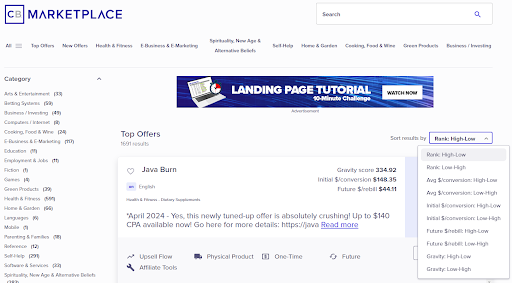
For a clear, step-by-step guide on how to browse by category, we'll turn to ClickBank's official support documentation.
How do I search the ClickBank Marketplace?
This article, 'How do I search the ClickBank Marketplace?', provides a simple, text-based guide for browsing by category.
Please read the section titled 'How to Search the ClickBank Marketplace by Category.' It's a short, 4-step process that reinforces what you saw in the video.
Your Turn: Explore the Categories
Now it's time for some hands-on practice.
- Log in to your ClickBank account and navigate to the Affiliate Marketplace.
- On the left, click the "Health & Fitness" category to expand it.
- Now click the "Diets & Weight Loss" sub-category and look at the products that appear.
- Go back and try this again with a different category that sparks your interest, like "Self-Help" or "Home & Garden".
This simple exercise helps you build familiarity with the platform's layout and the diversity of products available.
Method 2: Searching by Keyword
When you have a more specific idea of what you're looking for, the search bar is the most direct route.
However, simply typing one or two words and hitting "search" can often give you results that are too broad or irrelevant. To use the marketplace like a professional, you need to learn how to refine your searches.
The article we just looked at has excellent guidance on this.
How do I search the ClickBank Marketplace?
Let's return to the 'How do I search the ClickBank Marketplace?' article. This time, we'll focus on using the search bar and then on techniques to make your searches more powerful.
First, read the section 'Using the General Search Field' for the basics. Then, carefully study the section 'How to Improve your Marketplace Search Results.' This is where you'll learn about using search operators like quotation marks and boolean terms (AND, OR, NOT).
Becoming a Power Searcher
The techniques described in that last reading are incredibly valuable. Let's summarize the most important search operators:
- Quotation Marks
"": Use these to search for an exact phrase.woodworking plans-> shows products with "woodworking" OR "plans"."woodworking plans"-> shows only products with the exact phrase "woodworking plans".
- Minus Sign
-: Use this to exclude a word.diet-> shows all diet-related products.diet -keto-> shows diet products but removes any that mention "keto".
- Asterisk
*: Use this as a wildcard to find variations of a word.invest*-> will find products with "invest," "investing," "investment," etc.
Your Turn: Practice Your Search Skills
Head back to the ClickBank marketplace and try the following searches. Notice how the results change with each one.
- A broad search for
guitar. - A more specific phrase search:
"learn guitar". - An exclusionary search:
"learn guitar" -acoustic. - A wildcard search:
garden*.
Getting comfortable with these operators will save you a lot of time and help you zero in on relevant products much faster.
Sorting and Filtering: A Quick Preview
Once you've performed a search or selected a category, you'll see a list of products. The final step is to organize this list.
If you leave the search bar blank and just click the magnifying glass icon, ClickBank will show you the top offers on the platform, usually sorted by "Rank."
The video below gives a brief demonstration of how you can sort these results.
ClickBank Marketplace Tutorial 2021 (Step by Step): ClickBank Tutorial
This clip from the 'ClickBank Marketplace Tutorial' shows how to perform a blank search to see all top offers and then mentions the ability to sort them.
Watch from 02:18 to 02:40. The presenter performs a blank search and explains that the results are stack-ranked, showing offers from all different niches.
You can control this ranking using the "Sort results by" dropdown menu at the top of the listings (as seen in the image we viewed earlier). You'll see options like Rank, Gravity, and Avg $/conversion.
Important: Don't worry about what these terms mean right now. Their definitions and strategic importance are the entire focus of our very next lesson. For today, the goal is simply to know where the sorting tool is and that its purpose is to reorder your product list based on different performance metrics.
Conclusion
Excellent work today. You've moved from simply knowing where the marketplace is to being able to navigate it with purpose and precision. This is a crucial step in your journey.
Here are your key takeaways from this lesson:
- You can now find products using the two main methods: browsing by category for broad exploration and searching by keyword for targeted discovery.
- You know how to make your searches more precise by using search operators like
"",-, and*. - You can locate the sorting and filtering tools that are used to organize product listings, even if we haven't defined the metrics yet.
Preview of the next lesson:
You are now fully equipped to find lists of products. But how do you choose a winner from that list? In our next lesson, we will decode the numbers. You will learn to interpret key ClickBank product metrics: Gravity Score, Avg $/conversion, and initial $/conversion. This knowledge will empower you to analyze a product listing and start identifying the offers with the highest potential for success.