Hello! Welcome to the fifth lesson in the module on building your affiliate website.
In our last session, you became familiar with the WordPress dashboard, learning to distinguish between Posts, Pages, and the Media Library. You now understand the fundamental building blocks of your site's content.
Today, we're shifting our focus from the content to the presentation. The goal of this lesson is to help you select and install a lightweight, free WordPress theme suitable for a content-based website. A theme is essentially the design or "skin" of your site. It controls the layout, colors, and typography, and choosing the right one is key to creating a professional look and a great user experience.
What Makes a Good Theme for an Affiliate Site?
Before you start browsing through thousands of options, it's important to know what you're looking for. For an affiliate marketing blog, your theme should be:
- Fast and Lightweight: A slow website frustrates visitors and can hurt your rankings in search engines like Google. A "lightweight" theme is one with clean, efficient code that doesn't slow your site down with unnecessary features.
- Clean and Readable: Your content—your reviews, comparisons, and articles—is the most important part of your site. The design should support the content, not distract from it. Look for themes with plenty of white space and clear, easy-to-read fonts.
- Well-Supported and Reputable: A good theme is updated regularly by its developers to ensure it remains secure and compatible with the latest version of WordPress.
- Free: As you're just starting, there's no need to spend money on a premium theme. There are many excellent free options that are perfect for affiliate marketing.
To start, let's explore the benefits of using a free theme and get some recommendations.
Top 10 Free WordPress Themes for Affiliate Marketing Blogs
The article 'Top 10 Free WordPress Themes for Affiliate Marketing Blogs' provides a great overview of why free themes are an excellent starting point and lists some of the best options available.
First, read the section 'Why Choose Free WordPress Themes for Affiliate Marketing?'. Then, skim the list in the 'Top 10...' section. Pay close attention to the descriptions for Astra, GeneratePress, and OceanWP, as these are three of the most highly-regarded lightweight themes.
How to Evaluate a Theme in the WordPress Directory
When you are browsing themes, you'll see key information that helps you judge their quality. Things like user ratings, the number of active installations, and when the theme was last updated are strong indicators of its reputation and support.
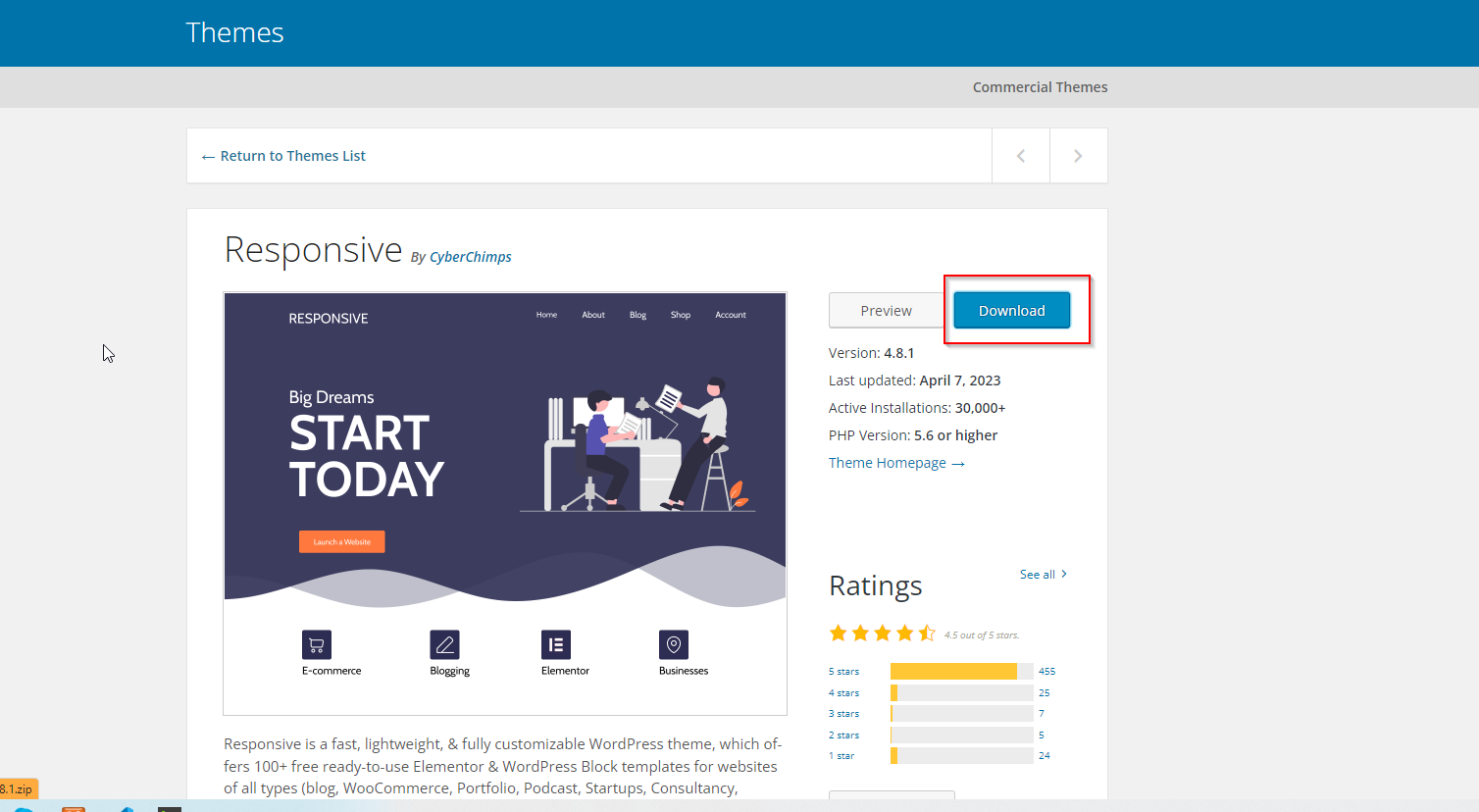
For a deeper dive into the thought process of choosing a theme, the following video offers some excellent, practical advice.
How to Choose the Right WordPress Theme - A Practical Guide
In this video, 'How to Choose the Right WordPress Theme', from the Web Monkey channel, the presenter discusses important considerations when making your choice. We'll focus on the segment about free themes.
Watch the segment from 04:47 to 06:36. The presenter gives a great tip: choose a free theme that also has a paid version. This often means the free version is well-supported because it acts as an advertisement for the premium product.
Based on these resources, themes like Astra, GeneratePress, and OceanWP are excellent choices to start with. They are all lightweight, highly-rated, and follow the model of having a great free version with an optional premium upgrade.
How to Install Your Chosen Theme
Now for the practical part. Installing a theme is a straightforward process you do directly from your WordPress dashboard. There are two common methods: searching within WordPress or uploading a theme you've downloaded elsewhere.
The video below provides a clear, step-by-step walkthrough of both methods.
How to Install a WordPress Theme
This video, 'How to Install a WordPress Theme' by Website Learners, will guide you through the exact steps to install, activate, and manage your themes.
Please watch the following segments: Using WordPress Search (00:50 - 03:09): This is the easiest and most common method. You will use this method for your exercise. Uploading a .zip file (03:09 - 06:29): It's useful to know this method in case you ever download a theme from a third-party website. Deleting Unused Themes (06:29 - 07:29): This is an important final step for good website maintenance.
For your reference, here are the steps in text format, adapted from the official WordPress documentation.
Choosing And Installing Themes - Learn WordPress
The 'Choosing And Installing Themes' guide from Learn WordPress provides a handy text-based reference for the installation process. You don't need to read this whole document, just use it to review the steps.
Review the bullet points under the heading 'How do I install a theme?'. Focus on the first two methods: 'Install from the dashboard' and 'Install from a ZIP file'.
Your Turn: Select and Install Your Theme
It's time to put this into practice. Log in to your WordPress site and give it a new look.
- Navigate to the Themes section: In your WordPress dashboard, go to
Appearance > Themes. - Add New: Click the
Add Newbutton at the top of the page. - Search for a Theme: Use the search bar on the right to look for one of the recommended themes, such as
AstraorGeneratePress. - Install: Hover over the theme you've chosen and click the
Installbutton. - Activate: Once it's installed, the button will change to
Activate. Click it to make the theme live on your site. - View Your Site: Open your website in a new browser tab to see the change! It will still be mostly empty, but the overall design will now reflect your new theme.
- Clean Up: Go back to
Appearance > Themes. You will see the old default themes (e.g., "Twenty Twenty-Four"). Hover over one, click "Theme Details," and then click the "Delete" link in the bottom-right corner. Repeat this for all inactive themes. It's a best practice for security to only keep your active theme.
A quick piece of advice: Don't spend days trying to find the "perfect" theme. The ones recommended here are popular for a reason—they work very well. Pick one and move forward. You can always change your theme later if you need to.
Conclusion
Excellent work! You have now taken a huge step in defining the visual identity of your new website. By choosing a quality theme, you've laid a foundation for a professional, fast, and user-friendly affiliate site.
Here are your key takeaways:
- A WordPress theme controls your website's design, layout, and appearance.
- For a content-focused affiliate site, the best themes are lightweight, clean, readable, and well-supported.
- Top free recommendations include Astra, GeneratePress, and OceanWP because they meet these criteria.
- Themes can be easily installed and activated through the
Appearance > Themes > Add Newsection of your dashboard. - For security and performance, it's a best practice to delete any themes you are not actively using.
Preview of the next lesson:
Your site now has its structure (Posts and Pages) and its design (your theme). But how will visitors find their way around? In the next lesson, we will bring these elements together by learning how to create a primary navigation menu and set up a basic site structure.