Hello! Welcome to the fourth lesson in our module on building your affiliate website.
In our last session, you hit a major milestone: you installed WordPress and configured the initial settings. You now have a live, functioning website waiting for you to build upon it. The login address yourdomain.com/wp-admin is now the key to your digital workshop.
Today, we'll take a guided tour of that workshop. The goal of this lesson is to help you navigate the WordPress dashboard and clearly distinguish between its most fundamental content types: Posts, Pages, and the Media Library. Understanding what these are and when to use them is the most critical first step in organizing and creating your affiliate content.
Your Website's Control Center: The WordPress Dashboard
When you log in to WordPress, you're greeted by the dashboard. It might seem a bit crowded at first, but it's logically organized into a few key areas.
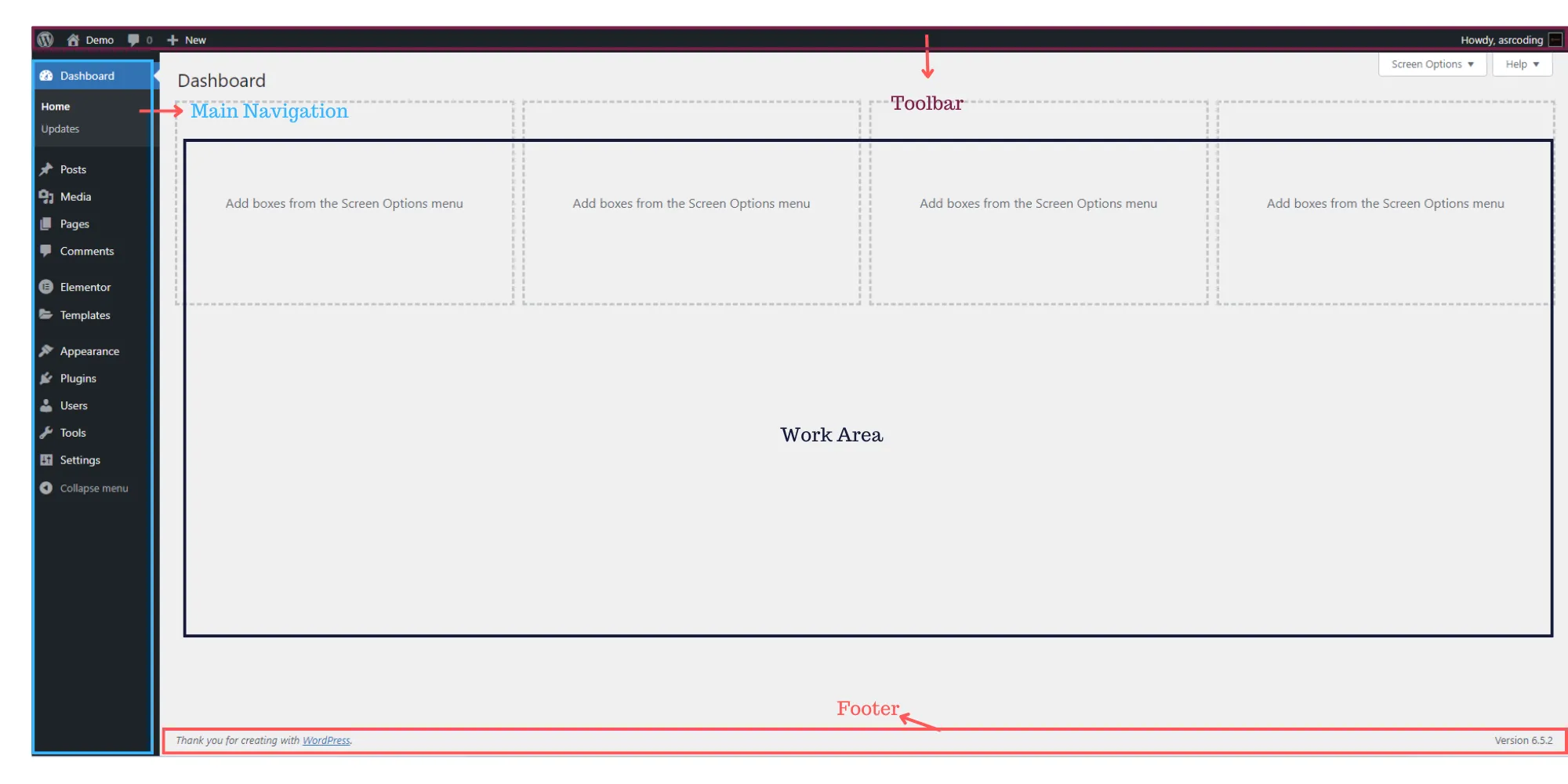
To get a feel for how to move around, let's start with a brief video tour.
Getting started with the WordPress Dashboard
The official WordPress channel provides a clear, concise tour of the dashboard's layout. This will help you get your bearings before we dive into specific sections.
Watch the first three minutes of this video (00:00 - 03:02). Focus on understanding the purpose of the top admin bar, the screen options, and the main navigation menu on the left.
As you saw in the video, the menu on the left side of the screen is your command center. We'll now focus on the three most important items in that menu for content creation: Posts, Media, and Pages.
The Core Content Types: Posts vs. Pages
One of the most common points of confusion for new WordPress users is the difference between a "Post" and a "Page." They look similar in the editor, but they serve very different strategic purposes for your affiliate site. Getting this right from the start will save you a lot of headaches later.
To build a solid theoretical understanding, we'll turn to a detailed guide from WPBeginner, a highly respected resource in the WordPress community.
What Is the Difference Between Posts vs. Pages in WordPress?
This article, 'What Is the Difference Between Posts vs. Pages in WordPress?', is one of the best explanations available. It will form the foundation of your understanding.
Please read the following sections: 'What Are Posts in WordPress?' 'What Are Pages in WordPress?' 'WordPress Pages vs. Posts (Key Differences)' As you read, focus on how Posts are timely and organized with categories, while Pages are static and timeless.
To summarize and visualize the key distinctions from the article, here is a helpful Venn diagram.

Here's how this applies directly to your affiliate marketing goal:
-
You will use Posts for:
- Product reviews (e.g., "Review of XYZ Dog Training Course")
- Comparison articles (e.g., "Best Dog Food for Puppies: Brand A vs. Brand B")
- Informational articles that attract visitors (e.g., "5 Ways to Stop Your Dog From Barking")
These are the timely, article-style pieces of content that will form the bulk of your site and attract search engine traffic.
-
You will use Pages for:
- Your "About" page (to build trust with your audience)
- Your "Contact" page
- Essential legal disclosures like "Privacy Policy," "Terms of Service," and your "Affiliate Disclosure" page.
These are the foundational, "set-it-and-forget-it" parts of your site's structure.
A Practical Walkthrough: Posts, Pages, and Media
Now that you understand the theory, let's see what these sections actually look like inside the dashboard. The following video gives a practical tour of creating posts, managing pages, and using the media library.
Introduction to the WordPress Dashboard: WP Admin Dashboard Tutorial
In this video from Mariah Magazine, you'll see a walkthrough of the Posts, Media, and Pages sections. This will connect the concepts you just read about to the actual interface you'll be using.
Watch the following three segments: Posts (09:41 - 11:54): Notice the options for categories and tags. Pages (12:27 - 14:13): See how it's presented as 'standalone' content. Media (14:13 - 15:00): Understand this as your website's file storage.
The Media Library is your digital filing cabinet. Every image, PDF, or video you upload to WordPress lives here. You can upload a product image once and then insert it into multiple posts or pages without having to re-upload it. This keeps your site organized and efficient.
Your Turn: Explore Your Dashboard
It's time to apply what you've learned. Log in to your own WordPress site and take a look around. Since your site is brand new, these areas will be mostly empty, which is perfect for a clean exploration.
- Log in to your dashboard at
yourdomain.com/wp-admin. - In the left menu, click on Posts. You might see a default "Hello world!" post. Hover your mouse over its title to see the
Edit,Quick Edit, andTrashoptions. - Now, click Pages in the left menu. You will likely see a default "Sample Page" and "Privacy Policy" page.
- Click on Media. This section will be empty. Notice the
Add New Media Filebutton at the top. This is where you can upload files directly to your library. - Finally, hover over + New in the top admin bar. Notice how you have quick shortcuts to create a new
Post,Media, orPagefrom anywhere in the dashboard.
Don't worry about creating or editing anything just yet. The goal here is simply to get comfortable clicking into these different sections and knowing what they are for.
Conclusion
Great work today! Navigating the dashboard and understanding its core components is a fundamental skill that puts you in full control of your website.
Here are your key takeaways:
- The WordPress dashboard is your website's control center, accessed primarily through the left-hand navigation menu.
- Posts are for timely, dynamic content like blog articles and reviews. They are organized with categories and tags and are the engine of your content marketing.
- Pages are for static, "evergreen" content like your About, Contact, and legal information. They are foundational to your site's structure.
- The Media Library is a central repository for all your uploaded images and files, allowing you to manage and reuse them efficiently.
Preview of the next lesson:
Now that you know your way around the dashboard and understand the building blocks of content, how do we control how that content looks to your visitors? In the next lesson, we will focus on the 'Appearance' section of the dashboard as you learn to select and install a lightweight, free WordPress theme to define your site's design.