Hello! Welcome to the final lesson in our module on building a Personal Knowledge Management (PKM) system.
In our last session, you did some crucial work by connecting your 'Notes' and 'Reading List' databases with Relations. This created a network of knowledge, allowing you to trace your ideas back to their sources. Now, your system understands how information is connected. Today, we'll focus on making the process of capturing that information faster, more consistent, and more powerful.
This lesson is all about database templates. You will learn how to pre-build different structures for various types of notes. Instead of starting with a blank page every time, you'll be able to instantly pull up a "Book Note" template with sections for summaries and quotes, or a "Meeting Note" template with fields for attendees and action items. Mastering this is a vital step toward your goal of creating professional, sellable templates that feel intuitive and ready-to-use from the moment a customer opens them.
1. What Are Database Templates?
A database template is a pre-designed page structure that you can replicate with a single click inside a database. Think of it as a stencil for your notes.
From your experience in project management, you know the value of standardized documents like project charters or status reports. They ensure everyone captures the same essential information consistently. Database templates serve the exact same purpose for your Notion pages. For content creation, this is equivalent to having a template for a blog post outline or a video script, streamlining your workflow significantly.
To see this in action, let's watch a short segment from a Thomas Frank Explains video. It clearly demonstrates the "why" and "how" of creating a template inside a database.
Notion Basics: How to Use Template Blocks and Database Templates
This video shows how a template can be created directly within a database, instantly adding pre-defined content to new entries.
Watch from 04:53 to 06:27. Focus on how a template is created within the 'video project tracker' database and what content (headings, checklists) is added to it.
As the video shows, you can embed any content—headings, checklists, toggles, even other databases—into a template. When you create a new page from that template, all of that structure appears instantly.
2. Creating Your First Note Template: "Book Notes"
Let's apply this to your 'Notes' database. We'll create a structured template specifically for taking notes on books.
For a detailed walkthrough, you can refer to the official Notion documentation, which provides clear, step-by-step instructions.
Database templates – Notion Help Center
This guide from Notion's Help Center provides the fundamental steps for creating and using database templates. We'll follow this process.
Read the sections titled 'Create a database template' and 'Use a database template'. These will be our reference for the following steps.
Now, let's build it together in your 'Notes' database:
- Navigate to your 'Notes' database.
- Click the downward arrow
▾next to the blueNewbutton in the top-right corner. - Click
+ New template. A new page will open in editing mode, indicated by a banner at the top. - Name this template
Book Notes.
Now we'll configure its structure. This is where your design skills come into play. A good template guides the user.
A. Set Default Properties:
Templates can automatically fill in properties for you.
- If you have a
SelectorMulti-selectproperty for "Type" or "Tags," click it and set the value to "Book Note". - You can also set a default icon for all your book notes by clicking "Add icon" at the top of the page.
B. Structure the Page Content:
This is the main canvas. We want to create sections that prompt useful thinking.
- Add a heading (
/h2) titledKey Takeaways. - Add another heading titled
Quotes. - Add a final heading titled
Personal Reflections & Ideas.
Your templates can be simple, like the one above, or they can implement entire established methodologies. The Cornell Note-Taking System, for example, is a popular method that translates perfectly into a Notion template.
Once you've added your headings, click the Close button on the top right to save the template. You have now created your first database template!
Test your understanding!
When you designed the "Book Notes" template, you pre-set a tag to "Book Note". Why is this small step so important for a high-quality template?
Show answer
Setting default properties automates data entry, saving time and reducing human error. More importantly, it ensures data consistency. By automatically tagging all book notes correctly, you make it much easier later on to create filtered views that, for example, only show notes related to books. This consistency is a hallmark of a well-designed, professional system.
3. Expanding Your Toolkit: Specialized Templates
The power of this feature comes from having a menu of templates to choose from. Let's create two more to handle different kinds of information capture.
Template 2: Fleeting Note
This is for quick, transient thoughts you want to capture before they disappear.
- Create another new template in your 'Notes' database.
- Name it
Fleeting Note. - Set a default property (e.g., Tag = "Fleeting").
- In the body, add a
Calloutblock (/callout) with the text "Capture the thought quickly..." to serve as a prompt. - Save the template.
Template 3: Meeting Note
This leverages your project management background. A good meeting notes template is invaluable.
- Create a third template and name it
Meeting Note. - Set a default property (e.g., Tag = "Meeting").
- In the body, add the following structure:
Date:(You can pre-fill this with@Today)Attendees:Agenda(H2 Heading)Discussion Notes(H2 Heading)Action Items(H2 Heading with a to-do list/todounderneath)
- Save the template.
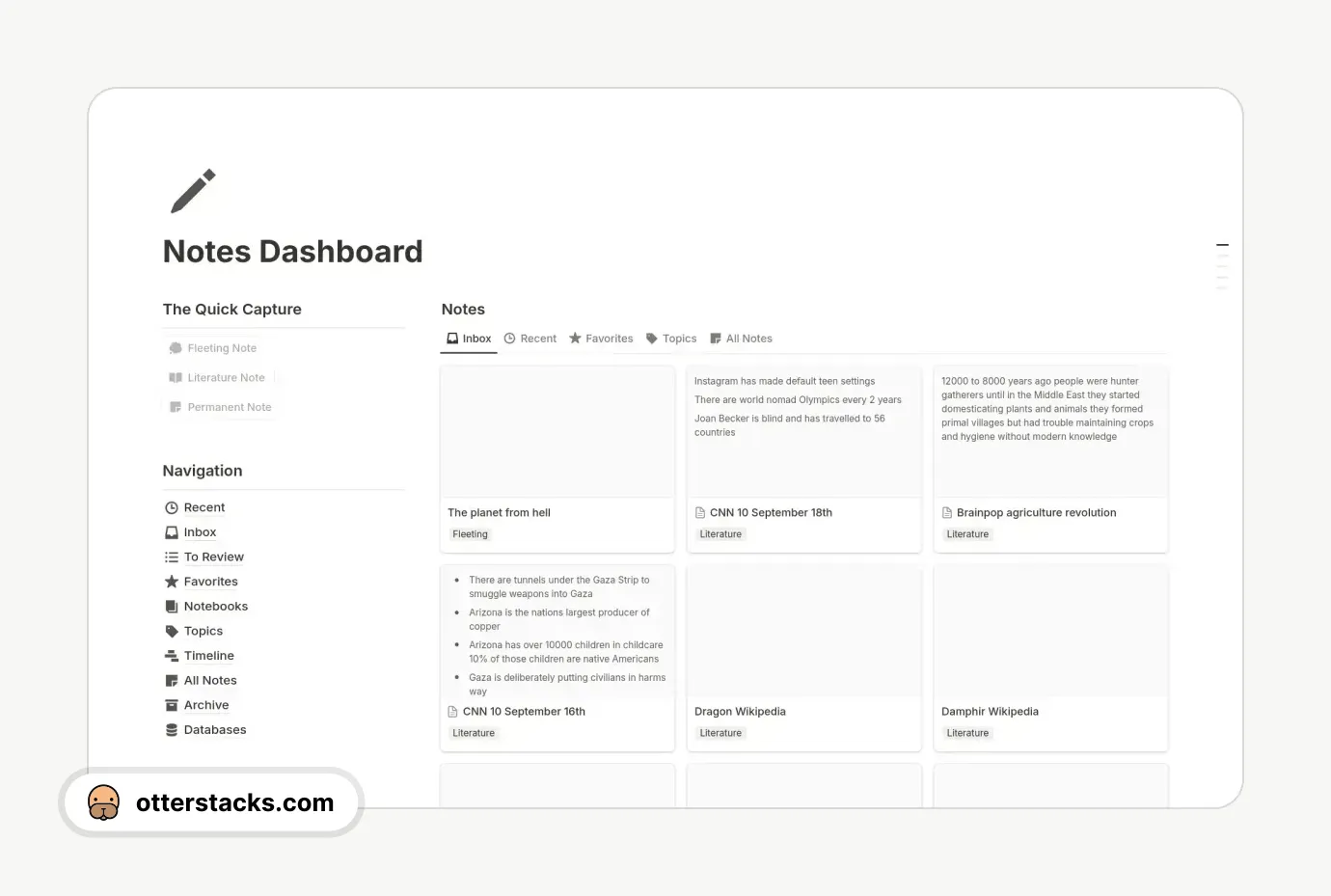
Now, when you open a new, blank page in your 'Notes' database, you will see a menu prompting you to select Book Notes, Fleeting Note, or Meeting Note. This simple menu instantly makes your PKM system more versatile and user-friendly.
4. Advanced Template Features
For creating truly professional templates, there are a few more features you should know about. These add a layer of automation that can significantly improve the user experience.
- Default Templates: You can set one template to be the default for the entire database or just for a specific view. For example, if you create a "Meetings" view of your notes, you can set the "Meeting Note" template to apply automatically every time you add a note in that view.
- Repeating Templates: You can set a template to generate automatically on a schedule (daily, weekly, monthly). This is perfect for a PKM system, as you could use it to create a new "Daily Journal" entry every morning or a "Weekly Review" every Sunday.
This article provides a great overview of these more advanced options.
Notion Databases: The Ultimate Beginner's Guide
To add more power to your templates, let's explore how to make them the default choice or have them repeat on a schedule.
Read the subsections 'Default Templates' and 'Repeating Templates'. Note how you can set a template as a default for all views or just one, and see the options for setting a repeating schedule.
✍️ Exercise: Build Your Template Library
It's time to build out the template functionality in your PKM system.
-
1. Create the "Book Notes" Template:
- Create a new template in your 'Notes' database named "Book Notes".
- Set a default
Tagproperty to "Book Note". - Add headings for "Key Takeaways" and "Quotes".
-
2. Create the "Fleeting Note" Template:
- Create a template named "Fleeting Note".
- Set a default
Tagto "Fleeting". - Add a
Calloutblock as a prompt for quick capture.
-
3. Create the "Meeting Note" Template:
- Create a template named "Meeting Note".
- Set a default
Tagto "Meeting". - Add the structure for Date, Attendees, Agenda, Notes, and Action Items.
-
4. Test Your Templates:
- Create a brand new page in the 'Notes' database.
- When prompted, choose your "Book Notes" template.
- Confirm that the default tag and page headings appear correctly.
Conclusion
Excellent work today! You have now unlocked a new level of efficiency and structure in your Notion workflow. Database templates transform a simple database into a powerful, application-like system tailored to specific tasks. For your goal of selling templates, this skill is non-negotiable. It's the difference between giving someone a blank notebook and giving them a guided journal with purpose-built sections.
Key Takeaways:
- Database templates allow you to pre-define page structures with specific properties and content layouts.
- They save time, ensure consistency, and guide the user in capturing information effectively.
- You can create multiple templates within a single database for different use cases (e.g., Book Notes vs. Meeting Notes).
- Advanced features like default and repeating templates can further automate your workflows.
Preview of the Next Lesson:
You have now built and connected all the individual components of your personal and professional system: a task manager, a content hub, and a PKM. In the next module, we begin the Capstone Project, where you will learn to bring all these systems together into a single, integrated master dashboard, creating the central hub for your digital life.