Hello! Welcome back to building your Personal Knowledge Management (PKM) system.
In the previous lessons, you constructed the two foundational pillars of your system: the 'Notes' database for your thoughts and the 'Reading List' database for your sources. Right now, they exist as separate, powerful islands of information. This lesson is about building the bridge between them.
Today, you will learn how to use one of Notion's most essential features—the Relation property. We will connect your 'Notes' directly to the books, articles, and videos in your 'Reading List'. This transforms your PKM from two simple lists into a connected "second brain," where every idea can be traced back to its origin. For a sellable template, this integrated network of knowledge is a core value proposition.
1. The Power of Connection: Understanding Relations
Before we dive in, it's crucial to understand what a relation is and why it's so fundamental. A Relation is a special property that creates a live, clickable link between entries in two different databases (or even within the same one).
Given your background in project management, you can think of it like linking individual Tasks to a larger Project. A task doesn't just float in a void; it belongs to a project. Similarly, a note about a book chapter doesn't just exist on its own; it belongs to that book.
This video from Thomas Frank Explains uses the exact Projects and Tasks analogy to introduce the concept of relations.
Notion Databases - Full Course for Beginners
To understand the concept of relations, let's start with a familiar analogy from project management. This video provides a great conceptual overview.
Watch the segment from 23:56 to 26:15. Pay attention to how the speaker explains the relationship between records in one or more databases, particularly the example of linking tasks to projects.
As the video explains, relations allow you to create a structured link between related pieces of information, making your data contextual and much more powerful.
2. How to Create a Relation in Your PKM System
Now, let's apply this concept to our PKM system. We will create a relation between your 'Notes' and 'Reading List' databases. This will allow you to specify exactly which book or article a particular note refers to.
The process is straightforward. We'll add a new property to one database and point it to the other.
The following video from Productive Dude walks through this exact scenario, creating a relation between a 'Books' database and a 'Notes' database. We will follow these steps.
Notion Tutorial: Relations and Rollups in Notion for Beginners! (Easy Guide)
This video provides a perfect, step-by-step demonstration of how to connect databases for a note-taking system. We will use it as our primary guide for implementation.
Follow along with these two segments: Recap of Setup (04:33 - 08:48): This section quickly reviews the creation of the two databases, which you've already done in the previous lessons. It's good for context. Creating the Relation (08:48 - 10:34): This is the key part. Watch carefully as the presenter adds a Relation property, selects the target database, and enables the 'Show on...' toggle to create a two-way link.
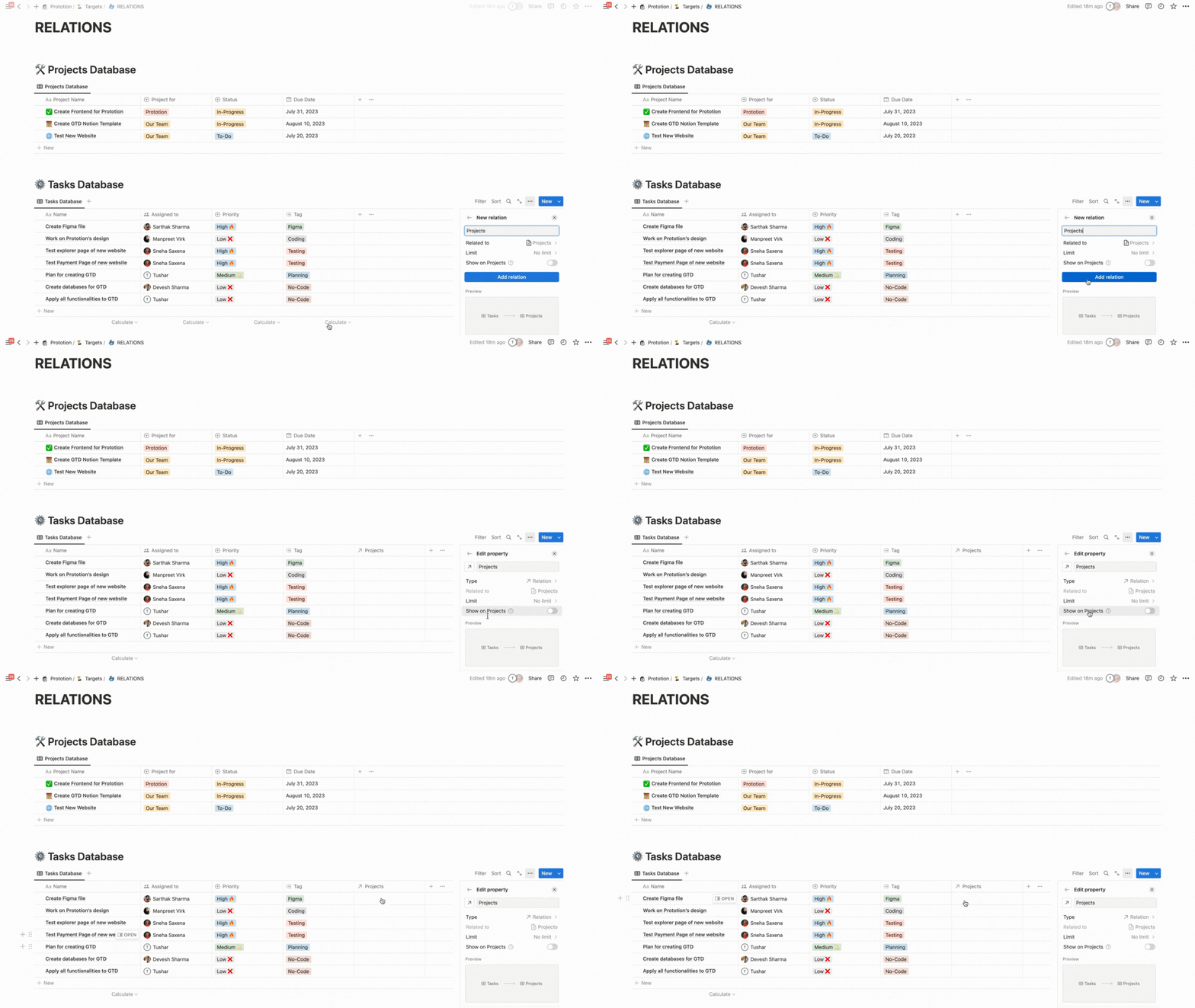
As you saw in the video, here’s the process summarized:
- Open your 'Notes' database.
- Add a new property by clicking the
+at the top right of the table. - Name this property "Source" or "Related To".
- For the property
Type, selectRelation. - A menu will appear. Search for and select your 'Reading List' database.
- Crucially, enable the "Show on 'Reading List'" toggle. This creates the relation in both directions. You can rename the corresponding property that will appear in the 'Reading List' database; a good name is "Notes".
- Click "Add relation".
You've now successfully built the connection!
Test your understanding!
You enabled the "Show on 'Reading List'" toggle when creating the relation. What does this achieve, and why is it important for a well-designed template?
Show answer
Enabling this toggle creates a corresponding Relation property in the 'Reading List' database. This establishes a two-way link. It's important because it allows a user to see all the notes associated with a book directly from the book's page, just as they can see the source book from the note's page. This symmetry makes the system much more intuitive and powerful, which is a key feature of professional template design.
3. Linking Your First Note to Its Source
With the relation in place, let's use it.
- Open one of the notes you created in your 'Notes' database.
- Find the new "Source" property. It will be empty.
- Click inside the empty property field. A search box will appear, listing all the entries from your 'Reading List' database.
- Search for and select the book or article that this note is about.
- The source now appears as a clickable link inside your note.

Now, go to your 'Reading List' database and open the entry you just linked. You will see that in its "Notes" property, your note now appears. This confirms the two-way connection is working perfectly.
4. Going a Step Further: Using Rollups
Relations create the link, but Rollups pull information through that link. A Rollup is a property that displays information from the related entries. This is an advanced touch that can make your template significantly more functional.
For example, you could be in your 'Reading List' database and want to see how many notes you've taken on a particular book without opening it. A rollup can do that.
Let's return to the "Productive Dude" video, which explains this concept perfectly.
Notion Tutorial: Relations and Rollups in Notion for Beginners! (Easy Guide)
Now that the relation is set up, we can use Rollups to pull in related data. This video demonstrates how to use a rollup to display tags from linked notes.
Watch from 10:34 to 12:25. The presenter creates a Rollup property to pull the 'Tags' from the notes into the 'Books' database. Notice the three steps: selecting the relation, choosing the property to 'roll up' (e.g., Tags), and choosing how to calculate or show it.
A common use case in a PKM is to create a Rollup in the 'Reading List' database to count the number of notes associated with each source. Here's how:
- In your 'Reading List' database, add a new property.
- Name it "Note Count".
- Choose the
Rollupproperty type. - In the configuration menu:
- For
Relation, select your "Notes" relation. - For
Property, select any property from the 'Notes' database, like "Name". - For
Calculate, choose "Count all".
- For
- Now, the "Note Count" property will automatically display the number of notes linked to each entry in your reading list.
✍️ Exercise: Connect Your Knowledge Network
Time to put this into practice and wire up your second brain.
-
1. Create the Relation:
- Go to your 'Notes' database.
- Add a new
Relationproperty named "Source". - Connect it to your 'Reading List' database.
- Ensure the "Show on 'Reading List'" option is enabled, and name the corresponding property "Notes".
-
2. Link Your Content:
- Open at least two notes that you've already created.
- For each note, click on the "Source" property and link it to the correct book or article from your 'Reading List'.
- Navigate to the 'Reading List' to confirm that the links appear on the other side.
-
3. (Challenge) Add a Rollup:
- Go to your 'Reading List' database.
- Create a
Rollupproperty named "Note Count". - Configure it to count the number of notes linked to each source. Check if the numbers match the links you created in the previous step.
Conclusion
Fantastic work! You have now implemented one of the most powerful features in Notion. By relating your 'Notes' and 'Reading List' databases, you've created a true knowledge network. Ideas are no longer isolated; they are connected to their sources, allowing you to trace the lineage of your thoughts and see how different sources contribute to your understanding. This interconnectedness is the hallmark of an advanced PKM system and a huge selling point for any template you design.
Key Takeaways:
- The
Relationproperty creates a clickable, two-way link between entries in different databases. - This feature is essential for building integrated systems where information is contextual (e.g., notes are linked to sources, tasks are linked to projects).
- The
Rollupproperty works with relations to pull in and summarize data from linked entries, adding another layer of utility.
Preview of the Next Lesson:
Now that your databases are connected, we can focus on streamlining the process of adding new content. In the next lesson, you will learn how to use database templates to structure different types of notes. We'll create templates for "Book Notes," "Article Summaries," and "Meeting Notes," each with a pre-built layout to make your note-taking faster, more consistent, and more effective.