Hello! Welcome back to the course.
In our last lesson, you took a major step by adding Select and Multi-select properties to your "Master Content Hub." You can now categorize your work by status and platform, which is the foundation of any organized system.
Today, we're going to make your database interactive and time-aware by introducing data-centric properties: Date, URL, and Email. These are the tools that allow you to set deadlines, link to external resources, and store contact information directly within your database. For your goal of building sellable templates, mastering these is non-negotiable. A content calendar needs a publish date, a project manager needs deadlines, and a personal knowledge system needs links to sources.
By the end of this lesson, you will be able to confidently configure and use the Date, URL, and Email properties to add another layer of functionality to your Notion systems.
1. The Date Property: Scheduling and Reminders
The Date property is your primary tool for all things time-related in Notion. It allows you to assign a specific day (and optionally, a time) to any database entry. This is essential for setting deadlines, scheduling events, or logging when something happened.
Key features of the Date property include:
- End Dates: You can set a date range, which is perfect for tracking the duration of a project, a trip, or a multi-day event.
- Include Time: For more granular scheduling, you can add a specific time to your date.
- Reminders: Notion can send you a notification at a set time before a date occurs (e.g., 1 day before, 10 minutes before). This is a powerful feature for task management.
The following video provides a clear and concise demonstration of how to configure the Date property and its various options.
All Notion Databases Explained in Under 30 Minutes! (Full Guide)
The video "All Notion Databases Explained in Under 30 Minutes!" from Creative Cove has an excellent segment that walks through the Date property.
Please watch from 10:10 to 11:11. Pay close attention to how to create a date range and set a reminder.

For a detailed text-based guide that you can refer back to, the official Notion Help Center is your best resource.
Database properties – Notion Help Center
The 'Database properties' article from the Notion Help Center explains how to edit values for all property types.
Navigate to the section titled 'Edit property values'. Focus on the second bullet point which details the options for Date properties, such as setting reminders and date ranges.
2. URL and Email Properties: Creating Connections
While the Date property connects your entries to time, the URL and Email properties connect them to the outside world. They turn your Notion database into a central hub that links out to other resources.
URLProperty: This allows you to store a clickable web link. It's perfect for linking to research articles, project briefs in Google Docs, source material for a blog post, or inspiration on Pinterest. When you click the link, it opens in a new browser tab.EmailProperty: This stores an email address. When you click on it, it will launch your computer's default email client, ready for you to compose a message. This is useful for creating a simple CRM or a list of contacts.
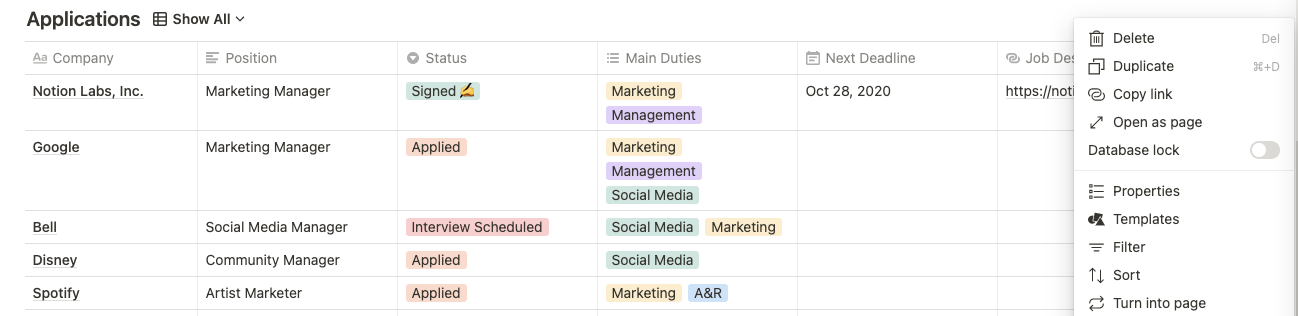
The same video we watched earlier also has a quick segment explaining these two properties.
All Notion Databases Explained in Under 30 Minutes! (Full Guide)
Let's return to the Creative Cove video for a quick look at how the URL and Email properties function.
Watch from 13:08 to 13:25. Notice how simple these properties are—you just paste the relevant information into the cell.
Test your understanding!
You're building a project management template for a freelance designer. The template needs to track client projects. For each project, you want to capture the following three pieces of information. Which property type would you use for each?
- The final project deadline.
- A link to the client's online design brief stored in a Google Doc.
- The main point of contact's email address for the client.
Show answer
- Project Deadline: You would use the
Dateproperty. You could also set a reminder for a few days before the deadline. - Link to Design Brief: The
URLproperty is the perfect choice for this. - Contact's Email: The
Emailproperty is designed specifically for this purpose.
✍️ Exercise: Add a Schedule and Sources to Your Content Hub
It's time to apply what you've learned to your "Master Content Hub." These additions will make it a much more powerful tool for planning and creating content.
- Navigate to your "Master Content Hub" database.
- Add a
Dateproperty for scheduling:- Click the
+icon to add a new property. - Name it "Publish Date".
- Set the
TypetoDate. - For a few of your content ideas, click into the "Publish Date" cell and select a future date. For one of them, try setting a reminder for "1 day before."
- Click the
- Add a
URLproperty for sources:- Click the
+icon to add another new property. - Name it "Source/Link".
- Set the
TypetoURL. - Find a relevant article or video online for one of your content ideas and paste the link into the "Source/Link" cell for that entry.
- Click the
- Practice with the
Emailproperty (Optional):- Add an
Emailproperty named "Contact" and add a sample email address to see how it works. You can delete this property afterwards if it's not relevant to your content hub.
- Add an
Your content hub can now not only track what you're working on but also when it's due and where your source material is.
Lesson Summary and Next Steps
Well done! You've now equipped your databases with properties that manage time and create connections. You learned how to use the Date property to schedule tasks and set reminders, and how to use URL and Email properties to link to external web pages and contacts.
Key Takeaways:
- The
Dateproperty is essential for any system that involves deadlines, schedules, or events. Its reminder feature is a key part of task management. - The
URLproperty acts as a bridge between your Notion workspace and resources across the web. - The
Emailproperty provides a quick-action link for contacting people, perfect for lightweight CRM templates.
In the next lesson, we will explore the Files & Media property. While the URL property links to things on the web, the Files & Media property allows you to upload files, documents, and images directly into your database entries, keeping all your assets in one place.