Welcome back! In our last session, we mastered the IF function, learning how to make our formulas perform one of two actions based on a logical test. This was a crucial first step in adding decision-making to your spreadsheets. However, accounting scenarios often involve more than just two possibilities. Think of tiered commission structures, progressive tax rates, or categorizing transactions based on multiple value ranges.
This lesson builds directly on that foundation. We will explore how to evaluate multiple, hierarchical conditions in Excel. First, we will learn the classic method: nesting IF functions one inside another. Then, we will cover the more modern and streamlined IFS function. Mastering these techniques is essential for automating complex categorizations and calculations, moving you closer to your goal of building sophisticated, automated financial models.
Handling Multiple Conditions with Nested IF Functions
The basic IF function gives you a fork in the road: one path for TRUE, another for FALSE. But what if the "FALSE" path leads to another decision? This is the core idea of a nested IF. You place a second IF function inside the value_if_false argument of the first one, creating a chain of logical tests.
The structure looks like this:=IF(condition1, value_if_true1, IF(condition2, value_if_true2, value_if_false2))
Excel evaluates condition1 first. If it's true, it returns value_if_true1 and stops. If it's false, it moves to the second IF function and evaluates condition2, and so on. This sequential evaluation is very important.
The blog "Excel for Accounting Students" provides an excellent walkthrough of this concept using a grading system—a scenario that's easy to grasp.
Nesting IFs - Excel for Accounting Students - WordPress.com
This article explains the logic behind nesting IFs, how to structure the formula, and how to troubleshoot common errors.
Start by reading the introduction, which explains why nesting is necessary when you have more than two outcomes. Next, carefully study the section on laying out the function. This breaks down the translation from plain English logic to the actual Excel formula. Pay close attention to the "Important notes". The tips about matching brackets and the number of IFs you need are critical for avoiding errors. Finally, review the common errors under "When it all goes wrong". Recognizing these will save you a lot of time.
A Practical Example: Tiered Bonuses
A common use case in business is calculating bonuses or commissions based on performance tiers. For instance, an employee might get a different bonus percentage depending on how many quarterly targets they've met.

The video below, by Leila Gharani, provides a clear, step-by-step demonstration of building a nested IF formula for a similar multi-condition scenario.
Excel IF Formula: Simple to Advanced (multiple criteria, nested IF, AND, OR functions)
This clip demonstrates how to build a nested IF formula from scratch and explains a crucial concept about how Excel processes it.
First, watch the main demonstration from 5:07 to 6:59. Here, she creates a formula to label revenue as "Good," "Exceptional," or return the original value, placing the second IF in the value_if_false argument. Next, watch the segment from 7:31 to 7:46. Her explanation that Excel stops evaluating the formula as soon as it finds a TRUE condition is a key takeaway for structuring your formulas correctly.
Advanced Application: Income Tax Calculation
A classic and powerful application of nested IF logic in accounting is calculating income tax in a progressive tax system. As income increases, it falls into higher brackets, each taxed at a different rate. While there are several ways to model this, a nested IF structure is a direct way to implement the logic for each bracket.
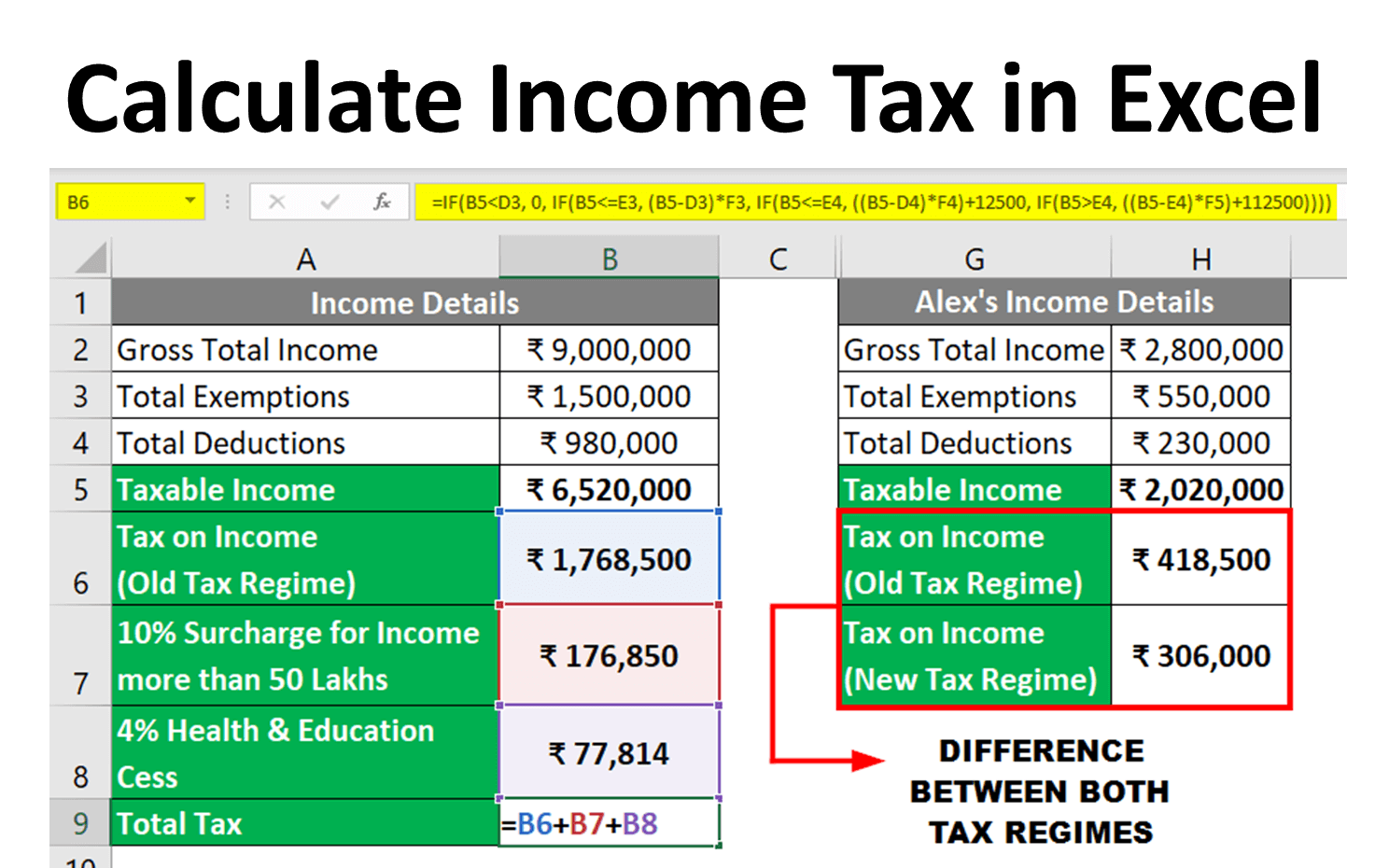
The Exceljet resource provides an excellent, detailed model for this. While it explores modern dynamic array formulas, its "traditional formula" section presents a perfect example of a clear, copyable nested IF formula for this task.
Income tax bracket calculation - Excel formula | Exceljet
This article breaks down how to calculate income tax. We will focus on the traditional nested IF approach, which is a powerful illustration of the concept.
Please scroll down to Method 2 - A traditional formula approach. Read this section and pay close attention to the formula provided: the nested IF formula. Notice how it calculates the portion of income that falls into each specific tax bracket. This is a robust technique for tiered calculations.
The Modern Approach: The IFS Function
While nested IFs are powerful, they can become difficult to read and manage, especially with many conditions—a problem sometimes called the "pyramid of doom" due to the stack of closing parentheses ))).
If you're using a modern version of Excel (Excel 2019, Microsoft 365), there is a much cleaner alternative: the IFS function.
The IFS function checks multiple conditions in a simple, linear sequence. Its syntax is:=IFS(logical_test1, value_if_true1, [logical_test2, value_if_true2], ...)
You provide a series of test-value pairs. IFS evaluates each test in order, and the moment it finds one that is TRUE, it returns the corresponding value and stops. It's like a series of IF statements without the nesting.
How to Use the IFS Function in Excel
Leila Gharani provides another excellent tutorial, this time dedicated entirely to the IFS function.
Watch the introduction from 0:00 to 0:28 to understand why IFS was created. Follow the main example from 0:49 to 2:35, where she categorizes salaries as "higher," "lower," or "same." Notice the #N/A error that occurs when none of the conditions are met. Critically, watch the explanation of the "catch-all" condition from 2:43 to 4:12. Using TRUE as your final logical test is the standard way to provide a default value, equivalent to the final value_if_false in a nested IF. Finally, the brief comparison at 8:42 to 8:58 visually shows how much cleaner the IFS formula is.
Nested IF vs. IFS: Which to Choose?
- Readability:
IFSis almost always easier to write and read for multiple conditions. - Compatibility: Nested
IFworks in all versions of Excel. If your workbook might be used by someone with an older version, nestedIFis the safer choice. - Logic: Both rely on sequential evaluation. The order of your conditions is crucial. You should typically test from the most specific to the most general condition, or from the highest value to the lowest.
Conclusion
In this lesson, you have expanded your logical toolkit significantly. You learned how to chain conditions together using the classic nested IF structure and how to simplify that logic with the modern IFS function. You are now equipped to handle complex, multi-tiered business rules directly within your formulas, a key skill for automating financial reports and analysis.
Key Takeaways:
- A nested
IFplaces anIFfunction inside thevalue_if_falseargument of another to create a sequence of tests. - The
IFSfunction simplifies this by allowing a flat list oftest/valuepairs. - In both functions, the order of conditions is critical, as Excel stops evaluating once it finds the first TRUE condition.
- For
IFS, you can create a default or "else" case by usingTRUEas your final logical test. - For very complex lookups (e.g., more than 5-7 tiers), other functions like
VLOOKUPorINDEX/MATCHmight be more efficient, which we will explore in a future module.
In our next lesson, we will address a small but vital detail in financial modeling: precision. After performing calculations that might result in many decimal places, like the tax and commission examples today, it's crucial to control how those numbers are presented. We will learn to use the ROUND, ROUNDUP, and ROUNDDOWN functions to ensure your financial figures are accurate and professional.