Hello! In our previous lesson, we dove into the logical power of Excel, mastering nested IF and IFS functions to handle complex, multi-tiered decisions. Calculations like tiered commissions or progressive taxes, which you learned to model, often produce results with many decimal places. While this is mathematically correct, it's not practical for financial reporting.
This lesson addresses that crucial final step: controlling precision. We will explore the ROUND, ROUNDUP, and ROUNDDOWN functions. For someone with your background in commerce, understanding this isn't just about making numbers look tidy. It's about ensuring the integrity of your financial statements and preventing subtle errors that can cascade through a financial model. By the end of this session, you'll be able to apply these functions to ensure every figure in your automated reports is both accurate and professionally presented.
The Problem: Formatting vs. True Value
A common mistake for new Excel users is to rely on the "Decrease Decimal" button on the Home ribbon to clean up numbers. This only changes the number's appearance, not its underlying value. This can lead to significant errors in accounting. For example, if you sum a column of numbers that have been visually formatted, the total may not match the sum of the numbers you see on the screen. This is often called a "floating point" or "phantom penny" error, and it can undermine the credibility of a financial statement.
To truly control precision, we must use functions that change the actual value stored in the cell. The following video provides an excellent explanation of this critical distinction.
Using the Excel ROUND Functions
This clip from the "Technology for Teachers and Students" channel clearly illustrates why simply formatting a number is not enough for accurate calculations.
Please watch from the beginning until 1:11. Pay close attention to how the formula bar reveals the "real truth" of the cell's value, even when its display is formatted differently.
The Core Rounding Functions
Excel provides three primary functions to solve this problem, each with a specific purpose. Their syntax is similar, but their behavior is critically different.
=ROUND(number, num_digits): Rounds to the nearest value, following standard arithmetic rules.=ROUNDUP(number, num_digits): Always rounds a number up, away from zero.=ROUNDDOWN(number, num_digits): Always rounds a number down, toward zero.
The article "Improve Accuracy with Excel's ROUND and ROUNDUP Functions" from Resourceful Finance Pro provides an excellent strategic overview of when to use each function in a financial context.
Improve Accuracy with Excel's ROUND and ROUNDUP Functions
This article explains the practical importance of rounding functions and provides business contexts for using them.
First, read the introduction before Step 1 to reinforce the concept of floating point errors. Next, read Step 1 to understand the standard use of the ROUND function for general reporting. Finally, read Step 2. This section is particularly relevant as it frames ROUNDUP for conservative budgeting (e.g., expenses) and ROUNDDOWN for conservative forecasting (e.g., revenue), concepts you'll be familiar with from your accounting studies.
Let's look at these three functions side-by-side to see how they treat the same values.

Understanding the num_digits Argument
The second argument in these functions, num_digits, gives you precise control over the rounding target.
- Positive number (e.g., 2): Rounds to the specified number of decimal places. For accounting,
2is most common for currency (e.g., $154.24). - Zero (0): Rounds to the nearest whole number (integer).
- Negative number (e.g., -2): Rounds to the left of the decimal point.
-1rounds to the nearest 10,-2to the nearest 100, and-3to the nearest 1000. This is very useful for high-level summary reports where exact figures are unnecessary.
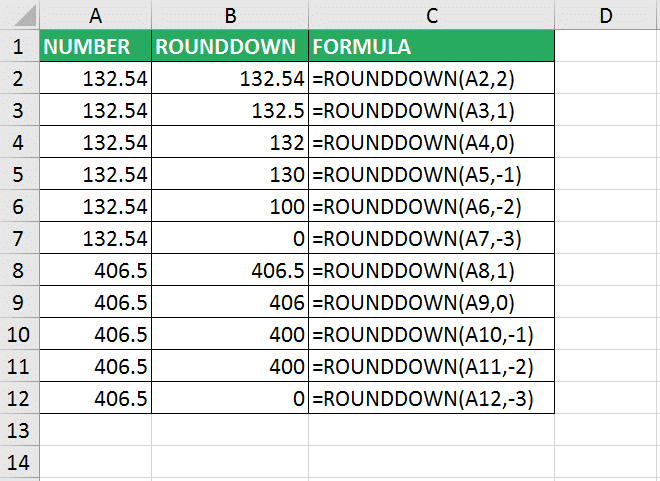
The following image provides a perfect illustration of how ROUNDDOWN behaves with different num_digits values. The same logic applies to ROUND and ROUNDUP.
Automating Precision with Nesting
The true power of these functions in your quest for automation comes from nesting them with other calculations. Instead of calculating a value in one column and rounding it in another, you can do it all in a single step. This makes your worksheets cleaner and more efficient.
This technique is especially powerful when combined with the logical functions we learned in the last lesson. For example, when calculating a sales commission, you can wrap your IF function inside a ROUND function to ensure the final payout is a clean, two-decimal currency value.
=ROUND(IF(Sales > 100000, Sales * 0.03, Sales * 0.01), 2)
This formula first checks if sales are over 100,000, calculates the appropriate commission, and then immediately rounds the result to two decimal places.
The article from Resourceful Finance Pro that you read earlier has a great section on this.
Improve Accuracy with Excel's ROUND and ROUNDUP Functions
This section shows how to embed rounding functions within other formulas to make your calculations more efficient.
Please read the section on nesting. The example combining ROUND with an IF function is a perfect real-world application for financial modeling.
Conclusion
In this lesson, you've learned a fundamental skill for maintaining accuracy and professionalism in your financial spreadsheets. You now understand the critical difference between visual formatting and functional rounding, and you have the tools to manage precision deliberately.
Key Takeaways:
- Relying on formatting tools like "Decrease Decimal" creates "floating point" errors that can break financial reports.
ROUNDis your go-to for standard financial reporting where conventional rounding rules apply (e.g., finalizing currency values).ROUNDUPis used for conservative estimates where underestimation is a risk (e.g., budgeting for expenses, calculating liabilities).ROUNDDOWNis used for conservative estimates where overestimation is a risk (e.g., projecting revenue, allocating resources).- Nesting rounding functions inside your calculation formulas is a key practice for creating clean, efficient, and automated worksheets.
In our next lesson, we will shift our focus from numerical values to another critical component of accounting data: dates. You'll learn how to use functions like DATE, TODAY, and EOMONTH to manage time-sensitive information, a skill essential for tasks like creating accounts receivable aging reports and calculating due dates.