Hello! In our last session, you built a powerful macro to automate budget vs. actual variance analysis. This added another specialized tool to your growing collection of reporting macros, which now includes generators for the Income Statement, Balance Sheet, and various analyses.
So far, each of these macros runs independently. In an accounting context, you often need to produce a complete set of reports at once, for example, at month-end. Running each macro one by one is better than manual work, but it's not true automation. Today, we'll learn how to orchestrate these individual tasks into a single, seamless workflow.
This lesson focuses on creating a "main" Sub procedure that calls your other macros to run an entire sequence of reporting tasks. You will learn how to structure your code in a modular way, making it more organized, efficient, and easier to manage—a hallmark of professional automation.
The Power of Modular Programming
Before we dive into the code, let's discuss a crucial programming concept: modularity. Instead of writing one enormous, complex macro that does everything, it's far better to break the problem down into smaller, logical, single-purpose macros. This is exactly what we have been doing by creating separate macros for the Income Statement, Balance Sheet, and so on.
The benefits of this approach are significant:
- Readability & Maintenance: A macro named
GenerateBalanceSheetis self-explanatory. If something is wrong with the Balance Sheet, you know exactly where to look. - Reusability: You can run the
GenerateBalanceSheetmacro on its own, or as part of a larger process. - Easier Debugging: It's much simpler to test and fix a small, focused procedure than a monolithic one with hundreds of lines of code.
The final step is to create a "manager" or "main" procedure that directs these specialist macros to run in the correct order.
The following article explains this principle well.
VBA Automation Best Practices for Excel Users in 2025
This article on VBA best practices contains a section that perfectly illustrates the concept of modular programming.
Please read the short section under the heading Modular Programming Principles. Pay close attention to the example code, which shows a ProcessData sub calling other, more focused sub-procedures. This is the exact structure we are about to build.
How to Call One Macro from Another
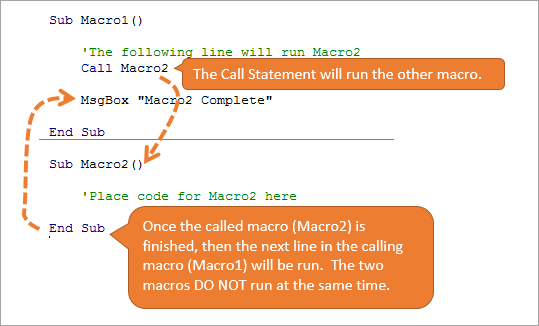
VBA makes it very simple to run one macro (a Sub procedure) from within another. The execution is strictly sequential: when you "call" a second macro, the first one pauses, waits for the second one to finish completely, and only then resumes from where it left off.
The image below illustrates this flow. Macro1 executes its code until it reaches the line Call Macro2. At that point, VBA jumps to Macro2 and runs it from start to finish. Once Macro2 is complete, control returns to Macro1, which then runs the MsgBox line.
To learn the specific syntax, please read the following guide.
How to Call or Run a Another Macro From a Macro - Excel Campus
This article from Excel Campus provides a clear, concise explanation of how to call macros.
Read the section titled VBA Example. It explains the Call statement and the alternative of just using the macro's name. The author's opinion on always using Call for clarity is a good practice to adopt.
For a live demonstration of creating a "main" macro, the following video is very helpful.
VBA Excel Combining Multiple Macros (2 or more Macros)
This video shows exactly how to create a new procedure for the sole purpose of running other macros in sequence.
Watch the segment from this timestamp. The presenter creates a new sub named run all macros and simply lists the names of the other macros inside it. This is the simple but powerful technique we will use to build our complete reporting package.
Building Your Main Reporting Procedure
Now, let's bring everything together. We will create a new macro called RunFullReportPackage. Its only job will be to call the individual reporting macros you've already built in the correct logical order.
A logical sequence for a month-end report package would be:
- Generate the core financial statements (Income Statement, Balance Sheet).
- Perform calculations based on those statements (Ratio Analysis).
- Generate supplementary analysis reports (Trend Analysis, Variance Analysis).
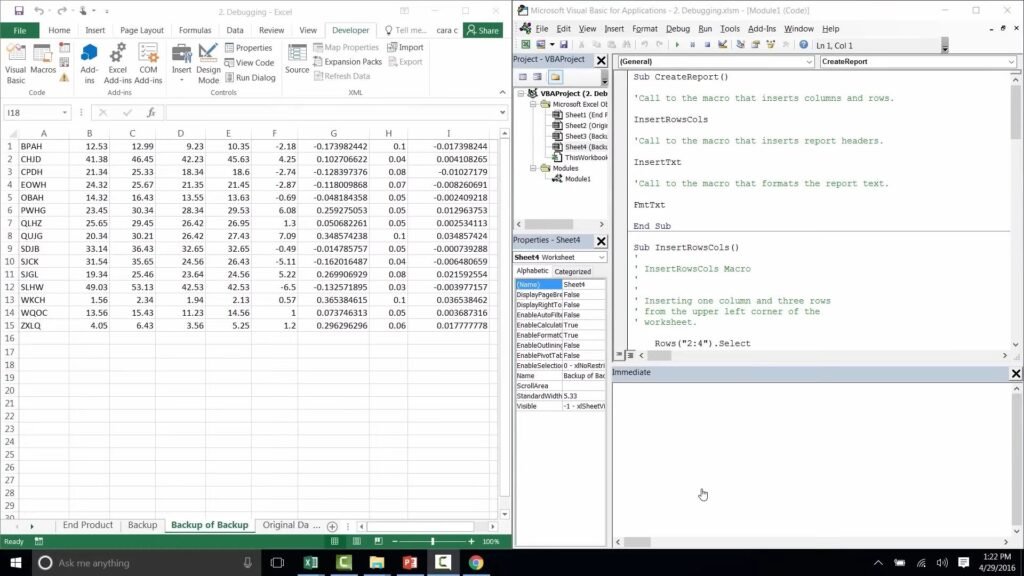
Here is the code for your main procedure. You can add this to a new module in your VBE or to your existing module containing the other reporting macros.
Sub RunFullReportPackage()
    ' Purpose: Runs the complete suite of financial reports in a logical sequence.
    ' This acts as the main controller for the reporting process.

    ' --- 1. PERFORMANCE OPTIMIZATION ---
    ' Turn off screen updating to make the macro run faster and appear smoother.
    Application.ScreenUpdating = False


    ' --- 2. RUN REPORTING MACROS ---
    ' Call each individual reporting macro in the desired order.

    Call GenerateIncomeStatement
    Call GenerateBalanceSheet
    Call CalculateFinancialRatios
    Call GenerateTrendAnalysis
    Call GenerateVarianceReport


    ' --- 3. CLEANUP AND NOTIFICATION ---
    ' Restore screen updating to normal.
    Application.ScreenUpdating = True

    ' Notify the user that the process is complete.
    MsgBox "Full financial reporting package has been generated successfully.", vbInformation

End Sub
A Note on Performance: Application.ScreenUpdating
Notice the two new lines in the code: Application.ScreenUpdating = False at the beginning and Application.ScreenUpdating = True at the end.
When you run a macro that manipulates worksheets (selecting cells, writing data, formatting), Excel tries to redraw the screen with every change. When running multiple macros back-to-back, this causes a lot of screen flickering and significantly slows down the execution.
By setting ScreenUpdating to False, you tell Excel, "Don't bother redrawing the screen until I'm finished." The code runs much faster in the background, and then setting it back to True at the end displays the final result instantly. This creates a much more professional and efficient user experience.
The following video clip demonstrates the dramatic difference this one line of code can make.
Excel Macros & VBA - Tutorial for Beginners
This clip from a beginner's tutorial clearly shows the "before and after" of using Application.ScreenUpdating.
Watch the short segment from this part of the video. You'll see the screen flicker as the macro runs initially, and then you'll see how smooth and fast it becomes after adding the code to turn off screen updating.
Conclusion
Congratulations! You have now moved from creating individual automated tasks to orchestrating a complete, multi-step workflow. By creating a main procedure, you have effectively built a "master control panel" for your entire financial reporting package. With a single click, you can now generate a full set of statements and analyses that would take hours to produce manually.
Key Takeaways:
- Modular Programming: Breaking down complex problems into small, single-purpose macros makes your code cleaner, more reusable, and easier to maintain.
- The
CallStatement: You can execute other macros sequentially usingCall MacroNameor simply by listing theMacroName. - Sequential Execution: Called macros run one at a time, in the order they are called. The main procedure waits for each one to finish before starting the next.
- Performance is Key: Using
Application.ScreenUpdating = Falseis a critical best practice for any macro that performs multiple on-screen actions, resulting in faster and smoother execution.
In our next and final module, we will take this automation to the next level by building an interactive dashboard. The RunFullReportPackage macro you created today will become the engine behind a "Refresh All" button on that dashboard, providing a user-friendly interface for your powerful automation scripts.