Welcome back! In our last lesson, we took our first steps into modifying VBA code, learning how to tweak recorded macros to make them more dynamic and powerful. You saw how we used a line of code, Dim LastRow As Long, to create a placeholder for the last row number. That placeholder is called a variable.
Today, we will explore this concept in depth. The goal of this lesson is to learn how to properly declare variables using the most appropriate data types. Mastering variables is not just a technical exercise; it is the absolute foundation for writing any custom automation. For an accountant, this means creating tools that can handle invoice numbers, transaction dates, financial amounts, and client names with precision and reliability.
What is a Variable, and Why Declare It?
In programming, a variable is simply a named location in the computer's memory that you can use to store information temporarily. Think of it as a labeled box where you can put a piece of data—like a number, some text, or a date—to use later in your macro.
You might wonder, "Can't I just use a variable without formally creating it?" The short answer is yes, but it is a very risky practice that can lead to bugs that are difficult to track down.
Let's watch a short video that first demonstrates using a variable in a simple way, and then shows the exact problem that can occur when you don't formally declare it.
Excel VBA Introduction Part 8 - Variables
This video from WiseOwlTutorials clearly demonstrates the purpose of a variable and the pitfalls of not declaring it.
First, watch the section from using a variable to see how it stores the name of a film to be used multiple times. Next, watch from the problem with non-declared variables. Pay close attention to how a simple typo (new fim name instead of new film name) causes the macro to fail silently, without an error message. The Locals window reveals that VBA created a second, empty variable due to the typo.
This typo issue is a classic problem in programming. Because VBA was not told what variables to expect, it simply created a new, empty one when it saw the misspelled name. In an accounting context, this could lead to a macro inserting a zero instead of a transaction amount, silently corrupting your financial report.
The Golden Rule: Option Explicit
To prevent these kinds of errors, we can instruct VBA to be strict and require that every single variable be formally declared before it is used. This is done with a simple statement at the very top of your code module: Option Explicit.
With Option Explicit in place, if you misspell a variable name, VBA will immediately stop and alert you with a "Variable not defined" error, making the bug instantly obvious. This practice is so important that it's considered a golden rule of VBA programming.
You can—and should—set up your Visual Basic Editor to automatically add Option Explicit to every new module you create.
This guide from Excel Macro Mastery explains the 'why' and 'how' of forcing variable declaration.
Please read the section titled Option Explicit. It will show you exactly how to enable the "Require Variable Declaration" setting in your VBE options, which automates the process of adding this crucial line. The examples in this section reinforce the exact typo problem we saw in the video.
Once Option Explicit is active, you must declare your variables. We do this using the Dim statement (short for "Dimension"). The syntax is straightforward:
Dim variableName As DataType
Choosing the Right Data Type
The DataType part of the declaration is where you tell VBA what kind of information your variable will hold. Choosing the correct data type is crucial for two main reasons:
- Error Prevention: It ensures data integrity. If you declare a variable to hold a date, VBA will throw an error if you try to put a client's name into it. This is a good thing—it catches mistakes early.
- Efficiency: It helps your code run faster and use less memory. By specifying a data type, you allow VBA to reserve the exact amount of memory needed. If you don't specify a type, VBA defaults to a generic type called
Variant, which uses much more memory and can be slower.
Let's watch a brief explanation on why specifying data types is so important.
How to Declare (Dim) and Set VBA Variables (use data types correctly)
Leila Gharani provides a concise explanation of the performance benefits of declaring variables with specific data types.
Watch the first 40 seconds of the video, from why this is important. Notice the comparison between the memory usage of a specific type (like Byte) versus the default Variant.
For your work in accounting, you will frequently use a handful of key data types. Let's review the most essential ones.
| Data Type | What it Stores | Accounting Example | Syntax Example |
|---|---|---|---|
| Long | Whole numbers (no decimals). Range is +/- 2 billion. | An invoice number, a row count, a transaction ID. | Dim invoiceNumber As Long |
| Double | Numbers that can have decimals (floating-point). | A tax rate (e.g., 0.0825), an interest rate. | Dim taxRate As Double |
| Currency | Numbers representing money, fixed to 4 decimal places. | A transaction amount, a subtotal, a salary. | Dim transactionAmount As Currency |
| String | Text of variable length. | A client's name, an account description, an address. | Dim clientName As String |
| Date | Date and/or time values. | An invoice due date, a transaction timestamp. | Dim dueDate As Date |
| Boolean | Only True or False. |
A status flag, like isPaid or isReconciled. |
Dim isPaid As Boolean |
A Note on Long vs. Integer: You may see older code use the Integer data type. Integer holds smaller whole numbers (up to 32,767). In modern systems, VBA converts Integer to Long behind the scenes, so it's best practice to just use Long directly. It prevents potential "Overflow" errors if your number exceeds the smaller limit.
A Note on Double vs. Currency: While both can hold decimals, the Currency data type is specifically designed for financial calculations. It is a fixed-point number type that avoids the tiny rounding errors that can sometimes occur with floating-point numbers (Double), making it the safer and more professional choice for any variable that holds a monetary value.
This image clearly illustrates what happens when you try to store a number with a decimal in a data type that only accepts whole numbers.
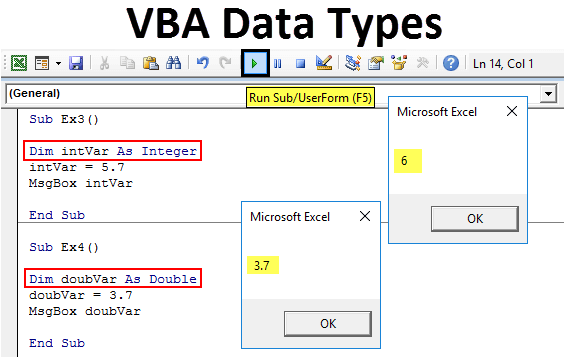
For a more comprehensive reference, you can consult the following table, which lists many of the available data types in VBA.

Putting It All Together: A Practical Example
Let's see how this works in a practical accounting scenario. Here is a simple macro that declares variables to hold invoice information, assigns values to them, performs a calculation, and displays the result.
' Make sure this is at the very top of your module!
Option Explicit

Sub PrepareInvoiceSummary()

    ' 1. Declare variables with appropriate data types
    Dim clientName As String
    Dim invoiceNumber As Long
    Dim invoiceDate As Date
    Dim subtotal As Currency
    Dim taxRate As Double
    Dim totalAmount As Currency
    Dim isPaid As Boolean

    ' 2. Assign values to the variables
    clientName = "Vertex Inc."
    invoiceNumber = 2024001
    invoiceDate = #11/15/2024#  '-- Note the # symbols for dates
    subtotal = 1250.50
    taxRate = 0.07
    isPaid = False

    ' 3. Perform a calculation using the variables
    totalAmount = subtotal * (1 + taxRate)

    ' 4. Display the results in a message box
    MsgBox "Client: " & clientName & vbCrLf & _
           "Invoice Total: " & Format(totalAmount, "Currency") & vbCrLf & _
           "Paid Status: " & isPaid

End Sub
To test this:
- Open the VBE (
Alt + F11). - Insert a new module (
Insert > Module). - Copy and paste the code above into the new module.
- Click anywhere inside the
Suband pressF5to run it.
You should see a message box summarizing the invoice data. Notice how we use Format(totalAmount, "Currency") to ensure the final output is displayed correctly with a currency symbol and two decimal places.
As you've learned, declaring a specific data type helps VBA catch errors. Let's see what these errors look like in practice.
Excel VBA Introduction Part 8 - Variables
This final clip from the WiseOwlTutorials video demonstrates the two most common data type errors.
Watch the section from Type Mismatch error. Here, an invalid date is entered, and VBA correctly flags a "Type Mismatch" because the text "31st of Feb" cannot be stored in a Date variable. Then, watch from Overflow error. In this part, a number larger than 32,767 is entered into an Integer variable, causing an "Overflow" error. This is exactly why we prefer using Long.
Conclusion
In this lesson, you have learned one of the most fundamental concepts in programming: using variables to store and manage data. This is the skill that separates simple macro recording from powerful, custom automation.
Key Takeaways:
- Variables are named placeholders in memory for storing information like numbers, text, and dates.
- Always use
Option Explicitat the top of your modules to force variable declaration and catch typo-related bugs. - Declare variables using the
Dim variableName As DataTypesyntax. - Choosing the appropriate data type (
Long,Double,Currency,String,Date,Boolean) is critical for writing efficient, error-free code. - Using the wrong type of data will trigger helpful errors like Type Mismatch or Overflow, which protect the integrity of your calculations.
In our next lesson, we will build directly on this foundation. You'll learn how to make your macros interactive by using the MsgBox and InputBox functions to display information to the user and receive input from them, storing that input in the variables you now know how to create.