Welcome back! In our last lesson, you built a powerful data validation macro using Range.Find to ensure data integrity against a master list. This involved looping through a range of cells. Now, we'll scale up that concept from a single sheet to an entire workbook.
Today, you will learn how to write a VBA loop that iterates through every worksheet in a workbook. This is a fundamental skill for automating tasks across complex accounting files. Imagine a workbook with twelve separate sheets for each month's financial data. Instead of manually cleaning, formatting, or consolidating each of the twelve sheets one by one, you can write a single macro to do it all in seconds. This lesson is the key to unlocking that level of efficiency.
The Power of Looping Through Worksheets
In accounting, workbooks rarely contain just one sheet. A typical financial model or reporting pack might include:
- A sheet for raw data (e.g., a trial balance export).
- Separate sheets for each department's budget.
- Twelve individual sheets for monthly P&L statements.
- A summary sheet with dashboards and charts.
Being able to programmatically visit each of these sheets to perform an action is essential. You could use a loop to apply consistent formatting, protect completed reports, or gather data for a consolidated summary—all common tasks in a finance role.
The primary method we'll use is the For Each...Next loop, which is designed to work with collections of objects, such as all the worksheets in a workbook.
Your First Worksheet Loop: A Visual Guide
Let's start with a video that clearly demonstrates the basic syntax and shows the loop in action. This example will print the name of each worksheet to the "Immediate Window" in the VBA editor, which is a great way to confirm your loop is working as expected.
Excel VBA Basics #30 How to Loop Through Each Worksheet in Workbook
Watch this segment from the video "Excel VBA Basics #30" by ExcelVbaIsFun. The presenter provides a clear, step-by-step walkthrough of creating a basic worksheet loop.
Pay close attention to the following parts: Declaring the variable: Notice the line Dim WS as Worksheet. This creates a variable that can temporarily hold a reference to each worksheet object as the loop runs. The loop syntax: Focus on the structure For Each WS In ThisWorkbook.Worksheets ... Next WS. This is the core of what you'll be learning today. Debugging and output: See how Debug.Print ws.Name is used to list the sheet names. This is an invaluable technique for testing your code.
Understanding the For Each...Next Loop Structure
The video gave you a practical look at the code. Now, let's take a moment to understand the components of this loop more formally. A For Each loop has a very readable, logical structure.
The For Next and For Each Loops Explained for VBA & Excel
This article from Excel Campus provides an excellent, in-depth explanation of For Each loops. We will focus on the sections that detail the structure and mechanics using worksheets as the main example.
Please read the following sections: Start at the heading "The For Each Next Loop". This section clarifies that this type of loop is ideal for collections of objects like worksheets. Continue through Steps 1 to 4, which break down the four essential parts of writing the loop, from declaring the variable to the Next ws statement. Finally, read the short section on loop order. It's important to know that the loop processes sheets from left to right, as they appear in the workbook tabs.
After this reading, you should be comfortable with the syntax and the role of each line in the loop. The key is that the ws variable becomes a temporary alias for each worksheet, one by one, allowing you to apply methods and properties to it (like ws.Name or ws.Protect).
Adding Intelligence: Conditional Logic in Your Loop
Looping through every sheet is useful, but often you'll want to exclude certain sheets. For instance, you might want to format all your monthly data sheets but ignore a "Summary" or "Instructions" sheet. This is where combining your loop with an If...Then statement becomes critical.
You can check a property of the worksheet, such as its name, before deciding whether to run your code.
' An example of conditional logic inside a loop
For Each ws In ThisWorkbook.Worksheets
    ' Check if the worksheet name is NOT "Summary"
    If ws.Name <> "Summary" Then
        ' If it's not the summary sheet, perform an action.
        ' For example, protect the worksheet:
        ws.Protect
    End If
Next ws
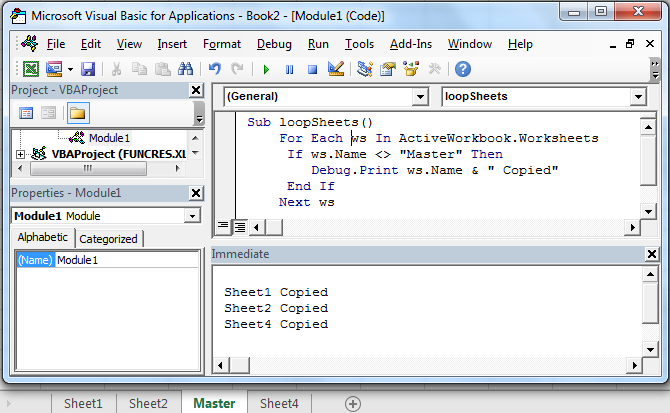
The image below shows exactly this kind of logic within the Visual Basic Editor. The code loops through worksheets but includes an If statement to explicitly skip a sheet named "Master".
A Practical Accounting Macro: Securing Monthly Reports
Let's write a complete macro for a common accounting task. Imagine you have a workbook containing monthly transaction sheets (e.g., "Jan-Data", "Feb-Data") and a master "Chart of Accounts" sheet. Before sending it for review, you want to ensure all the data sheets are visible and protected to prevent accidental changes, while leaving the "Chart of Accounts" sheet unprotected for reference.
Here is the code to accomplish this:
Sub SecureMonthlyDataSheets()
    ' Purpose: Loops through all worksheets. Makes data sheets visible
    '          and protects them, while ignoring the master accounts sheet.

    ' 1. DECLARE THE WORKSHEET VARIABLE
    Dim ws As Worksheet

    ' 2. LOOP THROUGH THE WORKSHEETS COLLECTION
    For Each ws In ThisWorkbook.Worksheets

        ' 3. APPLY CONDITIONAL LOGIC
        ' Check if the current sheet is the "Chart of Accounts"
        If ws.Name <> "Chart of Accounts" Then
            ' If it's any other sheet, perform these actions:

            ' a) Ensure the worksheet is visible
            ws.Visible = xlSheetVisible

            ' b) Protect the worksheet. The empty password means it's
            '    protected from accidental edits but easily unprotected.
            ws.Protect Password:=""

        End If

    ' The 'Next' statement tells VBA to move to the next sheet in the collection
    Next ws

    ' 4. CONFIRMATION MESSAGE
    MsgBox "All data sheets have been made visible and are now protected."

End Sub
This macro is a perfect example of automation saving you from a tedious, manual task. You could run this on a workbook with 3, 12, or 50 data sheets, and it would work just the same.
An Alternative Method: The For i = 1 To ... Loop
While For Each is often the most readable way to loop through objects, there is another method that uses a counter. This is the For...Next loop you've seen before, but applied to the Worksheets collection.
The structure looks like this:
Dim i As Long
For i = 1 To ThisWorkbook.Worksheets.Count
    ' Action is performed on Worksheets(i)
    Debug.Print ThisWorkbook.Worksheets(i).Name
Next i
Here's how it works:
Worksheets.Countgives the total number of worksheets in the workbook.- The loop iterates from 1 to that total count.
- Inside the loop, you refer to the worksheet by its index number:
Worksheets(1),Worksheets(2), and so on.

Both For Each and For i = 1 To Count achieve the same result of iterating through all sheets. The For Each syntax is generally preferred for its clarity when you don't need the index number.
The Complete Guide To The VBA Worksheet
This guide from Excel Macro Mastery has a handy table comparing the syntax for both loop types.
In the table under the heading "A Quick Guide to the VBA Worksheet", locate the two rows for looping through worksheets. Compare the syntax for Loop through all worksheets(For) and Loop through all worksheets(For Each). This provides a concise side-by-side view of the two methods.
Conclusion
You have now added a critical tool to your VBA automation arsenal. The ability to loop through worksheets allows you to manage and process entire workbooks, moving you beyond single-sheet macros.
Key Takeaways:
- The
For Each ws In ThisWorkbook.Worksheets ... Next wsloop is the standard, readable method for iterating through all sheets in the workbook containing your code. - Combining this loop with
If...Thenstatements allows you to selectively apply actions, such as formatting or protecting, only to the sheets that meet your criteria. - Properties like
ws.Name,ws.Visible, and methods likews.Protectcan be used inside the loop to manipulate each worksheet. - An alternative loop structure,
For i = 1 To Worksheets.Count, allows you to iterate using an index number, thoughFor Eachis often more intuitive.
In our next lesson, we will address another fundamental challenge in data processing: how to write VBA code to dynamically find the last-used row in a column. This is essential for macros that need to append new data to a list without overwriting existing entries or leaving gaps.