Welcome back! We've now covered the fundamental building blocks of VBA programming, culminating in our last lesson on Do...While loops for handling tasks with an unknown number of repetitions. You're now equipped with the logic to control the flow of your programs.
In this lesson, we shift from learning syntax to applying these concepts to a core task in any data-heavy role: data cleaning. Specifically, you will learn how to write a VBA macro that loops through a dataset to remove messy, inconsistent spacing from text. This is a foundational skill for an accountant, as clean data is the prerequisite for accurate financial analysis, reporting, and reconciliation.
The Problem with Extra Spaces
When you import data from other systems (like accounting software or bank statements), it often arrives with hidden formatting issues. One of the most common and frustrating problems is the presence of extra spaces:
- Leading spaces: Spaces before the text begins (e.g.,
" Account Receivable"). - Trailing spaces: Spaces after the text ends (e.g.,
"Sales Revenue "). - Multiple spaces between words: (e.g.,
"Cost of Goods Sold").
These seemingly minor issues can cause major problems. A cell with "Salaries " is not the same as a cell with "Salaries" to Excel. This means that your VLOOKUP, INDEX/MATCH, and SUMIFS functions will fail to find matches, leading to incorrect reports and hours of frustrating troubleshooting. Automating the cleanup of these spaces is a huge time-saver.
The Tool for the Job: The Trim Function
VBA provides a built-in function to solve this exact problem. Let's start by understanding this core tool.
VBA TRIM Function - Definition, Syntax, Examples, Uses - ExcelMojo
This article from ExcelMojo provides a clear introduction to the Trim function, its purpose, and its syntax.
First, read the introductory section What is Excel VBA TRIM Function? to get a high-level overview. Next, review the simple Syntax section. Finally, it's useful to understand the context. Read the section Difference Between Excel & VBA Trim Function to see how this VBA function relates to the worksheet function you might already know.
As the article notes, the basic VBA.Trim() function removes leading and trailing spaces. However, it does not remove extra spaces between words. For data cleaning, we often want to do that as well.
Fortunately, we can call the more powerful worksheet version of the TRIM function directly from our VBA code. The syntax is Application.WorksheetFunction.Trim(cell_value). This version removes leading spaces, trailing spaces, and condenses any multiple spaces between words into a single space. For accounting data cleanup, this is almost always what you want.
Building the Data Cleaning Macro
Now, let's combine this function with the loop structures you've learned to clean an entire range of cells. The most logical loop for this task is For Each...Next, which is designed to perform an action on every item within a collection (in this case, every cell in a range).
The process looks like this:
- Define a range of cells that contains the messy data.
- Loop through each cell in that range.
- For each cell, replace its current value with the "trimmed" version of that value.
The following guide demonstrates this process perfectly using a fixed range.
VBA TRIM Function - Definition, Syntax, Examples, Uses - ExcelMojo
This example from the same ExcelMojo article walks you through building a complete macro to clean a specific range. It's a fantastic, practical application of a For Each loop.
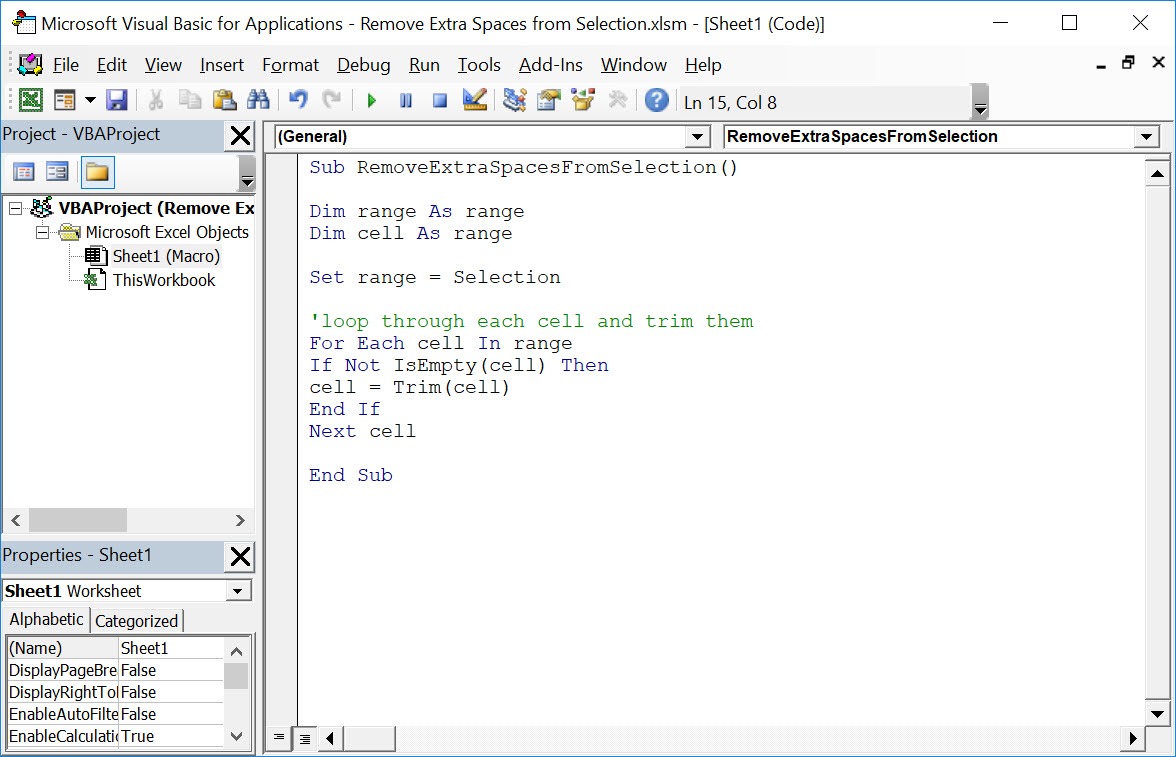
Please read through the entire section for Example #3 – Clean the Data in Cells. Follow the steps from this point to the end of the example. Pay close attention to the code structure: Dim cell As Range and Dim rng As Range declare the necessary variables. Set rng = Range("A1:A10") defines the target range. For Each cell In rng starts the loop. cell.Value = Trim(cell.Value) does the actual cleaning. Next cell moves to the next cell in the range.
The code you just reviewed is the heart of our data cleaning macro. In the Visual Basic Editor, it will look like this:
Making the Macro More Flexible and Robust
The previous example works, but it has a major limitation: the range is hardcoded as Range("A1:A10"). This means you'd have to edit the code every time you want to clean a different set of data. A much better approach is to write the macro to work on whatever cells the user has selected.
Furthermore, running the Trim function on a cell that contains a number, date, or an error will cause the macro to stop with an error. A robust macro should anticipate this and only attempt to trim cells that actually contain text.
The following resource shows how to implement these professional-grade improvements.
Excel VBA: Custom Accounting Efficiency - Starkmont Financial
This article from Starkmont Financial demonstrates a more advanced and practical version of a data cleaning macro, perfect for real-world use.
Read the code under the heading Clean and Format your Data and the subsequent "Explanation" section. Focus on these key upgrades: Dynamic Range: Note how it uses Set DataRange = Application.Selection to work on the currently selected cells. Error Handling: See the On Error Resume Next and the If DataRange Is Nothing Then... block. This gracefully handles the case where the user runs the macro without selecting any cells. Data Type Check: The most important part for robustness is the If VarType(Cell.Value) = vbString Then... line. This checks if the cell's value is a string before trying to trim it, preventing errors on non-text cells.
Let's integrate these improvements and use the more powerful Application.WorksheetFunction.Trim. Here is the final, recommended code for your data cleaning macro.
Sub CleanSelectedCells()
    ' Declare variables
    Dim dataRange As Range
    Dim cell As Range

    ' Turn off screen updating to make the macro run faster
    Application.ScreenUpdating = False

    ' Set the range to whatever the user has selected
    ' The 'On Error' lines prevent an error if nothing is selected
    On Error Resume Next
    Set dataRange = Application.Selection
    On Error GoTo 0

    ' Check if a range was actually selected
    If dataRange Is Nothing Then
        MsgBox "No cells selected. Please select a range and run the macro again.", vbInformation
        Exit Sub
    End If

    ' Loop through each cell in the selected range
    For Each cell In dataRange
        ' Check if the cell contains a text value before trying to trim it
        If VarType(cell.Value) = vbString Then
            ' Use the powerful WorksheetFunction.Trim to clean the cell's value
            cell.Value = Application.WorksheetFunction.Trim(cell.Value)
        End If
    Next cell

    ' Turn screen updating back on
    Application.ScreenUpdating = True

    MsgBox "Data cleaning complete!", vbInformation
End Sub
This macro is a powerful and reusable tool. You can add it to any workbook, assign it to a button on your Quick Access Toolbar, and instantly clean up any data you import or work with.
Conclusion
Today, you've moved beyond theory and written your first practical data processing macro. You learned how to identify the common problem of extra spaces in accounting data and how to solve it efficiently using a For Each loop combined with the Trim function. Most importantly, you learned how to make your macro robust and flexible by using Application.Selection and checking data types before acting.
Key Takeaways:
- Extra spaces in data can cause formulas and lookups to fail, compromising the integrity of your financial analysis.
- The
Application.WorksheetFunction.Trim()command is the best tool for removing leading, trailing, and excess internal spaces from text. - A
For Each...Nextloop is the ideal structure for applying a function to every cell in a range. - Writing macros that operate on
Application.Selectionmakes them vastly more flexible than macros with hardcoded ranges. - Checking the data type of a cell with
If VarType(cell.Value) = vbStringbefore manipulation is a crucial best practice to prevent runtime errors.
In our next lesson, we will build on this by tackling another critical data integrity task: writing a VBA macro to validate a list of entries against a master list on a separate worksheet, a common step in transaction processing and reconciliation.