Welcome back. In our last lesson, we transformed a static range of data into a dynamic Excel Table, setting the stage for more powerful and automated analysis. You learned that Tables are the foundation for building professional and reliable spreadsheets, especially in accounting where data integrity is paramount.
Today, we'll build directly on that foundation by exploring one of the most significant benefits of using Tables: structured references. This lesson will teach you how to use these special references in your formulas. Moving away from traditional cell addresses like A1 or D5 toward name-based references like Sales[Revenue] will fundamentally change how you write formulas, making them dramatically easier to read, audit, and maintain. This skill is essential for creating the clear and robust financial models required in any accounting role.
Thinking in Names, Not Coordinates
Before we dive into the syntax, let's establish a core idea. Imagine you ask someone where they live. A response like "51.5° North, 0.1° West" is technically correct but requires you to look it up on a map. It's a coordinate. In contrast, a response like "Buckingham Palace" immediately provides context and meaning. It's a name.
Traditional Excel references (C2, D2:D11) are like coordinates. Structured references are like names. They refer to data by what it is (e.g., the 'Actual' column), not just where it is on the grid. This makes them incredibly resilient to changes.
Table Structured References Aren’t Hard — You’re Using Them Wrong
This video from Excel Off The Grid provides an excellent analogy to help you understand the core philosophy behind structured references.
Watch the first two minutes, from the beginning to this point, to grasp the powerful conceptual difference between positional coordinates (like B7) and meaningful names.
The Anatomy of a Structured Reference
In the previous lesson, you saw this image comparing a normal formula with a Table formula:

This special syntax has a few key components. Let's break them down.
Structured references in Excel tables - Ablebits.com
This article from Ablebits.com provides a clear definition and breakdown of structured reference syntax.
First, read the introduction to understand the definition. Then, jump down to the "Structured reference syntax" section and read the descriptions for the Table name and the Column specifier.
As you just read, a complete reference is typically TableName[ColumnName]. However, Excel is smart about this.
- Inside the table (Unqualified): When you write a formula within the table itself, you can often omit the table name. Excel assumes you're referring to columns in the current table.
- Outside the table (Fully Qualified): When your formula is in a cell outside the table, you must include the table name so Excel knows where to look.
The short video below clearly demonstrates this distinction and also introduces the @ symbol, which is crucial for calculations within a table.
How to Use Structured References in Excel: Table, Column, and Item Specifiers
This video from BrainBell provides a concise walkthrough of writing formulas inside and outside of a table.
Watch the segment from this timestamp to see how a formula is created inside a table. Pay close attention to the explanation of the [@ColumnName] syntax, which refers to the value in that column on the current row. Next, watch from here to understand the difference between an unqualified reference (used inside a table) and a fully qualified reference (used outside a table).
Putting Structured References into Practice
Now let's apply this knowledge with some practical examples using functions you're familiar with.
Aggregating Data with SUM and AVERAGE
A common task in accounting is to summarize entire columns of data, like totaling revenue or averaging transaction amounts. With structured references, this becomes very straightforward and dynamic.
How to Use Structured Reference in Excel Formula (6 Examples)
This article from Excel Insider gives clear, step-by-step examples of using structured references with common functions.
Review the first two examples in the article: Use with SUM Function Use with AVERAGE Function Focus on how the formulas =SUM(Sales[Revenue]) and =AVERAGE(Sales[Units Sold]) are written in a cell outside the table to summarize an entire column.
The key benefit here is maintainability. If you add new sales data to the bottom of the Sales table, these SUM and AVERAGE formulas will automatically include the new rows. You don't need to manually update the range from D11 to D12, which is a common source of errors in financial reports.
Combining with Lookup Functions
Structured references are particularly powerful when used with lookup functions like VLOOKUP or INDEX/MATCH. Imagine you have a trial balance where you need to pull in account descriptions from a separate chart of accounts table.
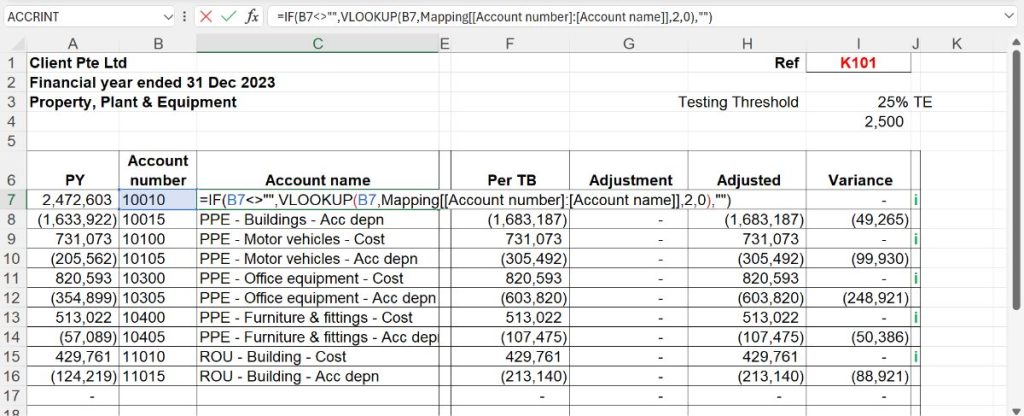
This formula is far more readable than its traditional equivalent, which might look something like VLOOKUP(B7, Sheet2!$A$2:$B$50, 2, FALSE). With the structured reference, you know exactly what data VLOOKUP is searching through without having to navigate to another sheet to check the range.
Gaining More Control with Specifiers
So far, we've referenced entire columns ([ColumnName]) and values on the current row ([@ColumnName]). But you can also reference other specific parts of a table using item specifiers. These are special keywords preceded by a pound/hash sign (#).
The most common specifiers are:
[#All]: The entire table, including headers and the total row.[#Data]: Only the data rows, excluding headers and totals.[#Headers]: Only the header row.[#Totals]: Only the total row (if it's enabled).
This next video segment gives a great visual tour of what each specifier selects.
How to Use Structured References in Excel: Table, Column, and Item Specifiers
Let's revisit the BrainBell video to see how these specifiers work.
Watch the section on item specifiers from this timestamp. As the video plays, notice how the highlighted area of the table changes depending on whether #All, #Data, #Headers, or #Totals is used.
These specifiers are useful for certain types of summary calculations. For instance, to dynamically count the number of columns in your table, you could use the formula =COLUMNS(Sales[#Headers]).
Creating Truly Maintainable Formulas
The ultimate goal is to create formulas that are not just easy to read, but also robust and easy to copy. The default behavior of structured references is mostly intuitive, but there is one "trick" you need to know to ensure your formulas are fully maintainable, especially when copying them across columns.
By default, a reference to a single column like Sales[Item] is relative. If you drag a formula containing it sideways, it will change to the next column (Sales[Region]). To prevent this and lock the reference, you need to make it absolute.
You can't use $ signs. Instead, you change the syntax from [ColumnName] to [[ColumnName]:[ColumnName]].
Structured references in Excel tables - Ablebits.com
This final reading from Ablebits.com explains this crucial concept of relative and absolute structured references.
Read the section titled Relative and absolute. Don't worry about the second half of the section on "relative range reference" for now. Focus on understanding the SUMIF example and how changing Sales[Item] to Sales[[Item]:[Item]] "locks" the column when the formula is dragged to the right.
This technique of creating absolute references is vital for building complex reports and financial models where you need to copy formulas without them breaking.
Conclusion
In this lesson, you have moved beyond simply creating Tables to actively using them to write smarter, more robust formulas. You have learned that by adopting structured references, you are not just changing syntax; you are adopting a more logical and maintainable way of working in Excel. This practice reduces errors and makes your work significantly easier for others (and your future self) to understand and audit.
Key Takeaways:
- Structured references use table and column names (
TableName[ColumnName]) instead of cell coordinates, making formulas more readable and self-descriptive. - The
@symbol ([@ColumnName]) is used in formulas inside a table to refer to the value on the current row. - Formulas using structured references automatically update when you add or remove data from your table, ensuring your reports are always current.
- Special specifiers like
[#Data],[#Headers], and[#Totals]allow you to reference specific parts of your table. - You can create absolute column references using the
[[ColumnName]:[ColumnName]]syntax to prevent them from changing when copied.
In our next lesson, we will continue exploring the power of Excel Tables by learning how to sort and filter table data. This will allow you to quickly navigate large datasets, isolate specific information for analysis, and prepare data for reporting.