Welcome back. In our last session, we saw how MsgBox and InputBox can make your macros interactive. We even had a preview of conditional logic when we used a simple If...Then statement to check a user's response. That brief introduction was the first step toward making your macros intelligent.
Today, we will master the core of that intelligence: the If...Then...Else statement. This is the fundamental building block for decision-making in any programming language. For you, as a future accounting professional, this is the tool that lets you automate tasks that require judgment. You'll be able to write macros that can automatically flag overdue invoices, classify transactions into different accounts based on their descriptions, or calculate bonuses only when sales targets are met. This lesson will empower you to translate logical rules directly into VBA code.
The Basic Decision: If...Then...Else
At its core, an If statement asks a simple question that can be answered with "true" or "false". Based on the answer, the macro takes a specific path. In your Excel formula experience, you've done this many times with the IF() function. The concept in VBA is identical, but the structure is more readable and powerful.
The simplest structure is just If...Then...End If. You use this when you only need to perform an action if a condition is true. If it's false, the macro simply moves on.
For a clear explanation of this fundamental structure, let's turn to a guide from the Corporate Finance Institute.
VBA If Else Statement - Explained, Example, How to Use
This article provides a concise overview of the basic If statement syntax.
Please read the section titled If Statement Structure in VBA. Pay close attention to the If...Then...End If block and the explanation that the action only runs when the condition is true.
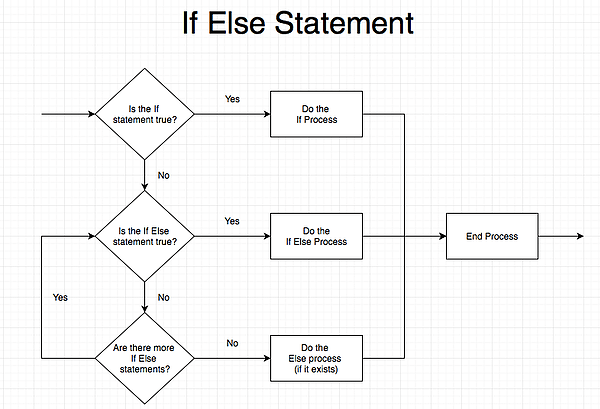
This works well, but what if you need to perform a different action when the condition is false? That's where the Else keyword comes in. This creates a two-path decision.
The logic flows like this:
- If a condition is true...
- Then do Action A.
- Else (otherwise)...
- Do Action B.
This flowchart provides a perfect visual representation of this logic.
Let's watch a short video that demonstrates this If...Then...Else structure with a practical "Pass/Fail" example.
Free Excel VBA Course #15 - IF Then Else Statement in Excel VBA
This video from the TrumpExcel channel shows how to build a basic If...Then...Else statement to check a student's score and write "Pass" or "Fail" in an adjacent cell.
Watch from the beginning to use an if-then-else. Note how the code uses ActiveCell.Offset(0, -1).Value to check the value in the cell to the left. This is a common and useful technique for processing data in a table.
Handling Multiple Scenarios with ElseIf
Binary pass/fail or yes/no decisions are common, but accounting tasks often involve multiple tiers of logic. For example, categorizing a transaction might depend on its value:
- If Amount > $10,000, requires manager approval.
- If Amount > $1,000, categorize as "Major Expense".
- If Amount > $0, categorize as "Minor Expense".
- Else, flag as an error.
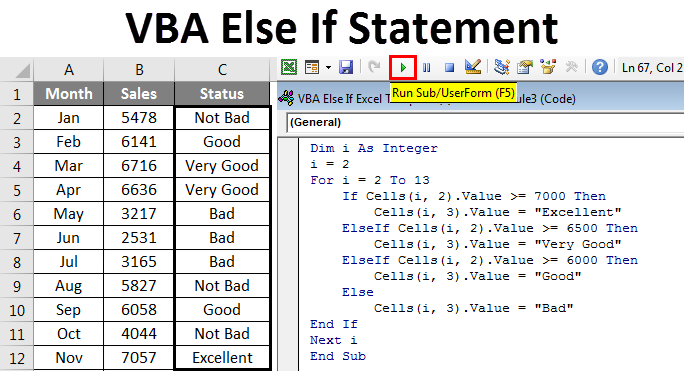
Trying to build this with simple If...Else statements would become messy. This is where ElseIf is invaluable. It allows you to create a "chain" of conditions that VBA checks in order. As soon as it finds a condition that is true, it executes the corresponding action and then exits the entire If block.
The following image shows a perfect accounting-related example. A macro is looping through sales figures and assigning a "Status" based on the sales amount using an If...ElseIf...Else structure.
Now, let's see this built step-by-step. The next video is excellent at showing how to layer these conditions.
Excel VBA IF THEN Statement (with ELSEIF & Looping in cells)
Leila Gharani provides a very clear walkthrough, starting with a simple condition and adding more complexity with Else and ElseIf.
First, watch the segment on adding an "Else" part. This shows how to specify the "otherwise" action. Next, see how to introduce more conditions with "ElseIf". Notice how a new condition (cell.Value < 0) is inserted between the original If and the final Else to handle a third scenario.
The general structure you have just seen is:
If [Condition 1] Then
    ' Action to take if Condition 1 is true
ElseIf [Condition 2] Then
    ' Action to take if Condition 2 is true
ElseIf [Condition 3] Then
    ' Action to take if Condition 3 is true
Else
    ' Action to take if none of the above are true
End If
Combining Criteria with AND and OR
Sometimes, a single decision depends on multiple factors. For example, to approve a small business loan, you might need to check that both the company's revenue is above a certain threshold AND their credit score is good. To flag an account for review, you might want to check if the balance is unusually high OR if it has been inactive for more than 90 days.
VBA allows you to combine these checks within a single If statement using the AND and OR logical operators.
AND: Both conditions must be true for the overall statement to be true.OR: At least one of the conditions must be true for the overall statement to be true.
The following article from Wall Street Oasis provides an excellent practical example from a financial context: screening loan applicants.
VBA If Else Statement - How to Build the Formulas Step by ...
This article gives a clear, finance-focused walkthrough of using AND and OR to evaluate multiple criteria.
Start by reading the introduction explaining logical functions. Then, carefully review the example under the "AND in If Statement" heading. This scenario, where a loan is approved only if an applicant meets two criteria (low existing debt AND a high credit score), is a perfect illustration of how AND is used in financial decision-making. You can skim the "OR in If Statement" section, as the principle is the same.
This ability to combine criteria is what makes your automated logic so powerful. You can replicate the complex rules used in real-world accounting and finance processes.
A Note on Nested If Statements
You might also encounter "nested" If statements, where one If...End If block is placed entirely inside another. This can be used to test for sub-conditions.
If [Outer Condition] Then
    ' Action 1
    If [Inner Condition] Then
        ' Action 2, runs only if Outer AND Inner are true
    End If
End If
While this is a valid technique, using a combination of ElseIf and the AND operator is often cleaner and easier to read, as the WSO article briefly mentions. For now, focus on mastering If...ElseIf...Else as it will cover the vast majority of your needs.
Conclusion
In this lesson, you have learned to embed decision-making logic directly into your VBA macros. This is a monumental step in your automation journey, moving you from writing simple command sequences to creating dynamic, intelligent procedures.
Key Takeaways:
- The
If...Then...End Ifstructure executes code only when a condition is true. If...Then...Else...End Ifprovides two distinct paths for true and false outcomes.If...Then...ElseIf...Else...End Ifallows you to test a chain of mutually exclusive conditions in order, which is perfect for tiered logic like grading or status assignment.- The
ANDandORoperators let you test multiple criteria within a single condition, enabling you to model complex business rules.
You now know how to make your macro decide what to do based on the data it sees. But what if you need to perform that check on hundreds or thousands of rows of data? Doing it one by one is not automation. In our next lesson, we will explore For...Next loops, the mechanism for repeating actions. When you combine the decision-making power of If statements with the repetitive power of loops, you will unlock the true potential of VBA for large-scale accounting tasks.