Welcome back! In our previous lesson, we established the fundamental difference between relative, absolute, and mixed cell references. You learned what each type is and how it behaves when a formula is copied.
Today, we move from theory to practice. This lesson is dedicated to applying absolute and mixed references to build robust, scalable formulas—the kind that form the backbone of automated financial reports and analysis. Your goal is to automate accounting tasks, and mastering this skill is the first major leap toward that objective. By the end of this lesson, you will be able to write a single, well-constructed formula that can be copied across an entire data table, saving significant time and preventing costly errors.
Applying Absolute References for Fixed Values
Let's begin with the most common use case for absolute references in accounting: calculations involving a single, constant value. This could be a tax rate, a standard commission, a budget assumption, or, as in the example below, a fixed daily pay rate.
Imagine you are preparing a payroll summary. You have a list of employees and the number of days they worked each month. The daily rate is a single value stored in one cell.
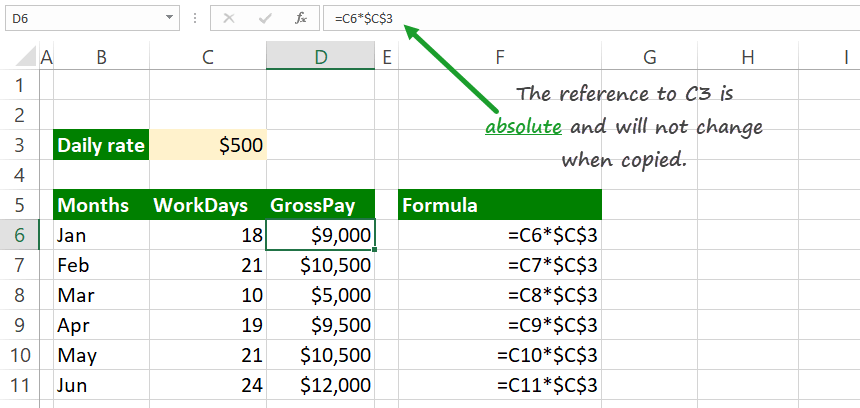
Let's analyze the formula in cell D6: =C6*$C$3.
C6is a relative reference. When you copy this formula down to calculate the pay for February (in cell D7), you want this reference to update toC7to pick up February's workdays.$C$3is an absolute reference. The daily rate of $500 is in cell C3 and does not change. By "locking" this reference with dollar signs, you ensure that every formula in theGrossPaycolumn correctly points to cell C3, no matter where it's copied.
Without the $ signs, copying the formula down would change $C$3 to C4, then C5, and so on, leading to incorrect calculations and errors.
To see this principle in action again, let's revisit a segment from the Leila Gharani video we watched previously. This time, focus on the why and how of her application.
Excel Cell Reference: Absolute, Relative or Mixed?
This segment demonstrates precisely why an absolute reference is necessary when calculating percentages against a fixed total.
Watch the part explaining absolute referencing. Pay close attention to the error that occurs when she first tries to copy the formula with a relative reference and how using the F4 key to make the total's reference absolute ($F$8 in her example) immediately solves the problem.
Applying Mixed References for 2D Tables
Mixed references are your key to automating calculations in two-dimensional tables, where a formula needs to be copied both down a column and across a row. This is common in tasks like creating pricing matrices, loan amortization schedules, or depreciation tables.
The core idea is to lock either the column or the row.
$A1: Column A is locked; the row is free to change.A$1: Row 1 is locked; the column is free to change.
Let's start with a classic multiplication table to understand the mechanics clearly.
This video from GoSkills.com provides a very clear, step-by-step walkthrough of building a formula with mixed references.
Watch the first two sections on what mixed references are and how to apply them to a multiplication table. Notice the logic: "it's always going to be column A" (so, $A) and "it's always going to be row 3" (so, $3). This simple rule is the key to getting mixed references right.
Now, let's apply this to a more business-oriented scenario. Imagine you're calculating the percentage of total yearly sales that each quarter contributed, for several different products.
Excel Cell Reference: Absolute, Relative or Mixed?
Leila Gharani's video also has an excellent segment that demonstrates creating a formula with a mixed reference for just this kind of 2D analysis.
Watch her detailed explanation of mixed referencing. She wants to calculate each quarter's sales as a percentage of the annual total for that specific app. The final formula is =B5/$F5. B5 is relative, so it can change to C5, D5 when copied across, and B6, B7 when copied down. $F5 is a mixed reference. The column F (where the annual totals are) is locked. The row 5 is relative, so it updates to 6 for the next app and 7 for the one after.
Practice Challenge: Building a Robust Formula
Now it's time to apply what you've learned. The following challenge is from Financial Management magazine and is a perfect test of your understanding.
Your task is to create a single formula in cell G16 that can be copied to the entire range G16:K20 to correctly complete the multiplication grid. The formula must multiply the value in column F by the value in row 15, and then multiply that result by the overall "Factor" in cell G12.
Test your skill at cell referencing in Excel - FM Magazine
This article presents a practical challenge that requires combining relative, absolute, and mixed references in a single formula.
Focus on the section titled Simple example. Before looking at the solution, try to write the formula for cell G16 yourself. Think carefully about each of the three parts of the formula: =F16*G15*G12. For each cell reference, decide: should the column be locked? Should the row be locked? Should both be locked? Or should neither?
Deconstructing the Solution
Let's break down the correct formula: =$F16 * G$15 * $G$12
-
$F16(Reference to the numbers in column F):- When you copy the formula across the grid (to columns H, I, J, K), you always want to multiply by the number in column F. Therefore, the column must be locked:
$F. - When you copy the formula down (to rows 17, 18, 19, 20), you want the row reference to update to pick up the next number. Therefore, the row must be relative:
16. - Result:
$F16
- When you copy the formula across the grid (to columns H, I, J, K), you always want to multiply by the number in column F. Therefore, the column must be locked:
-
G$15(Reference to the numbers in row 15):- When you copy the formula down, you always want to multiply by the number in row 15. Therefore, the row must be locked:
$15. - When you copy the formula across, you want the column reference to update to pick up the next number (H, I, J, K). Therefore, the column must be relative:
G. - Result:
G$15
- When you copy the formula down, you always want to multiply by the number in row 15. Therefore, the row must be locked:
-
$G$12(Reference to the Factor):- This factor is a single constant in one cell that applies to all calculations. It must not change, no matter where you copy the formula. Therefore, both the column and the row must be locked.
- Result:
$G$12(an absolute reference).
An Automation Power-Tip
What happens if you've already copied a formula across a large range and then realize your references were wrong? Editing them one by one would defeat the purpose of automation. Here's a powerful trick.
The GoSkills.com video concludes with a fantastic productivity tip for correcting formulas across multiple cells at once.
Watch this final segment on fixing references. The key steps are: Select the entire range of cells with the incorrect formula. Press F2 to enter "Edit" mode on the active cell. Correct the formula by adding the necessary $ signs. Instead of pressing Enter, press Ctrl + Enter. This applies the corrected formula to all selected cells simultaneously.
This technique is a huge time-saver and a great example of working efficiently in Excel.
Conclusion
In this lesson, you have moved from knowing what cell references are to understanding how to apply them to create powerful, copyable formulas. This skill is non-negotiable for anyone serious about using Excel for financial modeling and automation.
Key Takeaways:
- Use absolute references (
$A$1) for single constants that apply to many calculations, like tax rates, inflation assumptions, or fixed costs. - Use mixed references (
$A1orA$1) to build formulas for 2D tables where calculations are copied both horizontally and vertically. - Think through the logic for each reference: "When I copy this, what needs to stay the same, and what needs to change?"
- Use the F4 key to cycle through reference types quickly and Ctrl + Enter to apply formula changes to a whole selection at once.
You are now equipped to write formulas that are not only correct but also efficient and scalable. In our next lesson, we will continue to build on this by learning how to create more complex formulas that involve multiple mathematical operators. We'll explore Excel's order of operations (BIDMAS/PEMDAS) and how to use parentheses to control the calculation flow, ensuring your complex formulas always yield the right results.