Hello and welcome to your first lesson in the course "Learn how to automate in Excel." We're starting at the very foundation of creating powerful and efficient spreadsheets: understanding how Excel handles cell references in formulas.
Today, you'll learn to distinguish between the three types of cell references: relative, absolute, and mixed. Mastering this concept is a critical first step toward your goal of automating accounting tasks. When you can write a single formula that works correctly when copied across thousands of rows or columns, you eliminate countless hours of manual work and dramatically reduce the risk of error—an essential skill for preparing financial statements, performing variance analysis, or managing any large dataset.
Let's begin by exploring the default behavior in Excel.
Relative References: The Default Behavior
When you create a basic formula in Excel, like =A1+B1, and then copy or drag it to other cells, Excel doesn't copy the formula exactly. Instead, it adjusts the cell references relative to the new location. If you copy the formula one cell down, it becomes =A2+B2. This is called relative referencing.
This default behavior is incredibly useful for most row-by-row calculations you'll perform in accounting, such as calculating the total cost for each line item on an invoice (Quantity * Price).
To see this in action, the following video provides a clear, concise demonstration.
Excel Cell Reference: Absolute, Relative or Mixed?
Watch this segment from the video "Excel Cell Reference: Absolute, Relative or Mixed?" by Leila Gharani.
Watch from the beginning until the end of the example where she calculates the yearly total for each app and copies the formula down. Notice how the referenced cells (B5:E5) automatically change to (B6:E6) and (B7:E7).
The "Excel for Accounting Students" blog, which we'll use throughout this course, offers a great way to conceptualize this. It explains that a formula like =A1+A2 in cell D1 is interpreted by Excel as =[go left three columns] + [go left three columns and down one row]. When you copy that formula, Excel applies the same spatial logic from the new cell.
Absolute and relative cell references - Excel for Accounting Students
This article is written specifically for accounting students and clearly explains the core concepts of cell referencing.
Please read the first two sections, Understanding cell referencing and Relative cell refs. This will solidify your understanding of how and why relative references work the way they do.
Absolute References: Locking a Cell in Place
Relative referencing is powerful, but it creates a problem when a formula needs to consistently refer to a single, fixed cell. Imagine you're calculating the percentage contribution of each product's sales to a fixed grand total. As you copy the formula down, the product's sales cell should change (relative), but the grand total cell must not (absolute).
If you use a relative reference for the total, Excel will shift it downwards, leading to errors—often the dreaded #DIV/0! error, which means you're trying to divide by zero because the referenced cell is empty.
This is where absolute references come in. By adding a dollar sign $ before both the column letter and the row number (e.g., $F$2), you "lock" the reference. No matter where you copy the formula, it will always point to cell F2.
The following reading from Gleim Exam Prep, a resource for CPA candidates, demonstrates this exact problem and its solution.
Data Analytics Lesson 4: Cell References - Gleim Exam Prep
This article provides a clear, data-driven example that's highly relevant to financial analysis.
Read the section on Absolute Reference. Pay close attention to the example where calculating a percentage of total sales fails. The images clearly show the formula error caused by relative referencing and how adding $ signs to create an absolute reference ($F$2) solves the problem.
The quickest way to make a reference absolute is to press the F4 key on your keyboard after selecting the cell in your formula. If you're on a laptop, you might need to press Fn + F4.
Mixed References: The Best of Both Worlds
You now know how to let a reference change (relative) and how to lock it completely (absolute). But what if you only need to lock the column or the row, but not both? This is where you use a mixed reference.
$A1: The column is absolute (it will always be column A), but the row is relative (it can change from 1 to 2, 3, etc.).A$1: The column is relative (it can change from A to B, C, etc.), but the row is absolute (it will always be row 1).
This technique is essential for building two-dimensional tables, like a commission matrix or a depreciation schedule, where formulas must be copied both down and across.
Let's look at a practical accounting example. The image below shows a table for calculating sales commissions. The commission for each item depends on its Price, Quantity, and the applicable Commission Rate from the top row.
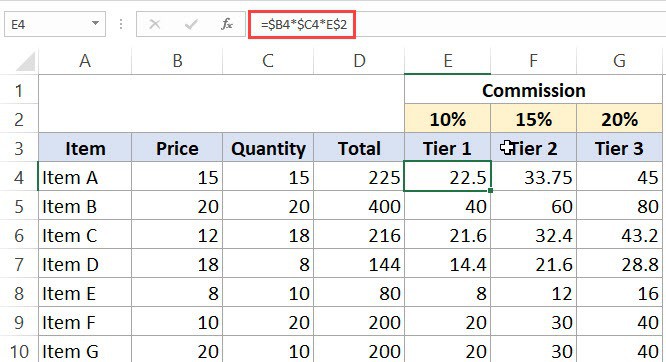
This image shows how a single, well-crafted formula in cell E4 can be copied to the entire table to calculate all commission values correctly.
The formula in cell E4 is =$B4*$C4*E$2. Let's break down why this works:
$B4(Price) and$C4(Quantity): When you copy this formula across to columns F and G (for Tier 2 and 3), you need to keep referencing the Price and Quantity from columns B and C. The$locks the columns. When you copy the formula down for other items, you need the row to update (to B5, C5, etc.), so the row number has no$and remains relative.E$2(Commission Rate): When you copy the formula down, you need to keep referencing the commission rates in row 2. The$locks the row. When you copy the formula across to calculate Tier 2 and Tier 3 commissions, you need the column to update from E to F and G, so the column letter has no$and remains relative.
The F4 key is your tool here as well. Pressing it repeatedly cycles through the four possibilities: A1 (relative) → $A$1 (absolute) → A$1 (mixed, row locked) → $A1 (mixed, column locked) → A1.
To see this cycling in action and to watch a full demonstration of building a table with mixed references, the next video is very helpful.
Excel - switch between relative, absolute, and mixed references
This video from Chris Menard provides excellent real-world examples. We'll focus on the sections explaining absolute and mixed references.
First, watch the segment on absolute cell reference. Note his tip that an absolute reference is often used when there's a single value (like a bonus threshold) outside the main table. Next, watch the detailed explanation of mixed reference. He first builds a multiplication table, which is the classic way to understand the mechanics. Then, he applies it to an accounting exercise, which you may find very insightful.
Summary
To bring everything together, this table provides a simple and clear summary of how each reference type behaves when you copy a formula.
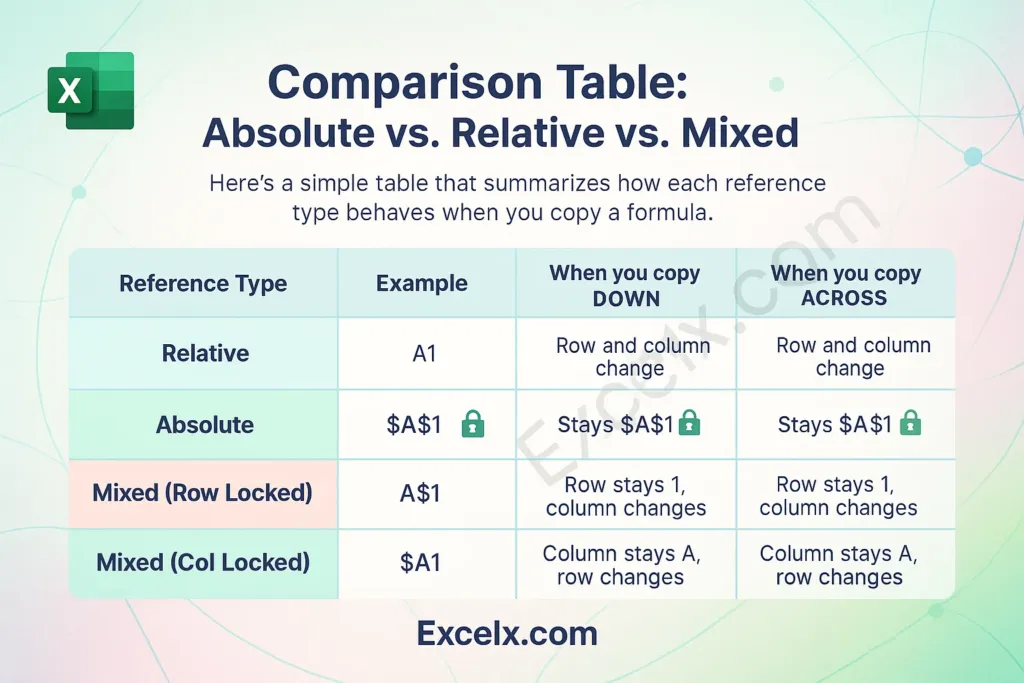
This table summarizes the behavior of relative, absolute, and mixed cell references when formulas are copied down or across a worksheet.
Conclusion
In this lesson, you've taken the first essential step in Excel automation by learning to distinguish between the three types of cell references.
Key Takeaways:
- Relative (e.g., A1): This is the default. Both the column and row adjust when copied. Ideal for simple, repeating calculations down a column or across a row.
- Absolute (e.g., $A$1): Locks both the column and the row. The reference never changes when copied. Essential for constants like a tax rate, a total sales figure, or an assumption cell.
- Mixed (e.g., $A1 or A$1): Locks either the column or the row, but not both. This is a more advanced technique crucial for building dynamic 2D tables and models that can be scaled quickly.
- The F4 Key: This is your most efficient tool for cycling between reference types as you build formulas.
In our next lesson, we will build directly on this foundation. You will apply your knowledge of absolute and mixed references to construct robust, copyable formulas for more complex accounting scenarios, moving us another step closer to true automation.