Welcome back. In our previous lesson, we constructed a dynamic Income Statement by leveraging an account mapping table and the SUMIFS function. This established a powerful and reusable methodology for financial reporting automation.
Today, we will reinforce and expand upon that skill by applying the exact same principles to a different, yet equally critical, financial statement. Our goal is to build a dynamic Balance Sheet by aggregating data from the same trial balance we used before. This lesson will demonstrate the efficiency of your new modeling technique, as the foundational work of data preparation and mapping will allow us to construct this second report with remarkable speed.
Reusing Our Foundation: Data and Mapping
The beauty of the model structure we are building—separating data, calculations, and presentation—is its reusability. We will use the same enriched trial balance data table that we prepared for the Income Statement. The only prerequisite is to ensure our mapping table is comprehensive enough to categorize Balance Sheet accounts.
Your accounting knowledge confirms that a trial balance contains accounts for all statements. In the last lesson, we focused on mapping revenue and expense accounts. Now, we'll utilize the mappings for asset, liability, and equity accounts. A well-designed mapping table is the core of an automated reporting system.
The following resource outlines the best practices for creating a comprehensive mapping table, which is the backbone of the automated P&L, Balance Sheet, and Cash Flow statements.
Trial Balance Mapping in Excel for FP&A | Chapter 8 - PivotXL
This chapter from PivotXL details the design of a best-practice mapping table.
Please read the section Designing a Mapping Table. Pay particular attention to the suggested columns like FS Category, FS Subcategory, and Statement. This illustrates how a single, robust mapping file can drive all your financial reports.
Building the Balance Sheet with SUMIFS
The process for building the Balance Sheet is now a familiar one:
- Structure the Report: Lay out the standard sections of a Balance Sheet (Assets, Liabilities, Equity) in a new worksheet. This will be our presentation layer.
- Map the Accounts: As discussed, ensure each relevant General Ledger account in your trial balance is mapped to a specific line item on your Balance Sheet.
- Aggregate with
SUMIFS: Write aSUMIFSformula to pull the aggregated values from your data source into your presentation shell.
The core SUMIFS formula will look very similar to the one we used for the P&L, but the criteria will reference our Balance Sheet line items.
=SUMIFS(sum_range, criteria_range1, criteria1, ...)
For example, to populate the "Cash" line, the formula would instruct Excel to:
"Sum the [Amount] column...
- ...where the [BS_Map] column matches our report label (e.g., "Cash")."
This image shows the SUMIFS function in action, pulling data from a trial balance sheet (TB) into a formatted Balance Sheet (FS).
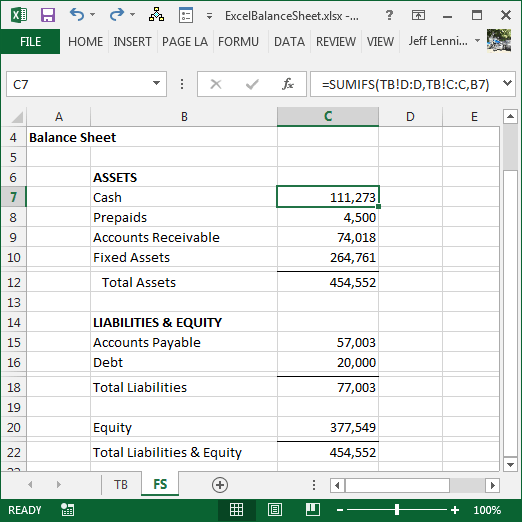
The following guide provides a clear, step-by-step walkthrough of this exact process.
Create a Balance Sheet with Excel
This article from Excel University demonstrates how to build a Balance Sheet from a trial balance using SUMIFS.
First, review the overview section to see the starting data and the target report. Next, read the section on mapping challenges, which explains how to translate account names from the trial balance to the report labels. Finally, study the section that provides the SUMIFS formula and its arguments. This is the central mechanism for populating the report.
To see this process in motion, the following video provides a concise demonstration.
How to prepare Financial Statements using SUMIFS excel function.
This video by Lucky Oamen shows how to populate a full set of financial statements using a mapping column and SUMIFS.
Watch the segment where the presenter builds the liabilities and equity sections of the Balance Sheet. Notice how he uses a single SUMIFS formula and then drags it down to populate the different lines, just as we did for the Income Statement.
An Important Detail: Managing Signs
From your accounting studies, you know that trial balances typically list debits as positive numbers and credits as negative numbers (or vice versa, as long as it's consistent).
- Assets (like Cash, Accounts Receivable) normally have debit balances and will sum correctly as positive values.
- Liabilities and Equity (like Accounts Payable, Share Capital) normally have credit balances. When summed from a standard trial balance, they will appear as negative numbers in your report.
While mathematically correct, presenting liabilities as negative numbers on a finished Balance Sheet is unconventional. A common and simple solution is to invert the sign for these sections. You can achieve this by placing a minus sign in front of your SUMIFS formula for all liability and equity line items:
=-SUMIFS(tblTB[Amount], tblTB[BS_Map], "Accounts Payable")
This small adjustment ensures your final report adheres to standard presentation formats, making it clear and readable for all stakeholders.
Conclusion
In this lesson, you have successfully leveraged your existing skills to automate the creation of a second key financial report. By applying the same data source, mapping principles, and SUMIFS function, you have built a dynamic Balance Sheet.
Key Takeaways:
- The data preparation and mapping work you do once can be reused to build multiple financial reports, demonstrating the efficiency of this model structure.
- The
SUMIFSfunction is a versatile tool for aggregation, capable of building both an Income Statement and a Balance Sheet from a common, well-structured data source. - Small adjustments, such as inverting signs for liability and equity accounts, are crucial for professional financial presentation.
You've now created the two primary financial statements. However, a model is only as good as its integrity. In the next lesson, we will add a critical feature: a check formula to ensure your Balance Sheet always balances. This validation step is essential for building trust in your financial model and preventing errors.