Welcome back! In our last lesson, we learned the basics of being a Roblox builder. You created your first structure by adding Parts, moving them into place, and most importantly, anchoring them so they don't fall.
Today, we're going to give those plain gray blocks some personality! We'll explore how to change the way Parts look and act using a special window called Properties. Our goal is to learn how to configure a Part's color, material, what happens when you touch it, and even make it see-through. Then, we'll jump into the game to test our changes and see them in action.
The Control Panel for Your Parts
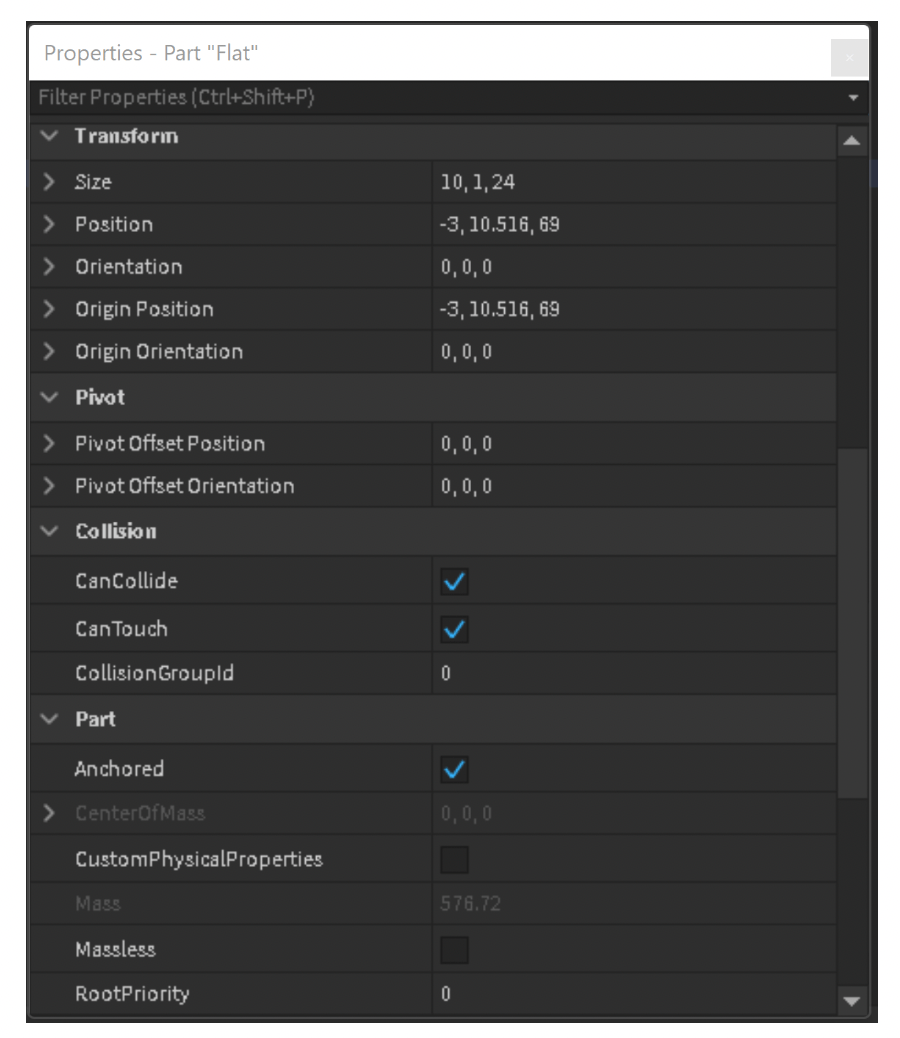
Every object in Roblox Studio, including the Parts you build with, has a list of settings called properties. These properties control everything from an object's color to whether you can walk through it. You can see and change all of these settings in the Properties window.
Whenever you select a Part in the 3D view or the Explorer, the Properties window will fill up with all the settings for that specific Part. Let's start by changing how a Part looks.
Changing a Part's Appearance
The most fun properties to start with are the ones that change how a Part looks. These are found under the Appearance category in the Properties window. The two most important ones are Color and Material.

Let's read a little about what these properties do.
Explorer and Properties Panel - Build Your Own Games with Roblox and Scratch - Class 6
This guide explains the most common properties you'll be using. We'll focus on the 'Appearance' section first.
In this resource, please read the section "2.3.1 Appearance Properties." Pay close attention to the descriptions for Color, Material, and Transparency. We'll cover Transparency more in a moment.
Now it's your turn to try!
- Add a new Part to your world. Make sure it's anchored!
- Select the Part.
- In the Properties window, find Color and click the little colored square next to it to open the color picker. Choose any color you like.
- Next, find the Material property. Click on it to see a dropdown list of options like
Wood,Metal,Brick, and evenNeon. Try a few to see how they change your Part.
Changing a Part's Behavior
Properties can also change how a Part behaves in the game world. Two very important properties for this are Transparency and CanCollide.
- Transparency controls how see-through a Part is. It's a number from 0 (completely solid) to 1 (completely invisible). A value like 0.5 makes it semi-transparent, like glass.
- CanCollide is a checkbox that decides if players and other objects can pass through the Part. If it's checked, the Part is solid. If it's unchecked, the Part is like a ghost, and you can walk right through it.
Watching someone demonstrate this is the best way to understand. This video will show you how to change these properties and, crucially, how to test them.
ABSOLUTE Beginner Basics.. Roblox Studio For Noobs 2025
This video gives a great tour of the Properties window and shows the exact properties we are learning about.
Watch from the introduction to the Properties panel, where the creator changes a Part's color and material. Then, pay close attention from this section, where he demonstrates how the CanCollide property works by doing a play test.
The Invisible Wall Trap
Here's a classic mistake that new builders often make, which you can now avoid! What happens if you set a Part's Transparency to 1 but leave CanCollide checked?
The Part will be completely invisible, but it will still be solid! Players will walk along and suddenly be blocked by nothing. This can be very confusing.
Explorer and Properties Panel - Build Your Own Games with Roblox and Scratch - Class 6
Let's quickly review this common mistake so you know what to look for.
Find the section "2.7 Common Student Mistakes" and read the point about Transparency and CanCollide.
Remember this simple rule: If you want players to be able to walk through something, you must turn CanCollide off.
Your Turn to Experiment!
Let's put all this knowledge into practice. We're going to create a magical, floating platform.
- Create and Anchor: Add a new
Partand use the Move tool to lift it into the air. Make sure it is Anchored! - Make it Glow: In the Properties window, change its Material to
Neonand pick a bright Color. - Make it Ghostly: Change its Transparency to
0.5. It should now look like a semi-transparent, glowing block. - Check Collision: Make sure the CanCollide property is checked (on). We want to be able to stand on it.
- Test It!: Click the Play button. Your character should spawn in, and you should be able to see your glowing platform. Try jumping on it. Does it hold you up? Because
CanCollideis on, it should!
After you've tested it, click Stop. Feel free to experiment more. Try making a wall you can walk through (CanCollide off) or a completely invisible barrier (Transparency at 1, CanCollide on) just to see how it works.
Key Takeaways
In this lesson, you've gained powerful new skills to customize your game world:
- You learned that the Properties window is like a control panel for every object in your game.
- You can change a Part's appearance using the Color and Material properties.
- You can change a Part's behavior using the Transparency and CanCollide properties.
- You understand the importance of Play testing your changes to make sure they work exactly as you expect.
Next Time
You now know how to create anchored structures and how to change their appearance and behavior. With these skills, you are ready to start building the actual course for our Obby! In the next lesson, we will begin laying out the platforms, jumps, and hazard floor that will form the core of your race.