Introduction
In our last lesson, you learned to manage application settings using the configparser module, a robust way to separate configuration from code. This is a key practice for creating portable and maintainable applications.
We now continue our journey through Python's "batteries-included" approach to file system interactions. Many applications need to create temporary files or directories—for caching intermediate data, processing uploads, or as scratch space for external tools. Handling this naively by hardcoding paths like /tmp/my_app_file is brittle, insecure, and leaves junk files on the system.
This lesson will teach you how to create and manage temporary files and directories safely using the tempfile module. The core principle here is using context managers (with statements) to ensure that these temporary resources are automatically and reliably cleaned up, regardless of whether your code succeeds or fails.
1. Why tempfile? The Dangers of Manual Creation
Before diving into the solution, it's critical to understand the problem. Manually creating temporary files is fraught with peril:
- Cleanup Failures: If your script crashes before it can delete a temporary file, that file is left behind permanently. Over time, this can consume significant disk space.
- Race Conditions: If you generate a filename and then try to open it, another process could create a file with the same name in that tiny interval. This is a security vulnerability known as a "Time-of-check to time-of-use" (TOCTOU) bug.
- Permissions: Temporary files might be created with insecure default permissions, potentially exposing sensitive data to other users on the system.
- Portability: Different operating systems have different conventions for where to store temporary files (
/tmp,/var/tmp,C:\Users\...\AppData\Local\Temp).
The tempfile module solves all these problems by providing a secure, cross-platform, and self-cleaning API.
2. The Safest Approach: tempfile.TemporaryDirectory
For many use cases, the most robust pattern is not to create a single temporary file, but a temporary directory, and then create files inside it using standard open() or pathlib. This gives you full control and avoids some of the subtle complexities of temporary file objects themselves.
The tempfile.TemporaryDirectory context manager creates a directory with a unique name and guarantees its deletion—along with all its contents—when the with block is exited.
python tempfile module (beginner - intermediate) anthony explains #324
The anthonywritescode channel provides a clear, practical demonstration of TemporaryDirectory. Watch how it's used as a context manager and how the directory is automatically removed upon exiting the with block.
Watch from 00:03 to 04:05. Pay attention to the demonstration using the breakpoint to prove the directory only exists within the context.
Here's a complete, idiomatic example combining TemporaryDirectory with pathlib (which you've seen in a previous lesson):
import tempfile
from pathlib import Path


# TemporaryDirectory returns the path as a string
with tempfile.TemporaryDirectory() as tempdir:


    # It's good practice to convert the string path to a Path object
    temp_path = Path(tempdir)
    print(f"Created temporary directory: {temp_path}")


    # Now you can work inside this directory as usual
    input_file = temp_path / "input.txt"
    output_file = temp_path / "output.txt"


    # Write some data
    with open(input_file, "w") as f:
        f.write("Some data to process")


    # Your processing logic here...
    print(f"Processing file: {input_file}")

    with open(output_file, "w") as f:
        f.write("Processed data")


    # Check that files exist inside the block
    print(f"Input file exists: {input_file.exists()}")
    print(f"Output file exists: {output_file.exists()}")


# Once the 'with' block is exited, the directory and all its contents are gone.
print(f"\nOutside the 'with' block:")
print(f"Temporary directory exists: {temp_path.exists()}")
3. Working with Individual Named Temporary Files
Sometimes, you need a single temporary file whose name can be passed to another program or function. For this, tempfile.NamedTemporaryFile is the tool. It creates a file that is visible on the filesystem and, like TemporaryDirectory, automatically deletes it on exit from the with block.
The CORRECT way to work with temporary files in Python
The Carberra channel offers a concise walkthrough of NamedTemporaryFile. This video will show you the basic syntax and the effect of automatic cleanup.
Watch from 00:59 to 04:02. Note the suffix, prefix, and dir parameters, which allow you to customize the file's name and location.
The object returned by NamedTemporaryFile is a file-like object, which you can write to and read from directly. Its name is available via the .name attribute.
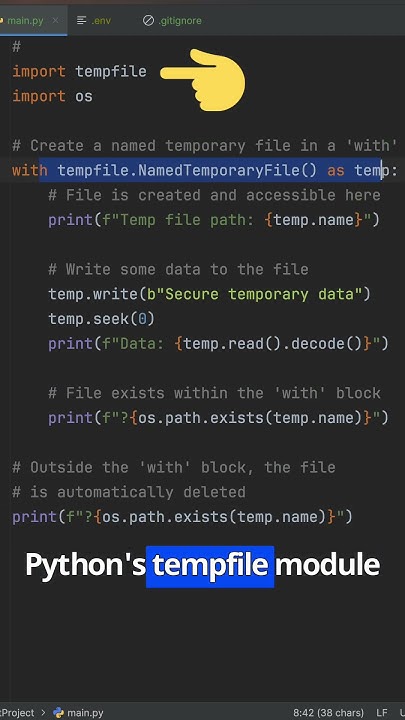
Here is the corresponding code:
import tempfile
import os


# By default, NamedTemporaryFile opens in 'w+b' (binary read/write) mode.
# Use mode='w+t' and specify encoding for text.
with tempfile.NamedTemporaryFile(mode='w+t', encoding='utf-8', suffix=".txt", delete=True) as temp_file:
    print(f"File created at: {temp_file.name}")


    # Write to the file
    temp_file.write("This is a temporary file.\n")
    temp_file.write("It will be deleted automatically.\n")


    # Before reading, you must rewind the file pointer to the beginning
    temp_file.seek(0)


    # Read the content
    content = temp_file.read()
    print("\nFile content:")
    print(content)


    # Check for existence within the block
    print(f"\nInside 'with' block, file exists: {os.path.exists(temp_file.name)}")


# The 'with' block has ended, the file is now deleted.
print(f"Outside 'with' block, file exists: {os.path.exists(temp_file.name)}")
4. Important Gotchas and Best Practices
While the context managers make tempfile mostly foolproof, there are a couple of subtle issues to be aware of, especially when interacting with subprocesses.
Gotcha 1: File Buffering
When you write to a file in Python, the data may be held in a buffer in memory and not immediately written to disk. If you pass a temporary file's name to an external command, that command might not see the data you just wrote.
The solution is to manually flush the buffer to disk.
python tempfile module (beginner - intermediate) anthony explains #324
A common 'gotcha' when working with temporary files, especially when interacting with subprocesses, is file buffering. Watch this segment from anthonywritescode to understand why you might need to manually flush() the file.
Watch from 09:20 to 11:00. The example using subprocess and cat clearly demonstrates the problem and the solution.
Gotcha 2: The delete=False Trap
Both NamedTemporaryFile and TemporaryDirectory accept a delete=False argument. This tells the context manager to not delete the file/directory upon exit. While occasionally useful for debugging, it defeats the primary purpose of the module. If you use it, you become responsible for cleaning up the file manually, which re-introduces the risk of leaving junk files on the system.
Temporary Files: tempfile Module - Common Pitfalls & Best Practices
The tutorial from Krython has an excellent section on common pitfalls. Read this to understand the risks associated with delete=False and why context managers are the preferred approach.
Read the sections 'Common Pitfalls and Solutions' and 'Best Practices'. This reinforces the importance of using context managers and highlights the dangers of manual cleanup.
5. Security: The Right Way vs. The Wrong Way
The functions in tempfile are designed to be secure. Older, now-deprecated functions like tempfile.mktemp() are dangerous because they are vulnerable to the race condition described earlier. mktemp() just returns a string for a filename that doesn't exist at that moment, but it doesn't create it.
The modern NamedTemporaryFile function, in contrast, creates and opens the file in a single, atomic operation, eliminating the race condition.

The rule is simple: never use tempfile.mktemp(). Stick to the context managers: TemporaryDirectory and NamedTemporaryFile.
6. Practical Use Case: Testing with pytest
One of the most valuable applications of the tempfile module is in writing automated tests. When testing a function that reads from or writes to the filesystem, you need a clean, isolated environment for each test. tempfile is perfect for creating that environment within a pytest fixture.
This allows you to create necessary input files, run your function, and have pytest automatically clean everything up after the test completes, ensuring that tests don't interfere with each other or your actual file system.
The CORRECT way to work with temporary files in Python
One of the most common and powerful uses of tempfile is in writing tests. This segment from Carberra demonstrates how to build a pytest fixture that creates temporary files and directories, ensuring a clean state for each test run.
Watch from 07:18 to 11:25. Focus on how TemporaryDirectory and NamedTemporaryFile are combined within a fixture to set up a required file structure for a test.
Conclusion
You have now learned how to handle temporary files and directories the Pythonic way. By using the tempfile module's context managers, you can write code that is safe, portable, and self-cleaning.
Key Takeaways:
- Always use context managers:
with tempfile.TemporaryDirectory()andwith tempfile.NamedTemporaryFile()are your primary tools. They guarantee automatic cleanup. - Prefer
TemporaryDirectory: For most tasks, creating a temporary directory and managing files inside it withpathlibis the most robust and flexible pattern. - Use
NamedTemporaryFilewhen needed: Use it when you need to pass a temporary file's name to another function or process. - Beware of gotchas: Remember to
.flush()data to disk if another process needs to read it, and avoid usingdelete=Falseunless you have a specific need and a manual cleanup plan. - Security is paramount: The context managers are designed to be secure and avoid race conditions. Never use deprecated functions like
mktemp().
In the next lesson, we will explore the shutil module for high-level file operations like copying, moving, and deleting files and directories. We will also cover how to run external commands safely with the subprocess module, a task that often goes hand-in-hand with file manipulation.