Introduction
In the previous lesson, we mastered the tempfile module, ensuring that our scripts can create and manage temporary files and directories in a safe, portable, and self-cleaning manner. This is a crucial skill for building robust applications that interact with the filesystem.
This lesson continues that theme by exploring two powerful standard library modules that are essential for real-world scripting and automation: shutil and subprocess.
You will learn to:
- Use
shutilfor high-level file operations: We'll cover how to copy, move, and delete files and entire directory trees with single, cross-platform commands, replacing clunky manual implementations. - Use
subprocess.run()safely: We will focus on the modern, correct way to execute external programs from Python. A significant part of this lesson is dedicated to understanding and avoiding the critical security vulnerability of command injection by correctly usingsubprocess.run()and steering clear of theshell=Truetrap with untrusted input.
By the end of this lesson, you will be able to write scripts that confidently and securely manipulate the filesystem and orchestrate other command-line tools.
1. shutil: High-Level File Operations
When you need to perform file operations like copying or moving, you could write logic to open, read, and write files yourself. However, this is reinventing the wheel and is prone to errors. Python's "batteries-included" philosophy gives us the shutil (or shell utilities) module for this. It provides high-level, efficient, and cross-platform functions for file and directory management.
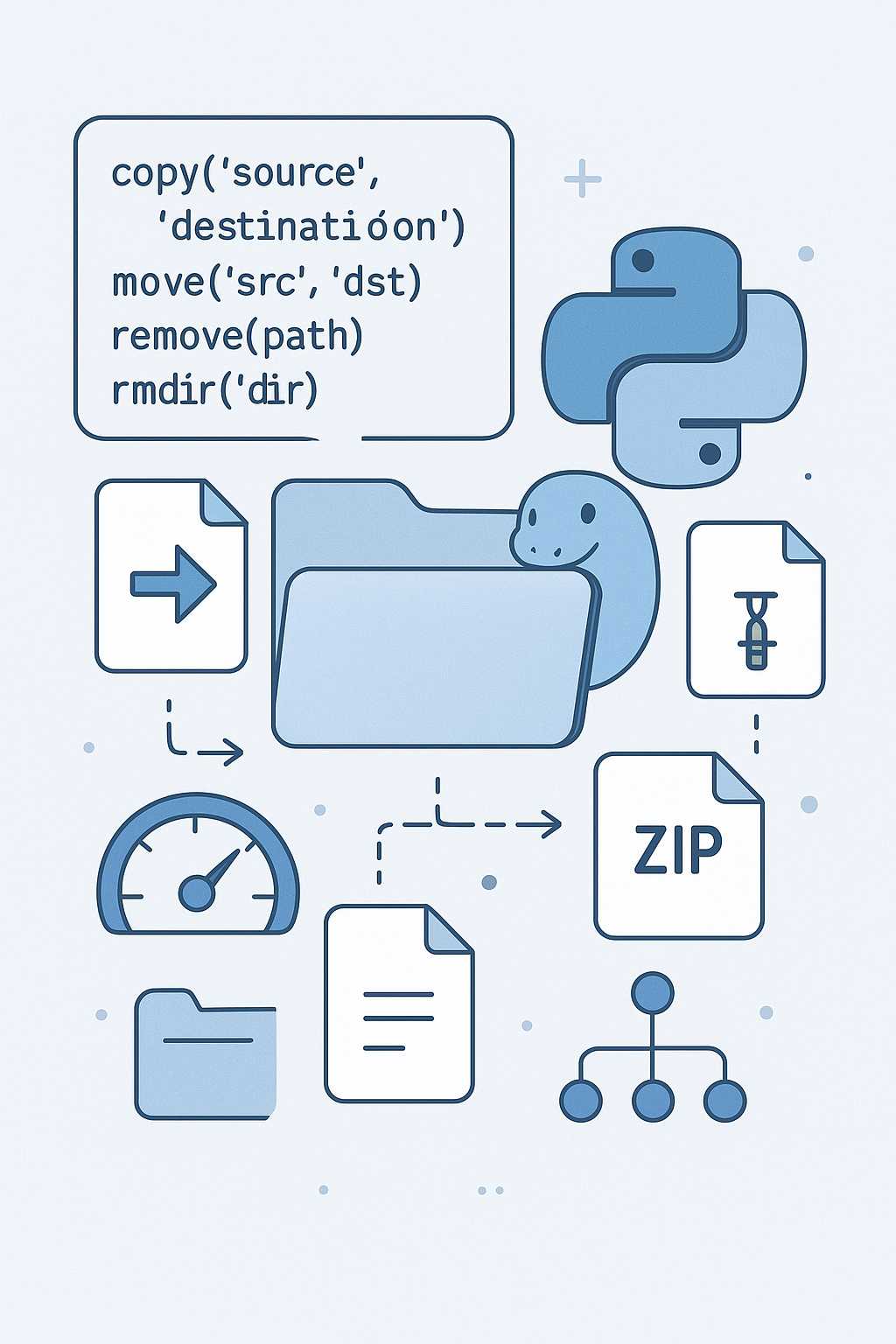
Let's look at the most common shutil functions.
Copying Files and Directories
shutil.copy(src, dst): Copies a single file fromsrctodst. Ifdstis a directory, the file is copied into it with the same basename. Permissions are not copied.shutil.copy2(src, dst): Similar tocopy(), but it also attempts to preserve all file metadata, including permissions and timestamps. This is usually what you want.shutil.copytree(src, dst): Recursively copies an entire directory tree fromsrctodst. The destination directorydstmust not already exist.
import shutil
from pathlib import Path


# Setup: Create a source directory and a file
source_dir = Path("source_folder")
source_dir.mkdir(exist_ok=True)
(source_dir / "report.txt").write_text("This is the original report.")
(source_dir / "data").mkdir(exist_ok=True)
(source_dir / "data" / "log.txt").write_text("Log data")


# 1. Copy a single file
shutil.copy2(source_dir / "report.txt", "report_backup.txt")
print(f"File 'report_backup.txt' exists: {Path('report_backup.txt').exists()}")


# 2. Copy an entire directory tree
dest_dir = Path("destination_folder")
if dest_dir.exists():
    shutil.rmtree(dest_dir) # Clean up from previous runs
shutil.copytree(source_dir, dest_dir)
print(f"Directory 'destination_folder' exists: {dest_dir.exists()}")
print(f"File in copied tree exists: {(dest_dir / 'data' / 'log.txt').exists()}")
Moving and Deleting
shutil.move(src, dst): Moves a file or directory fromsrctodst. This function is smart; ifsrcanddstare on the same filesystem, it's a fast rename operation. Otherwise, it performs a copy followed by a delete. It can be used to rename files as well.shutil.rmtree(path): Recursively deletes a directory and all its contents. This is the programmatic equivalent ofrm -rfand should be used with caution.
# 3. Move the backup file into the new destination
shutil.move("report_backup.txt", dest_dir / "report_backup_moved.txt")
print(f"Original backup exists: {Path('report_backup.txt').exists()}")
print(f"Moved backup exists: {(dest_dir / 'report_backup_moved.txt').exists()}")


# 4. Clean up everything with rmtree
shutil.rmtree(source_dir)
shutil.rmtree(dest_dir)
print(f"\nAfter cleanup:")
print(f"Source directory exists: {source_dir.exists()}")
print(f"Destination directory exists: {dest_dir.exists()}")
Using shutil makes your code more readable, robust, and portable than writing these operations manually.
2. subprocess: Running External Commands Securely
While Python's standard library is vast, you'll often need to integrate your scripts with existing command-line tools (e.g., git, ffmpeg, curl). The subprocess module is the modern and recommended way to do this.
It replaces older, less secure, and less flexible functions like os.system() and os.popen(). The primary tool you will use is subprocess.run().
Practical introduction to Python's subprocess module
First, let's get a conceptual understanding of what a subprocess is and how Python's subprocess module allows us to launch and interact with them. This video from Samuel Chan provides a good foundation.
Watch from 03:51 to 06:41. Focus on the explanation of a 'process' as an abstraction for a running program and how subprocess allows your Python script to create child processes.
The Critical Rule: shell=True and Command Injection
The single most important security consideration when using subprocess is avoiding command injection. This vulnerability occurs when user-provided input is mistakenly executed as part of a shell command. The shell=True argument in subprocess.run() is the primary cause of this risk.
When shell=True, the command you provide is not executed directly. Instead, it is passed to the system's shell (like /bin/sh or cmd.exe), which then interprets it. This enables shell features like variable expansion ($HOME), wildcards (*), and command chaining (&&, ;, |). If any part of that command string comes from an untrusted source, a malicious user can inject arbitrary commands.
The Bad (Vulnerable) Way:
import subprocess


# DANGEROUS: Do not do this with untrusted input.
filename = "my_report.txt; rm -rf /"  # Malicious input


# The shell will first execute the ls command, then execute rm -rf /
subprocess.run(f"ls -l {filename}", shell=True)
The Good (Safe) Way:
The correct and safe approach is to pass the command and its arguments as a list of strings, with shell=False (which is the default). In this mode, subprocess passes the arguments directly to the new process without interpretation by a shell.
import subprocess


# SAFE: The filename is treated as a single argument, not as code to be executed.
filename = "my_report.txt; rm -rf /"


# The system will look for a file literally named "my_report.txt; rm -rf /"
# and will likely fail safely with "No such file or directory".
# Note: shell=False is the default, so it can be omitted.
result = subprocess.run(["ls", "-l", filename], shell=False, capture_output=True, text=True)
print(result.stderr)
The video below provides a live demonstration of this exact principle.
Python Tutorial: Calling External Commands Using the Subprocess Module
Corey Schafer's tutorial clearly demonstrates the subprocess.run function and vividly explains the security hazard of shell=True versus the safe list-based approach.
Watch from 00:25 to 03:14. Pay close attention to the distinction between passing a command as a single string with shell=True and passing it as a list of arguments without it.
For a more detailed, security-focused breakdown of this vulnerability, the following reading is highly recommended. It reinforces why this is such a critical concept in production code.
To solidify your understanding of command injection, review this cheat sheet from Semgrep. It provides concise, clear examples of vulnerable code and the corresponding safe mitigations.
Read sections '1.A. Using the subprocess module' and '1.B. shell=True'. Focus on the examples labeled 'Vulnerable' and 'Not vulnerable' to internalize the pattern.
The rule is absolute: Never use shell=True with input you do not control. Pass arguments as a list.
3. Building Robust Subprocess Pipelines
Beyond security, writing production-quality code with subprocess involves proper error handling and I/O management.
Handling Success and Failure
By default, subprocess.run() does not raise an exception if the command fails. It simply reports a non-zero exit code in the returncode attribute of the returned CompletedProcess object.
result = subprocess.run(["ls", "non_existent_file"])
print(f"Command succeeded: {result.returncode == 0}")
This requires you to manually check the return code. A more Pythonic, "fail loudly" approach is to use check=True. This will automatically raise a CalledProcessError if the command returns a non-zero exit code.
Python Tutorial: Calling External Commands Using the Subprocess Module
Let's see how to make our scripts automatically fail when a command doesn't succeed. This segment demonstrates the check=True argument.
Watch from 09:47 to 11:47. Observe how the script's behavior changes from silent failure to raising a CalledProcessError when check=True is added.
Capturing and Piping I/O
Often, you need the output of a command. You can capture standard output and standard error by setting capture_output=True. It's also common to use text=True to decode the output as text using the default encoding.
# List all python files, capture the output as text
result = subprocess.run(["ls", "*.py"], capture_output=True, text=True, check=True)
print("STDOUT:")
print(result.stdout)
You can also chain commands together, using the output of one as the input for another. While you could do this with a shell pipe and shell=True, the safer, more explicit way is to use Python to connect the processes.
Python Tutorial: Calling External Commands Using the Subprocess Module
This final clip from Corey Schafer's video shows how to pipe the output of one command into the input of another, comparing the unsafe shell-based method with the robust Pythonic approach.
Watch from 12:56 to 18:00. Focus on the pattern where p1.stdout is passed as the input argument to the second subprocess call. This is a powerful and safe pattern.
A Production-Ready Example
For a truly robust script, you should wrap your subprocess.run calls in a try...except block to handle potential errors gracefully. This includes:
FileNotFoundError: If the command itself doesn't exist.subprocess.CalledProcessError: If the command fails (when usingcheck=True).subprocess.TimeoutExpired: If the command takes too long (using thetimeoutargument).
Practical introduction to Python's subprocess module
Finally, let's look at a comprehensive example that puts all these concepts together: running a list of commands in a loop with full, production-grade error handling.
Watch this extended segment from 34:40 to 48:00. It's a long clip, but it's an excellent demonstration of building a real-world script. Pay attention to how the for loop iterates through a list of command lists, and how the try...except block handles multiple specific exceptions (TimeoutExpired, CalledProcessError, FileNotFoundError).
This final example encapsulates the goal of writing code that is not just functional, but also resilient and secure.
Conclusion
You have now learned two essential modules for real-world Python scripting. You can manage the filesystem with shutil and execute external commands safely and robustly with subprocess.
Key Takeaways:
- Use
shutilfor high-level file operations: Functions likecopy2,copytree,move, andrmtreeare your go-to tools for portable and readable file management. subprocess.run()is the standard: It is the modern, flexible, and secure way to run external commands.- The Golden Rule: Avoid
shell=Truewith untrusted input. To prevent command injection, always pass commands and arguments as a list of strings. - Write robust code: Use
check=Trueto fail loudly on errors and wrap calls intry...exceptblocks to handle specific exceptions likeFileNotFoundErrorandCalledProcessError. - Manage I/O explicitly: Use
capture_output=Trueandtext=Trueto work with command output, and pass data via theinputargument to safely pipe between processes.
In the next lesson, we will delve deeper into processing data, especially large datasets. We will cover how to process large files by streaming line-by-line or in chunks to avoid loading everything into memory, a technique that pairs well with consuming the output from subprocess calls.