Hello! Welcome back to our module on building complex homepage layouts.
In our last lesson, we did the crucial prep work: we designed a schema for our homepage sections in a Google Sheet and established a workflow to sync this data into a data/homepage.json file in our Hugo project. This sets the stage for a highly flexible and easily editable homepage.
Today, we'll build on that foundation. Our goal is to bring that data to life by creating the main homepage template. The learning outcome for this lesson is to prompt an AI to create a dynamic homepage template that ranges over the data file to render different sections.
We will focus on creating the "controller" or "dispatcher" for our homepage—a smart template that knows how to loop through our data and delegate the rendering of each section to a specialized "sub-template" or partial. This is the heart of the "vibe coding" process for a modular page.
The Core Logic: A Loop and a Switch
Remember the data/homepage.json file we conceptualized? It contains an array of objects, where each object is a homepage section with a type field.
[
  { "type": "hero-banner", "title": "...", ... },
  { "type": "feature-grid", "title": "...", ... },
  { "type": "cta-banner", "title": "...", ... }
]
To render this, our homepage template needs to do two things:
- Loop (or
range) through each item in this array. - For each item, switch on the
typefield to decide which HTML structure to use.
In Hugo, we accomplish this by using the range function to loop and the partial function to call a specific template for each type. Let's first understand the range part.
Ranging Over Data Files in Hugo
Hugo makes data stored in the /data directory globally available under the .Site.Data variable. If your file is data/homepage.json, you can access its content at .Site.Data.homepage. The range function lets you iterate over this data.
Getting Started with Hugo (Part 1) - Steelyard
To see this in action, let's look at a similar example. The 'Getting Started with Hugo (Part 1)' article from Steelyard demonstrates how to dynamically generate a list of cards from data files. This is conceptually identical to what we want to do with our homepage sections.
Please read the section 'Using Data to Drive Content'. Pay close attention to how the range function is used in the cardlist.html file to iterate over $.Site.Data.cards and call a partial for each item. This is the exact pattern we will be using.
As you saw in the article, the basic structure looks like this:
{{/* This would be inside layouts/index.html */}}

{{ range $.Site.Data.homepage }}
  {{/* . now refers to a single section object, e.g., { "type": "hero-banner", ... } */}}
  <div>
    <h2>{{ .title }}</h2>
    <p>{{ .content }}</p>
  </div>
{{ end }}
This simple loop would print the title and content for every section in your data file. But it's not enough—a hero banner needs very different HTML from a feature grid. That's where we need to combine this with a dynamic call to a partial template. And to get that code, we'll turn to our AI assistant.
Crafting the Perfect Prompt
To get high-quality code from an AI, you need to provide a high-quality prompt. A good prompt is specific and provides all the necessary context. The key is to think like the AI: what information would you need to complete this task successfully?
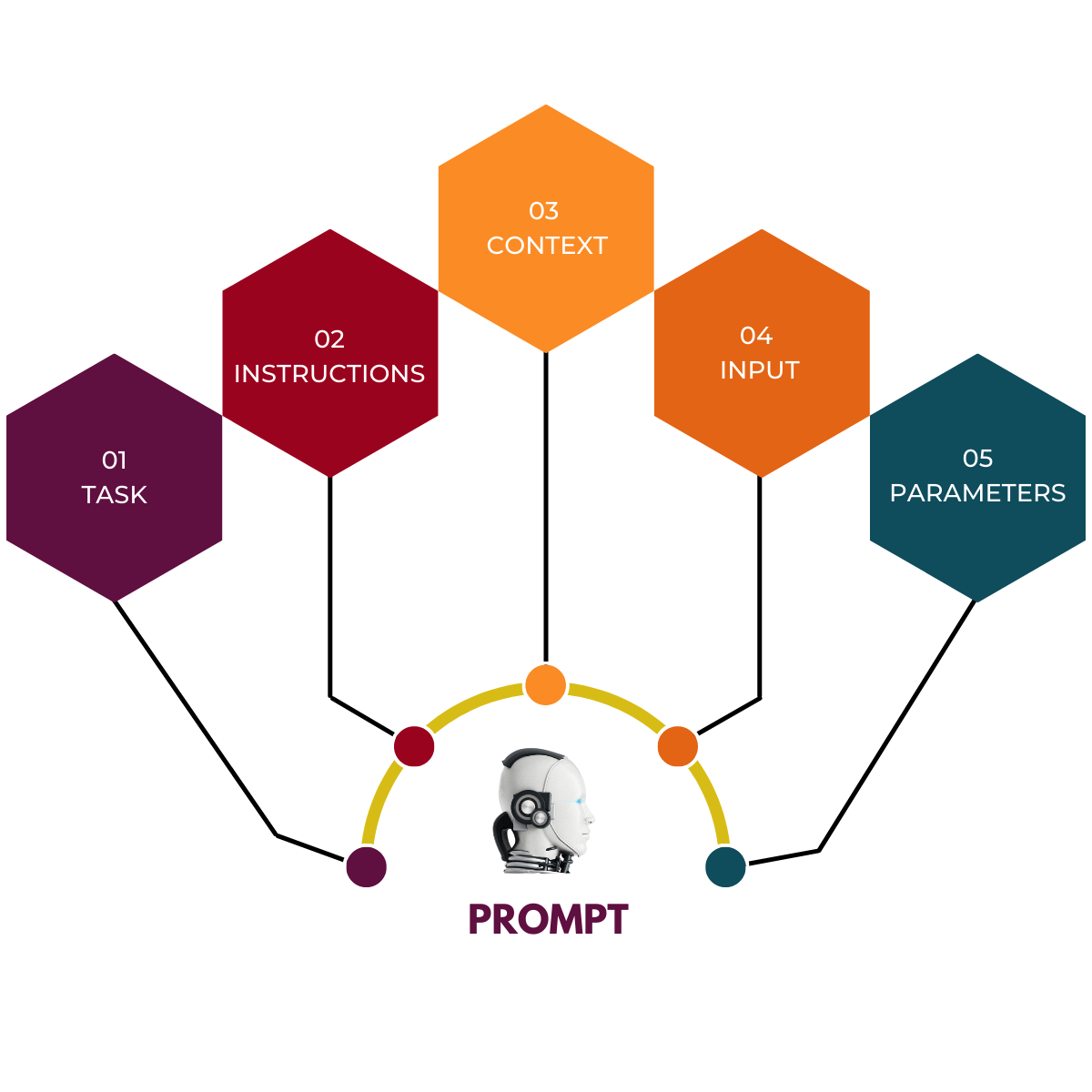
Let's use this structure to build our prompt.
1. Task (The Goal):
Start with a clear, high-level objective.
"I need you to generate the main homepage template for my Hugo site, which is located at
layouts/index.html."
2. Context (The "Why"):
Explain the overall architecture. This helps the AI understand the intent behind the code.
"This template will be responsible for rendering a modular homepage. The sections of the homepage are defined in a JSON data file. The template should not contain the HTML for the sections itself, but should instead act as a dispatcher that calls the correct partial template for each section."
3. Input (The Data):
Show the AI the exact structure of the data it will be working with.
"The data is in
data/homepage.jsonand has the following structure:[ { "id": "hero", "type": "hero-banner", "title": "Build Websites with Vibe", "content": "The future of web dev is here.", "image": "/images/hero.jpg", "cta_text": "Learn More", "cta_link": "/about" }, { ... more sections ... } ] ```"
4. Instructions (The "How"):
This is the most critical part. Be explicit about the logic you want.
"Iterate through the array of sections from the
data/homepage.jsonfile. For each section, you must dynamically load a partial template. The partials are located in thelayouts/partials/homepage/directory. The name of the partial to load should be determined by thetypefield of the section object. For example, if a section'stypeishero-banner, you must loadlayouts/partials/homepage/hero-banner.html. You must pass the current section's data into the partial."
5. Parameters (The Constraints):
Define any structural or stylistic constraints.
"The entire template should be wrapped in a
{{ define \"main\" }}block to work with mybaseof.htmlfile."
Putting it all together, the final prompt would look like this:
Prompt for AI:
I need you to generate the main homepage template for my Hugo site, located at
layouts/index.html.This template will render a modular homepage where sections are defined in a JSON data file at
data/homepage.json. The template should act as a dispatcher, calling the correct partial template for each section based on its type.The data in
data/homepage.jsonlooks like this:[ { "id": "hero", "type": "hero-banner", "title": "Build Websites with Vibe", "content": "The future of web dev is here." }, { "id": "features", "type": "feature-grid", "title": "Our Key Features", "content": "Explore what makes us unique." } ]Your task is to:
- Create a template that iterates through the array of sections from
$.Site.Data.homepage.- For each section, dynamically load a partial from the
layouts/partials/homepage/directory.- The name of the partial file must match the
typefield of the section (e.g.,type: "hero-banner"loadshero-banner.html).- Pass the current section's data context into the partial.
- Wrap the entire output in a
{{ define "main" }}block.
This level of detail dramatically increases the chance that the AI will generate the exact code you need on the first try. You can see a similar iterative process of prompting and refining in the developing a custom hugo theme with claude article.
Analyzing the AI-Generated Code
An AI assistant given the prompt above would likely generate something very close to this:
layouts/index.html
{{ define "main" }}
  {{/* Range over each section defined in the homepage data file */}}
  {{ range .Site.Data.homepage }}
    {{/*
      Dynamically construct the path to the partial.
      The 'printf' function builds a string, e.g., "homepage/hero-banner.html".
      The final '.' passes the current section's data into the partial.
    */}}
    {{ partial (printf "homepage/%s.html" .type) . }}
  {{ end }}
{{ end }}
Let's break down the key line:{{ partial (printf "homepage/%s.html" .type) . }}
partial "path/to/partial.html" .: This is the standard syntax for calling a partial and passing the current context (the dot.) to it.(printf "homepage/%s.html" .type): This is the clever part. Instead of a hardcoded string for the path, we're generating it dynamically.printfis a Hugo function that formats a string, just like in many other programming languages."homepage/%s.html"is the template string, where%sis a placeholder for a string value..typeprovides the value for the placeholder. If the current section's type ishero-banner, this expression evaluates to the string"homepage/hero-banner.html".
The result is a clean, powerful, and data-driven homepage template that automatically adapts to the content you define in your Google Sheet.
Test your understanding!
You've added a new section to your Google Sheet for displaying client logos. The type for this new row is client-logo-strip.
Based on the index.html template above, what is the full path to the new partial file you would need to create for this section to render correctly?
Show answer
The template will dynamically generate the path homepage/client-logo-strip.html. Therefore, you would need to create a new file at: layouts/partials/homepage/client-logo-strip.html.
Conclusion
Congratulations! You've just bridged the gap between your structured data and your site's presentation layer. By crafting a precise prompt, you've used your AI assistant to generate a sophisticated, dynamic homepage template. This template acts as a central controller, iterating through your data and delegating the rendering of each section to a dedicated partial. This is a cornerstone of building complex, maintainable static sites.
Key Takeaways:
- A homepage template (
layouts/index.html) can be used to loop through a data file (data/homepage.json). - The
range .Site.Data.homepagesyntax is used to iterate over the sections. - A dynamic partial call,
{{ partial (printf "path/%s.html" .type) . }}, allows you to load the correct template for each section based on itstype. - A well-structured prompt with Task, Context, Input, Instructions, and Parameters is essential for getting the right code from an AI.
Preview of the next lesson:
Our index.html is now a working "dispatcher," but it's calling partials that don't exist yet! In our next lesson, we will begin creating them. We will start with a common and important one: "Generate a reusable partial for a static content section, such as a hero banner with a call-to-action."