Hello again! It's great to see you back.
In our last session, we built the "brain" of our homepage—a dynamic index.html template that acts as a dispatcher. It cleverly loops through our data/homepage.json file and knows to call a specific partial for each section type. However, right now it's like a switchboard operator trying to connect calls to empty offices.
Today, we're going to build the first one of those offices. The learning outcome for this lesson is to generate a reusable partial for a static content section, such as a hero banner with a call-to-action. This is where our abstract data structure finally becomes a visible, tangible part of our website.
What are Partials and Why Do They Matter?
In Hugo, partials are reusable pieces of template code. Think of them as custom LEGO bricks. You design a brick once—like a header, a footer, or a hero banner—and then you can use it anywhere on your site, as many times as you want. This makes your code clean, modular, and much easier to manage.
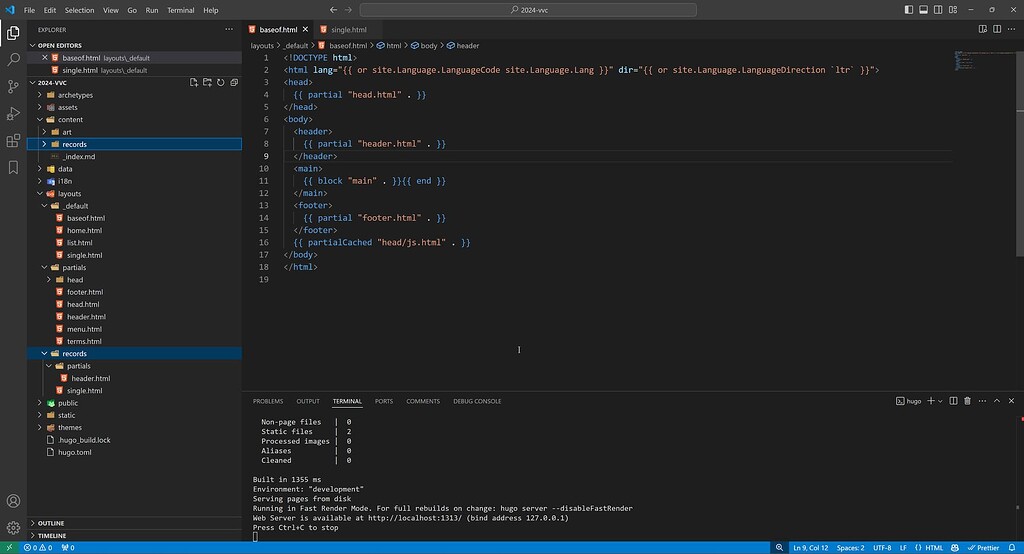
To get a quick overview of what partials are and how they work, let's watch a short video.
Partial Templates | Hugo - Static Site Generator | Tutorial 21
The following video from Giraffe Academy provides a clear, concise introduction to partial templates in Hugo.
Please watch the selected segments to understand the core concept. Focus on: The purpose of partials (00:00 - 00:42). Where partials are created (00:29 - 01:18). How to call a partial from another template using {{ partial "..." . }} (01:31 - 02:02).
As the video explained, we create a file in layouts/partials/ and then call it from our main templates. The . we pass along is the "context"—it's the data the partial needs to do its job. In our case, the context will be the data for a specific homepage section from our JSON file.
Step 1: Defining the Data for Our Hero Banner
Let's revisit the data/homepage.json structure we planned. A hero banner section would contain all the information needed to render it:
{
  "id": "hero",
  "type": "hero-banner",
  "title": "Build Complex Websites with Vibe Coding",
  "content": "Leverage AI to create stunning, modern websites with Hugo and Google Sheets. The future of agile web development is here.",
  "image": "/images/hero-background.jpg",
  "cta_text": "Get Started Now",
  "cta_link": "/course/overview"
}
Our dispatcher in layouts/index.html will find this object, see that its type is hero-banner, and then call the partial layouts/partials/homepage/hero-banner.html, passing this entire block of data as the context.
Step 2: Prompting the AI for the Partial
Now for the "vibe coding" part. Let's write a detailed prompt to ask our AI assistant to generate the hero-banner.html partial. We'll use the same structured approach as last time.
Prompt for AI:
I need you to generate a Hugo partial template for a hero banner section. The file should be named
hero-banner.htmland located in thelayouts/partials/homepage/directory.Context:
This partial will be called by a template that passes it a data object (the context,.) with the following fields:title,content,image,cta_text, andcta_link.Instructions:
- Create an HTML
<section>element that will serve as the container.- Use the
.imagevalue to set a background image for the section using inline CSS. Add a semi-transparent dark overlay to ensure text is readable.- The section content (heading, paragraph, button) should be vertically and horizontally centered. Use CSS Flexbox for this.
- Display the
.titlein an<h1>tag.- Display the
.contentin a<p>tag.- Create an
<a>tag that acts as a call-to-action button. Use.cta_linkfor thehrefattribute and.cta_textfor the button text.- Add some basic CSS classes for styling the text and button, which I can define later in a separate stylesheet.
This prompt is specific about the data it expects, the HTML structure, and even the desired layout, giving the AI a clear blueprint.
Step 3: Analyzing the AI-Generated Code
The AI would likely produce something like this. Let's analyze the result.
layouts/partials/homepage/hero-banner.html
{{/*
  This partial receives a context object with hero banner data.
  Example fields: .title, .content, .image, .cta_text, .cta_link
*/}}
<section class="hero-banner" style="background-image: linear-gradient(rgba(0, 0, 0, 0.5), rgba(0, 0, 0, 0.5)), url('{{ .image }}');">
  <div class="hero-content">
    <h1 class="hero-title">{{ .title }}</h1>
    {{ with .content }}
      <p class="hero-subtitle">{{ . }}</p>
    {{ end }}
    {{ if and .cta_text .cta_link }}
      <a href="{{ .cta_link }}" class="btn btn-primary">{{ .cta_text }}</a>
    {{ end }}
  </div>
</section>
Explanation:
style="...": The AI correctly used the.imagefield to construct an inlinebackground-imagestyle. Thelinear-gradientis a nice touch for readability..title,.content,.cta_link,.cta_text: These are direct references to the fields in the JSON data object that was passed to the partial.{{ with .content }}...{{ end }}: This is a robust way to handle optional fields. The paragraph tag will only be rendered if thecontentfield exists and is not empty.{{ if and .cta_text .cta_link }}...{{ end }}: Similarly, this checks that both the button text and link are present before rendering the<a>tag. This prevents broken or empty buttons.
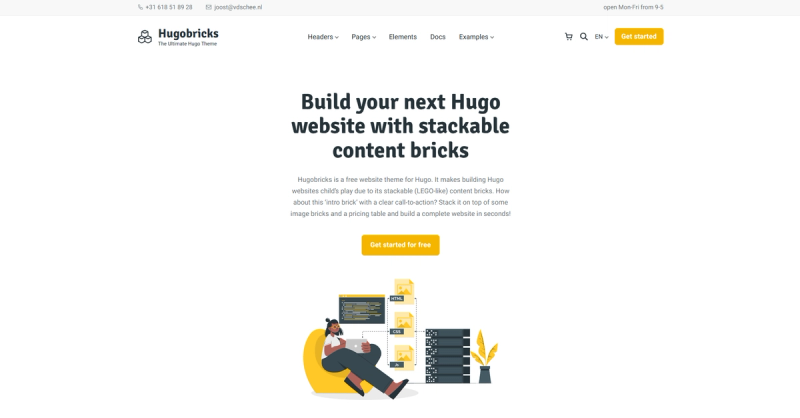
When rendered, this partial would produce a section that looks conceptually similar to this:
Test your understanding!
You want to add an id attribute to the <section> element for SEO and in-page navigation (e.g., <section id="hero" ...>). The id value is available in your JSON data object.
How would you modify the first line of the hero-banner.html partial to include this?
Show answer
You would add id="{{ .id }}" to the <section> tag. The id field from the JSON object is available as .id within the partial's context.
The modified line would look like this:<section id="{{ .id }}" class="hero-banner" style="...">
Making Partials More Flexible
Our partial works perfectly within our homepage dispatcher system. But what if you wanted to reuse this hero banner on another page, without adding it to the homepage.json file? This is where passing parameters as a dictionary (dict) becomes incredibly powerful.
A Hugo partial can only accept one parameter. We've been passing the data object as that one parameter. However, we can construct a new "dictionary" on the fly to serve as that parameter. This makes our partials more self-documenting and flexible.
6.2 Reusing content with partials | Hugo In Action
The article 'Reusing content with partials' from Hugo In Action explains this concept well. It shows how to pass multiple, named values to a partial by wrapping them in a dict.
Please read the short section that begins with 'A Hugo partial takes only one argument.' Focus on the example that shows how to call a partial with (dict "Menu" site.Menus.main "Button" true). This demonstrates the syntax for passing multiple named parameters.
Based on that principle, we could call our hero partial from any template like this:
{{ partial "homepage/hero-banner.html" (dict
    "title" "A Custom Title For This Page"
    "content" "This content is unique to this specific usage."
    "image" "/images/another-bg.jpg"
    "cta_text" "Learn More Here"
    "cta_link" "/about")
}}
The partial code remains exactly the same because it still accesses the data via .title, .content, etc. The only difference is how the data is passed. This approach turns your partial into a true, self-contained component that you can drop in anywhere, customizing it as needed. For your work in SEO, this is a powerful technique for creating and placing targeted call-to-action sections across a site.
Conclusion
You've successfully built your first reusable homepage component! You translated a data structure from your Google Sheet into a tangible, styled hero banner. You practiced crafting a detailed prompt for an AI assistant and analyzed the resulting Hugo template code.
Key Takeaways:
- Partials are the building blocks for modular Hugo sites, located in
layouts/partials/. - We can generate a partial by prompting an AI with the data structure it will receive (
context) and clear instructions for the desired HTML output. - Inside a partial, variables like
.titleand.contentare used to access the data passed into it. - Using
withandifstatements makes partials more robust by gracefully handling optional data fields. - For maximum reusability, you can call a partial with a
dictto pass custom, named parameters.
Preview of the next lesson:
Our hero banner is a static component—it just displays the data it's given. But homepages often need dynamic components that pull in content from elsewhere. In our next lesson, we will tackle exactly that: generating a reusable partial that displays a curated list of content from a specific site section (e.g., 'Latest Blog Posts'). This will be our first step in connecting different parts of the site together on the homepage.