Welcome back! In the previous lesson, we established a connection from your local machine to our containerized PostgreSQL database, confirming that the database is running and accessible. This was an essential "outside-in" check. Now, we must shift our focus to the internal communication between our services.
For our Airflow service to orchestrate tasks, it needs to know how to connect to other systems like PostgreSQL and, eventually, Kafka and external APIs. This lesson is dedicated to managing these connection details and other sensitive configurations, like API keys, in a secure and maintainable way. This is a cornerstone of building robust data pipelines, moving us away from insecure, hardcoded credentials and towards a configuration-driven approach that is essential for real-world projects.
We will cover Airflow's two primary mechanisms for this: Connections and Variables. You will learn how to define them as environment variables, which integrates perfectly with the Docker and .env file setup we've already built.
The Problem: Secrets in Code
Before diving into the Airflow-specific solutions, it's vital to understand the problem we're solving. Hardcoding sensitive information like database passwords, API keys, or user credentials directly into your Python scripts or configuration files is a significant security risk and a maintenance nightmare.
The video below explains why this practice is so problematic, especially when using version control systems like Git.
Environment Variables in Docker Compose: Secure Your Secrets!
Why hardcoding is a bad idea
Watch the beginning of this video from the introduction to understand the security risks associated with committing sensitive data into a code repository.
Just as we used a .env file to separate the configuration of our Docker services, we will now apply the same principle to the credentials our application (Airflow) uses.
Airflow's Solution: Connections and Variables
Airflow provides two distinct features to manage configuration and secrets, which can be managed through the UI, CLI, or, most relevantly for us, environment variables.
-
Connections: These are structured objects designed specifically to hold the information needed to connect to an external system. This includes the hostname, port, username, password, and other parameters. They are the standard way to manage database, hook, and API authentications.
-
Variables: These are simple key-value pairs for storing any other arbitrary information. This could be a file path, a configuration flag, an API endpoint URL, or a project name. Airflow has a neat feature where it automatically masks the values of variables in the UI and logs if their key contains sensitive keywords like
password,secret,api_key, etc.
The following video gives a great visual overview of creating and using both Connections and Variables through the Airflow UI. While we will be using environment variables, seeing the UI helps solidify the concepts.
Airflow Tutorial - Variables and Connections | json | how to create | use | example | Best practices
Airflow Variables and Connections overview
This video provides a clear walkthrough of Variables and Connections. For Variables, watch the segment from the beginning. Notice how a variable with 'key' in its name gets automatically masked. For Connections, watch the segment from the connections section. This shows how different parameters are stored for a connection.

Defining Connections and Variables with Environment Variables
For a reproducible, version-controlled project using Docker, defining Connections and Variables via environment variables is the modern standard. It allows you to keep your secrets out of your code and manage different configurations for development, testing, and production environments easily.
The Airflow documentation and a helpful Stack Overflow thread detail how this works.
Managing Connections — Airflow 3.1.6 Documentation
The official documentation explains the different ways to manage connections.
Focus on the introduction and the section Storing connections in environment variables. Pay close attention to the AIRFLOW_CONN_{CONN_ID} naming convention and the note that these connections are resolved at runtime and do not appear in the UI.
How to set connections and variables in airflow using docker-compose file - Stack Overflow
This Stack Overflow discussion provides practical context for our Docker setup.
Read the comments in the first answer, specifically the one that clarifies the naming convention: single underscores for connection and variable names (AIRFLOW_CONN_... and AIRFLOW_VAR_...). This distinguishes them from Airflow's core configuration variables which use double underscores.
Here's the pattern:
- For Connections:
AIRFLOW_CONN_{CONN_ID_UPPERCASE} - For Variables:
AIRFLOW_VAR_{VAR_NAME_UPPERCASE}
The value is typically provided as a Connection URI string or a simple string for variables.
Putting It into Practice
Let's apply this to our project. We need to create a connection that our future Airflow DAGs can use to interact with our pipeline_db in PostgreSQL.
-
Open your
.envfile. -
Add a new line to define the connection. We'll name our connection
pipeline_db. TheCONN_IDbecomesPIPELINE_DB.# ... your existing variables for POSTGRES_USER, etc. ... # Airflow Connection for the pipeline's PostgreSQL database AIRFLOW_CONN_PIPELINE_DB="postgresql+psycopg2://${POSTGRES_USER}:${POSTGRES_PASSWORD}@postgres-db:5432/${POSTGRES_DB}"
Let's break down this Connection URI:
postgresql+psycopg2://: The connection type and the Python driver Airflow should use.${POSTGRES_USER}:${POSTGRES_PASSWORD}: The user and password, dynamically substituted from the other variables in our.envfile.@postgres-db:5432: The host and port. This is a critical step. Inside the Docker network, services communicate using their service names. We usepostgres-db(the service name from ourdocker-compose.yml), notlocalhost. The port is the internal port the container exposes, which is5432./${POSTGRES_DB}: The specific database name within the PostgreSQL server, also substituted from our.envfile.
-
Ensure Docker Compose passes the variable. Your
docker-compose.ymlfile already uses${VAR}substitution to read from the.envfile for the service configurations. This same mechanism will automatically makeAIRFLOW_CONN_PIPELINE_DBavailable to the Airflow services when they start. No changes are needed indocker-compose.ymlas long as the Airflow services'environmentsections are configured to use variables from the.envfile. -
Restart your services. To make sure the Airflow containers pick up the new environment variable, run:
docker compose down
docker compose up -d
Verifying the Connection
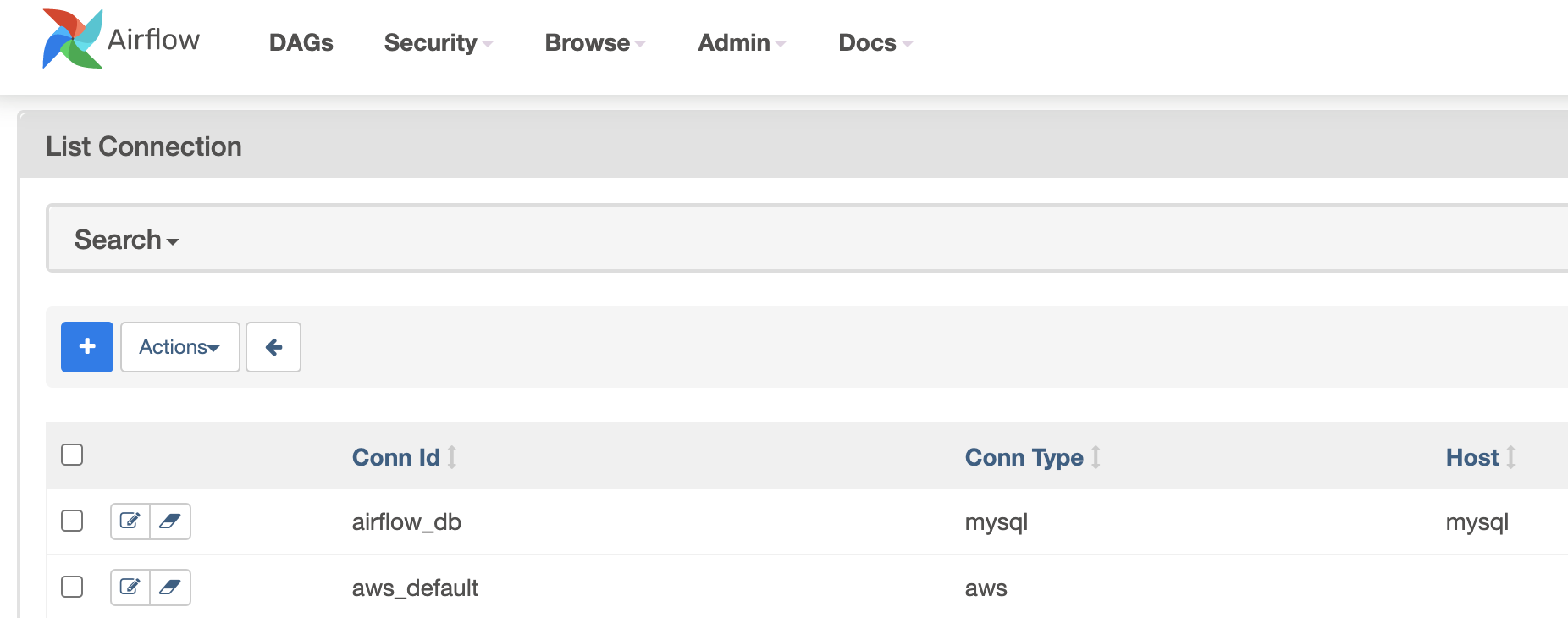
As noted in the documentation, connections defined via environment variables do not appear in the Airflow UI's connection list. This is a security feature. The correct way to verify that Airflow recognizes our new connection is to use the Airflow CLI from within the container.
-
Get a shell inside the Airflow scheduler container:
docker compose exec airflow-scheduler bash -
Use the
airflow connectionscommand to test the connection:airflow connections get pipeline_db
You should see output that describes your connection, with the password field correctly masked with ******. This confirms that Airflow has successfully parsed the environment variable and registered the connection.
conn_id:      pipeline_db
conn_type:    postgres
description:
host:         postgres-db
login:        postgres
password:     ******
port:         5432
schema:       pipeline_db
extra:
You can exit the container shell by typing exit.
An Alternative: Local Filesystem Secrets Backend
While environment variables are perfect for our needs, it's worth knowing about another powerful method for more complex scenarios: the Local Filesystem Secrets Backend. This approach allows you to define connections and variables in separate YAML or JSON files, which can be easier to manage if you have a large number of them.
How to set connections and variables in airflow using docker-compose file - Stack Overflow
This part of the Stack Overflow answer introduces a more advanced method.
Quickly review the third answer which demonstrates using the LocalFilesystemBackend. You can see how the docker-compose.yml is configured to point to variables.yml and connections.yml files. We won't implement this now, but it's a valuable pattern to be aware of.
For our project, we will stick with the environment variable approach due to its simplicity and direct integration with our existing Docker setup.
Conclusion
In this lesson, we have established a secure and scalable pattern for managing the credentials our pipeline services need to communicate. By abstracting connection details away from our code, we've made our pipeline more secure, maintainable, and portable.
Here are the key takeaways:
- Airflow Connections are for storing credentials to external systems, while Airflow Variables are for general-purpose key-value configuration.
- Defining these as environment variables (
AIRFLOW_CONN_...andAIRFLOW_VAR_...) is the best practice for containerized development, keeping secrets out of version control. - Within a Docker network, services connect using their service name (e.g.,
postgres-db) as the host, notlocalhost. - You can verify environment-variable-based connections using the
airflow connections getcommand inside the Airflow container.
With our local development environment fully configured and all services able to communicate securely, we are now ready to start building the pipeline itself. In the next module, we will dive into Implementing Batch Ingestion Patterns, where you'll write your first Python scripts to pull data from APIs and files, using the pipeline_db connection we've just created to load that data into PostgreSQL.