In our last lesson, we established a clean and isolated workspace for our project using Python's virtual environments. This is a crucial first step in professional software development. Now, as we prepare to interact with external services like the OpenAI API, we must address another fundamental aspect: securely managing our credentials.
Hard-coding sensitive information like API keys directly into your scripts is a significant security risk. If you share your code or accidentally commit it to a public repository like GitHub, your key could be exposed and misused. This lesson will teach you the standard industry practice for handling such secrets using environment variables. This method separates your configuration (like API keys) from your code, making your applications both more secure and more portable.
By the end of this lesson, you will be able to securely store and access an API key in your Python project using a .env file and the python-dotenv library.
The Problem with Hard-Coded Secrets
When you build applications that connect to third-party services, you'll almost always need an API key. Think of it as a password that grants your script access to the service.
Consider this line of Python code:api_key = "sk-xxxxxxxxxxxxxxxxxxxxxxxxxxxxxxxxxxxxxxxx"
Placing your key directly in the code like this is called "hard-coding." Anyone who can see your code can see your key. In the world of LLMs, where API usage can incur costs, protecting your key is paramount. The solution is to store these secrets in the "environment" of the application, where they are accessible to your script at runtime but not visible in the source code itself.
The following article provides a clear overview of this concept.
Python Env Vars: Complete Guide to Environment Variables
This Codecademy article introduces the concept of environment variables and illustrates why they are superior to hard-coding sensitive data.
Please read the introductory section, What are environment variables in Python?. Pay close attention to the example comparing a hard-coded key to one loaded from an environment variable.
Your Toolkit: .env files and python-dotenv
While you can set environment variables at the operating system level, a more common and project-specific approach is to use a .env file. This is a simple text file in your project's root directory where you store your key-value pairs.
To load these variables into your Python script, we'll use a small, popular library called python-dotenv. It automatically finds and loads the variables from your .env file, making them available through Python's built-in os module.
Let's walk through the entire process. The video below gives a concise demonstration of creating a .env file, loading the variables, and—most importantly—ensuring it stays private.
How to Use Python Environment Variables
This tutorial from Dave Ebbelaar provides a quick, complete workflow for using environment variables in a Python project.
Watch the following segments to understand the full process: Creating a .env file: See how variables are moved from the script to a .env file. Installing and using python-dotenv: This covers installing the library and using load_dotenv() to make the variables available. Accessing variables in Python: Observe how os.getenv() is used to retrieve the stored secret. The crucial .gitignore step: This is the most important part for security. Pay close attention to how the .env file is excluded from version control.
Hands-On: Securing Your Project
Now, let's apply these steps to the llm-course project we created in the previous lesson.
1. Activate Your Environment and Install the Library
First, open your terminal, navigate to your llm-course project directory, and activate the virtual environment you created.
- On macOS/Linux:
source venv/bin/activate - On Windows:
venv\Scripts\activate
Once your (venv) prompt is active, install the python-dotenv library:
pip install python-dotenv
This library is now a dependency of our project. Let's update our requirements.txt file to reflect this.
pip freeze > requirements.txt
2. Create Your .env File
In the root of your llm-course directory (the same place your venv folder is), create a new file named exactly .env (the . prefix is important).
Inside this file, add a placeholder for your OpenAI API key. We don't have a real key yet, but we can set up the structure. The format is VARIABLE_NAME=value, with no quotes and no spaces around the equals sign.
OPENAI_API_KEY=YOUR_SECRET_KEY_WILL_GO_HERE
Save and close the file.
3. Create a Python Script to Load the Key
Now, create a new Python file in the same directory called load_secrets.py. Add the following code:
import os
from dotenv import load_dotenv

# This line loads the environment variables from the .env file
load_dotenv()

# Now you can access the variables using os.getenv()
api_key = os.getenv("OPENAI_API_KEY")

if api_key:
    print(f"Successfully loaded API key: ...{api_key[-4:]}")
else:
    print("API key not found. Make sure you have a .env file with OPENAI_API_KEY set.")
Here's what this script does:
from dotenv import load_dotenvimports the necessary function.load_dotenv()reads your.envfile and loads its contents into the environment.os.getenv("OPENAI_API_KEY")safely retrieves the value. It's good practice to useos.getenv()because it returnsNoneif the variable isn't found, preventing your program from crashing.
Now, run your script from the terminal:
python load_secrets.py
You should see an output confirming that the key was loaded, showing only the last few characters.
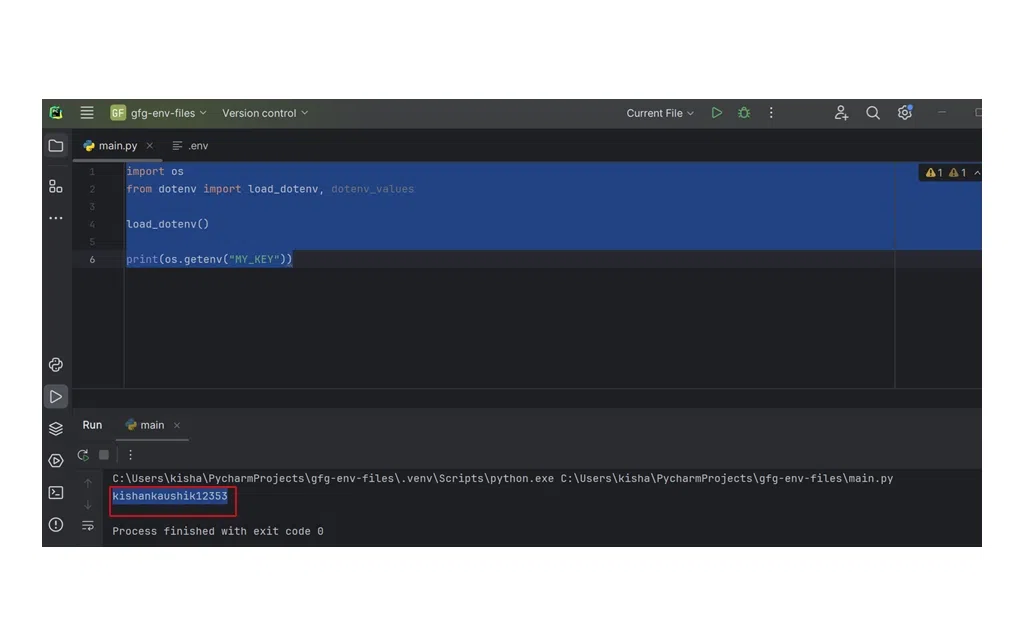
This image shows a simple Python script using load_dotenv() and os.getenv() to access a key from a .env file, with the retrieved value printed in the console.
4. The Golden Rule: Ignore Your .env File
This is the most critical step. The whole point of this process is to keep your .env file private. If you use a version control system like Git, you must tell it to ignore this file. You do this with a .gitignore file.
Create another new file in your project root named .gitignore. Inside this file, add the following lines:
# Ignore the virtual environment folder
venv/

# Ignore the file containing secrets
.env

# Ignore Python's cache files
__pycache__/
*.pyc
By adding .env to this file, you ensure that Git will never track it or upload it to a remote repository like GitHub. Your secrets remain safe on your local machine.
Conclusion
You have now implemented a secure and professional workflow for managing secrets in your Python applications. This is a non-negotiable skill for any developer working with APIs or other sensitive credentials.
The key takeaways from today are:
- Separate Configuration from Code: Never hard-code API keys, passwords, or other secrets directly in your source code.
- Use
.envfor Project-Specific Secrets: A.envfile provides a simple and effective way to manage environment variables for a single project. - Leverage
python-dotenv: Thepython-dotenvlibrary makes it trivial to load variables from your.envfile into your Python application's environment. - Access with
os.getenv(): Use Python's built-inosmodule to safely retrieve these variables in your code. - Always
.gitignoreYour.envFile: This is the most crucial step to prevent your secrets from being accidentally exposed in version control.
With our development environment fully configured and secured, we are now ready to dive into the core concepts of Large Language Models. In the next lesson, we will explore what an LLM is, how it processes language using tokens, and how concepts like the context window define its capabilities.