Hello! Welcome back to our module on Actionable Insights with Google Analytics 4.
In our last lesson, we explored user journeys with Path Exploration reports. We saw how applying simple, pre-built segments like 'Paid traffic' could help us understand how different groups navigate your hotel's website. But what if you need to get more specific? What if you want to analyze the behavior of guests from a particular country, or compare how mobile users interact with your booking engine versus desktop users?
This is where custom segments become your most powerful analysis tool. Today's lesson is designed to help you achieve the learning outcome: Create custom segments for analysis (e.g., users from specific countries, mobile vs. desktop users). We'll move beyond the default options and learn how to build highly specific user groups from scratch, allowing you to ask—and answer—much more precise questions about your guests.
1. What Are Segments and Why Are They Important?
At its core, a segment is simply a subset of your data. Instead of looking at all your website visitors at once, segments allow you to isolate and analyze specific groups. For a hotel, this could mean looking at:
- Guests from your primary international markets.
- Visitors who use a mobile device.
- Potential guests who viewed a specific room type but didn't book.
By isolating these groups, you can understand their unique behaviors, needs, and pain points, which is the first step toward creating more effective marketing campaigns and a better website experience.
In GA4, segments are created and used within the Explore section. They are much more powerful than the 'Comparisons' feature you find in standard reports because they can be more complex and can be saved to build audiences for your Google Ads campaigns—a topic we'll touch on later.
Let's start with a video that introduces the concept of segments and where to find them in GA4.
Google Analytics 4 Segments (how to create and use them)
This video from Analytics Mania gives a great overview of what segments are, why they are essential for unlocking insights, and where you can create and use them within GA4's Exploration reports.
Watch from 00:17 to 01:38. Focus on understanding that segments are used to 'slice your data' and are primarily used in the 'Explore' section of GA4.
2. The Three Types of Segments: User, Session, and Event
Before you start building, it's crucial to understand the three different "scopes" or types of segments you can create. Choosing the right one depends on the question you're trying to answer.
- User Segment: Includes all data from users who meet your criteria at any point in time. This is the broadest scope.
- Session Segment: Includes all data from specific sessions that meet your criteria. This scope is focused on individual visits.
- Event Segment: Includes only the specific events that meet your criteria. This is the most granular scope.
Let's use a hotel analogy to make this clear:
| Segment Type | Hotel Analogy | Question it Answers |
|---|---|---|
| User Segment | A list of all guests who have ever stayed in a "Suite". | "What is the overall behavior of my high-value guests across all their visits?" |
| Session Segment | A list of all hotel visits (sessions) that included a trip to the spa. | "In visits where people were interested in the spa, what else did they do?" |
| Event Segment | A list of every time a guest specifically used their key card to enter the gym. | "How many times was the gym accessed this month?" |
The following video and article explain this distinction with excellent examples. Understanding this is key to building useful segments.
Google Analytics 4 Segments (how to create and use them)
This clip provides a clear, visual explanation of the difference between User, Session, and Event segments using an e-commerce example that translates perfectly to a hotel booking scenario.
Watch from 06:34 to 08:44. Pay close attention to the diagram showing how each segment type includes a different amount of data for the same user journey.
For a detailed written explanation, you can refer to the following resource.
Google Analytics 4 Segments: The Guide (2026)
This article from Analytics Mania, 'Google Analytics 4 Segments: The Guide', provides an in-depth text and visual explanation of the three segment types. It's a great reference to solidify your understanding.
Read the section 'Three types of segments'. The diagrams visually reinforce the difference between what data is included in a user, session, and event segment.
In most of your analyses, you will likely be using User segments to understand the behavior of groups over time.
3. How to Build Custom Segments in GA4
Now for the practical part. Let's build a few segments that would be immediately useful for your hotel. We'll start by creating two simple segments to fulfill one part of our learning outcome: comparing mobile vs. desktop users.
All segment creation happens in the Explore section.
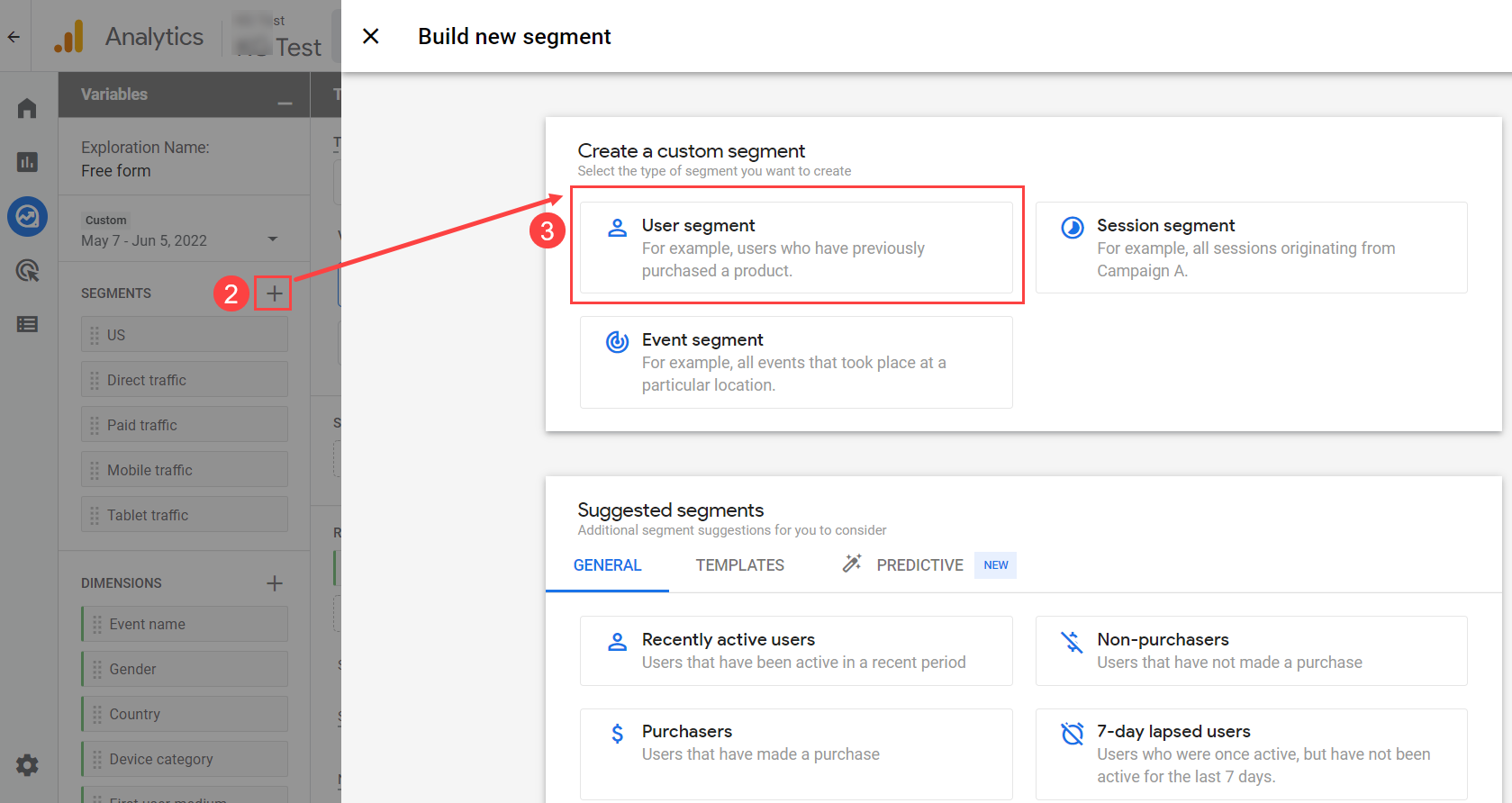
Example 1: Creating a "Mobile Users" Segment
- Navigate to Explore in GA4 and open a new Free-form exploration.
- In the Variables column, click the + icon next to the Segments title.
- Select User segment.
- Name your segment "Mobile Users".
- Under "Include users when", click Add new condition.
- Search for and select the
Device categorydimension. - Set the condition to
exactly matchesand selectmobileas the value. - Click Save and apply.
You've just created your first custom segment! You can repeat these exact steps to create a "Desktop Users" segment by selecting desktop in step 7. Now you can drag both segments into a report to compare them.
The guide below provides excellent, practical examples of segments you can build, including the one we just discussed.
Google Analytics 4 Segments: The Guide (2026)
This section of the Analytics Mania guide provides several ideas for useful segments, including how to create a Technology segment for mobile vs. desktop.
Review the section 'Ideas for Google Analytics 4 segments', specifically the part about 'Technology segments (e.g., mobile vs desktop)'.
Example 2: Combining Conditions
Now let's create a more advanced segment that combines conditions using "AND" logic. Let's create a segment for "Users from the United States on Mobile".
- Follow steps 1-3 from above.
- Name your segment "US Mobile Users".
- Add the first condition:
Device categoryexactly matchesmobile. - Click the AND button to add a second condition that must also be true.
- For the second condition, search for and select the
Country IDdimension. - Set the condition to
exactly matchesand selectUnited States. - Click Save and apply.
You now have a segment that isolates a very specific, and likely valuable, audience for your hotel.
The following video walks through this process of adding multiple conditions.
This clip from MeasureSchool clearly demonstrates the process of building a segment with multiple conditions, including exclusions. It will help you visualize the steps we just outlined.
Watch from 05:15 to 10:37. This covers the entire segment creation process, from choosing the segment type to adding multiple AND conditions and even using the 'exclude' group, which we'll discuss next.
Test your understanding!
You want to analyze the behavior of potential guests from the UK who have shown interest in your most expensive room, the "Presidential Suite". How would you set up the conditions for this user segment?
Show answer
You would create a user segment with two conditions joined by AND:
- Condition 1:
Country IDexactly matchesUnited Kingdom. - Condition 2:
Event nameisview_itemANDitem_namecontainsPresidential Suite. (This assumes you have e-commerce tracking set up, whereview_itemis triggered when someone looks at a room).
4. Refining Segments with Exclusions
Sometimes, the most powerful way to define a group is by specifying who should not be in it. This is done using an exclude group.
A classic marketing use case for this is creating a segment for retargeting. For your hotel, you might want to find users who started the booking process but didn't finish.
You would define this segment as:
- INCLUDE users who triggered the
begin_checkoutevent. - EXCLUDE users who triggered the
purchaseevent.
This gives you a clean list of users who abandoned their booking.
5. Segments vs. Audiences: Analysis vs. Action
When you create a segment, you'll see a checkbox that says "Build an audience". This is a critical feature that connects your analytics insights to your marketing actions.
- Segments are for analysis inside GA4 Explorations. They look at past data.
- Audiences are for activation in platforms like Google Ads. They are dynamic lists that users are added to or removed from as they meet the criteria.
By checking that box, the segment you created for "booking abandoners" becomes an audience you can target in Google Ads with a special "Complete your booking!" campaign. Given your goal of mastering paid advertising, this is a connection you will use often.
Google Analytics 4 Segments (how to create and use them)
This short clip explains the purpose of the 'Build an audience' checkbox and how it connects your analysis in GA4 to your advertising efforts in Google Ads.
Watch from 11:14 to 11:58. This clearly explains the two main use cases for audiences: retargeting in Google Ads and use in other GA4 reports.
Conclusion
You've now learned how to move beyond default reports and create custom segments to analyze the specific user groups that matter most to your hotel. This is a foundational skill for gaining deep, actionable insights from your data.
Key Takeaways:
- Segments are subsets of your data used for detailed analysis in GA4's Explore section.
- You must choose the right scope for your question: User (lifetime behavior), Session (single visit behavior), or Event (specific actions).
- You build segments by including or excluding users based on conditions (like country or device) connected with AND/OR logic.
- Segments can be turned into Audiences for activation in your paid ad campaigns, bridging the gap between insight and action.
What's Next?
So far in this module, we've used explorations with pre-defined structures: the Funnel and the Path. We've now learned how to create the custom segments needed to make those reports even more powerful.
In our next lesson, "Build a free-form exploration in GA4 to answer a specific business question," we will take off the training wheels. You'll learn how to use the Free-form exploration tool to build a report entirely from scratch, combining dimensions, metrics, and the custom segments you just learned to create to answer unique business questions for your hotel.