Introduction
Welcome back! In our previous lesson, you successfully connected to and imported data from Excel and CSV files, populating your Power BI project with its first datasets. This was a crucial first step in the data connection phase of the Power BI workflow.
Today, we'll build on that by connecting to a more structured and powerful data source: a SQL database. Given your background with SQL, this lesson will show you how to leverage those existing skills directly within Power BI for more efficient and precise data loading. By the end of this session, you'll know how to connect to a SQL Server database, select tables, and even use your own SQL queries to import data.
Part 1: The Connection Process
Connecting to a SQL database is as straightforward as connecting to a file, with a few extra—but very important—options. The process starts in the familiar Get Data menu.

Once you select this, Power BI will open a dialog box asking for a few key pieces of information. Let's watch a video that walks through this entire process from start to finish.
How to Connect Microsoft Power BI to MS SQL Database
This video from TheOyinbooke provides a clear, step-by-step demonstration of connecting Power BI to a Microsoft SQL Server database. It covers all the essential steps we need for this lesson.
Watch the video from 01:25 to 05:34. As you watch, pay close attention to the following stages: Finding the Connector (01:25): Locating the SQL Server database option. Entering Server Details (02:03): The speaker explains where to find the server name and introduces the two Data Connectivity modes. Authentication & Navigation (03:07): Notice the options for authentication (Windows vs. Database credentials) and how to browse and select tables from the database in the Navigator window. Loading Data (04:48): The final step of loading the selected tables into the Power BI model.
As you saw in the video, the main steps are:
- Specify Server: Provide the name of the SQL Server instance.
- Specify Database (Optional): You can target a specific database on the server from the start.
- Choose Connectivity Mode: Select either
ImportorDirectQuery. - Authenticate: Provide credentials to prove you have access.
- Navigate and Select: Choose the tables or views you want to load.
The most critical new concept here is the Data Connectivity Mode.
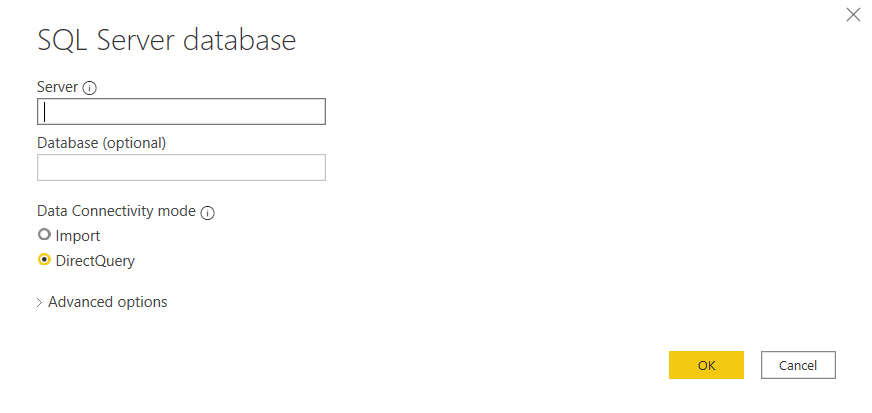
- Import Mode: Power BI copies the data from the SQL database and stores a snapshot of it inside your
.pbixfile. This is exactly how the Excel and CSV connections worked. Reports are fast because the data is held in memory, but the data is only as fresh as your last refresh. - DirectQuery Mode: Power BI does not copy the data. Instead, it connects directly to the SQL database. Every time you interact with a visual, Power BI sends a query to the database to fetch the live data. This ensures your report is always up-to-date, but it can be slower as it depends on the performance of the source database.
We will explore the trade-offs between these two modes in much greater detail in our next lesson. For now, it's enough to understand the fundamental difference.
Part 2: Leveraging Your SQL Skills
While importing entire tables is useful, it's often inefficient. You might only need a few columns from a very wide table, or you may need to join several tables together at the source. Since you already know SQL, you can use it to your advantage.
Power BI's SQL Server connector has an Advanced options section where you can write your own T-SQL SELECT statement. This is a powerful feature that allows you to perform data shaping and reduction before the data even enters Power BI. This is considered a best practice as it pushes the transformation workload back to the server, which is optimized for that task.
The following video demonstrates this feature very clearly.
How to connect SQL Server in Power BI
This clip from BI Tricks shows how to use the 'Advanced options' to pass a custom SQL query to the server, allowing you to select specific columns instead of importing an entire table.
Watch the segment from 01:51 to 04:00. The presenter first loads a whole table and then goes back to the connection settings to replace it with a specific SQL query that selects only four columns. This is a perfect example of what we're discussing.
Let's imagine you are working with a motorsport finance dataset. A table named TeamExpenses might have 50 columns, but for your current analysis, you only need TeamName, Season, ExpenseCategory, and Amount. Instead of importing all 50 columns and removing 46 of them in Power BI, you could simply write the following query in the SQL statement box:
SELECT
    TeamName,
    Season,
    ExpenseCategory,
    Amount
FROM
    dbo.TeamExpenses
WHERE
    Season = 2023;
This approach is not only cleaner but also significantly improves the performance of your Power BI report by reducing the amount of data that needs to be imported and processed.
For a more detailed written guide on this topic, the following article provides another excellent example of using a SELECT statement to retrieve data.
Working with SQL Server data in Power BI Desktop
This article from Redgate's Simple-Talk blog provides clear, text-based instructions for connecting to SQL Server. We'll focus on the section that mirrors the video you just watched.
Read the section titled "Using T-SQL Queries to Retrieve SQL Server Data". This provides a great example of a more complex query that joins multiple tables. You don't need to replicate the query, just understand how and why it's used in the Power BI connector.
Part 3: Connection Best Practices
Connecting to enterprise databases involves considerations beyond just getting the data in, such as security and performance. It's helpful to be aware of these from the start.
7 Steps to Connect Power BI to SQL Server (And Fix Common Errors)
The following article outlines five key best practices when connecting Power BI to SQL Server. This provides valuable context for real-world projects.
Read the section "Power BI to SQL Server: 5 Connection Best Practices You Shouldn’t Skip". Pay attention to the advice on encrypted connections, choosing the right connectivity mode, and optimizing queries.
Conclusion
Well done! You have now expanded your data connection skills from simple flat files to enterprise-level databases. You've also seen how your existing SQL knowledge can be a significant asset in building efficient and high-performing Power BI reports.
Key Takeaways:
- You can connect to a SQL Server database using the
Get Datamenu in Power BI. - The
Importmode copies data into Power BI for fast performance, whileDirectQuerymode connects to the live data at the source. - You can leverage your SQL skills by writing a custom
SELECTstatement in the "Advanced options" to pre-filter and shape data, which is a key performance optimization technique.
Preview of the Next Lesson:
In this lesson, we introduced the Import and DirectQuery modes. In our next session, we will perform a deep dive into this topic. You will learn the specific pros and cons of each mode, the limitations of DirectQuery, and how to make a strategic decision about which one is right for your project's specific requirements.