Hello! Welcome back to our series on developing with Azure Cosmos DB.
In our last lesson, you successfully performed the fundamental Create, Read, Update, and Delete (CRUD) operations on Cosmos DB items using the .NET SDK. We focused heavily on "point reads" using ReadItemAsync, which is the most efficient method to retrieve a single item when you know its id and partitionKey.
Today, we will expand on that foundation. While point reads are fast and cheap, real-world applications often need to find data without knowing the exact id. This lesson addresses the learning outcome: Write and execute SQL queries, including point reads and in-partition queries, for efficient data retrieval. You'll learn how to leverage your existing knowledge of SQL to query the JSON documents in your container, with a critical focus on writing efficient and cost-effective queries.
1. Point Reads vs. SQL Queries: The Right Tool for the Job
We've established that a point read is a direct key/value lookup. An SQL query, on the other hand, uses the Cosmos DB query engine to search for items that match a specific filter. Even if a query targets a single item by its id and partitionKey, it is fundamentally different from a point read.
Let's clarify the distinction and its performance implications.
Understanding the difference between point reads and queries in Azure Cosmos DB
This Microsoft DevBlog article, 'Understanding the difference between point reads and queries', clearly breaks down the trade-offs between these two data retrieval methods. It's essential reading for understanding cost and latency.
Please read the main body of the article, from the start down to 'Utilizing the id property and partition key'. Also, read the first comment from the author, Tim Sander, which clarifies why a query filtering on id and partitionKey still costs more than a point read. Pay close attention to the comparison table.
As you've just read, the key takeaways are:
- Point Read (
ReadItemAsync): Sub-10ms latency, costs exactly 1 RU (for a 1KB item). Use this whenever you have the item'sidandpartitionKey. - SQL Query: Variable latency and a minimum cost of ~2.3 RUs, even for the simplest query. It engages the query engine, which incurs a baseline cost.
This is a crucial design principle in Cosmos DB: optimize for point reads where possible, and write efficient queries for all other scenarios.
2. The Anatomy of a Cosmos DB SQL Query
The query language in Cosmos DB's SQL API uses a syntax that will be very familiar to you. You can use clauses like SELECT, FROM, WHERE, and ORDER BY to retrieve and organize your data.
Let's explore this using the Data Explorer in the Azure Portal. This provides a quick feedback loop for testing queries before implementing them in code. In your Azure Portal, navigate to your Cosmos DB account, open the Data Explorer, select your TasksDB database and Items container, and then click "New SQL Query".
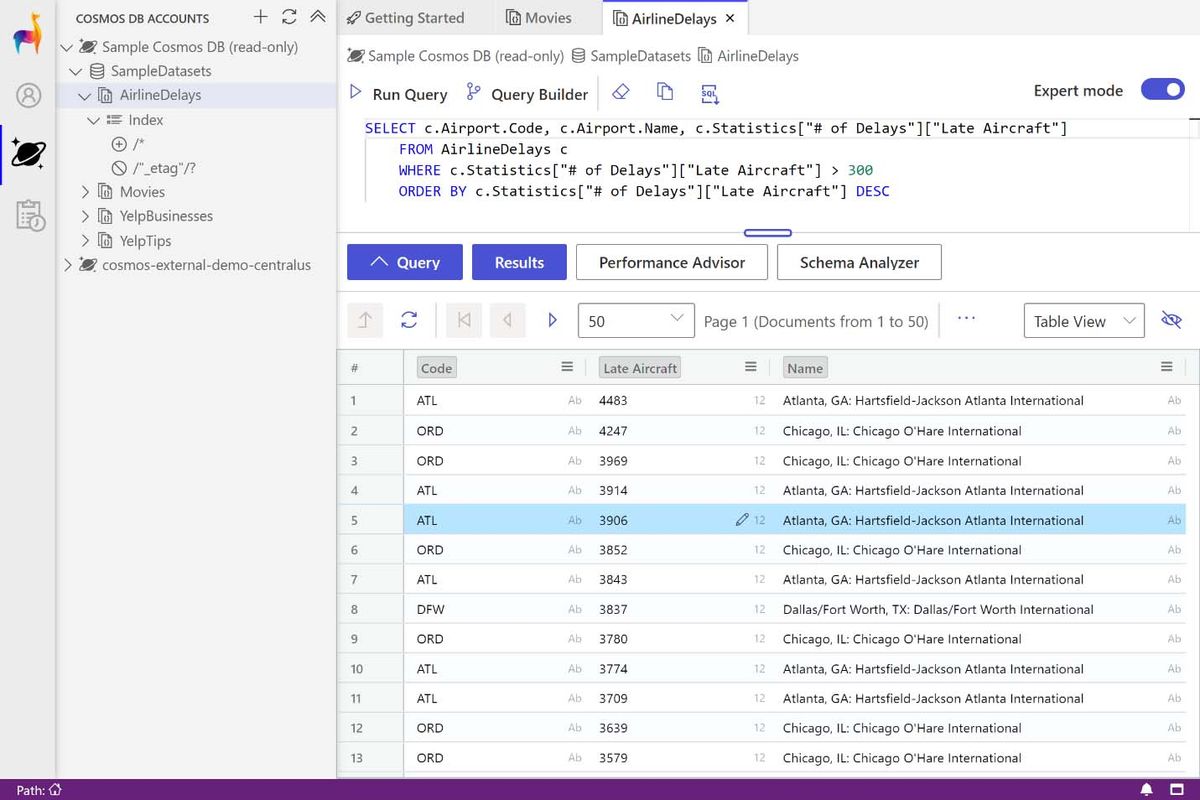
Let's assume you've added a few more tasks to your container from the previous lesson's code. Here are some example queries you can run.
This guide provides a hands-on tour of the Cosmos DB query language. We will focus on the most common clauses.
Scan through the sections on 'Running your first query', 'Dot and quoted property projection accessors', 'WHERE clauses', 'ORDER BY clause', and 'Limiting query result size'. You don't need to read every word, but use the examples to understand the syntax.
Here are some examples adapted for our TaskItem data model. Try them in the Data Explorer:
- Get all items:
SELECT * FROM c - Get items in a specific category (filtering):
SELECT * FROM c WHERE c.category = "Personal" - Get incomplete tasks, projecting only specific fields:
SELECT c.id, c.Description FROM c WHERE c.IsComplete = false - Get the top 2 oldest tasks (by GUID
id):SELECT TOP 2 * FROM c ORDER BY c.id ASC
3. In-Partition vs. Cross-Partition Queries
This is the most critical concept for query performance in Cosmos DB. The choice of your partition key and how you use it in your queries has a massive impact on cost and speed.
- In-Partition Query: A query that includes an equality filter on the partition key (e.g.,
WHERE c.category = 'Work'). Cosmos DB is smart enough to route this query to the single logical partition that holds this data. This is very efficient. - Cross-Partition Query: A query that does not filter on the partition key (e.g.,
WHERE c.IsComplete = true). Cosmos DB doesn't know where the matching items live, so it must "fan out" the query to all physical partitions and then aggregate the results. This is significantly more expensive and slower, especially as your data grows.
The following video provides an excellent visual and conceptual explanation of this.
Data modeling & partitioning: What every relational database dev needs to know (Ignite 2019)
This talk from Microsoft Ignite, 'Data modeling & partitioning', is a masterclass in Cosmos DB fundamentals. We'll watch a segment that perfectly explains how the partition key works and why it's so important for query performance.
Watch from 09:15 to 14:02 to understand the mechanics of single-partition vs. cross-partition queries. Then, watch from 38:12 to 40:27, where the speaker makes the important point that cross-partition queries are not 'evil' and are acceptable for certain use cases, like infrequent back-office reports.
To summarize the video's key points:
- Always try to write in-partition queries for your application's most frequent, latency-sensitive operations.
- Cross-partition queries are acceptable for less frequent or analytical workloads where higher latency and cost are tolerable.
4. Executing Queries with the .NET SDK
Now, let's execute these queries from the .NET console application you've been working on. The primary method for this is GetItemQueryIterator<T>. It takes a QueryDefinition and returns an iterator that you can use to read pages of results.
First, add a couple more items to your container so you have some data to query. Run the "Create" portion of your code from the last lesson a few times with different data (e.g., different Category and Description).
Now, let's add the query logic to your Program.cs.
Example 1: In-Partition Query
Here, we will query for all tasks within the "Personal" category. This is an efficient in-partition query.
// 1. Define an in-partition query
var sqlQueryText = "SELECT * FROM c WHERE c.category = @category";

Console.WriteLine($"\nRunning in-partition query: {sqlQueryText}");

QueryDefinition queryDefinition = new QueryDefinition(sqlQueryText)
    .WithParameter("@category", "Personal");

// 2. Create the query iterator
FeedIterator<TaskItem> queryResultSetIterator = container.GetItemQueryIterator<TaskItem>(
    queryDefinition,
    // We don't need to specify QueryRequestOptions here, as the partition key is in the WHERE clause.
    // However, for cross-partition queries, you might set QueryRequestOptions.
    // For example: requestOptions: new QueryRequestOptions { MaxItemCount = 1 } to get 1 item per page.
);

// 3. Iterate over the results
while (queryResultSetIterator.HasMoreResults)
{
    FeedResponse<TaskItem> currentResultSet = await queryResultSetIterator.ReadNextAsync();
    Console.WriteLine($"\tRequest charge: {currentResultSet.RequestCharge} RUs");
    foreach (TaskItem task in currentResultSet)
    {
        Console.WriteLine($"\tFound item: {task.Id} - {task.Description}");
    }
}
Key Concepts:
QueryDefinition: This class encapsulates your SQL query. Using parameters with@(like@category) is the best practice to prevent injection attacks.GetItemQueryIterator<T>: This is the central method for querying. It returns aFeedIterator.FeedIterator<T>: You loopwhile (iterator.HasMoreResults)and callReadNextAsync()inside to get one page of results at a time. TheFeedResponsecontains the list of items for that page and theRequestChargefor retrieving it.
Example 2: Cross-Partition Query
Now, let's find all tasks that are not yet complete, regardless of their category.
// 4. Define a cross-partition query
sqlQueryText = "SELECT * FROM c WHERE c.IsComplete = @isComplete";

Console.WriteLine($"\nRunning cross-partition query: {sqlQueryText}");

queryDefinition = new QueryDefinition(sqlQueryText)
    .WithParameter("@isComplete", false);

// 5. Create the query iterator
queryResultSetIterator = container.GetItemQueryIterator<TaskItem>(
    queryDefinition
    // Note: To enable cross-partition queries, no special flag is needed anymore with current SDKs.
    // The SDK handles it, but be aware of the performance cost.
);

// 6. Iterate over the results
double totalRequestCharge = 0;
while (queryResultSetIterator.HasMoreResults)
{
    FeedResponse<TaskItem> currentResultSet = await queryResultSetIterator.ReadNextAsync();
    totalRequestCharge += currentResultSet.RequestCharge;
    foreach (TaskItem task in currentResultSet)
    {
        Console.WriteLine($"\tFound item: {task.Id} - {task.Description}");
    }
}
Console.WriteLine($"\tTotal request charge for cross-partition query: {totalRequestCharge} RUs");
When you run this code, compare the RU charge for the in-partition query with the total RU charge for the cross-partition query. You will likely see that the cross-partition query is more expensive, as it has to fan out across all partitions.
What is Partitioning in Azure Cosmos DB?
For a visual walkthrough of these C# concepts, you can refer to this video by Will Velida. It demonstrates executing both in-partition and cross-partition queries using the .NET SDK.
Watch the segments from 18:00 to 22:07. The first two parts show an in-partition query, and the last part demonstrates a cross-partition query and discusses its performance implications. The code structure is very similar to what we just implemented.
Conclusion
Great job! You have now unlocked the ability to retrieve data from Cosmos DB with much more flexibility than before. You can write complex queries and, most importantly, you understand the performance implications of how you write them.
Key Takeaways:
- Point reads (
ReadItemAsync) are the fastest and cheapest way to get an item byidandpartitionKey. - SQL queries (
GetItemQueryIterator) are used for all other data retrieval scenarios. - An in-partition query includes the partition key in the
WHEREclause, making it efficient. - A cross-partition query does not include the partition key, is more expensive, and should be used judiciously.
- Always use parameterized queries with
QueryDefinitionto prevent SQL injection. - Results are fetched in pages using a
FeedIterator.
Next Steps
We've talked a lot about Request Units (RUs) as the "currency" of Cosmos DB performance. You've seen how different operations have different RU costs. But how do you control your budget?
In our next lesson, we will focus on the learning outcome: "Provision and manage throughput (RU/s) at the database and container level." You will learn how to set, monitor, and scale the throughput for your Cosmos DB resources to balance performance and cost effectively.