Hello! Welcome to the next lesson in our journey with Azure Cosmos DB.
In our last session, we successfully laid the groundwork by creating a Cosmos DB account, a database named TasksDB, and a container named Items with a partition key of /category. We did this using both the Azure Portal and programmatically with a .NET console application, giving you a solid foundation to build upon.
Today, we'll bring that container to life. Our learning outcome is to perform create, read, update, and delete (CRUD) operations on Cosmos DB items using the .NET SDK. These four operations are the fundamental building blocks for any application that interacts with a database. Given your extensive experience with C# and .NET, you'll find the SDK's object-oriented approach both intuitive and powerful.
We will continue working with the console application you created, evolving it to manage data within our Items container.
1. Defining the Data Model
Before we can create an item, we need to define its structure in our C# code. In Cosmos DB, an "item" is a JSON document. In .NET, we represent this with a Plain Old CLR Object (POCO).
Let's define a TaskItem class. In your Visual Studio project, create a new class file named TaskItem.cs:
using Newtonsoft.Json;

public class TaskItem
{
    [JsonProperty("id")]
    public string Id { get; set; }

    [JsonProperty("category")]
    public string Category { get; set; }

    public string Description { get; set; }

    public bool IsComplete { get; set; }
}
A few key points about this class:
[JsonProperty("id")]: Cosmos DB requires every item to have a uniqueidproperty, which must be a string and is conventionally lowercase. We use theJsonPropertyattribute (from theNewtonsoft.Jsonlibrary, which is a dependency of the Cosmos SDK) to map our C# propertyId(following C# naming conventions) to the lowercaseidfield in the JSON document.[JsonProperty("category")]: We do the same for our partition key,category.- The other properties (
Description,IsComplete) will be automatically serialized to JSON with matching names.
2. Performing CRUD Operations with the .NET SDK
All item-level operations are performed using an instance of the Container class. We'll now walk through each of the CRUD operations. The following video provides an excellent, comprehensive demonstration of these concepts in a console application. We'll use it as our guide, breaking it down operation by operation.
Intro To CosmosDB - How To Easily Use Cloud NoSQL with C#
This video from Tim Corey is a complete guide to performing CRUD operations in Cosmos DB with C#. It covers creating, reading, updating, and deleting items, and also explains how to check the cost (in RUs) of each operation.
You can watch the segments as we cover each topic below, or watch from 35:18 to the end (approx. 25 minutes) for a full overview. The video uses a 'Person' model, but the concepts apply directly to our 'TaskItem' model.
Let's modify the Program.cs file from the previous lesson. We'll keep the client, database, and container setup, and add our new logic within the try block.
// Keep this setup from the previous lesson
const string endpointUri = "YOUR_ENDPOINT_URI";
const string primaryKey = "YOUR_PRIMARY_KEY";
const string databaseId = "TasksDB";
const string containerId = "Items";

CosmosClient cosmosClient = new CosmosClient(endpointUri, primaryKey);
Database database = cosmosClient.GetDatabase(databaseId);
Container container = database.GetContainer(containerId);
Note: We're using GetDatabase and GetContainer now, assuming they were created in the last lesson. These methods don't validate existence and are more efficient for repeated use.
Create (C): CreateItemAsync<T>
To add a new item, you instantiate your C# model, set its properties, and pass it to the CreateItemAsync method.
- Video Guide: Watch from
35:18to43:55in the Tim Corey video to see an item being created. The video highlights how to handle theidproperty casing withJsonProperty, which we've already done.
Your Turn: Hands-on Practice
Add the following code to your Program.cs to create and insert a new task.
// 1. Create a new TaskItem object
TaskItem newTask = new()
{
    Id = Guid.NewGuid().ToString(),
    Category = "Personal", // This is our partition key value
    Description = "Pick up groceries",
    IsComplete = false
};

// 2. Create the item in Cosmos DB
ItemResponse<TaskItem> createResponse = await container.CreateItemAsync(newTask, new PartitionKey(newTask.Category));

Console.WriteLine($"Created item: {newTask.Id}");
Console.WriteLine($"Request charge: {createResponse.RequestCharge} RUs");
Console.WriteLine($"HTTP status code: {createResponse.StatusCode}");
Key Concepts:
CreateItemAsync<T>(item, partitionKey): This is the core method. It's crucial to provide thePartitionKeyvalue explicitly. This allows Cosmos DB to route the request directly to the correct logical (and physical) partition, making the write operation highly efficient.ItemResponse<T>: The method returns a response object containing the status of the operation, theRequestCharge(cost in Request Units or RUs), and a copy of the created item. Monitoring RUs is vital for performance tuning and cost management.
Read (R): ReadItemAsync<T>
A point read is the most efficient way to fetch a single item. It requires you to know both the item's id and its partitionKey.
- Video Guide: The video demonstrates a point read from
43:55to47:56. Notice how both the ID and partition key are supplied to the method call.
Your Turn: Hands-on Practice
Add this code to read the item you just created. Use the Id and Category from the newTask object.
// 3. Read the item back (point read)
string idToRead = newTask.Id;
string categoryToRead = newTask.Category;

ItemResponse<TaskItem> readResponse = await container.ReadItemAsync<TaskItem>(idToRead, new PartitionKey(categoryToRead));

TaskItem readItem = readResponse.Resource;

Console.WriteLine($"\nRead item: {readItem.Id}");
Console.WriteLine($"Description: {readItem.Description}");
Console.WriteLine($"Request charge: {readResponse.RequestCharge} RUs");
Console.WriteLine($"HTTP status code: {readResponse.StatusCode}");
Key Concepts:
ReadItemAsync<T>(id, partitionKey): This operation is very fast and cheap (typically 1 RU) because Cosmos DB can navigate directly to the item without performing a search.
Update (U): ReplaceItemAsync<T> or UpsertItemAsync<T>
To update an item, you typically read it, modify the object in your C# code, and then either replace it or "upsert" it.
-
ReplaceItemAsync: Replaces an existing item. The operation will fail if the item doesn't already exist. -
UpsertItemAsync: A combination of "update" and "insert." It will replace the item if it exists or create it if it doesn't. This is often more convenient and avoids the need for a separate read-before-write check. -
Video Guide: The video covers
ReplaceItemAsyncfrom54:27to58:54. The process shown is: read, modify, replace.
Your Turn: Hands-on Practice
Let's mark our task as complete using UpsertItemAsync.
// 4. Update the item (using Upsert)
TaskItem itemToUpdate = readResponse.Resource; // Use the item we just read
itemToUpdate.IsComplete = true;

ItemResponse<TaskItem> upsertResponse = await container.UpsertItemAsync(itemToUpdate, new PartitionKey(itemToUpdate.Category));

Console.WriteLine($"\nUpdated item: {itemToUpdate.Id}");
Console.WriteLine($"Request charge: {upsertResponse.RequestCharge} RUs");
Console.WriteLine($"HTTP status code: {upsertResponse.StatusCode}");
Delete (D): DeleteItemAsync<T>
Finally, to remove an item, you use DeleteItemAsync, which, like a point read, requires both the id and partitionKey for maximum efficiency.
- Video Guide: Watch the final segment on deleting an item from
58:57to01:00:36.
Your Turn: Hands-on Practice
Add this code to delete the task.
// 5. Delete the item
string idToDelete = itemToUpdate.Id;
string categoryToDelete = itemToUpdate.Category;

ItemResponse<TaskItem> deleteResponse = await container.DeleteItemAsync<TaskItem>(idToDelete, new PartitionKey(categoryToDelete));

Console.WriteLine($"\nDeleted item: {idToDelete}");
Console.WriteLine($"Request charge: {deleteResponse.RequestCharge} RUs");
Console.WriteLine($"HTTP status code: {deleteResponse.StatusCode}");
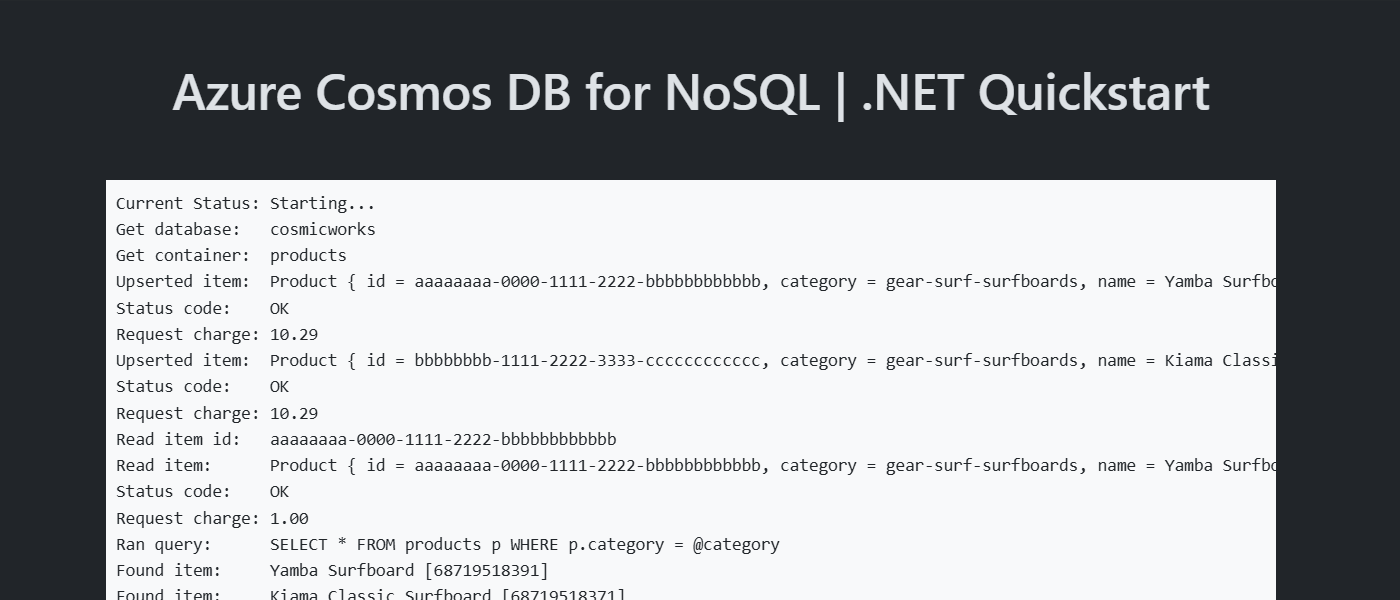
Now, run your complete Program.cs file. You should see the console output for each of the four operations, including their status codes and RU charges.
A Note on Production Architecture: The Repository Pattern
While writing data logic directly in Program.cs is fine for learning, in a real-world application like the ones you architect, you'd encapsulate this logic. The Repository Pattern is a perfect fit here. It abstracts the data access code away from your business logic.
For a more structured approach, you could create a class like CosmosTaskRepository. This connects well with your professional background in designing robust systems.
ASP.NET Core Web API For CRUD Operations With Cosmos DB
This article from C-SharpCorner provides a practical example of implementing the repository pattern for Cosmos DB within an ASP.NET Core Web API. You don't need to implement it now, but reviewing the structure is highly valuable.
Briefly review the ArticleRepository.cs class in 'Step 6. Create a Repository'. Notice how it has methods like GetArticleAsync, CreateArticleAsync, etc., which wrap the _container operations we just learned. This is a standard practice for building maintainable, testable applications.
Conclusion
Excellent work! You've now mastered the fundamental data manipulation operations in Cosmos DB using the .NET SDK. You can confidently create, read, update, and delete items in a container, which is a core requirement for the AZ-204 exam and for any developer building on Azure.
Key Takeaways:
- Data Modeling: C# classes (POCOs) are used to model the JSON documents stored in Cosmos DB, with
JsonPropertyfor mapping. - The
ContainerObject: This is your main entry point for all item-level operations. - Core SDK Methods:
CreateItemAsync<T>(item, partitionKey)ReadItemAsync<T>(id, partitionKey)(for efficient point reads)UpsertItemAsync<T>(item, partitionKey)(a convenient way to create or update)DeleteItemAsync<T>(id, partitionKey)
- Efficiency is Key: Always provide the
partitionKeyfor point operations to ensure low latency and minimal RU cost.
Next Steps
So far, we've only retrieved a single, specific item using its unique ID. But what if you need to find all tasks in the "Personal" category, or all tasks that are not yet complete? For that, we need to write queries.
In our next lesson, we will dive into the learning outcome: "Write and execute SQL queries, including point reads and in-partition queries, for efficient data retrieval." We will explore how to use the familiar SQL syntax to query our Cosmos DB data directly from our .NET application.