Hello! Welcome back to our course on preparing for the AZ-204 certification.
Introduction
In our last lesson, you successfully deployed your first .NET web application to Azure App Service. This was a critical first step, but real-world applications require a more robust way to handle configuration than hardcoding values or relying solely on files checked into source control.
Today, we'll address that by focusing on the learning outcome: Configure application settings and connection strings for an App Service app. This is a fundamental skill for any Azure developer. It allows you to externalize configuration, making your application more flexible, secure, and easier to manage across different environments (like development, testing, and production).
We will cover:
- The difference between Application Settings and Connection Strings.
- How to manage these settings in the Azure Portal.
- How to access them from your ASP.NET Core application, leveraging Azure's configuration to override local settings.
By the end of this lesson, you'll understand how to keep secrets and environment-specific settings out of your code, a best practice in modern software development.
Part 1: The "12-Factor App" and Azure Configuration
A widely respected methodology for building modern, scalable applications is the Twelve-Factor App. One of its key principles is to store configuration in the environment. This means separating configuration that varies between deployments (like database credentials, API keys) from the application's code.
Azure App Service directly supports this principle through Application Settings and Connection Strings.
- Application Settings: These are key-value pairs that are injected into your application's environment at runtime. Think of them as environment variables for your cloud app.
- Connection Strings: These are a specialized type of application setting, designed specifically for database connection strings. They have a similar key-value structure but are grouped separately in the Azure portal and can have a specific type (e.g., SQLAzure, Custom).
A crucial concept is that these settings, when defined in Azure, override any corresponding values in your local configuration files, like appsettings.json. This allows you to use local settings for development and different, more secure settings in production without changing a single line of code.
Let's watch a video that walks through the configuration section of an App Service.
AZ-204 Exam EP 05: Configure & Monitor App Service
This video from 'A Guide To Cloud' provides a concise tour of the App Service configuration blade in the Azure portal, explaining what Application Settings and Connection Strings are and where to find them.
Watch from 00:13 to 02:39. Pay attention to how the presenter explains that app settings are passed as environment variables and are encrypted at rest.
This next video reinforces a key technical detail: how these settings are exposed as environment variables.
Azure App Service (Web Apps) Tutorial
This clip from Adam Marczak's tutorial clearly explains that settings you define in the portal are mirrored as environment variables for your application to consume.
Watch from 08:50 to 09:33. The main takeaway is understanding the direct link between a setting in the portal and an environment variable in your app's runtime.
Part 2: A Hands-On Guide to Managing Configuration
Let's put this knowledge into practice. We'll add some configuration to the App Service you created in the last lesson. If you deleted the resource group, please redeploy the MyFirstAzureWebApp project from the previous lesson to have a live App Service to work with.
Step 1: Navigate to the Configuration Blade
- Go to the Azure Portal.
- Navigate to your App Service resource.
- In the left-hand menu, under the Settings section, click on Environment variables. This will take you to the main configuration page.
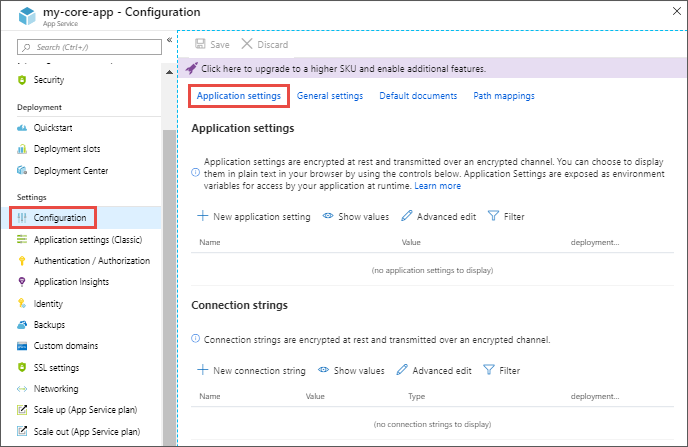
Step 2: Add an Application Setting
- Ensure you are on the App settings tab.
- Click + Add.
- Add the following setting:
- Name:
App:Greeting - Value:
Hello from Azure App Settings!
- Name:
- Click OK.
Step 3: Add a Connection String
- Switch to the Connection strings tab.
- Click + Add.
- Add the following setting. Since this is just for demonstration, the value doesn't need to be a real, working connection string.
- Name:
MyDbConnection - Value:
Server=tcp:mydemoserver.database.windows.net,1433;Initial Catalog=my-demo-db;User ID=myadmin; - Type: Select SQLAzure.
- Name:
- Click OK.

Step 4: Save Your Changes
After adding your settings, you will see a notification at the top of the page indicating that you have unsaved edits. You must click the Apply button at the bottom of the page to save your changes. Clicking Apply will trigger a restart of your application so it can load the new environment variables.
For a comprehensive written reference on this process, including how to perform these actions with the Azure CLI, you can review the official Microsoft Learn documentation.
This documentation from Microsoft Learn provides the definitive guide to configuring App Service apps. It's a valuable resource that covers the portal, CLI, and PowerShell methods.
Skim through the sections 'Configure app settings' and 'Configure connection strings'. Focus on the parts that describe using the Azure portal, as you just did. Notice the Azure CLI commands provided; we will reference these later.
Part 3: Accessing Configuration in Your .NET App
Now that we've configured our settings in Azure, let's modify our .NET application to read and display them. This will demonstrate the power of ASP.NET Core's configuration system.
Your background in .NET development means you're already familiar with appsettings.json. ASP.NET Core uses a layered configuration system where it reads from multiple sources (files, environment variables, command-line arguments, etc.). The key is that environment variables override file-based settings.
Step 1: Update Your Application Code
-
Open the
MyFirstAzureWebAppsolution in Visual Studio. -
Open
appsettings.jsonand add a new setting that matches the one you created in Azure, but with a different value.{ "Logging": { "LogLevel": { "Default": "Information", "Microsoft.AspNetCore": "Warning" } }, "AllowedHosts": "*", "App": { "Greeting": "Hello from local appsettings.json!" } } -
Now, let's display this value. Open the
Index.cshtmlfile in thePagesfolder. -
Inject
IConfigurationand display the greeting. Your file should look something like this:@page @model IndexModel @using Microsoft.Extensions.Configuration @inject IConfiguration Configuration @{ ViewData["Title"] = "Home page"; } <div class="text-center"> <h1 class="display-4">Welcome</h1> <p>Learn about <a href="https://docs.microsoft.com/aspnet/core">building Web apps with ASP.NET Core</a>.</p> <h2 style="color: blue;">@Configuration["App:Greeting"]</h2> </div>Note the syntax
App:Greeting. The colon:is used to access hierarchical data within the JSON structure.
Step 2: Test Locally
Run the application locally (by pressing F5). You should see the message: "Hello from local appsettings.json!" This confirms your code is reading the local configuration file correctly.
Step 3: Redeploy and Test in Azure
Now, right-click your project in Solution Explorer and select Publish. Redeploy the application to the same App Service as before.
Once the deployment is complete and the browser opens, you should now see the message: "Hello from Azure App Settings!"
This is the concept in action. The exact same code is running, but because it's in the Azure environment, IConfiguration automatically picked up the environment variable App:Greeting that you set in the portal, and that value took precedence.
A Note on Hierarchical Data and Connection Strings
The Microsoft Learn documentation provides excellent C# code examples and explains a crucial detail about hierarchical settings.
This resource specifically covers how ASP.NET Core apps interact with App Service configuration. It's essential reading for a .NET developer.
Read the section titled 'Access environment variables'. Pay close attention to two things: the code sample showing how to use _configuration.GetConnectionString(), and the explanation of how to represent hierarchical keys like 'My:Hierarchical:Config:Data' in App Service using a double underscore: My__Hierarchical__Config__Data.
To access the connection string we created, you would use the GetConnectionString method in your code:
var myConnString = _configuration.GetConnectionString("MyDbConnection");
This method specifically looks in the connection strings section of your configuration providers.
Conclusion
In this lesson, you've mastered a core concept for developing on Azure. By externalizing configuration, you've made your application more secure and flexible.
Key Takeaways:
- Application Settings and Connection Strings are used to store configuration outside of your application code in Azure.
- These settings are exposed to your application as environment variables.
- In ASP.NET Core, configuration defined in Azure overrides values in
appsettings.json. - You can access these settings using the standard
IConfigurationinterface. - Hierarchical keys from
appsettings.json(e.g.,Parent:Child) are represented in Azure Application Settings with a double underscore (e.g.,Parent__Child).
Next Steps
Now that your application is deployed and correctly configured, you need to be able to monitor it and diagnose issues. In our next lesson, we will focus on the learning outcome: "Enable and configure diagnostic logging to troubleshoot an App Service application." You'll learn how to stream logs in real-time and analyze historical logs to keep your application healthy.