Hello! Welcome to the next lesson in your AZ-204 certification path.
In our last session, we mastered Azure Service Bus sessions to ensure ordered message processing for complex workflows. We saw how SessionId and the ServiceBusSessionProcessor provide a powerful way to handle related messages in sequence. We concluded by noting that Azure offers another, simpler queuing service: Azure Queue Storage.
Today, we'll dive into that service. Our learning outcome is to implement a queue-triggered Azure Function using Azure Queue Storage. This is a fundamental pattern in serverless, event-driven architecture on Azure. You'll learn how to create a function that automatically executes in response to new messages, a common technique for decoupling application components and processing background tasks efficiently.
This lesson will leverage your C# and .NET expertise to build a practical, real-world solution.
1. Azure Queue Storage vs. Service Bus Queues
Before we start building, it's crucial to understand when to use Azure Queue Storage. While both are queuing services, they are designed for different scenarios.
- Azure Queue Storage: Part of the Azure Storage account service. It offers a simple, highly scalable, and cost-effective queue for storing a large number of messages. It's ideal for creating backlogs of work for asynchronous processing and decoupling components of a distributed application.
- Azure Service Bus Queues: A more feature-rich messaging broker. As we've seen, it supports advanced features like sessions (for FIFO), topics and subscriptions (pub/sub), dead-lettering with more control, duplicate detection, and transactions. It's designed for more complex enterprise messaging scenarios.
The following video provides an excellent overview of this decoupling pattern and introduces both queue services.
AZ-204 - Develop for Azure Storage - Storage Accounts - Queue Service
Watch the first part of this video from Alan Rodrigues to understand the architectural benefits of using a queue to decouple a web front-end from a back-end processing service. It clearly illustrates the problem that queues solve.
Watch from the beginning until 07:37. Focus on how introducing a queue simplifies the architecture, improves scalability, and provides resilience when consumer applications fail.
For the AZ-204 exam and practical application, a key takeaway is to choose Queue Storage for simple, large-scale decoupling and Service Bus for scenarios requiring advanced messaging features.
2. Creating an Azure Storage Queue
To use a queue, you first need a Storage Account. Within that account, you can create one or more queues.
You can do this easily through the Azure Portal.
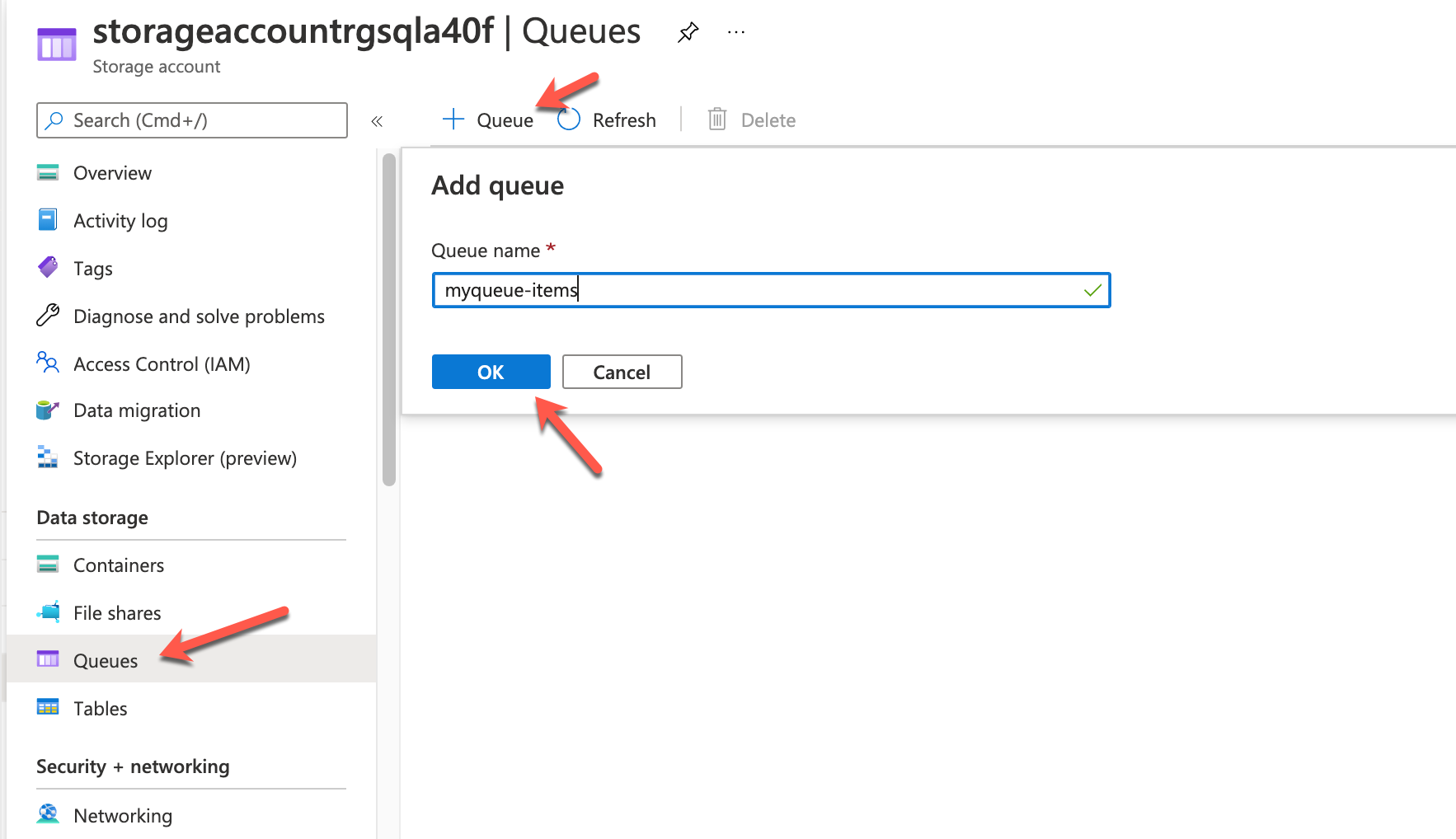
You can also manage queues programmatically or via the Azure CLI. For example, to create a queue named task-queue:
# Ensure you have the storage account connection string or are logged in
az storage queue create --name task-queue --account-name <your_storage_account_name>
3. Implementing a Queue-Triggered Azure Function
Now for the main event: building a function that automatically processes messages from our queue.
An Azure Function with a queue trigger subscribes to a specific queue. The Functions runtime polls the queue for new messages. When a message is found, the runtime reads it and invokes your function code, passing the message content as an input parameter.
The QueueTrigger Attribute
In a C# Azure Function, you use the [QueueTrigger] attribute to configure the trigger. It has two essential parameters:
- Queue Name: The name of the queue to monitor (e.g.,
"task-queue"). - Connection: The name of the application setting that holds the connection string for the storage account (e.g.,
"AzureWebJobsStorage").
[FunctionName("ProcessQueueMessage")]
public static void Run(
    [QueueTrigger("task-queue", Connection = "AzureWebJobsStorage")] string myQueueItem,
    ILogger log)
{
    log.LogInformation($"C# Queue trigger function processed: {myQueueItem}");
}
For more details on the attribute and its configuration, you can refer to the official documentation.
Azure Queue storage trigger for Azure Functions | Microsoft Learn
This Microsoft Learn article, 'Azure Queue storage trigger for Azure Functions', is the definitive reference. It details the configuration properties and provides code examples.
Skim through these sections to solidify your understanding: Read the introduction to get the official definition. Look at the 'Example' section, specifically the C# 'In-process model' tab, to see the basic code structure. Review the 'Attributes' section to understand how the QueueTriggerAttribute is defined. Check the 'Configuration' table to see the required properties (queueName, connection).
4. Hands-On Lab: Building and Testing Your Trigger
Let's build this. We'll create a function, attempt to trigger it, diagnose a common issue, and then fix it.
Part A: Create the Function Project
-
In Visual Studio, create a new Azure Functions project.
-
Select the Queue trigger template.
-
Name the function (e.g.,
QueueProcessor). -
Set the Queue name to
my-tasks. -
For the Storage account connection, leave the default
AzureWebJobsStorage. Click Create. -
Open the
local.settings.jsonfile. This is where you'll store your storage account's connection string for local development. Update the value ofAzureWebJobsStoragewith the actual connection string from the Access keys section of your storage account in the Azure portal.{ "IsEncrypted": false, "Values": { "AzureWebJobsStorage": "<YOUR_STORAGE_ACCOUNT_CONNECTION_STRING>", "FUNCTIONS_WORKER_RUNTIME": "dotnet" } }
Your generated function code will look similar to this:
using System;
using Microsoft.Azure.WebJobs;
using Microsoft.Extensions.Logging;

namespace QueueFunctionApp
{
    public class QueueProcessor
    {
        [FunctionName("QueueProcessor")]
        public void Run([QueueTrigger("my-tasks", Connection = "AzureWebJobsStorage")]string myQueueItem, ILogger log)
        {
            log.LogInformation($"C# Queue trigger function processed: {myQueueItem}");
        }
    }
}
Part B: The Poison Message Problem
Let's see what happens when we send a simple message.
- In the Azure portal, navigate to your storage account and the
my-tasksqueue (create it if it doesn't exist). - Click Add message and enter "Hello World" as the message text. Leave the "Encode the message body in Base64" box unchecked.
- Run your Azure Function project locally from Visual Studio (press F5).
You will see the function host start up, but then it will produce a series of errors in the console. After five attempts, the errors will stop. If you refresh your storage account in the portal, you will notice two things:
- The
my-tasksqueue is now empty. - A new queue named
my-tasks-poisonhas been created, and it contains your "Hello World" message.
What happened?
By default, the Azure Functions queue trigger expects the incoming message to be a Base64 encoded string. Our plain-text message caused a deserialization error. The Functions runtime automatically retries a failing message five times. After the final failure, it moves the problematic message to a "poison" queue so it doesn't block the processing of other valid messages.
This entire sequence is demonstrated perfectly in the following video.
AZ-204 - Develop for Azure Storage - Storage Accounts - Queue Service
This video segment walks through the exact scenario we just encountered: creating a queue-triggered function and seeing it fail due to encoding issues, leading to a poison message.
Watch from 26:00 to 31:51. The video will show: Creating the Azure Function project in Visual Studio. Running the function and observing the errors. Explaining the five-retry limit and the creation of the app-queue-poison queue (the name is different, but the concept is identical).
Part C: The Solution - Sending a Base64-Encoded Message
To fix this, the service that sends the message must encode it correctly. Let's create a simple console app to do this.
- Create a new .NET Console App.
- Add the
Azure.Storage.QueuesNuGet package. - Use the following code to send a correctly encoded message. Remember to replace the placeholders.
using Azure.Storage.Queues;
using System;
using System.Text;
using System.Threading.Tasks;

class Program
{
    static async Task Main(string[] args)
    {
        string connectionString = "<YOUR_STORAGE_ACCOUNT_CONNECTION_STRING>";
        string queueName = "my-tasks";

        // Get a client for the queue
        QueueClient queueClient = new QueueClient(connectionString, queueName);
        await queueClient.CreateIfNotExistsAsync();

        string messageText = $"This is a test message sent at {DateTime.UtcNow}";

        // The QueueClient's SendMessageAsync method handles Base64 encoding automatically!
        // It takes a string, encodes it to UTF-8 bytes, and then Base64 encodes the result.
        await queueClient.SendMessageAsync(messageText);

        Console.WriteLine($"Sent message: '{messageText}'");
        Console.WriteLine("The message was automatically Base64 encoded by the SDK.");
    }
}
Note: The latest Azure.Storage.Queues SDK (QueueClient) automatically handles Base64 encoding when you pass a string to SendMessageAsync. In older SDKs or other contexts (like the video LINK demonstrates), you might need to perform the encoding manually like this: Convert.ToBase64String(Encoding.UTF8.GetBytes(messageText)). For modern .NET development, relying on the SDK is the correct approach.
Part D: Run and Verify
- Ensure your Azure Function project is still running locally (or start it again with F5).
- Run your new console sender app. It will add one correctly formatted message to the
my-tasksqueue. - Switch back to the console output of your Azure Function. This time, you should see a log message indicating success!
Executing 'QueueProcessor' (Reason='New message found on queue 'my-tasks'.', Id=...)
C# Queue trigger function processed: This is a test message sent at ...
Executed 'QueueProcessor' (Succeeded, Id=...)
This confirms that with the correct encoding, the queue trigger works as expected.
5. Advanced Binding: From String to Objects
Your function doesn't have to be limited to processing simple strings. If your queue message contains a JSON payload, the Functions runtime can automatically deserialize it into a C# object (POCO). This is extremely powerful and fits perfectly with your experience building API-driven applications.
Imagine your queue message is a JSON string like this:{"OrderId":"A123", "Quantity": 5, "IsRushOrder": true}
You can define a matching C# class:
public class Order
{
    public string OrderId { get; set; }
    public int Quantity { get; set; }
    public bool IsRushOrder { get; set; }
}
And then change your function signature to bind directly to this type:
[FunctionName("ProcessOrder")]
public static void Run(
    [QueueTrigger("orders-queue")] Order myOrder,
    ILogger log)
{
    log.LogInformation($"Processing order {myOrder.OrderId} with quantity {myOrder.Quantity}.");
}
The runtime handles the JSON deserialization for you, making your code cleaner and strongly-typed. Given your background with REST APIs, you can see how this pattern could be used to process data submitted from an API endpoint asynchronously. The video from TechnoTales demonstrates a very similar pattern where the function receives a message and then calls a REST API.
Azure Function with Queue Trigger - Azure Queue Storage - C#
The final part of this video from TechnoTales with Nitin Garg shows how to extend the function to deserialize a JSON message and use it to call an external REST API, a pattern very relevant to your work.
Watch from 10:10 to 14:16. Notice how the code deserializes the queue message into a WeatherForecast model and then uses HttpClient to POST that data to an API endpoint. This is a common and powerful serverless integration pattern.
Conclusion
Great job! You have successfully implemented a core serverless pattern on Azure. You connected an Azure Function to Azure Queue Storage, learned how to handle message encoding, and understood the automatic retry and poison message mechanism.
Key Takeaways:
- Azure Queue Storage provides a simple, scalable, and cost-effective queuing service, ideal for decoupling applications.
- Queue-triggered Azure Functions automatically process messages from a queue, enabling event-driven architectures.
- The
[QueueTrigger]attribute is used in C# to configure the queue name and connection string. - By default, the queue trigger expects Base64-encoded messages. The
Azure.Storage.QueuesSDK handles this for you when sending strings. - The Functions runtime automatically retries failed messages and moves them to a poison queue (
<queuename>-poison) after 5 failed attempts. - You can bind the trigger directly to C# objects (POCOs), and the runtime will handle JSON deserialization.
Next Steps
So far, we have built several backend processing components using Azure Functions and messaging services. In our next lesson, we will shift our focus to the "front door" of our applications. We will explore how to manage, secure, and publish your backend APIs using a dedicated service. The next topic is: Describe the core components and features of Azure API Management (APIM).