Hello! Welcome to the next lesson in our module on "Implementing Message-Based Solutions."
In our previous lesson, you successfully built a solution using Azure Service Bus queues, mastering the one-to-one messaging pattern. You learned how to send and receive messages using the .NET SDK, a fundamental skill for building decoupled systems.
Today, we'll expand on that knowledge to explore a one-to-many communication pattern. This lesson addresses the learning outcome: Implement a publish-subscribe model using Azure Service Bus topics and subscriptions. We'll build on the code and concepts from the last lesson to broadcast messages to multiple interested consumers, a pattern at the heart of many scalable, event-driven architectures.
1. From Queues to Topics: The Publish-Subscribe Model
In the last lesson, a sender sent a message to a queue, and a single receiver processed it. This is a point-to-point model. But what if multiple parts of your system need to react to the same event? For example, when a new order is placed, you might need to:
- Update inventory.
- Send a confirmation email.
- Notify the shipping department.
- Feed data into an analytics engine.
Sending a separate message to four different queues is inefficient. This is where the publish-subscribe (or "pub/sub") model excels.
In this model:
- A publisher sends a message to a Topic. The publisher doesn't know or care who is listening.
- The Topic forwards a copy of the message to one or more Subscriptions.
- Each Subscription acts like a virtual queue for an interested subscriber (or consumer).
This decouples the publisher from the subscribers, allowing you to add or remove new consumer services without ever changing the publisher's code.
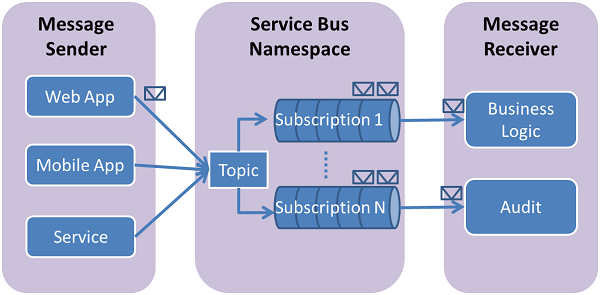
2. Creating Topics and Subscriptions
Just like queues, topics and subscriptions live inside a Service Bus Namespace. The creation process is very similar to what you did in the previous lesson.
To see this in action, let's watch a short segment of a video that demonstrates how to create a topic and multiple subscriptions using the Azure Portal.
AZ-204 - Connect and Consume Services - Azure Service Bus
This video by Alan Rodrigues will walk you through setting up the necessary resources in the Azure Portal. Pay close attention to how subscriptions are tied to a specific topic.
Watch the segment from 00:49:12 to 00:51:14. Observe the following steps: Navigating to the 'Topics' section in your Service Bus Namespace. Creating a new topic. Creating two separate subscriptions ('subscription a' and 'subscription b') for that single topic.
As you can see, a topic is the parent entity, and subscriptions are its children. Each subscription will receive a copy of every message sent to the topic unless you define specific filtering rules (which we'll cover shortly).
3. Implementing the Publisher and Subscriber in .NET
Here's the great news: your existing C# and .NET skills, and the code you wrote for queues, are almost directly transferable to topics and subscriptions. You'll use the same Azure.Messaging.ServiceBus library and the same core classes.
The key differences are minor:
- Publisher (Sender): Instead of creating a
ServiceBusSenderfor a queue name, you create it for a topic name. - Subscriber (Receiver): Instead of creating a
ServiceBusProcessorfor a queue name, you create it by providing both the topic name and the subscription name.
Let's review the official Microsoft documentation for the exact code.
Azure Service Bus Topics Quickstart With .NET
This Microsoft Learn quickstart provides the definitive C# code for interacting with topics and subscriptions. It's structured similarly to the queue quickstart from our last lesson.
Please read through the sections on sending and receiving messages. Note the code provided under the 'Connection string' tabs: 'Send messages to the topic': Look at how ServiceBusClient is instantiated and how CreateSender is called with the topic name. 'Receive messages from a subscription': Observe how CreateProcessor now takes two string arguments: the topic name and the subscription name. The message and error handlers (MessageHandler, ErrorHandler) are identical to the queue implementation.
The following video segment reinforces this by showing how code written for queues can be quickly adapted for topics.
AZ-204 - Connect and Consume Services - Azure Service Bus
Continuing with Alan Rodrigues's tutorial, this part demonstrates programmatically sending to a topic and receiving from a subscription, highlighting the similarities with queue-based code.
Watch the segments from 00:53:05 to 00:59:06. Notice how: Sending (00:53:05 - 00:55:56): The code to send messages is reused; only the queue name is replaced with the topic name in the CreateSender call. Receiving (00:55:56 - 00:59:06): The receiver code is also adapted. The key change is in the CreateProcessor call, which now requires both the topic and subscription name.
4. Hands-On Lab: Implementing the Pub/Sub Pattern
Now it's your turn to build it. This lab will prove the pub/sub concept by having one publisher send a message that is received by two independent subscribers.
Part A: Create Resources and a Single Subscriber
-
In the Azure Portal:
- Navigate to the Service Bus Namespace you created in the last lesson.
- Create a new topic. Let's call it
order-topic. - Create a subscription for this topic. Let's call it
email-subscription.
-
In Visual Studio:
- Create a new .NET Console App for your publisher. Name it
TopicPublisher. - Create another .NET Console App for your first subscriber. Name it
EmailSubscriber. - Publisher App (
TopicPublisher): Using the code from the Microsoft Learn quickstart, implement a sender that sends a few messages toorder-topic. - Subscriber App (
EmailSubscriber): Implement a receiver that listens toorder-topicandemail-subscription. - Use the same
RootManageSharedAccessKeyconnection string from your namespace.
- Create a new .NET Console App for your publisher. Name it
-
Test:
- Run the
EmailSubscriberapp first. - Then, run the
TopicPublisherapp. - Confirm that the
EmailSubscriberconsole window shows the received messages.
- Run the
Part B: Add a Second Subscriber
-
In the Azure Portal:
- Go back to your
order-topic. - Create a second subscription. Let's call it
inventory-subscription.
- Go back to your
-
In Visual Studio:
- Create a copy of your
EmailSubscriberproject and rename itInventorySubscriber. - In the code for
InventorySubscriber, change the subscription name from"email-subscription"to"inventory-subscription". The topic name remains"order-topic".
- Create a copy of your
-
Test the Full Pub/Sub Flow:
- Run the
EmailSubscriberapp. - Run the
InventorySubscriberapp. You should now have two console windows open and waiting for messages. - Run the
TopicPublisherapp. - Observe: Both the
EmailSubscriberandInventorySubscriberconsole windows should display the messages. You've successfully broadcast a single message to two independent consumers.
- Run the
The following video demonstrates a similar outcome using Azure Functions as subscribers, which is another common pattern.
AZURE SERVICE BUS TOPICS & SUBSCRIPTIONS- Getting Started | Azure Series
This clip from Rahul Nath's tutorial clearly shows two different subscribers processing the same message from a topic.
Watch the segment from 28:02 to 30:22. The presenter creates two Azure Functions, each listening to a different subscription on the same topic. When a message is sent, both functions are triggered, proving the pub/sub model works as expected.
5. Filtering Messages
A powerful feature of subscriptions is the ability to selectively receive messages using rules. By default, a subscription has one rule that accepts all messages. You can replace this with custom rules to route messages based on their properties.
The two main types of filters are:
- SQL Filters: Use a SQL-like
WHEREclause to evaluate message properties. This is highly flexible. - Correlation Filters: Perform a fast and efficient exact match against one or more message properties (like
SubjectorContentType).
Let's imagine our Order messages have a Region property. We could create a subscription for "EU Orders" that only receives messages where Region = 'EU'.
You can add these properties to your message before sending it. Your experience with key-value pairs and dictionaries in C# will make this intuitive.
// In your publisher app
var message = new ServiceBusMessage("Your JSON payload here");

// Add custom application properties for filtering
message.ApplicationProperties["Region"] = "EU";
message.ApplicationProperties["Priority"] = "High";

await sender.SendMessageAsync(message);
The following article has excellent, modern C# code examples for creating filters and actions programmatically using the ServiceBusAdministrationClient.
How to Implement Azure Service Bus Topics
This article from OneUptime gives a concise, code-first overview of creating filters.
Read the section 'Subscription Filters and Actions'. Focus on the code examples for creating a SqlRuleFilter and a CorrelationRuleFilter using the .NET SDK. Notice how you first remove the default '$Default' rule before adding your own.
Conclusion
Excellent work! You have now implemented the publish-subscribe pattern, a cornerstone of modern, event-driven applications on Azure. You've seen how a single event can be broadcast to multiple, decoupled services, allowing your system to scale and evolve with ease.
Key Takeaways:
- Topics and Subscriptions enable the one-to-many publish-subscribe messaging pattern.
- A message sent to a topic is copied to every subscription.
- The
.NET SDKcode for topics is nearly identical to the code for queues, making it easy to adapt. You use a topic name for the sender and a topic/subscription name pair for the receiver. - Subscription Rules and Filters allow subscribers to selectively receive messages based on their properties, enabling sophisticated message routing.
Next Steps
In today's videos, you may have noticed mentions of the "dead-letter queue" (DLQ) when message processing fails. In our next lesson, we will formally cover this critical concept by learning how to configure message properties such as Time-to-Live (TTL) and manage dead-lettered messages. This is essential for building robust and fault-tolerant messaging solutions.