Introduction
Hello! In our last lesson, you successfully used the .NET SDK to perform fundamental operations on blob content: uploading, downloading, listing, and deleting. This gave you programmatic control over the data inside your blobs.
Today, we'll build directly on that knowledge to address the learning outcome: Set and manage blob metadata and properties using the .NET SDK. We'll focus on the data about your blobs. This includes system-defined attributes (properties) that control behavior and user-defined key-value pairs (metadata) that you can use to categorize and describe your data. Mastering this is crucial for building organized, efficient, and intelligent storage solutions, a key skill tested in the AZ-204 exam.
1. Differentiating Properties and Metadata
Before we write any code, it's essential to understand the two types of descriptive information you can associate with a blob. The official Microsoft documentation provides a clear distinction.
Manage properties and metadata for a blob with .NET
Let's start by reading the official definitions for system properties and user-defined metadata from the Microsoft Learn guide.
Read the section titled 'About properties and metadata'. Focus on the definitions of 'System properties' and 'User-defined metadata' and note the difference between them.
To summarize and expand on what you've just read:
-
System Properties: These are attributes defined by Azure Storage itself. They often correspond directly to standard HTTP headers and influence how clients or browsers handle the blob. Some are read-only (like
LastModifiedorETag), while others can be set by you. Common writable properties include:ContentType: The MIME type of the blob (e.g.,application/json,image/jpeg). This is critical for browsers to render content correctly.ContentEncoding: The encoding used for the blob's content (e.g.,gzip).CacheControl: Directives for how clients should cache the blob (e.g.,max-age=3600).ContentLanguage: The language of the blob's content (e.g.,en-US).
-
User-Defined Metadata: This is a collection of custom key-value pairs that you define. It's for your application's use only and doesn't affect the blob's behavior in Azure. You can use it to "tag" blobs with information like a document author, a processing status, or an associated project ID. Key constraints to remember for the exam are:
- The total size of all metadata on a blob cannot exceed 8 KB.
- Metadata keys are case-insensitive but preserve the case you provide.
The following image shows how these two concepts appear in the Azure Storage Explorer, a popular GUI tool for managing Azure Storage.
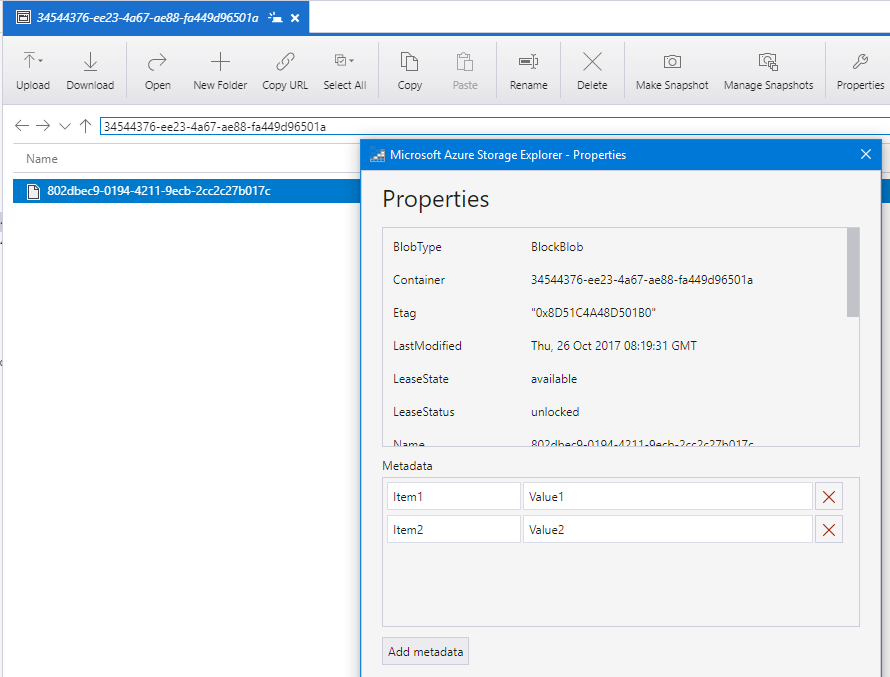
Finally, it's worth noting that Azure also offers Blob Index Tags, which are similar to metadata but are automatically indexed by the service, making them searchable. We won't cover them in this lesson, but it's good to know they exist as a separate feature for server-side filtering.
2. Setting and Retrieving System Properties
Now let's apply this understanding in code. Since you already have a console application set up from the previous lesson, you can add these new methods to it. We will work with the BlobClient object you're already familiar with.
The following reading provides the core code patterns for managing system properties.
Manage properties and metadata for a blob with .NET
This section of the Microsoft Learn guide provides the exact C# code for setting and retrieving system properties. Pay close attention to the methods used.
Review the code examples under the 'Set and retrieve properties' section. Note the use of GetPropertiesAsync to read properties and SetHttpHeadersAsync to write them.
Let's break down the key code patterns.
Retrieving Properties
To read a blob's properties, you use the GetPropertiesAsync method, which returns a BlobProperties object.
// Assuming you have a BlobClient named 'blobClient'
// from the previous lesson
try
{
    BlobProperties properties = await blobClient.GetPropertiesAsync();

    Console.WriteLine("Blob Properties:");
    Console.WriteLine($"- ContentType: {properties.ContentType}");
    Console.WriteLine($"- CreatedOn: {properties.CreatedOn}");
    Console.WriteLine($"- LastModified: {properties.LastModified}");
    Console.WriteLine($"- ETag: {properties.ETag}");
}
catch (Azure.RequestFailedException e)
{
    Console.WriteLine($"Error getting properties: {e.Message}");
}
Setting Properties
To set properties, you create a BlobHttpHeaders object, populate it, and pass it to SetHttpHeadersAsync.
A critical best practice, highlighted in the documentation, is to first fetch the existing properties. This is because SetHttpHeadersAsync will clear any property you don't explicitly provide.
// Assuming you have a BlobClient named 'blobClient'
try
{
    // First, get the existing properties to avoid overwriting them
    BlobProperties properties = await blobClient.GetPropertiesAsync();

    BlobHttpHeaders headers = new BlobHttpHeaders
    {
        // Set the properties you want to change
        ContentType = "text/plain",
        ContentLanguage = "en-us",

        // Preserve existing properties you don't want to change
        CacheControl = properties.CacheControl,
        ContentDisposition = properties.ContentDisposition,
        ContentEncoding = properties.ContentEncoding,
        ContentHash = properties.ContentHash
    };

    await blobClient.SetHttpHeadersAsync(headers);
    Console.WriteLine("Blob properties updated successfully.");
}
catch (Azure.RequestFailedException e)
{
    Console.WriteLine($"Error setting properties: {e.Message}");
}
3. Setting and Retrieving User-Defined Metadata
Managing metadata is just as straightforward. You'll work with a standard .NET dictionary and a different method on the BlobClient.
Manage properties and metadata for a blob with .NET
This final reading from the Microsoft guide demonstrates how to work with custom metadata using a dictionary.
Study the code examples in the 'Set and retrieve metadata' section. Focus on how a Dictionary<string, string> is used with SetMetadataAsync and how metadata is accessed from the BlobProperties object.
Setting Metadata
To set metadata, you create a IDictionary<string, string> and pass it to the SetMetadataAsync method. Important: This method replaces all existing metadata on the blob with the dictionary you provide.
// Assuming you have a BlobClient named 'blobClient'
try
{
    IDictionary<string, string> metadata = new Dictionary<string, string>
    {
        { "department", "Finance" },
        { "processedStatus", "Pending" }
    };

    // You could also fetch existing metadata first if you want to append,
    // but for this example we will replace it.

    await blobClient.SetMetadataAsync(metadata);
    Console.WriteLine("Blob metadata set successfully.");
}
catch (Azure.RequestFailedException e)
{
    Console.WriteLine($"Error setting metadata: {e.Message}");
}
Retrieving Metadata
You retrieve metadata using the same GetPropertiesAsync method as before. The metadata is available in the Metadata property of the returned BlobProperties object.
// Assuming you have a BlobClient named 'blobClient'
try
{
    BlobProperties properties = await blobClient.GetPropertiesAsync();

    if (properties.Metadata.Any())
    {
        Console.WriteLine("Blob Metadata:");
        foreach (var metadataItem in properties.Metadata)
        {
            Console.WriteLine($"- {metadataItem.Key}: {metadataItem.Value}");
        }
    }
    else
    {
        Console.WriteLine("No metadata found on this blob.");
    }
}
catch (Azure.RequestFailedException e)
{
    Console.WriteLine($"Error retrieving metadata: {e.Message}");
}
4. Key Concepts for the AZ-204 Exam
Your goal is certification, so let's consolidate the most important points that frequently appear in exam questions related to this topic.
Set and retrieve Blob Storage properties and metadata test ...
This resource provides concise and highly relevant tips for the AZ-204 exam. It highlights common points of confusion and important limitations.
Read the section 'Exam Tips: Answering Questions on Set and Retrieve Blob Storage Properties and Metadata'. This is a quick but very important read.
Here is a summary of those crucial exam points:
- Know the Methods: Be able to distinguish between
SetHttpHeadersAsync(for system properties) andSetMetadataAsync(for user-defined metadata). - Properties vs. Metadata: Understand the conceptual difference. If a question is about browser behavior (caching, rendering), the answer involves properties. If it's about custom application tags, it's metadata.
- Size Limit: Remember the 8 KB total size limit for metadata. If a scenario requires storing more than 8 KB of descriptive data, metadata is not the correct solution.
- Replacement Operation:
SetMetadataAsyncreplaces all existing metadata. To add or update a single value, you must first read the existing metadata, modify the dictionary in your code, and then write the entire updated dictionary back. - Case Sensitivity: Metadata keys are stored in a case-insensitive manner, but the API preserves the original casing you provide. This can be a tricky detail in exam questions.
- REST API Headers: In raw REST calls, metadata is passed using headers prefixed with
x-ms-meta-. The SDK handles this for you, but knowing the underlying mechanism is beneficial.
Conclusion
In this lesson, you've moved beyond just managing blob content to managing its descriptive information. You now have the tools to enrich your blobs with both system-level instructions and application-specific context.
Key Takeaways:
- System Properties (
ContentType,CacheControl, etc.) are managed viaBlobHttpHeadersand theSetHttpHeadersAsyncmethod. They influence client-side behavior. - User-Defined Metadata consists of custom key-value pairs stored in a
Dictionary<string, string>and is managed with theSetMetadataAsyncmethod. GetPropertiesAsyncis the universal method for retrieving both properties and metadata.- Setting metadata is a replacement operation, a critical detail for application logic and exam questions.
Next Steps
Now that you know how to create blobs and tag them with useful information, a new challenge arises: how do you manage these blobs over their entire lifecycle? What if you want to automatically move blobs that haven't been accessed in 90 days to a cheaper "Archive" tier, or delete logs that are more than a year old?
In our next lesson, Configure blob lifecycle management policies to automate tiering and deletion, you will learn how to set up rules directly in Azure to handle these scenarios automatically, helping you manage costs and data retention effortlessly.