Hello! Welcome to your lesson on one of the most practical financial functions in spreadsheets.
In our last session, we mastered the IF function, learning how to embed decision-making logic directly into our formulas. This is essential for creating dynamic and intelligent worksheets.
Today, we shift our focus from general logical functions to a specialized financial function that is a staple in accounting and frequently appears on your CBSE exam. The learning outcome for this lesson is to explain the purpose of the PMT function and use it to compute loan instalments. Mastering this will give you a powerful and efficient tool for handling loan-related calculations.
1. What is the PMT Function?
When a business takes out a loan, it usually repays it in equal periodic instalments. Each instalment consists of both a principal component and an interest component. Calculating this manually can be complex, but spreadsheets make it simple with the PMT (Payment) function.
The PMT function calculates the constant periodic payment for a loan, assuming a constant interest rate and a fixed number of payment periods.
To understand its key characteristics, let's look at a detailed overview.
How to use PMT function in Excel with formula examples
This article from Ablebits.com provides a clear, formal definition of the PMT function and its core principles. It will serve as our foundation.
Please read the first two sections of the article: 'What is the PMT function in Excel?' and 'Excel PMT function - syntax and basic uses'. Focus on these three points: The purpose of the function. Why the result is returned as a negative number. What the payment includes (principal and interest).
As you read, the two most important takeaways are:
- The function returns a negative value because a loan payment is a cash outflow from your perspective.
- The calculated payment includes both principal and interest.
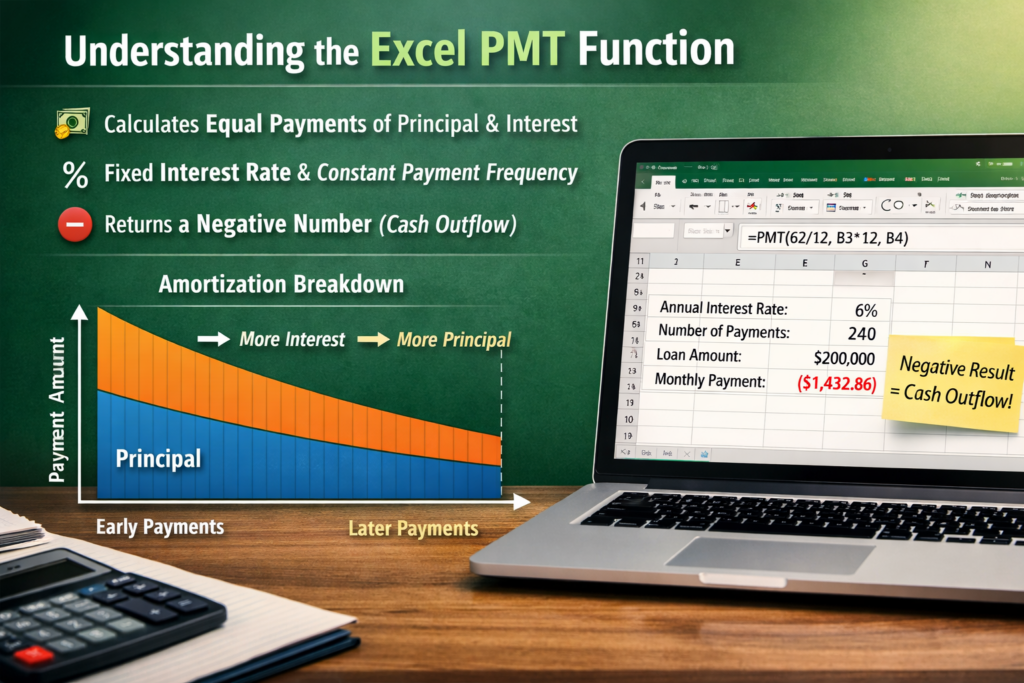
This infographic provides a great visual summary of these points.
2. The Syntax and the Golden Rule of PMT
The syntax for the PMT function is:=PMT(rate, nper, pv, [fv], [type])
Let's break down the three required arguments, which are the ones you'll use most often:
rate: The interest rate for a single period. This is a crucial detail.nper: The total number of payment periods over the life of the loan.pv: The present value, which is simply the total amount of the loan.
The optional arguments, [fv] (future value) and [type] (payment timing), are typically omitted for standard loan calculations, as the function assumes the loan balance will be zero after the last payment and that payments are made at the end of each period.
The Golden Rule: Consistency is Key
The most common mistake when using the PMT function is a mismatch between the time units for rate and nper.
The Golden Rule: The rate and nper arguments must correspond to the same time unit.
- For monthly payments, you must use a monthly interest rate and the total number of months.
- For quarterly payments, you must use a quarterly interest rate and the total number of quarters.
This means if you are given an annual interest rate and a loan term in years, you must convert them before using them in the formula for monthly payments:
- Monthly Rate = Annual Rate / 12
- Number of Months = Number of Years * 12
3. Calculating Loan Instalments: A Practical Walkthrough
Let's see how this works in practice. This is where understanding the "Golden Rule" becomes critical. The following video does an excellent job of first showing the common mistake and then explaining how to correct it.
How to Calculate Monthly Payments in Excel with PMT Function
This video from Excel University provides a step-by-step demonstration of using the PMT function correctly to calculate monthly payments.
Watch the video from the beginning to 03:46. Please pay close attention to the following sequence: The initial attempt and why the resulting payment amount is incorrect. The explanation of why the arguments' time durations must match (e.g., monthly rate for monthly periods). The final, correct formula where the annual rate is divided by 12 and the years are multiplied by 12.
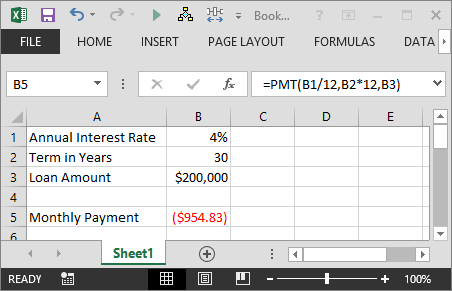
To solidify this, here is a static image showing the correct formula structure for calculating a monthly payment.
Let's reinforce this with a concise textual example that mirrors what you might find in study materials.
[PDF] Application of Electronic Spreadsheet in Accounting
This PDF provides another direct example of calculating a monthly loan instalment, which will help reinforce the concept.
Read the section titled 'Calculation of installment on loan'. Notice how the formula =PMT(B4/B5, B3*B5,-B2) is constructed. Here, B5 represents the number of payments per year (12), so B4/B5 calculates the monthly rate and B3*B5 calculates the total number of months.
4. Exam-Style Practice
For your CBSE exam, you will likely be given a scenario and asked to write the correct formula. Let's practice that.
Question (3 Marks):
A business purchased machinery by taking a bank loan of ₹3,00,000. The annual interest rate is 9%, and the loan must be repaid in 5 years through equal monthly instalments. The loan details are entered in an Excel sheet as follows:
- Cell B1:
300000(Loan Amount) - Cell B2:
9%(Annual Interest Rate) - Cell B3:
5(Term in Years)
Write the formula to be entered in cell B4 to calculate the monthly instalment.
Click to reveal the model answer and explanation
Model Answer:=-PMT(B2/12, B3*12, B1)
Alternative Answer:=PMT(B2/12, B3*12, -B1)
Explanation of the Formula:
rate:B2/12is used to convert the 9% annual interest rate into a monthly interest rate.nper:B3*12is used to convert the 5-year loan term into 60 monthly payment periods.pv:B1is the present value or the principal loan amount.- The negative sign (
-) is placed before thePMTfunction (or before thepvargument) to display the result as a positive number, which is often more intuitive for presentation. Without it, Excel would correctly display it as -₹6,227.51.
Conclusion
Excellent work today! You have learned how to use the PMT function, a fundamental tool for any accounting professional using spreadsheets. This is a high-yield topic for your exam, and being able to write the formula correctly under pressure is a valuable skill.
Key Takeaways:
- The PMT function calculates the constant periodic payment for a loan.
- Its basic syntax is
=PMT(rate, nper, pv). - The Golden Rule is that the
rateandnperarguments must be in the same time units as the desired payment (e.g., use a monthly rate and number of months for a monthly payment). - By default, the result is a negative number representing a cash outflow. Use a minus sign (
-) on thepvargument or the entire function to show it as a positive value.
In our next lesson, we will address something every spreadsheet user encounters: errors. We will learn to identify, understand, and correct two of the most common errors: #DIV/0! and #REF!. We'll also explore how to use data validation to prevent incorrect data from being entered in the first place.