Hello! Welcome to the next lesson in your course on Computerized Accounting.
In our last lesson, we focused on constructing a powerful financial formula using the PMT function. You learned how to ensure your formula arguments are correct, particularly by aligning the time units for the interest rate and the number of periods.
Today, we're going to explore what happens when formulas don't work as expected. Every spreadsheet user, from beginner to expert, encounters error messages. Understanding what they mean is the first step to fixing them. For your CBSE exam, questions often test your ability to identify the cause of an error.
The learning outcome for this lesson is to describe the causes of common spreadsheet errors, specifically #DIV/0! and #REF!. We will break down exactly what triggers these two important errors.
1. Understanding the #DIV/0! Error
The #DIV/0! error is one of the most straightforward errors. As the name suggests, it appears when a formula attempts to divide a number by zero, which is a mathematically impossible operation.
Let's look at a visual example. The image below shows several common Excel errors. Notice the two instances of the #DIV/0! error and the formulas that produce them.
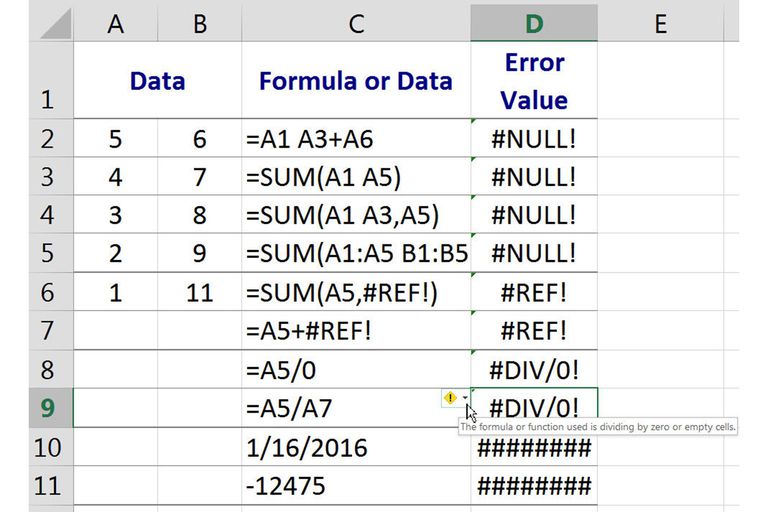
As you can see, there are two primary situations that cause this error.
[PDF] SPREADSHEET - NCERT Book
To get the formal, textbook definition, please read the relevant section from the NCERT resource on spreadsheets. This will cover the core reasons for this error.
In the PDF, find the subsection titled 'Correct a #DIV/0! Error'. Focus on the 'Reasons' listed (a and b). These are the two key causes you need to know for your exam.
The reading confirms the two main causes:
- Explicit Division by Zero: The formula directly contains a division by the number 0 (e.g.,
=15/0). - Division by a Blank or Zero-Value Cell: The formula's divisor refers to a cell that is empty or contains the value 0. In arithmetic operations, spreadsheets treat a blank cell as having a value of zero.
Now, let's see this in action. The following video provides a dynamic demonstration of how this error occurs.
Most Common Excel Errors #️⃣ and How To Fix Them - Avoid Broken Formulas
This video by Leila Gharani clearly demonstrates the #DIV/0! error in a practical context.
Watch the segment from 03:34 to 04:20. Pay attention to how the error is triggered first by a cell containing zero, and then by an empty cell, reinforcing the two causes we've discussed.
As the video also mentions, there are functions like IFERROR that can be used to hide this error and display a more user-friendly message. We will explore how to use these troubleshooting functions in our next lesson.
2. Understanding the #REF! Error
The #REF! error is different. It doesn't signify a mathematical impossibility but rather a structural problem with your formula's references. It appears when a formula contains a cell reference that is no longer valid. Think of it as a broken link; the formula is trying to find a cell that doesn't exist anymore.
The most common causes are:
- Deleting a cell, row, or column that a formula refers to.
- Pasting moved cells over cells that a formula refers to.
This video demonstrates the most frequent cause of the #REF! error.
Most Common Excel Errors #️⃣ and How To Fix Them - Avoid Broken Formulas
Let's return to the video from Leila Gharani. The segment just before the #DIV/0! explanation covers the #REF! error.
Please watch from 02:48 to 03:34. Observe how deleting a column that is part of a formula immediately results in the #REF! error. The video also touches on how copying and pasting a formula with relative references can cause it.
To solidify your understanding with the official CBSE curriculum source, let's review the textbook explanation.
[PDF] SPREADSHEET - NCERT Book
Now, let's read the NCERT book's explanation for the #REF! error. This will give you the precise language to use in an exam.
Find the subsection titled 'Correct a #REF! Error'. Focus on the first point under the 'possible causes and solutions', which describes what happens when you delete or paste over cells.
Essentially, if a formula is =SUM(A1:A5) and you delete row 3, the formula's reference is broken, and it will result in a #REF! error because it no longer knows what its range is.
3. Summary and Exam Practice
For your exam, being able to clearly state the cause of an error is key. Here is a summary table that you can use for revision.
| Error Code | Meaning | Primary Causes |
|---|---|---|
#DIV/0! |
Division by Zero | 1. The formula explicitly tries to divide by 0. 2. The divisor in a formula refers to a cell that is blank or contains 0. |
#REF! |
Invalid Cell Reference | 1. A cell, row, or column referred to in the formula has been deleted. |
Let's apply this with a typical exam-style question.
Question (4 Marks):
A formula =A5*B5 is entered in cell C5. A student performs some operations and now sees a #REF! error in cell C5. State one possible action the student might have performed to cause this error.
Later, the student enters the formula =D10/E10 in cell F10. State two distinct conditions related to cell E10 that would cause a #DIV/0! error in cell F10.
Click to reveal the model answer
Model Answer:
Cause for #REF! error:
The student could have deleted either column A, column B, or row 5. Any of these actions would make the references in the formula =A5*B5 invalid.
Causes for #DIV/0! error:
- The value in cell E10 is 0.
- Cell E10 is empty (blank).
Conclusion
Great job! You have now learned to identify and describe the root causes of two of the most fundamental spreadsheet errors. Understanding why an error occurs is the most critical step in being able to fix it.
Key Takeaways:
- The
#DIV/0!error is caused by attempting to divide by zero, which includes dividing by a blank cell. - The
#REF!error is caused by an invalid cell reference, most commonly occurring when a referenced cell, row, or column is deleted.
In our next lesson, we will build directly on this knowledge. Now that we know the causes, we will focus on troubleshooting and correcting #DIV/0! and #REF! errors. We will also learn about a proactive tool, Data Validation, to help prevent incorrect data from being entered in the first place.