Hello! Welcome back to our lesson series on Computerized Accounting.
In our last session, we dug into the causes of the #DIV/0! and #REF! errors. You learned that #DIV/0! occurs when a formula tries to divide by zero or a blank cell, and #REF! appears when a formula's cell reference becomes invalid, often because a row or column was deleted.
Today, we move from diagnosis to cure. Knowing why an error happens is the first step; knowing how to fix it is the essential skill that will earn you marks in the exam. This lesson directly addresses the learning outcome: Outline the methods to troubleshoot and correct #DIV/0! and #REF! errors. We will explore manual corrections, built-in Excel tools, and powerful functions that can handle these errors gracefully.
Let's get started.
1. Correcting the #DIV/0! Error
When you encounter a #DIV/0! error, you have two main approaches: either fix the source data or use a function to handle the error within the formula itself.
Method 1: Manual Correction
The most direct method is to correct the data causing the error. This involves two steps:
- Find the error: In a small sheet, you can spot it visually. In a large one, you can use the 'Find' feature (
Ctrl+F) to search for "#DIV/0!". - Fix the data: If a formula like
=A2/B2shows the error, check cellB2. If it contains a0when it shouldn't, or if it's blank, enter the correct value.

This next video briefly explains this simple correction.
MS Excel | Types of Errors & isError Function
Watch this short clip from Mr Long Education - IT & CAT to see the manual correction approach in action.
Watch from 03:01 to 03:26. Notice how the error is resolved by simply correcting the divisor in the formula to a valid number.
Manual correction is fine, but it's not always practical. Sometimes, a zero value is legitimate (e.g., zero units sold this month). In these cases, you don't want an ugly error message; you want your spreadsheet to handle it cleanly.
Method 2: Handling the Error with Functions
Instead of reacting to errors, we can build our formulas to anticipate and manage them. For the CBSE exam, knowing how to use IF and IFERROR is crucial.
Using the IF function:
You can use a logical IF test to check for the error condition before it happens. The logic is: "IF the divisor cell is 0, then show a blank; otherwise, perform the division."
- Syntax:
=IF(divisor_cell=0, " ", dividend/divisor)
Using the IFERROR function:
This is an even more elegant solution. The IFERROR function performs a calculation and, if that calculation results in any error (not just #DIV/0!), it returns a value you specify.
- Syntax:
=IFERROR(your_formula, value_to_show_if_error)
For example, =IFERROR(A2/B2, "No sales") will perform the division. If it works, it shows the result. If it results in an error, it will display the text "No sales".
This image provides a fantastic summary of both approaches.
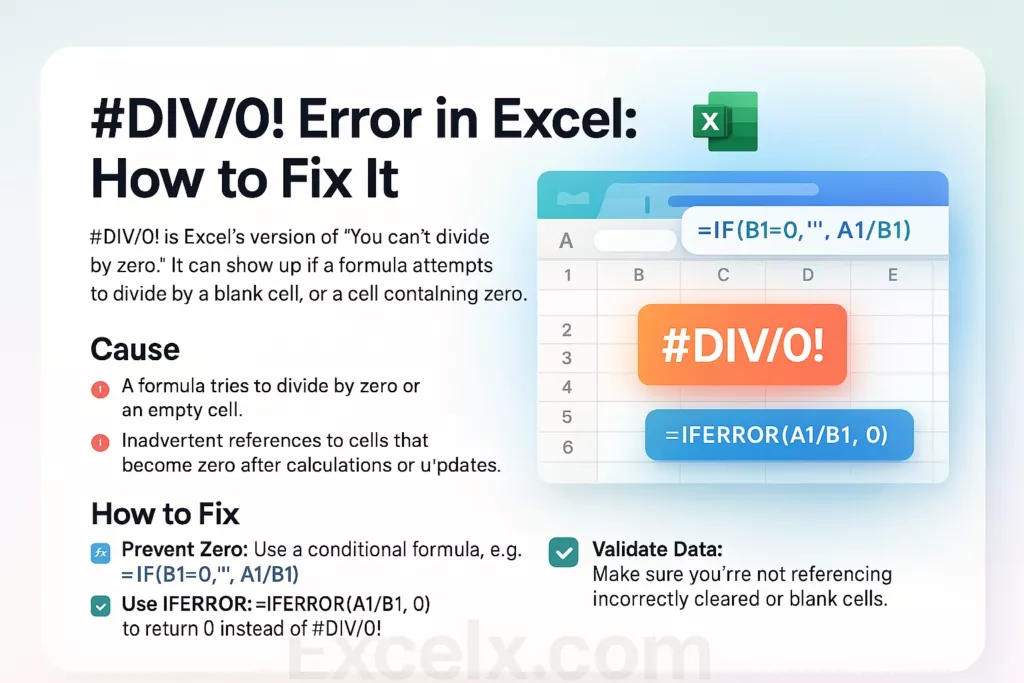
Now, let's see a practical demonstration of IFERROR, which is a highly versatile tool.
Most Common Excel Errors #️⃣ and How To Fix Them - Avoid Broken Formulas
This video by Leila Gharani provides an excellent walkthrough of using the IFERROR function to handle errors without deleting the underlying formula.
Watch from 04:32 to 05:32. Pay close attention to how the original formula is 'wrapped' inside the IFERROR function. Note the benefit: if the data is later corrected, the formula calculates the result automatically.
2. Correcting the #REF! Error
The #REF! error tells you there's a problem with the formula's "address book"—it's trying to find a cell that no longer exists.
Method 1: Undo or Manually Re-enter References
- Undo: If you've just accidentally deleted a row or column, the quickest fix is to press
Ctrl+Zto undo the action. This will restore the cells and fix the formula. - Manual Correction: If you can't undo, you must edit the formula directly. Click on the cell with the error, and in the formula bar, you will see
#REF!. You need to replace this invalid reference with the correct, existing cell reference.
This video demonstrates this exact process of identifying the #REF! in the formula and replacing it.
MS Excel | Types of Errors & isError Function
Let's watch another clip from Mr Long Education - IT & CAT that shows how to manually fix a #REF! error.
Watch the segment from 01:31 to 03:01. Observe how the formula contains the #REF! text, and the solution is to simply edit the formula and select the correct cells again.
Method 2: Using Formula Auditing Tools
For complex spreadsheets, Excel provides tools to help you trace and debug errors. This is an advanced topic, but awareness of it is important as it has appeared in past exam papers.
[PDF] CBSE Class 12 Accountancy 67/4/3 2024 Question Paper
A question from the 2024 CBSE paper mentioned a feature for handling formula errors. Let's read the solution provided to understand the tools Excel offers.
In the PDF, find question 32, 'How to use ‘Mark Common Formula Error’ in Excel? Explain.' Read the provided solution. Focus on the mention of the 'Formula Auditing' tools on the 'Formulas' tab. This is the official feature for error diagnosis.
As the reading suggests, you can go to the Formulas tab in Excel and use the Error Checking tool within the Formula Auditing group. This tool can help guide you to cells with errors and provide options for fixing them. While manual correction is often faster for simple #REF! errors, knowing this feature exists is valuable.
3. Exam Practice
Let's consolidate this with an exam-style question.
Question (6 Marks):
An accountant is using a spreadsheet to track product profitability.
- Cell
C2contains the formula=A2/B2to calculate 'Profit per unit', whereA2is 'Total Profit' andB2is 'Units Sold'. - Cell
D2contains the formula=SUM(E2:G2)to calculate 'Total Quarterly Sales'.
(a) If 0 units were sold, cell C2 displays a #DIV/0! error. Explain how the accountant can modify the formula in C2 using the IFERROR function to display the text "Not Applicable" instead of the error. Write the complete formula.
(b) The accountant later deletes column F. What error will appear in cell D2 and why? What is the most immediate way to fix this? If the action cannot be undone, what is the alternative solution?
Click to reveal the model answer
Model Answer:
(a) Handling the #DIV/0! error:
The accountant can wrap the existing formula inside the IFERROR function. This function checks if the first argument results in an error. If it does, it returns the second argument.
The modified formula would be:=IFERROR(A2/B2, "Not Applicable")
(b) Handling the #REF! error:
- Error and Cause: Deleting column
Fwill cause a#REF!error to appear in cellD2. This is because the formula=SUM(E2:G2)now refers to a range (E2:G2) that is invalid, as one of its bounding columns has been destroyed. - Immediate Fix: The quickest way to fix this is to immediately press
Ctrl+Z(Undo) to reverse the deletion of the column. - Alternative Solution: If the action cannot be undone, the accountant must manually edit the formula in cell
D2. They would need to re-define the range for theSUMfunction to include the correct, existing cells (for example,=SUM(E2, G2)or a new valid range).
Conclusion
Excellent work. You are now equipped not just to identify errors, but to actively troubleshoot and resolve them using professional methods. This is a critical skill for both your exam and any future use of spreadsheets.
Key Takeaways:
#DIV/0!Error: Correct by either fixing the source data (if it's wrong) or by handling the error gracefully using functions likeIForIFERROR.#REF!Error: Correct by usingCtrl+Z(Undo) immediately after the mistake or by manually editing the formula to replace the invalid#REF!with a valid cell reference.- Formula Auditing: Excel's built-in Error Checking tools on the Formulas tab can help you systematically find and fix errors in complex sheets.
In our next lesson, we will shift from fixing errors to preventing them. We will cover Data Validation, a feature that allows you to set rules for what can be entered into a cell, ensuring data integrity from the start. We'll also look at the 'Error Alert' feature that warns users when they enter invalid data.