Hello! Welcome back.
In our last lesson, we explored the theoretical four-stage journey of a C program from source code to an executable file: preprocessing, compilation, assembly, and linking. We discussed what happens "under the hood" at each step.
Today, we'll put that theory into practice. You will write your first simple C program and then use the GNU Compiler Collection (gcc), the standard C compiler on most non-Windows systems, to transform it into a runnable application. We'll focus on the essential command-line flags that give you control over this process, specifically how to name your output file, enable crucial warnings, and prepare your code for debugging.
By the end of this lesson, you will be able to write, compile, and run a C program using gcc with the -Wall and -g flags, a foundational skill for all C development.
Your First C Program: "Hello, World!"
Let's start with the classic "Hello, World!" program. This simple application will serve as our test subject for the compilation process.
Since you're familiar with other programming languages, the structure might look somewhat recognizable. Create a new file named hello.c and enter the following code:
#include <stdio.h>

int main() {
    // Print the message "Hello, World!" to the console
    printf("Hello, World!\n");

    return 0;
}
Let's quickly break this down:
#include <stdio.h>: This is a preprocessor directive. It tells the preprocessor (Stage 1 from our last lesson) to include the contents of the "standard input/output" header file. This file contains the declaration for theprintffunction, which we need to print text to the console.int main(): This is the entry point of every C program. When you run the executable, the operating system starts execution here.printf(...): This is a standard library function that "prints" formatted text to the console. The\nis a special character that represents a newline.return 0;: This signals to the operating system that the program has finished successfully. A return value of0is the standard convention for success.
Basic Compilation with gcc
Now that you have your source code, let's compile it. The gcc command orchestrates all four stages of compilation for you.
To get a practical guide on the basic commands, we'll refer to a straightforward tutorial.
GCC and Make - A Tutorial on how to compile, link and build C/C++ ...
The article "GCC and Make - A Tutorial" provides clear, direct examples of how to use gcc for basic compilation. We'll use it to understand the default behavior and how to control the output.
Read the subsection "Compile/Link a Simple C Program - hello.c". Focus on the two gcc commands shown: one that creates the default a.out file and the one that uses the -o option to specify a custom filename.
As the resource shows, the simplest way to compile is:
gcc hello.c
This command will produce an executable file. On Linux or macOS, it will be named a.out by default. To run it, you'll need to specify its path in the current directory:
./a.out
While this works, a.out is not a very descriptive name. It's much better practice to name your executable yourself using the -o (output) flag:
gcc -o hello hello.c
This command compiles hello.c and creates an executable file named hello. You can then run it with:
./hello
Your Turn: Compile and Run
- Make sure you have
gccinstalled. You can check by runninggcc --versionin your terminal. - Save the "Hello, World!" code above in a file named
hello.c. - Open a terminal in the directory where you saved the file.
- Compile and run your program using the
-oflag as shown above.
You should see Hello, World! printed to your console. Congratulations, you've successfully compiled and run your first C program!
Essential Flags: Warnings and Debugging
A good programmer doesn't just write code that works; they write code that is robust and maintainable. gcc provides flags that help you catch potential errors and prepare for debugging. The two most important flags for development are -Wall and -g.
GCC and Make - A Tutorial on how to compile, link and build C/C++ ...
Let's return to the "GCC and Make" tutorial to see a concise explanation of these essential flags.
Read the short subsection titled "More GCC Compiler Options". Pay close attention to the descriptions for -Wall and -g.
Let's look at what these do.
-Wall: Enable All Warnings
The -Wall flag tells gcc to enable (almost) all warning messages. These warnings identify code that is syntactically correct but potentially problematic or unsafe. For example, gcc might warn you if you use a variable before you've given it a value.
Your "Hello, World!" program is simple and clean, so -Wall won't produce any warnings for it. However, getting into the habit of always using -Wall will save you countless hours of debugging later on.
-g: Generate Debugging Information
The -g flag tells gcc to include extra debugging information in the executable file. This information is used by debugging tools like gdb (the GNU Debugger). It maps the compiled machine code back to your original source code, allowing you to step through your program line by line, inspect the values of variables, and pinpoint the exact location of a crash.
While we won't be using a debugger in this lesson, using -g during development is crucial. Without it, debugging a complex program becomes significantly harder.
The Standard Development Command
The best practice is to always use these flags together during development. The command becomes:
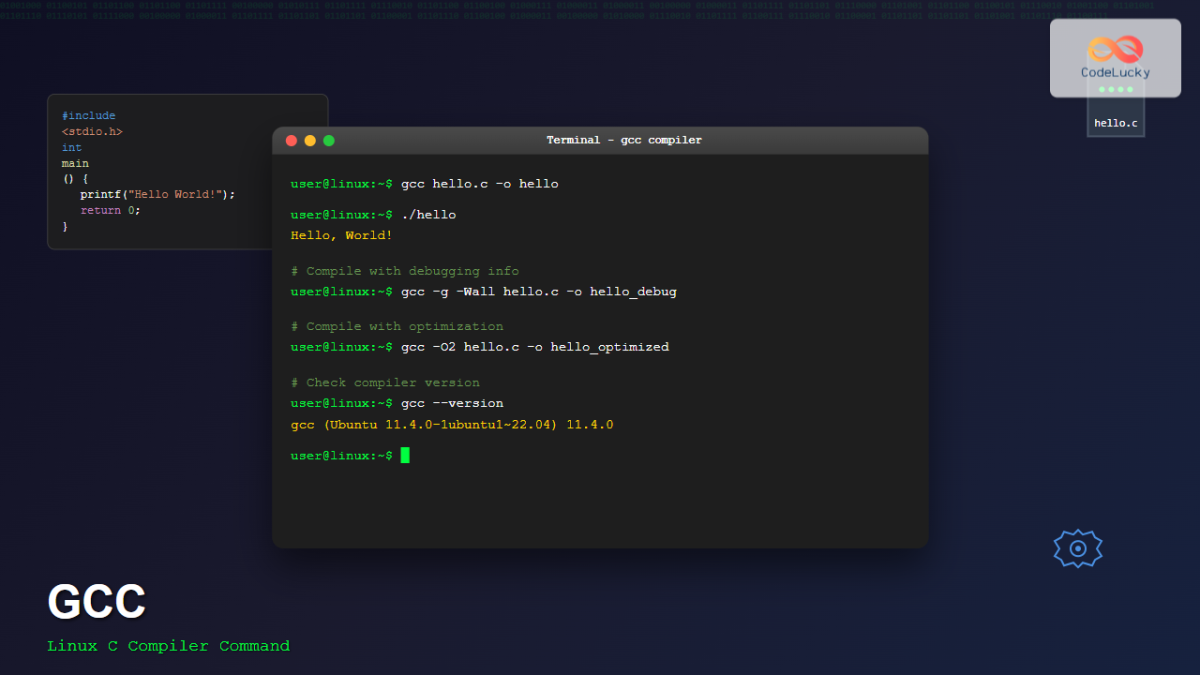
gcc -g -Wall -o hello hello.c
This command compiles hello.c, enables all warnings, includes debugging information, and creates an executable named hello.
Connecting Theory to Practice: Separate Compilation
In the last lesson, we learned that compilation and linking are distinct stages. For a single file, gcc performs them back-to-back. However, for larger projects, you often want to compile each source file into an object file (.o) separately and then link them all together at the end. This is efficient because if you only change one file, you only need to recompile that one file, not the entire project.
You can tell gcc to stop after the assembly stage and produce an object file using the -c (compile only) flag.
gcc -g -Wall -c hello.c
This command will not produce an executable. Instead, it will create an object file named hello.o. This file contains the machine code for hello.c but hasn't been linked with the standard C library yet (so it doesn't know where the code for printf is).
To create the final executable, you then run gcc again, giving it the object file:
gcc -g -Wall -o hello hello.o
This time, gcc sees a .o file as input, so it skips the compilation stages and proceeds directly to linking, connecting your hello.o with the necessary libraries to create the final hello executable.
The following video demonstrates this process of creating and linking object files. While the presenter uses C++ and g++, the flags and the process are identical for C and gcc.
In 54 Minutes, Understand the whole C and C++ compilation process
In this segment from Mike Shah's video on the compilation process, you can see the practical demonstration of compiling source files into object files with -c and then linking them into a final program.
Watch from 00:27:58 to 00:31:41. Notice how he first uses g++ -c on each source file to create .o files, and then runs g++ on the .o files to produce the final executable.
Understanding this two-step process is fundamental for working on any non-trivial C project, and it directly corresponds to the theory of separate compilation and linking stages we covered previously.
Conclusion
In this lesson, we bridged the gap between theory and practice. You've learned the essential workflow for turning C source code into a runnable program on the command line.
Here are the key takeaways:
- The basic command to compile a C file is
gcc <source_file.c>. - The
-o <output_name>flag is used to specify the name of the executable file. - The
-Wallflag is a crucial tool for catching potential bugs by enabling compiler warnings. - The
-gflag includes debugging information in the executable, which is essential for using a debugger. - The standard command for development is
gcc -g -Wall -o <output_name> <source_file.c>. - The
-cflag allows you to compile a source file into an object file (.o) without linking, which is the basis for building larger, multi-file projects efficiently.
Now that you have the tools to compile and run a C program, we are ready to explore the language itself. In the next lesson, we will dive into the fundamental building blocks of data in C: the primitive data types like int, char, and double, and discuss how their sizes can vary across different systems.