Hello! Welcome back to your Binance training.
In our last lessons, you've successfully created an account, learned to spot phishing attacks, and completed identity verification (KYC). Your account is now established and recognized by the platform. Today, we'll add the single most important layer of security to protect your funds: Two-Factor Authentication (2FA).
This lesson is all about enabling 2FA on your Binance account. By the end, you will have a powerful shield against unauthorized access, making it extremely difficult for anyone else to log in or withdraw funds, even if they manage to steal your password. This is a non-negotiable step before you deposit any money.
Part 1: What is Two-Factor Authentication (2FA)?
You've probably used 2FA before, maybe for your email or online banking. It works on a simple but powerful principle: proving your identity requires two different things, not just one.
Typically, these "factors" are:
- Something you know: Your password.
- Something you have: A temporary code generated on your phone.
Without both, access is denied. This means that even if a hacker steals your password, they can't get into your account because they don't have your phone.
To solidify this concept, please read the following brief explanation.
Enable 2FA on Binance: Step-by-Step Security Guide (2026) | Scribe
The article 'Enable 2FA on Binance' provides a clear and concise definition of 2FA and explains exactly why it's so important for protecting your account on the platform.
Please read the section titled 'What Is 2FA on Binance & Why It Matters'. It clearly lists the key actions that 2FA protects, such as logins and withdrawals.
Part 2: Choosing the Right 2FA Method
Binance offers a few ways to implement 2FA, but the two most common are SMS Authentication and an Authenticator App. It's crucial to understand the difference.
- SMS Authentication: Binance sends a code via text message to your phone. It's simple but less secure. Hackers can sometimes perform a "SIM swap" attack, where they trick your mobile provider into transferring your phone number to their own SIM card, allowing them to intercept your codes.
- Authenticator App: You use a dedicated app on your phone (like Google Authenticator or Binance Authenticator) that generates a new 6-digit code every 30 seconds. This method is not tied to your phone number and is considered much more secure.
For protecting financial assets, the industry standard and strong recommendation is to use an Authenticator App.
The following reading elaborates on this choice.
Enable 2FA on Binance: Step-by-Step Security Guide (2026) | Scribe
This section of the previous article compares the different 2FA methods, highlighting the pros and cons of each and providing a clear recommendation.
Read the section 'Which 2FA Method Should You Use?'. Pay close attention to the security differences between an Authenticator App and SMS Authentication.
Part 3: A Practical Guide to Setting Up Google Authenticator
Now for the hands-on part. We will set up 2FA on your Binance account using Google Authenticator, a widely trusted app. Please have your smartphone ready.
Step 1: Download Google Authenticator
Go to your phone's app store (Apple App Store or Google Play Store), search for "Google Authenticator," and install it.
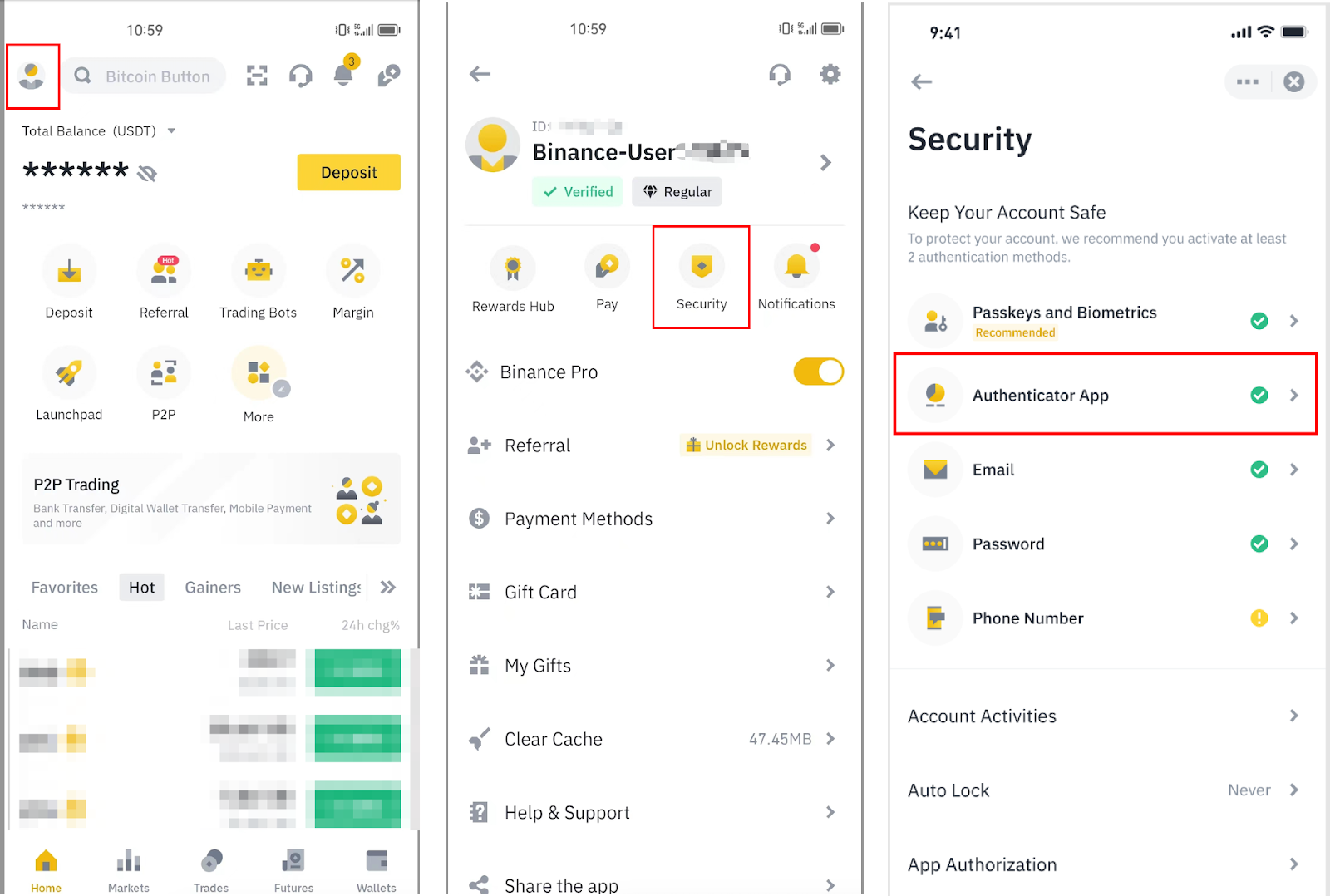
Step 2: Navigate to Binance Security Settings
Log in to your Binance account. The image below shows you how to find the security settings in the mobile app. The process is very similar on the website (go to your Profile icon, then click "Security").
Step 3: Follow the Video Guide
The following video provides a perfect walkthrough of the entire setup process. I've broken it down into segments. Please follow along in your own Binance account, pausing the video as needed.
How To Use Google Authenticator with Binance - 2FA on Binance
This excellent tutorial from the Click & Tap channel, 'How To Use Google Authenticator with Binance,' will guide you through the process step-by-step. We will start by generating your unique setup key within Binance.
Watch the video from the beginning until 01:13. Follow the presenter to navigate to the security settings and get to the screen that shows your QR code and a long string of text. Stop there! This string of text is your backup key, and it is extremely important.
Part 4: The CRITICAL Backup Key
You should now be looking at a screen in your Binance app with a QR code and a "setup key" or "backup key." This is the most important step.
If you lose or replace your phone, this key is the only way to restore access to your Google Authenticator and regain entry to your Binance account. Without it, you could be permanently locked out or face a very long and difficult account recovery process.
Action:
- Write this key down on a piece of paper.
- Store that piece of paper somewhere safe and secure offline, where no one else will find it (e.g., a safe, a locked drawer).
- Do not save it as a text file on your computer.
- Do not take a screenshot of it.
This step is so critical that it's worth reading an explicit warning about it.
Enable 2FA on Binance: Step-by-Step Security Guide (2026) | Scribe
Let's revisit our 'Scribe' guide for a moment. It has a section dedicated to the backup key that perfectly explains its importance.
Read the section 'Save Your Backup Key (Critical Step)'. This reinforces how to handle the key you just wrote down.
Part 5: Finalizing the 2FA Setup
Now that you have safely stored your backup key, let's complete the process.
Action:
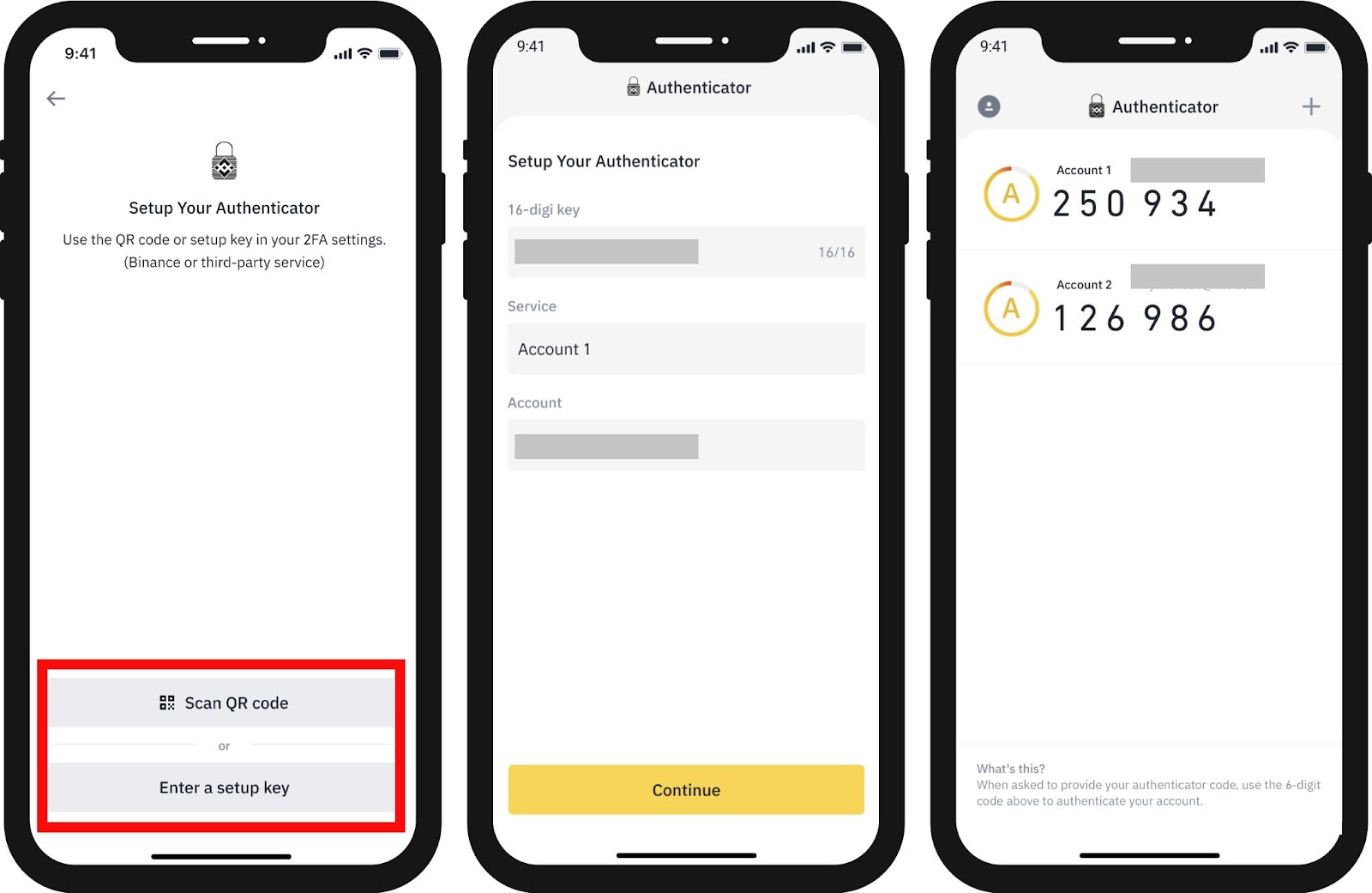
You will now link your Binance account to the Google Authenticator app on your phone and then confirm the setup.
This image shows what the process looks like inside the authenticator app.
Now, let's go back to our video guide to see the final steps in action.
How To Use Google Authenticator with Binance - 2FA on Binance
Let's finish the setup. This part of the video will show you how to add the key to your authenticator app and enter the final verification codes on Binance.
Watch from 01:00 to the end (02:43). Follow the instructions to add the account to your Google Authenticator app and then use the codes it generates (along with email/SMS codes) to finalize the setup on Binance.
Congratulations! Your account is now secured with 2FA. From now on, whenever you log in or perform a sensitive action like a withdrawal, Binance will ask for your password and the 6-digit code from your Google Authenticator app.
Conclusion
You've completed one of the most vital steps in securing your financial future in the crypto space. Adding 2FA drastically reduces the risk of unauthorized access to your account.
Key Takeaways:
- Two-Factor Authentication (2FA) adds a second layer of security by requiring a code from your phone in addition to your password.
- An Authenticator App is the most secure method and is strongly recommended over SMS.
- The Backup Key is your only lifeline if you lose your phone. You must write it down and store it securely offline.
- You will now need your authenticator app to log in and authorize withdrawals.
What's Next?
Your Binance account is now created, verified, and secured. You are ready to start exploring the platform. In our next lesson, we will navigate the key areas of the Binance web and mobile interfaces. We'll get you comfortable with finding the different wallets, the main dashboard, and the trading sections, preparing you to make your first deposit and trade.