Introduction
Hello! In the last lesson, you mastered the core cycle of package management: installing, updating, and removing software with dnf. You now know how to manage the applications on your system. But where does dnf actually get all this software from? The answer is repositories.
Think of repositories as curated, trusted warehouses for software packages. Your Fedora system is configured to know about several official repositories. Today's lesson focuses on managing these sources. You will learn how to list, enable, and disable configured DNF repositories.
Understanding how to manage your software sources is a critical sysadmin skill. It allows you to control what software is available to your system, which is essential for security, stability, and—as we'll see in the next lesson—expanding your software options beyond what Fedora provides by default.
What is a Repository and How Do I See Them?
A repository, or "repo" for short, is a remote server that stores software packages and metadata about those packages. dnf uses this metadata to find packages and resolve dependencies. The configurations for these repositories are stored as simple text files ending in .repo in the /etc/yum.repos.d/ directory on your system.
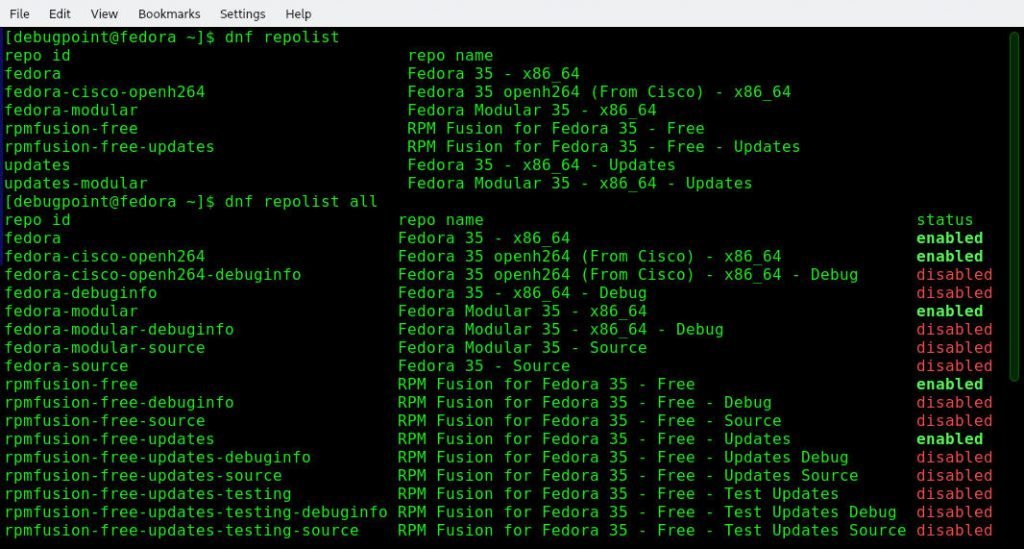
The most direct way to see which repositories dnf is actively using is with the dnf repolist command.
dnf repolist
This command shows you the repositories that are currently enabled. For a more complete picture, including repositories that are configured but disabled, you can use the all argument.
dnf repolist all
Let's see a demonstration of this.
Using dnf to install, update, remove, and manage software packages on Linux | Into the Terminal 128
This brief clip from the Red Hat 'Into the Terminal' series shows the dnf repolist command in action, giving you a clear idea of the output you should expect.
Watch from 00:27:12 to 00:27:50 to see a live demonstration of listing enabled repositories.
The output of dnf repolist typically includes three columns:
- Repo ID: A short, unique identifier for the repository (e.g.,
fedora). - Repo Name: A longer, human-readable name (e.g.,
Fedora 40 - x86_64). - Status: The number of packages in the repo, or "disabled" if it's not active.
You can also specifically list only enabled or disabled repositories:
# List only enabled repositories (same as the default)
dnf repolist enabled


# List only disabled repositories
dnf repolist disabled
Enabling and Disabling Repositories
Why would you want to disable a repository? Sometimes a repository might contain unstable "testing" software, or you might want to prevent software from a specific source from being installed for security or policy reasons. Conversely, you might enable a repository to get access to specific software it contains.
There are two ways to do this: permanently and temporarily.
Permanent Changes with dnf config-manager
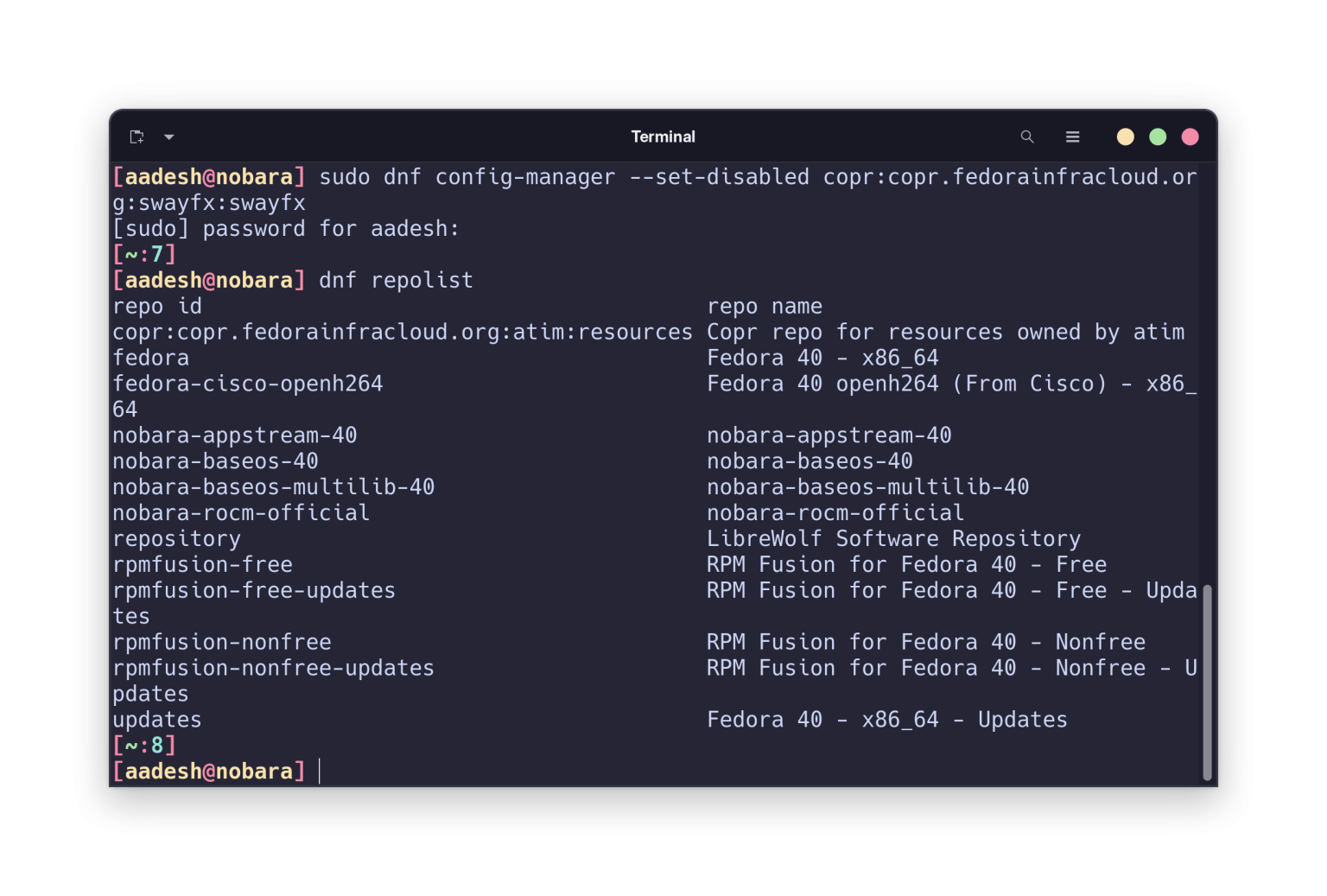
The recommended way to permanently enable or disable a repository is with the dnf config-manager command, which is part of the dnf-plugins-core package (it should be installed by default on your system). This tool directly and safely modifies the .repo configuration files for you.
To disable a repository, use its Repo ID:
sudo dnf config-manager --set-disabled <repo_id>
To enable it again:
sudo dnf config-manager --set-enabled <repo_id>
Temporary Changes for a Single Command
Sometimes, you only want to use a disabled repository for a single operation without enabling it permanently. For example, you might want to install one specific tool from a testing repo. You can do this with command-line flags.
--enablerepo=<repo_id>: Enables a disabled repository for this one command.--disablerepo=<repo_id>: Disables an enabled repository for this one command.
For example, to install package-xyz from a disabled repo named updates-testing, you would run:
sudo dnf --enablerepo=updates-testing install package-xyz
This is a powerful technique for precise control over your package installations.
The following guide provides a clear walkthrough of all the commands we've just discussed.
How to Configure Software Repositories in Fedora
This article from Tecmint, 'How to Configure Software Repositories in Fedora', provides excellent examples for both permanent and temporary repository management. It reinforces what we've just covered.
Read the sections 'View Enabled Repositories in Fedora' and 'Adding, Enabling, and Disabling a DNF Repository'. Focus on the command syntax for dnf repolist, dnf config-manager, and the --enablerepo/--disablerepo flags.
For a quick, scannable reference of these commands, the "Repository Management" section of this cheat sheet is also very useful.
DNF Command Cheat Sheet | Homelab-Alpha
This 'DNF Command Cheat Sheet' provides a concise summary of the key repository management commands.
Review the sections 'Repository Management' and the 'List Enabled/Disabled Repositories' entries under 'Additional Commands'.
Your Turn: Hands-on Practice
Time to put this knowledge to use on your Fedora system. Open your terminal and work through these exercises.
-
Exercise 1: List Your Active Repositories
Run the command to list all currently enabled repositories on your system. Take a look at the IDs and names. Do they make sense? You should seefedora,updates, and likelyfedora-cisco-openh264.Solution
dnf repolist -
Exercise 2: Find a Disabled Repository
Now, list all repositories, including disabled ones. Find the Repo ID of one that is disabled. A common one isupdates-testing.Solution
dnf repolist all # Look for a repository with the status 'disabled' in the output. -
Exercise 3: Disable a Repository
Thefedora-cisco-openh264repository provides a video codec. It's a safe repository to practice with. Usednf config-managerto disable it. After running the command, verify your change by listing the enabled repositories again. It should no longer appear in the list.Solution
# 1. Disable the repository sudo dnf config-manager --set-disabled fedora-cisco-openh264 # 2. Verify it is gone from the enabled list dnf repolist -
Exercise 4: Enable the Repository
Now, reverse what you just did. Enable thefedora-cisco-openh264repository again and verify that it has returned to the active list.Solution
# 1. Enable the repository sudo dnf config-manager --set-enabled fedora-cisco-openh264 # 2. Verify it is back in the enabled list dnf repolist -
Exercise 5: A Practical Search
Let's simulate using a disabled repository for a single command. Theupdates-testingrepository contains packages that are being tested before they are moved to the mainupdatesrepository. Let's search for thekernelpackage only in this repository without enabling it permanently.Solution
# This command disables all repos ('*') and then enables only 'updates-testing' for this one search
dnf --disablerepo="*" --enablerepo="updates-testing" search kernel
This will show you any
kernelrelated packages currently in the testing repository. This demonstrates how you can precisely target repositories for specific tasks.
Conclusion
Excellent work. You can now inspect and control the software sources your system uses. This is a foundational skill that moves you from being just a user to being a system administrator.
Key Takeaways:
- Repositories are the sources for all software installed via
dnf. Their configuration lives in/etc/yum.repos.d/. dnf repolistshows your active software sources. Usednf repolist allto see everything configured.- You can permanently enable or disable repos using
sudo dnf config-manager --set-enabled/--set-disabled. - You can temporarily use a repo for a single command with the
--enablerepoflag.
So far, you've worked with the repositories that came with your Fedora installation. But what happens when the program you need—especially for web development—isn't in any of them? In our next lesson, we will tackle exactly that by learning how to add a third-party DNF repository (RPM Fusion), which will vastly expand the software available to you.