Introduction
Hello! In our last lesson, you learned the essential first step of package management: how to find and inspect software using dnf search, dnf list, and dnf info. You practiced locating key tools for your web development journey, like nginx and postgresql-server.
Now that you know how to find what you need, it's time for action. This lesson focuses on the core of package management: actually changing the software on your system. Today, you will learn how to install, update, and remove packages using dnf. These three commands are among the most frequently used by any Linux system administrator or developer. Mastering them is fundamental to maintaining a functional, secure, and up-to-date Fedora system.
Almost all of the commands in this lesson will modify your system's software, so they require administrative privileges. You will need to prefix them with sudo.
Installing Packages with dnf install
The most common task you'll perform is installing new software. The command is straightforward, but its power lies in how dnf automatically handles dependencies—the other pieces of software your chosen package needs to function.
The basic syntax is:sudo dnf install <package_name>
Let's watch a quick demonstration.
Using dnf to install, update, remove, and manage software packages on Linux | Into the Terminal 128
This clip from Red Hat's 'Into the Terminal' series clearly demonstrates the dnf install command. Notice how it identifies the package, lists its dependencies, and prompts for confirmation before proceeding.
Watch from 02:33 to 03:15. The key takeaway is understanding the transaction summary that DNF presents before you commit to the installation.
As you saw, dnf provides a summary of the transaction:
- The package(s) you requested to install.
- The additional dependency packages that will be installed.
- The total download size and the disk space required.
- A confirmation prompt
Is this ok [y/N]:.
You can also install multiple packages at once by listing them all in the same command. This is more efficient than running the command repeatedly.
sudo dnf install <package1> <package2> <package3>
Automating Confirmation with -y
You'll often see the -y flag used with dnf commands, which automatically answers "yes" to any confirmation prompts.
sudo dnf install -y <package_name>
This is very useful for automation and scripting, where you can't manually type 'y'. However, for interactive use, it's good practice to omit -y so you have a chance to review the changes before they happen. A typo could lead to installing or removing the wrong packages!
Using dnf to install, update, remove, and manage software packages on Linux | Into the Terminal 128
The same 'Into the Terminal' video provides an excellent explanation of when and when not to use the -y option. This is a crucial practical tip.
Watch from 18:36 to 20:52 to understand the trade-offs between convenience and safety when using the -y flag.
Updating Packages with dnf upgrade
Keeping your system updated is critical for security and stability. dnf makes this process simple. You can update a single package or the entire system.
-
Check for available updates: Before running an upgrade, you can see what new packages are available.
dnf check-update -
Upgrade a specific package:
sudo dnf upgrade <package_name> -
Upgrade all packages on the system: This is the command you'll run regularly to keep your system current.
sudo dnf upgrade
Let's see this in action.
Using dnf to install, update, remove, and manage software packages on Linux | Into the Terminal 128
This clip demonstrates both a full system upgrade and an upgrade of a single, specific package. It clearly explains the distinction between the two operations.
Watch from 03:15 to 05:31. Pay attention to how dnf upgrade lists all the packages that will be changed.
Note: The command dnf update is an alias for dnf upgrade and does the same thing. You will often see both used interchangeably in documentation online.
Removing Packages with dnf remove
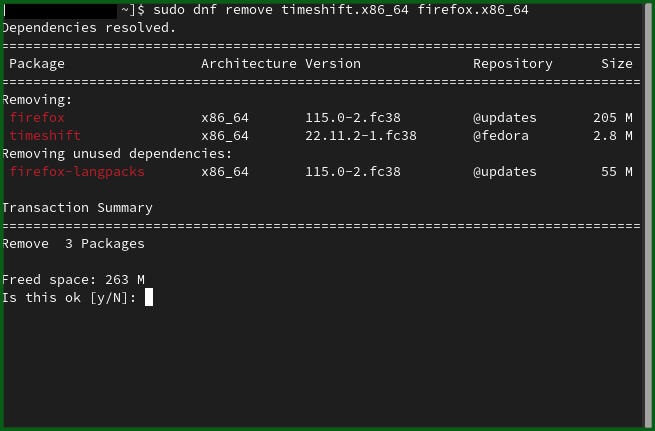
When you no longer need a piece of software, you can remove it using dnf remove. One of its best features is that it also identifies and offers to remove dependencies that are no longer needed by any other package, helping to keep your system clean.
The syntax is:sudo dnf remove <package_name>
Using dnf to install, update, remove, and manage software packages on Linux | Into the Terminal 128
This final clip from 'Into the Terminal' shows how to remove a package. Critically, it points out that DNF will also remove unused dependencies.
Watch from 05:31 to 06:24. Observe how removing httpd also marks its dependencies for removal.
Here is a static image showing the removal of multiple packages and their dependencies. This is exactly the kind of output you should review before typing 'y'.
Cleaning Up Orphaned Dependencies
Sometimes, dependencies might be left behind. You can run a dedicated command to find and remove any packages that were installed as dependencies but are no longer required by any installed program.
sudo dnf autoremove
It's good practice to run this occasionally to free up disk space and reduce clutter.
For a quick reference of all the commands we've discussed today, the official Fedora documentation is an excellent resource.
Using the DNF software package manager - Fedora Docs
The official Fedora Quick Docs for DNF provide a concise summary of the main commands. It's a great page to bookmark for future reference.
Skim the 'Usage' section. You'll recognize the install, remove, and upgrade commands. Also, note the autoremove command in the list.
Your Turn: Hands-on Practice
Time to put theory into practice. Open your terminal on your Fedora system and work through these exercises. This is the most important part of the lesson!
-
Exercise 1: Install a Web Server
In the last lesson, you found thenginxpackage. Now, install it. After the installation, verify that it's present on your system using a command from the previous lesson.Solution
# 1. Install nginx
sudo dnf install nginx


# 2. Verify the installation
dnf list installed nginx
You should see the
nginxpackage listed in the output of the second command. -
Exercise 2: Install Multiple Tools at Once
htopis a popular interactive process viewer, andneofetchis a command-line tool that displays system information in an aesthetic way. Install both of them with a single command.Solution
# Install both packages
sudo dnf install htop neofetch
After installation, you can try running
htoporneofetchin your terminal to see them work. Pressqto exithtop. -
Exercise 3: Update Your System
First, check to see which of your installed packages have updates available. Then, run a full system upgrade. Note: This may download a significant amount of data and take some time, especially on a new installation.Solution
# 1. Check for available updates
dnf check-update


# 2. Perform the full system upgrade
sudo dnf upgrade
Review the list of packages to be upgraded and press
yto proceed. -
Exercise 4: Remove a Package
Let's say you've decided you don't needneofetchanymore. Remove it from your system.Solution
# Remove the neofetch package
sudo dnf remove neofetch
Confirm the removal when prompted.
-
Exercise 5: Clean Up
Run theautoremovecommand to see if removingneofetch(or any other package) left behind any orphaned dependencies that can be cleaned up.Solution
# Check for and remove orphaned dependencies
sudo dnf autoremove
If there are any packages to be removed, DNF will list them and ask for confirmation.
Conclusion
Great job! You have now mastered the fundamental cycle of package management on Fedora: installing, updating, and removing software. These skills are the bedrock of system administration and are essential for setting up and maintaining any development environment.
Key Takeaways:
sudo dnf install <package>: Installs software and its dependencies.sudo dnf upgrade: Updates all packages on your system to their latest versions, which is crucial for security.sudo dnf remove <package>: Uninstalls software and can also remove its unused dependencies.sudo dnf autoremove: A housekeeping command to clean up any leftover dependencies.- Always review the transaction summary before confirming a change, especially when removing packages.
So far, we have only used the default software sources (repositories) that come with Fedora. But what if the software you need isn't available there? In our next lesson, we will address this by learning how to list, enable, disable, and add new DNF repositories, giving you access to an even wider world of software.