Introduction
Welcome back! In our previous lesson, you learned how to add third-party repositories like RPM Fusion to your Fedora system, greatly expanding the software available to you. We installed VLC and even swapped a core multimedia package to get more features. These are powerful operations, but with great power comes the need for a safety net.
What happens if an update breaks a critical application, or if you install a package that causes unexpected problems? As a system administrator or a developer managing a deployment environment, you need a way to reverse these changes reliably.
Today, we'll explore one of DNF's most powerful features: its transaction history. You will learn how to review every package change made on your system and, most importantly, how to undo or roll back those changes. This is an essential skill for maintaining a stable and functional system.
Your System's Diary: The DNF History
Every time you use dnf to install, remove, or update packages, it records the action as a "transaction" in a history log. This log is your detailed diary of every package-related change.
Let's start by learning how to read this diary. The following article provides an excellent overview of the basic dnf history commands.
Introduction to DNF History - How to Rollback System Updates
Please read the first few sections of 'Introduction to DNF History' by Putorius. This will show you how to view the transaction list and get detailed information on a specific entry.
Read from the beginning of the article down to the end of the 'Getting Detailed Information on DNF Transactions' section. Pay attention to the dnf history list command and its output, as well as the dnf history info <ID> command.
As you've just read, you can get a complete overview with a simple command.
Your Turn: Inspect Your History
- Open your terminal.
- Run
dnf historyordnf history listto see all the transactions you've performed so far.dnf history list - Look at the list. You should be able to see the transactions from our previous lessons, like the installation of RPM Fusion, VLC, and the
ffmpegswap. - Pick a transaction ID from the list, for example, the one where you installed
vlc. Use theinfocommand to see more details about it. Replace<ID>with the actual number.
Notice how the output shows you not just the package you asked to install, but also all the dependencies that were pulled in with it. This is incredibly useful for troubleshooting.dnf history info <ID>
The Two Ways to Revert Changes: undo vs. rollback
Now for the main event: reversing changes. DNF provides two distinct commands for this: undo and rollback. At first glance, they seem similar, but they operate on fundamentally different principles. Understanding the difference is crucial for using them correctly.
dnf history undo <ID>: This is a surgical operation. It reverses only the specific actions in the single transaction you specify, regardless of what happened before or after. If transaction<ID>installed 3 packages,undowill remove those 3 packages. If it removed a package,undowill install it.dnf history rollback <ID>: This is a time machine. It reverts your entire system's package state to what it was right after transaction<ID>was completed. This means it will undo transaction<ID>+1,<ID>+2, and so on, up to the most recent one.
The following article explains this difference very clearly.
DNF Package Manager: dnf history rollback vs. undo - Baeldung
To solidify your understanding of these two commands, please read the comparison provided by Baeldung. It clearly lays out the differentiating factors and ideal usage scenarios for each.
Read sections 3 ('dnf history undo') and 4 ('dnf history rollback vs. dnf history undo'). Focus on the conceptual difference, the granularity of each command, and the examples of when you would choose one over the other.
Your Turn: The "Oops" Button (undo)
Let's simulate a common scenario: you install a package, decide you don't need it, and want to remove it cleanly. Using dnf history undo is perfect for this because it also removes any dependencies that were installed only for that package.
- Install a simple package. Let's use
cowsay, a classic, fun command-line tool.sudo dnf install cowsay - Install a second, unrelated package. This will help demonstrate the surgical nature of
undo. Let's usefiglet, which creates text banners.sudo dnf install figlet - Check your history. Find the transaction ID for the
cowsayinstallation.
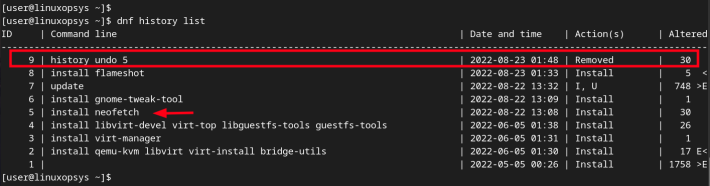
Your most recent transactions should be the installations ofdnf history listcowsayandfiglet. Note the ID forcowsay. - Undo the
cowsayinstallation. Use the ID you just found.
DNF will show you that it's about to remove thesudo dnf history undo <cowsay_install_ID>cowsaypackage and ask for confirmation. - Verify the result.
- Check if the
cowsaycommand is gone:cowsay "Am I gone?"(this should fail). - Check if
figletis still present:figlet "Still here"(this should work). - Look at your history again with
dnf history list. You'll see a new transaction at the top, recording theundooperation.
- Check if the
Your Turn: Full System Time Travel (rollback)
Now, let's simulate a more serious problem. Imagine that after a series of installations, you find your system is misbehaving and you want to return to a known-good state.
In our current scenario, both figlet and the cowsay undo transaction have happened. Let's say we want to go back to the state before we even installed cowsay in the first place.
- Identify your target state. Run
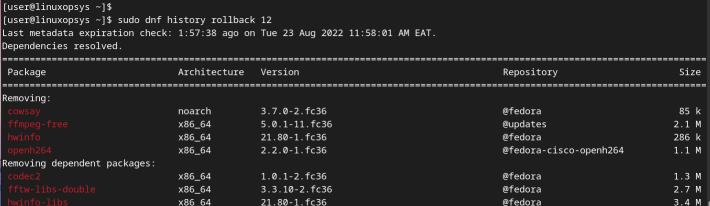
dnf history listone more time. Find the ID of the transaction that happened just before your originalcowsayinstallation. This ID is our destination. - Perform the rollback. Use the ID you identified in the previous step.
DNF will now calculate all the changes needed to revert the system. This will involve undoing thesudo dnf history rollback <ID_before_cowsay>figletinstallation and also undoing our previousundocommand (which means it will try to reinstallcowsay, then remove it as part of the overall rollback). The net effect is to remove everything done after that point.
- Verify the result. After the rollback completes, check for
figlet. It should now be gone.
This command should now fail, confirming that the rollback undid all subsequent transactions.figlet "Am I gone too?"
A Few Words of Caution
As you've seen, rollback and undo are incredibly powerful, but they should be used with care, especially on a production server.
- Test After Reverting: Always verify that your system is in the state you expect after a rollback or undo.
- Dependencies Matter: While DNF is very good at this, complex rollbacks on a system that has changed significantly can sometimes have issues.
- Not a Full Backup: This mechanism only reverts the package database. It does not revert configuration files you've edited in
/etc, user data in/home, or data in your Django project. It is a package management safety net, not a full system backup solution like Timeshift or Snapper.
You can also redo a transaction if you undo it by mistake, using sudo dnf history redo <ID>.
Conclusion
Congratulations! You've just mastered one of the most important administrative skills for managing an RPM-based system like Fedora. You now have the confidence that you can experiment and manage your system, knowing you have a reliable way to step backward if something goes wrong.
Key Takeaways:
dnf history listshows you every package transaction ever performed.dnf history info <ID>gives you the details of a specific transaction, including all dependencies.dnf history undo <ID>surgically reverses a single transaction without affecting others.dnf history rollback <ID>acts like a time machine, reverting the system to the state it was in after transaction<ID>, undoing all subsequent changes.
In our next lesson, we will broaden your package management knowledge by comparing Fedora's dnf with apt, the tool used by Debian and Ubuntu. As a full-stack developer, you're likely to encounter servers running these distributions, and understanding the similarities and differences will make you much more versatile.