Introduction
Welcome back! In our last lesson, you mastered one of DNF's most valuable features: its transaction history. You learned how to use undo and rollback to safely revert package changes, giving you a powerful safety net for system administration.
This lesson directly addresses a topic you were curious about: the differences between Linux distributions. As a budding full-stack developer, you'll inevitably encounter servers running operating systems from different "families." The most common alternative to the Fedora/Red Hat family is the Debian/Ubuntu family. The primary difference you'll face day-to-day is the package manager.
Today, we will compare DNF (used by Fedora) with APT (the Advanced Package Tool used by Debian and Ubuntu). Understanding the workflows of both will make you a more versatile and confident administrator, ready to manage software on almost any Linux server you're given access to.
The Two Major Families: RPM vs. DEB
At a high level, Linux distributions are often grouped by the package format they use.
- Fedora, Red Hat Enterprise Linux (RHEL), and CentOS use the RPM (
.rpm) package format. Their high-level package manager is DNF. - Debian, Ubuntu, and Linux Mint use the DEB (
.deb) package format. Their high-level package manager is APT.
While the end goal—installing, updating, and removing software—is the same, their commands and philosophies have some key differences.
Linux package managers: dnf vs apt
To start, let's get a basic understanding of this core distinction. Please read the introduction of the article "Linux package managers: dnf vs apt" from Opensource.com.
Read the first two paragraphs of the article, from the beginning down to the sentence "...you may need to know both."
A Practical Walkthrough of APT and DNF
The best way to see the differences is to watch both package managers in action. The following video demonstrates the essential tasks—installing, removing, and updating—on both a Debian-based system (using APT) and a Fedora-based system (using DNF).
Linux Package Management | Debian, Fedora, and Arch Linux
Watch these sections from the "Linux Package Management" video by Akamai Developer. Pay close attention to the sequence of commands used in Debian/Ubuntu versus Fedora, especially regarding updating the package list and removing dependencies.
First, watch the section on Debian/Ubuntu from 00:44 to 07:44. Then, watch the section on Fedora from 10:48 to 13:40. Notice how APT requires apt update before installing, and a separate apt autoremove after removing a package, which DNF handles differently.
From the video, you probably noticed a few key differences in the workflow:
- Updating: The Debian user first ran
apt updateto refresh the list of available packages before doing anything else. - Removal: After running
apt remove, there were leftover "orphaned" packages that required a separateapt autoremovecommand to clean up. - Package Names: The Apache web server was called
apache2on Debian buthttpdon Fedora. This is a common variation you'll see between distribution families.
Command-for-Command Comparison
Now, let's break down the comparison by task. For a quick reference, here is a handy cheat sheet that puts the most common commands side-by-side.
Package Management in Linux: How to Use APT and DNF ...
This article from SSD Nodes provides an excellent cheat sheet comparing APT and DNF commands. It's a great reference to keep bookmarked.
Focus on the table under the "Linux Package Manager Cheat Sheet" section. This gives you a direct, one-to-one mapping of the most common operations.
Let's dive deeper into the most important differences from that table.
1. Updating and Upgrading
This is arguably the most significant workflow difference.
- APT uses a two-step process:
sudo apt update: Fetches the latest list of packages from the repositories.sudo apt upgrade: Compares the installed packages to the new list and upgrades them.
- DNF uses a single step:
sudo dnf upgrade: Automatically checks for and downloads the latest package lists if needed, and then performs the upgrade. Thednf updatecommand is an alias and does the same thing.
This video segment explains the convenience of DNF's approach.
9 Things to Do After Installing Fedora 42 (Post Setup Guide)
This short clip from Michael Tunnell clearly explains why DNF's single upgrade command is more streamlined than APT's two-step update and upgrade process.
Watch from 00:53 to 01:45.
2. Installing Packages
The installation command itself is nearly identical.
sudo apt install <package_name>sudo dnf install <package_name>
However, as the image below shows, the output you see during the installation can look quite different.
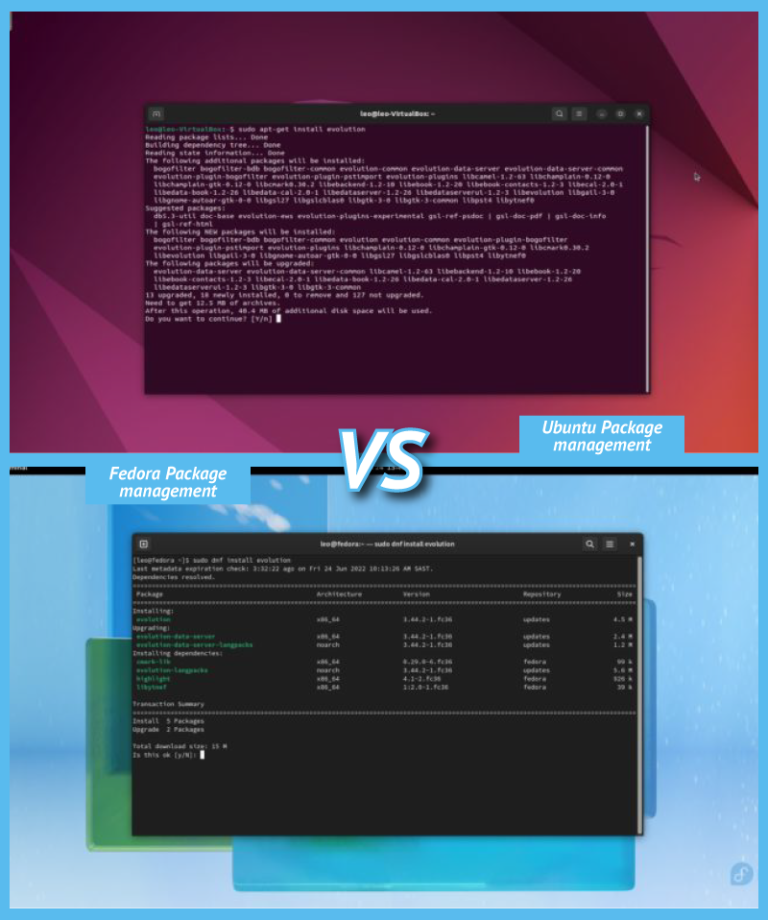
Additionally, DNF has a handy feature for installing entire collections of software designed for a specific purpose, called "groups." For example, you could install a full suite of graphic design tools with sudo dnf group install "Design Suite".
3. Removing Packages and Dependencies
This is another area with a major workflow difference.
- DNF: When you run
sudo dnf remove <package_name>, it removes the package and any dependencies that were installed with it that are no longer needed by any other package. It's an all-in-one cleanup. - APT:
sudo apt remove <package_name>only removes that specific package. As you saw in the video, you must then runsudo apt autoremoveto clean up the orphaned dependencies.
APT also has a special command, purge, which removes a package and its system-wide configuration files.
sudo apt purge <package_name>
dnf remove does not touch configuration files, which is often safer but means you might need to manually remove them from /etc if you want a complete cleanup.
Practical Synthesis: Your First Ubuntu Task
You can't run apt on your Fedora machine, but we can do a thought exercise. This is a very common task you'll face as a web developer.
Your Task:
Imagine your project manager gives you a fresh Ubuntu 22.04 server and asks you to set up the basic environment for a new Django project. You need to install the Nginx web server, the PostgreSQL database server, and Python.
Based on what you've learned, write down the exact sequence of commands you would use to accomplish this on the Ubuntu server. Then, write down the equivalent commands for your Fedora machine.
Click here to see the solution
On the Ubuntu Server (using APT):
# 1. First, refresh the package lists
sudo apt update


# 2. It's good practice to install any pending system upgrades
sudo apt upgrade -y


# 3. Install all the required packages in a single command
sudo apt install nginx postgresql python3 -y
On your Fedora Machine (using DNF):
# 1. Upgrade the system (this also refreshes the package lists)
sudo dnf upgrade -y


# 2. Install all the required packages. Note that the package name for
#    the PostgreSQL server is postgresql-server on Fedora.
sudo dnf install nginx postgresql-server python3 -y
This exercise highlights the key differences: the mandatory apt update step for Ubuntu and the slight variation in package names (postgresql vs. postgresql-server).
Conclusion
You now have a solid understanding of the two dominant package management systems in the Linux world. While the commands are slightly different, the underlying concepts are very similar. This knowledge will make you far more adaptable when you encounter different server environments in your career.
Key Takeaways:
- Package Families: DNF manages
.rpmpackages (Fedora/RHEL), while APT manages.debpackages (Debian/Ubuntu). - Upgrading: DNF uses a one-step
upgrade, while APT uses a two-stepupdatethenupgrade. - Dependency Removal: DNF's
removecommand automatically cleans up dependencies. APT requires a separateautoremovecommand. - Configuration Files: APT has a
purgecommand to remove configuration files; with DNF, this is a manual step. - Command Syntax: Many core commands like
install,remove, andsearchare syntactically very similar.
In our next module, we'll move from managing the system with individual commands to automating tasks. You'll learn the fundamentals of Bash scripting, allowing you to write simple programs that execute sequences of commands. This is a foundational skill for both system administration and for automating development and deployment workflows.