Introduction
Welcome back! In our last lesson, you successfully created and executed your first Bash script, hello.sh. You learned about the shebang line, how to make a script executable with chmod, and how to run it. We even got a tiny preview of today's topic with the $(date) command.
So far, our scripts have been static; they do the exact same thing every time. To unlock the real power of automation, our scripts need to be dynamic and flexible. This is where variables come in.
This lesson focuses on making your scripts more powerful by teaching you to declare and use variables, environment variables, and command substitution. For your goal as a full-stack developer, this is essential. You'll be able to write scripts that can, for example, take a project name and set up a standardized directory structure, or create backup files with a timestamp in the filename—all without manually editing the script each time.
1. Declaring and Using Variables
A variable is simply a named piece of storage that holds information you can use later in your script. Think of it as a labeled box where you can put a piece of data.
Let's watch a video that provides an excellent introduction to variables in Bash, covering how to create them, reference them, and why they are so useful.
How To Write Bash Scripts In Linux - Complete Guide (Part 3 - Variables)
This video from Learn Linux TV is a great guide to variables. It covers the essential syntax, the crucial difference between single and double quotes, and the practical benefits of using variables to make your scripts easier to maintain.
Watch the video from 00:54 to 14:20. Pay close attention to: The syntax for assigning a value to a variable (no spaces around the = sign). How to access the variable's value using the $ prefix. The different behavior of single (' ') and double (" ") quotes when used with variables.
Key Syntax Rules
As you saw in the video, the syntax is specific and important. Let's summarize the key rules:
-
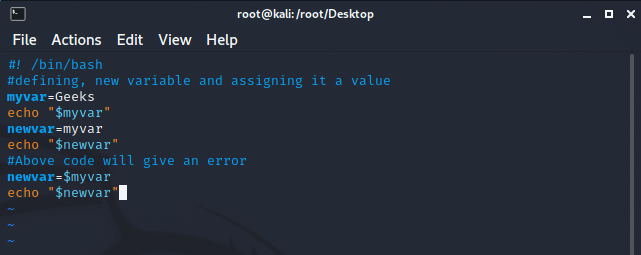
Assignment: To assign a value, use
VARIABLE_NAME="value".- There must be no spaces on either side of the equals sign.
MYVAR = "hello"will cause an error. - Variable names are case-sensitive (
myvaris different fromMYVAR). - By convention, user-defined variable names are often lowercase or snake_case to distinguish them from system environment variables.
- There must be no spaces on either side of the equals sign.
-
Reference: To get the value of a variable, use the dollar sign:
$VARIABLE_NAME.
- Quoting:
- Double quotes (
"): Allow variable substitution.echo "Hello, $USER"will print "Hello, [your_username]". This is generally what you want. - Single quotes (
'): Treat all characters literally.echo 'Hello, $USER'will print the literal string "Hello, $USER".
- Double quotes (
It's a best practice to always enclose your variable references in double quotes (e.g., echo "$myvar"). This prevents unexpected behavior if your variable's value contains spaces or special characters.
2. Command Substitution: Capturing Command Output
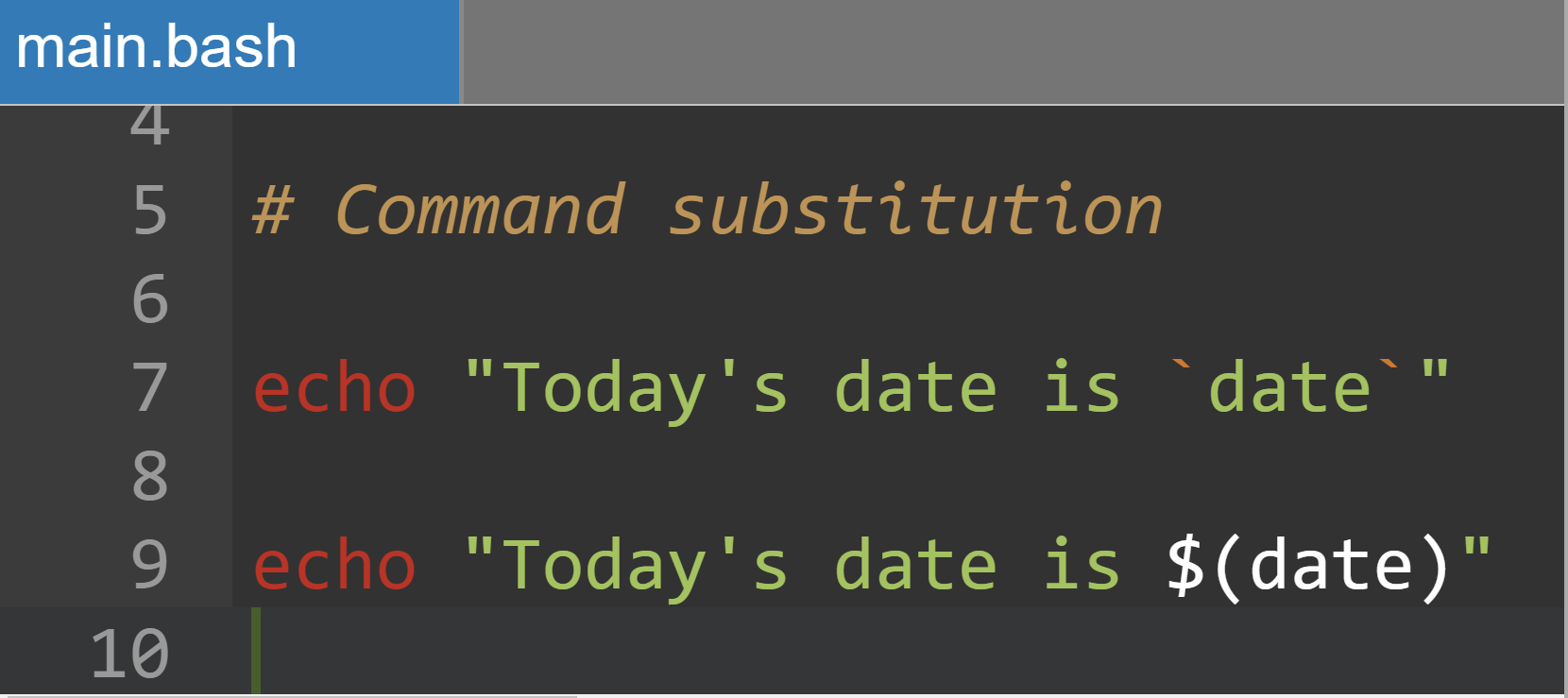
In our very first script, we used $(date) to print the current date. This is called command substitution. It allows you to run a command and "capture" its output, which you can then use as part of another command or assign to a variable.
Let's continue with the same video to see this in action.
How To Write Bash Scripts In Linux - Complete Guide (Part 3 - Variables)
This next segment demonstrates how to use command substitution to save the output of commands like ls and date into variables.
Watch from 14:20 to 18:36. Notice how the output of a command is assigned to a variable, which can then be used multiple times.
There are two syntaxes for command substitution:
$(command): The modern, preferred syntax. It's easy to read and can be nested (e.g.,$(echo "Today is $(date)")).`command`(backticks): The older syntax. It is less readable and cannot be easily nested. You should recognize it, but prefer using the$(...)form in your own scripts.
Let's try it in your terminal. Create a variable that holds the path to your current directory:
CURRENT_DIR=$(pwd)
echo "My current directory is: $CURRENT_DIR"
This is incredibly useful for creating dynamic filenames, logging information, or feeding the result of one tool into another.
3. Environment Variables: Accessing System Information
Your shell environment already contains a set of pre-defined variables called environment variables. These variables hold useful system-wide information, such as your username, your home directory, and the search path for commands.
By convention, environment variables are named in all uppercase.
Let's watch the final segment of the video to learn about them.
How To Write Bash Scripts In Linux - Complete Guide (Part 3 - Variables)
This last part of the video explains environment variables, using $USER as an example. It also introduces the env command for listing all the environment variables available to you.
Watch from 18:36 to the end. The video makes an important point about naming conventions: use lowercase for your own variables to avoid accidentally conflicting with system-defined environment variables.
Here are some of the most common environment variables you'll use:
$USER: Your current logged-in username.$HOME: The absolute path to your home directory (e.g.,/home/your_username).$HOSTNAME: The hostname of your machine.$PATH: A colon-separated list of directories where the shell looks for executable commands.$SHELL: The path to your default shell program (e.g.,/bin/bash).
You can see all the environment variables in your current session by running the env command. Since the list can be long, it's helpful to pipe it into less:
env | less
(Press q to exit less.)
For a handy text reference of these concepts, including a list of other special system variables, the following page is a great resource.
Bash Scripting Tutorial - Variables
The "Bash Scripting Tutorial - Variables" page from Ryan's Tutorials provides a concise text-based summary of everything we've covered: user variables, command substitution, and special system variables.
Skim through the sections "Other Special Variables", "Setting Our Own Variables", "Quotes", and "Command Substitution". This is a great page to bookmark for future reference.
Do-It-Yourself: Project Setup Script
Time to apply what you've learned! Your task is to create a script that automates setting up a basic directory structure for a new web project. This is a practical task directly related to your full-stack development goals.
Your script, project_setup.sh, must:
- Start with the correct shebang line (
#!/usr/bin/env bash). - Define a variable, for example
PROJECT_DIR, and assign it a name for your project (e.g.,"my_django_project"). - Use
echoto print a message indicating which project it is setting up, using the variable. - Create a main project directory using the name stored in your variable.
- Inside that new directory, create three subdirectories:
static,templates, andsrc. - Print status messages using
echoas it creates the directories. - As a final confirmation, print a success message that includes the username (from an environment variable) and the current date/time (from command substitution) when the setup was completed.
- Make the script executable and run it from your terminal.
This exercise combines all three concepts: a user-defined variable, command substitution, and an environment variable.
Click here for a hint on the script's content.
Your script file, project_setup.sh, should have a structure like this:
#!/usr/bin/env bash


# 1. Define the project directory name
PROJECT_DIR="my_django_project"


# 2. Print what's happening
echo "--- Setting up project: $PROJECT_DIR ---"
echo ""


# 3. Create the directories
#    Remember to use quotes around variables in commands!
mkdir "$PROJECT_DIR"
echo "Created main directory: $PROJECT_DIR"

mkdir "$PROJECT_DIR/static"
mkdir "$PROJECT_DIR/templates"
mkdir "$PROJECT_DIR/src"
echo "Created subdirectories: static, templates, src"
echo ""


# 4. Print a final confirmation message
echo "Setup complete!"
echo "Run by user: $USER on $(date)"
Click here to see the full sequence of commands to run.
# First, create and open the file with nano
nano project_setup.sh


# Add the script content (from the hint or your own version), then save and exit nano
# (Ctrl+X, then Y, then Enter)


# Make the script executable
chmod +x project_setup.sh


# Run the script
./project_setup.sh


# Verify the result
ls -l my_django_project
Conclusion
Excellent work! You've just taken a massive step forward in your scripting abilities. By using variables, your scripts are no longer static and rigid but can adapt to different inputs and situations.
Key Takeaways:
- User-defined variables store data for reuse (
VAR="value", accessed with$VAR). - Quotes matter: Double quotes
"expand variables, while single quotes'do not. Always quoting your variables ("$VAR") is a safe habit. - Command substitution captures the output of commands for use in your script (
OUTPUT=$(command)). - Environment variables (
$USER,$HOME, etc.) provide useful information about the system and are conventionally uppercase.
In our next lesson, we will make our scripts even more intelligent. Now that we can store and manipulate data, the next logical step is to make decisions. You'll learn how to use if/elif/else statements to add conditional logic, allowing your script to perform different actions based on the data it has.